Hello! In our last lesson, we outlined the strategic components of a book launch, emphasizing the need to build an author platform. Today, we're taking the first concrete step in building that platform.
This lesson will guide you through creating your professional author profiles on two of the most important websites for any author: Amazon Author Central and Goodreads. Think of these profiles as your digital business card and community hub. They are often the first place potential readers will look to learn more about you and your work. By the end of this lesson, you will know exactly how to set up these profiles to build credibility and connect with your audience.
Part 1: Your Commercial Hub - The Amazon Author Page
Your Amazon Author Page is arguably the most important piece of your author platform. Since Amazon is the world's largest bookstore, this page is your primary storefront. It's where you establish your professional identity, showcase all your books in one place, and create a direct link with readers on the platform where they make purchases.
Before we dive in, it's crucial to understand the difference between two Amazon services:
- Kindle Direct Publishing (KDP): This is the backend system you use to upload your manuscript, set your price, and manage the publishing of your book.
- Amazon Author Central: This is the free marketing tool you use to create and manage your public-facing author profile—your bio, photo, and the list of books associated with your name.
How to Edit Your Amazon Author Page in Author Central
The article 'How to Edit Your Amazon Author Page in Author Central' by Daniel J. Tortora provides a fantastic, detailed walkthrough. Let's start by reading the section that clarifies this important distinction.
Read the section titled 'Amazon Author Central vs. KDP.' This will help you understand the different roles these two tools play in your publishing journey.
Now that the distinction is clear, let's walk through the setup process.
Step 1: Create Your Account and Claim Your Books
To get started, you'll need to create an Author Central account and link it to your books. While you need a book with an ASIN (Amazon Standard Identification Number) to fully claim a profile, you can learn the process now and gather the assets you'll need.
How to Set Up Your Author Page on Amazon Author Central
The video 'How to Set Up Your Author Page on Amazon Author Central' from the Reedsy channel provides a clear, visual guide to the initial setup.
Watch from 01:09 to 02:09. This segment covers signing up for Author Central using your KDP account, searching for your author name, and claiming your books. This is the foundational step.
Step 2: Craft Your Professional Bio
Your author bio is your chance to connect with readers. A good bio mixes professionalism with personality. For your tech and mentoring books, you'll want to highlight your 10 years of IT experience. For your other genres, you can adjust the focus.
This is a perfect task for your AI assistant. Using the prompt frameworks we learned earlier, you can generate a strong starting point.
How to craft your bio:
- Length: Aim for 100-200 words.
- Content: Include what you write about, your key credentials (like your IT background), and a personal detail to make you relatable.
- Links: Amazon no longer supports clickable URLs in bios.
Here is a sample prompt you can adapt in ChatGPT or a similar tool:
Role: You are a professional copywriter specializing in author biographies.
Task: Write a compelling 150-word author bio for me.
Context: I am a new author publishing a book on tech mentorship. I have 10 years of experience in the IT industry. I want the tone to be credible and authoritative, but also approachable and encouraging to readers who are just starting their careers. Include my background, the topics I write about, and a brief personal touch (e.g., my interest in AI and digital marketing).
Format: A single paragraph written in the third person.
How to Edit Your Amazon Author Page in Author Central
For more details on writing the bio and adding your photo, let's return to the 'How to Edit Your Amazon Author Page' article.
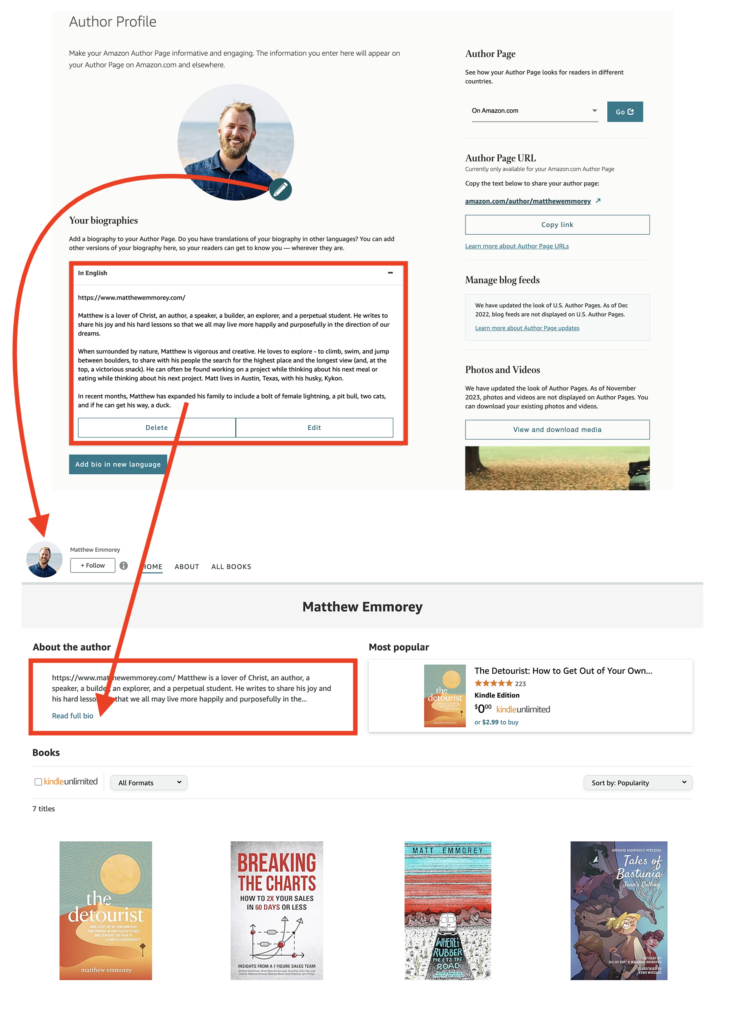
Read the sections 'Add a photo in Author Central' and 'Add author bio in Author Central.' Pay close attention to the recommended bio length and the elements to include. Also, note the advice on creating a custom Author Page URL for a more professional, shareable link.
Step 3: Add a Professional Photo and Other Media
A photo humanizes you and builds trust. It should be a high-quality headshot that reflects the brand you want to create. For a tech book, a clean, professional shot is great. For a children's book, a warmer, friendlier photo might be more appropriate.
A Note on Pen Names
Given your interest in writing across diverse genres like tech, children's books, and psychology, you may want to use pen names. Author Central allows you to manage up to three distinct author profiles (one main name and two pen names) from a single account, keeping the audiences for your different genres separate.
Part 2: Your Community Hub - The Goodreads Author Profile
If Amazon is your store, Goodreads is your book club. It's a social network where millions of readers track what they're reading, write reviews, and discover new books. Having an author profile here is essential for engaging with the reader community.
Use Amazon and Goodreads Author Profiles to Promote ...
The article 'Use Amazon and Goodreads Author Profiles...' provides a good high-level comparison of the two platforms.
Read the section 'Goodreads author profiles' to understand its function as a 'Facebook for books' and what the Goodreads Author Program offers.
Step 1: Join the Goodreads Author Program
Similar to Amazon, you'll need a published book (or a pre-order listing with an ASIN) to be accepted into the Goodreads Author Program.
Aspiring authors start your Goodreads author page!
The video 'Aspiring authors start your Goodreads author page!' by Trevor Wiltzen offers excellent, practical advice for getting started.
Watch from the beginning to 02:17. This covers the initial requirement of having a book listed, and then walks through the personalization options, such as adding your bio, website, social media links, and even videos.
Step 2: Personalize Your Profile and Engage
Goodreads offers more flexibility than Amazon for connecting with readers.
- Clickable Links: A key difference is that you can use clickable links in your bio. This is the perfect place to link to your author website, social media, or a mailing list sign-up page.
- Blog Integration: You can sync your blog's RSS feed to automatically post your latest articles to your Goodreads profile.
- Community Interaction: Goodreads is built on interaction. Unlike Amazon, which is a sales platform, Goodreads thrives on discussion. Responding to comments and reviews (politely!) can build a loyal following.

Test your understanding!
Imagine you're setting up your profiles for two different book projects:
- A technical guide on cloud computing for IT professionals.
- A children's picture book about a robot learning to make friends.
How would you tailor your author bio and profile photo differently for your Amazon Author Page for each project, assuming you are using a different pen name for each?
Show answer
Here's a possible approach:
1. Technical Guide (e.g., Pen Name: "J. Alex Sterling")
- Profile Photo: A professional headshot. You might be wearing a button-down shirt or blazer, with a clean, neutral background. The look should convey expertise and confidence.
- Author Bio: The bio would heavily emphasize your 10 years of IT experience, specific technical skills, and credentials. It would be written in a professional, authoritative tone, establishing you as an expert in the field. The "personal touch" might be a mention of your passion for simplifying complex tech concepts.
2. Children's Book (e.g., Pen Name: "Alex Joy")
- Profile Photo: A warmer, more approachable photo. You might be smiling broadly, perhaps in a more casual setting or even with a subtle creative element in the background. The look should convey friendliness and imagination.
- Author Bio: The bio would completely de-emphasize the corporate IT background. Instead, it would focus on your love for storytelling, creativity, and inspiring young readers. It might mention what sparked the idea for the robot character. The "personal touch" could be about your favorite childhood books or your joy in seeing the world through a child's eyes.
This separation ensures that each target audience (IT professionals vs. parents/children) encounters an author persona that resonates with them and the genre they are exploring.
Conclusion
Creating your Amazon and Goodreads author profiles is a foundational step in your book launch plan. It carves out your professional space online, builds credibility, and gives readers a central place to find you and your work.
Key Takeaways:
- Amazon Author Central is your commercial hub for managing your public author persona on the world's largest bookstore.
- Goodreads is your community hub for engaging directly with a social network of passionate readers.
- A complete profile includes a professional, on-brand photo and a well-crafted bio tailored to your target audience.
- Keep your profiles updated with new books, reviews, and information to maintain a professional appearance.
Preview of the Next Lesson:
Now that you've established your core author hubs, the next step is to start driving traffic to them. In our next lesson, we will explore how to identify the optimal social media platforms to announce your book based on its genre. We'll discuss how to choose where to focus your energy to reach the right readers for your different book ideas.