Recommended resources
The freely available resources this lesson will direct you to.
Hello! Last time, you saved a Colab notebook and learned why files in its temporary runtime need a separate recovery plan. Now you’ll learn the Python behind the simpler parts of those cells: how to give values names, calculate with them, and print readable results. This is the first step toward working with token counts, model outputs, and training measurements later in the course.
Allow about 40 minutes, including the videos and time to run the examples in Colab. You can use your saved notebook or create a new one. You do not need to mount Drive for these examples, but remember that variables exist only in the current runtime: after a reset, rerun the cells that assign them.
Values, types, and variables
Python works with values. A count such as 120 is an integer (int); a number written with a decimal point, such as 0.008, is a floating-point number (float). Text in quotes is a string (str). The unquoted values True and False are Booleans (bool).
A variable is a name that refers to a value. In prompt_tokens = 120, the = assigns the value 120 to prompt_tokens; it does not ask whether two things are equal. Python does not require you to declare the variable’s type first.
Watch Python variables for beginners by Bro Code for the basic mechanics. The video also introduces f-strings, which we’ll use to display calculations later.
Python variables for beginners ❎
Watch Python variables for beginners by Bro Code to see assignment, printing, and the four types used in this lesson.
In variables and printing, notice the difference between printing a variable and printing its name in quotes, and how an f-string combines text with a value. Then watch numbers and strings and Boolean values. Focus on how quotes and decimal points affect type; you can leave the video's conditional-code example for a later lesson.
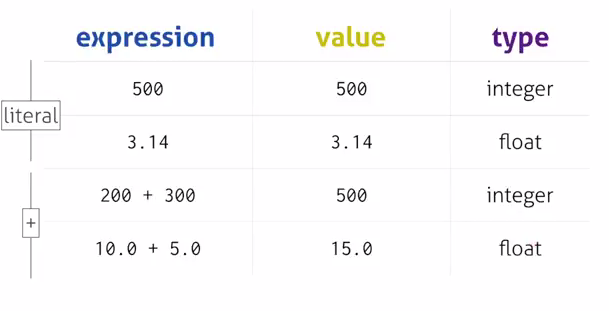
The image below makes an important distinction: an expression is code that Python evaluates; its value is the result; and that result has a type. For example, 10.0 + 5.0 evaluates to 15.0, which is a float.
Try this in one Colab code cell:
prompt_tokens = 120
rate_per_1000 = 0.008
description = "toy estimate"
runtime_ready = True

print(prompt_tokens)
print("prompt_tokens")
print(type(prompt_tokens))
print(type(rate_per_1000))
print(type(description))
print(type(runtime_ready))
print(type("120"))
The first two printed lines differ: prompt_tokens retrieves the value 120, while "prompt_tokens" is literal text. Likewise, "120" is a string, not an integer, despite containing digits. type(...) lets you check rather than guess; Colab will display results such as <class 'int'>.
Choose names that describe what a value means. Names such as prompt_tokens can contain underscores, but cannot start with a digit or contain spaces. Assignment can also replace the value associated with a name: after prompt_tokens = 150, later uses of prompt_tokens will retrieve 150.
Compute with operators
Operators tell Python what computation to perform. Watch the arithmetic portion of Python Operators for Beginners by Dave Gray, paying particular attention to Python’s three kinds of division-related result.
Python Operators for Beginners | Python tutorial
Watch Python Operators for Beginners by Dave Gray for a compact demonstration of arithmetic operators.
Watch arithmetic operators. Compare ordinary division / with floor division //, and notice that % gives a remainder rather than a percentage.
Here are the operators from that demonstration in a form you can paste into a cell:
print(7 + 3)    # 10: addition
print(7 - 3)    # 4: subtraction
print(7 * 3)    # 21: multiplication
print(7 / 3)    # 2.333...: ordinary division
print(7 // 3)   # 2: floor division
print(7 % 3)    # 1: remainder
print(2 ** 3)   # 8: exponentiation
For positive integers, 7 // 3 counts the complete groups of three, while 7 % 3 gives what is left over. Ordinary / returns a float even when the answer is mathematically whole: 10 / 2 produces 5.0. Division by zero is not permitted.
Operators have an order of precedence. Python evaluates 2 + 3 * 4 as 14, not 20, because multiplication takes precedence over addition. Parentheses make your intended grouping explicit: (2 + 3) * 4 is 20.
Read the short Order of operations section in PY4E - Python for Everybody to see the general rule and a few contrasting examples.
Read the “Order of operations” section of PY4E - Python for Everybody to make multi-operator expressions predictable.
In “Order of operations,” begin at the paragraph starting “When more than one operator appears in an expression.” Read the whole section, ending immediately before “Modulus operator.” Focus on the examples where parentheses change the answer and where operators of equal precedence are evaluated left to right.
Operators also depend on type. 120 + 45 gives 165, but "120" + "45" joins two strings and gives "12045". Python will not silently turn "120" into a number for arithmetic; int("120") explicitly converts that particular numeric string to an integer. Keep numeric quantities as numbers when you intend to calculate with them.
Turn comparisons into Boolean results
Calculations can answer questions as well as produce numbers. For example, 165 <= 200 evaluates to True. The comparison operator == tests equality; unlike assignment with =, it does not store a value.
Python Operators for Beginners | Python tutorial
Return to Python Operators for Beginners for comparisons that produce Boolean values.
Watch comparison operators. In particular, distinguish == from =, and observe the True or False result of each comparison.
Run this cell and inspect its three results:
total_tokens = 165
token_limit = 200

print(total_tokens == token_limit)  # False: equal?
print(total_tokens != token_limit)  # True: different?
print(total_tokens <= token_limit)  # True: at or below the limit?
Python also has <, >, and >=. Comparisons are useful for describing a result now; in a later lesson, you’ll use their Boolean results to control which code runs. When the inputs themselves are Boolean values, and is true only if both are true, or is true if at least one is true, and not reverses a Boolean:
within_limit = total_tokens <= token_limit
can_proceed = within_limit and runtime_ready

print(can_proceed)      # True
print(not can_proceed)  # False
This cell uses runtime_ready from the earlier cell. If you have reset the runtime, run that earlier assignment cell first.
Display a complete calculation with an f-string
Suppose you want a simplified, invented estimate for processing tokens. This is not an actual provider price: it assumes the same price for every token solely to make the calculation easy to inspect. Put the whole example below in one cell so it can run independently of earlier cells.
prompt_tokens = 120
generated_tokens = 45
requests = 3
price_per_1000_tokens = 0.008
budget_usd = 0.005

tokens_per_request = prompt_tokens + generated_tokens
total_tokens = tokens_per_request * requests
estimated_cost_usd = total_tokens / 1000 * price_per_1000_tokens
within_budget = estimated_cost_usd <= budget_usd

print(f"Tokens per request: {tokens_per_request}")
print(f"Total tokens: {total_tokens}")
print(f"Estimated cost: ${estimated_cost_usd:.6f}")
print(f"Within budget: {within_budget}")
You should see:
Tokens per request: 165
Total tokens: 495
Estimated cost: $0.003960
Within budget: True
An f-string has an f immediately before its opening quote. Text outside {} is displayed as written; Python evaluates the expression inside the braces and inserts its result. In {estimated_cost_usd:.6f}, .6f displays the floating-point number with six digits after the decimal point. It changes the display, not the value stored in estimated_cost_usd. Six places make this small toy amount visible; displaying only two would misleadingly show $0.00.
The cell separates inputs, intermediate results, and output. That structure will remain useful when calculations become more involved: you can change an input, rerun the cell, and see which results change. Floating-point numbers are approximate representations of decimal quantities, so formatted output is useful for readability, not a guarantee of exact monetary arithmetic.
Takeaway
You can now assign and replace variable values, distinguish integers, floats, strings, and Booleans, use arithmetic and comparisons, and print calculated results with f-strings. The key habit is to keep track of both a value’s meaning and its type: a token count should be numeric if you want to add it, while a label belongs in text.
Next, you’ll move beyond single values and work with strings and lists as sequences—accessing and changing the parts you need.