Recommended resources
The freely available resources this lesson will direct you to.
Hello! Welcome to your first lesson in the "DJing for DnB release" course.
I'm excited to guide you through this journey. Your goal of producing a professional DnB mix for release is a fantastic project, and this course is designed to equip you with the advanced skills to achieve it. Your background in software engineering and music production provides a unique and powerful foundation for mastering the technical and creative aspects of DJing.
This first module focuses on building an efficient and stable workflow in Rekordbox, the industry-standard software for track preparation. Think of this as setting up your development environment before starting a major project—a crucial step for ensuring everything runs smoothly.
Today, we'll tackle the first learning outcome: Configure key Rekordbox preferences for a stable DnB workflow, focusing on audio device settings, track analysis parameters, and database management.
We will cover three core areas:
- Audio Settings: Ensuring your sound output is clean and responsive.
- Track Analysis: Configuring Rekordbox to correctly interpret the unique characteristics of DnB tracks.
- Workflow & Database: Setting up safeguards and optimizing your library view for efficiency.
Let's begin.
1. Audio Device Settings: The Foundation of Your Sound
Before we do anything else, we need to ensure Rekordbox is communicating correctly with your audio hardware. This involves selecting the right audio driver and configuring settings like buffer size, which directly impacts latency—the delay between you performing an action and hearing the result. Minimizing latency is critical for precise mixing.
This image shows the audio preferences panel in Rekordbox, which you can access by clicking the gear icon in the top-right corner.
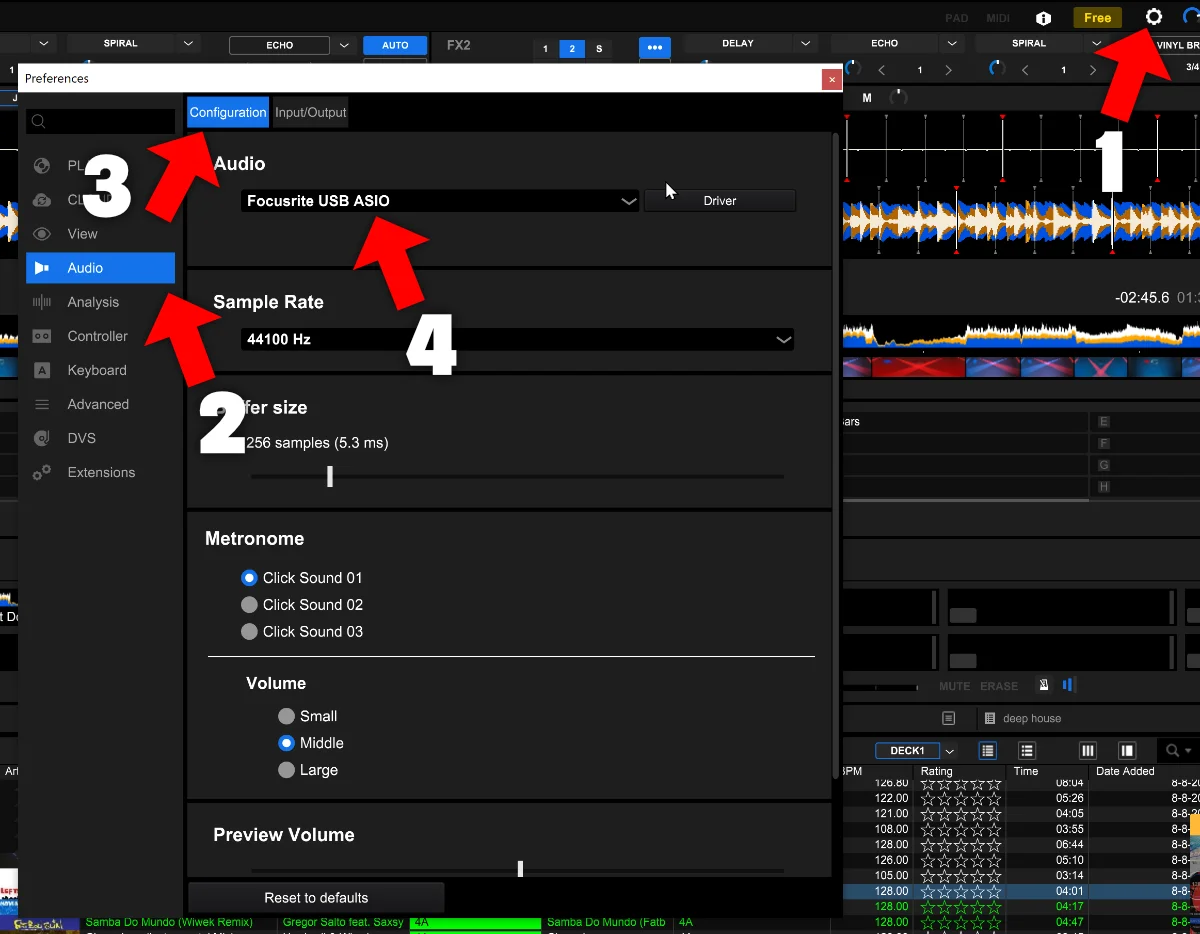
Here’s what you need to configure:
- Audio Driver: Select the specific driver for your audio interface or DJ controller (e.g., a Focusrite, Universal Audio, or Pioneer DDJ driver). On Windows, this will typically be an ASIO driver, which provides the best performance. On macOS, you'll use the default CoreAudio driver for your selected device.
- Sample Rate: Set this to 44100 Hz. This is the standard for most digital music and ensures compatibility without unnecessary processing.
- Buffer Size: This setting controls latency. A lower buffer size reduces latency but increases CPU load, while a higher buffer size increases latency but is more stable.
- A good starting point is 256 samples. This usually provides a low-enough latency (around 5-6 ms) that is imperceptible, while remaining stable on most modern computers.
- If you experience audio dropouts or crackling, increase the buffer size (e.g., to 512). If your system is powerful and you want the absolute minimum latency, you can try 128.
Mixer Mode: EQ vs. Isolator
One final audio-related setting to consider is the mixer's EQ mode. For electronic music, the 'Isolator' mode is generally preferred.
To understand why, please watch this short segment from a video by Crossfader.
10 Essential REKORDBOX Settings You Need to Know
This clip explains the practical difference between the standard 'EQ' mode and 'Isolator' mode.
Watch the section from 09:38 to 11:03. Pay attention to how 'Isolator' mode allows you to completely remove a frequency band (bass, mid, or high), which is a key technique in dance music transitions.
As the video demonstrates, 'Isolator' mode gives you a full frequency kill (-∞ dB), whereas 'EQ' mode only reduces the band significantly (e.g., -26 dB). For the clean cuts and smooth blends required in DnB, 'Isolator' is the way to go. You can find this setting under Preferences > Controller > Mixer.
2. Track Analysis: The Blueprint for Your Mix
This is arguably the most critical configuration step for a DnB DJ. Rekordbox's analysis engine scans your music files to determine their BPM, beatgrid, key, and structure. An inaccurate analysis leads to unstable beatgrids, making it nearly impossible to keep tracks in sync.
The following article provides an excellent breakdown of Rekordbox's analysis options.
Understanding Rekordbox Beatgrid Analysis
Please read the following sections from the article 'Understanding Rekordbox Beatgrid Analysis' on LexiconDJ.com. It clearly explains the most important analysis settings.
Read the sections titled 'Static vs. Dynamic Analysis', 'High Precision Analysis', and 'BPM Range'. Focus on the 'Verdict' for each analysis type and the specific advice given for Drum and Bass.
Let's consolidate this information into a concrete set of recommendations for your DnB workflow. You can find these settings under Preferences > Analysis.

1. Analysis Mode: Normal (Static)
As both the article and the video below confirm, you should almost always use Normal mode (referred to as 'Static' in the article) for DnB. DnB is electronically produced with a consistent tempo. 'Dynamic' mode is designed for music with fluctuating tempo (like live band recordings) and will often misinterpret the steady pulse of a DnB track, creating an unstable, drifting beatgrid.
This next clip reinforces the point.
10 Essential REKORDBOX Settings You Need to Know
This segment from Crossfader further explains why 'Normal' analysis is superior for electronically produced music.
Watch from 04:41 to 06:15. The key takeaway is that 'Dynamic' mode can over-analyze and cause the BPM to fluctuate unnecessarily.
2. BPM Range: The DnB-Specific Fix
This is a crucial setting. DnB tempos typically range from 170-180 BPM. However, analysis algorithms can sometimes mistake the prominent snare on the "3" count for the kick drum, resulting in an analysis of 85-90 BPM (half the actual tempo).
To prevent this, set a specific BPM Range. A range of 98-195 BPM (as suggested in the LexiconDJ article) is an excellent choice. This forces Rekordbox to interpret the tempo within the correct range for DnB and similar genres.
3. High Precision Analysis & Cloud Analysis
Your goal is a "release"-quality mix, so accuracy is paramount.
Understanding Rekordbox Beatgrid Analysis
Now, please read the final two relevant sections from the same LexiconDJ article.
Read the sections 'Cloud Analysis' and 'Concurrent Process Mode'.
- High Precision Analysis: While it increases analysis time, this mode provides more accurate downbeat detection. Given your goal, the trade-off is well worth it. I recommend enabling this.
- Cloud Analysis: This is a significant time-saver. It functions like a shared cache; if another DJ has already analyzed a track, Rekordbox downloads the existing (and often verified) analysis data. This is particularly useful for popular tracks. I recommend enabling this.
- Concurrent Process Mode: This is analogous to multi-threading. It allows Rekordbox to analyze multiple tracks simultaneously, drastically speeding up the process of importing a large number of files. Enable this for maximum efficiency.
3. Database Management and Workflow Stability
Finally, let's configure a few settings to protect your work and optimize your library interface.
Essential Safeguards
- Eject/Load Lock: This simple feature prevents you from accidentally loading a track onto a deck that is currently playing, which would abruptly stop the music. It's an essential safeguard for both practice and live performance.
10 Essential REKORDBOX Settings You Need to Know
This quick clip shows you how to enable the Eject/Load Lock.
Watch from 06:15 to 06:52. This is a simple but vital setting to enable.
You can find this under Preferences > Controller > Deck. Set it to Lock.
- Analysis Lock: After you've analyzed a track (and potentially made manual adjustments to its beatgrid in a later lesson), you don't want Rekordbox to accidentally re-analyze it and overwrite your work. The Analysis Lock prevents this. You can enable it by right-clicking a track and selecting it from the context menu. We won't use it heavily today, but it's important to know it exists for maintaining the integrity of your library.
Customizing Your Library View
A clean workspace is an efficient workspace. Rekordbox's default library view contains columns you may not need and may be missing ones that are vital for your workflow.
This next video provides a great overview of how to customize your library view.
5 Music Management Tips In Rekordbox for DJ's
This video demonstrates how to add, remove, and rearrange columns in your track library to suit your personal workflow.
Watch from 01:05 to 05:07. Focus on right-clicking the column headers to show/hide different fields. Don't worry about the 'Master' button or traffic light system for now; we'll cover harmonic mixing in a later module.
Based on the video, I recommend you take the following steps:
- Right-click on any column header.
- Deselect columns you likely won't use for DnB, such as
AlbumandTime. - Select columns that are essential for organization and mixing:
Key: Crucial for harmonic mixing (Module 4).Comments: A versatile field for your own notes.Date Added: Excellent for sorting by your newest tracks.My Tag: We will use this extensively in the next lesson.
- Drag and drop the columns to arrange them in a logical order for you. A common layout is:
Track Title,Artist,Key,BPM,My Tag,Date Added.
Conclusion and Key Takeaways
Excellent work. You've now configured the essential preferences in Rekordbox to build a stable and efficient workflow tailored for Drum and Bass. This foundational setup is a critical first step that will save you countless hours and prevent major headaches down the line.
Here are the key takeaways from today's lesson:
- Audio Settings: Use your device's ASIO/CoreAudio driver, a 44100 Hz sample rate, and a 256 sample buffer size as a starting point. Set the mixer to Isolator mode for full frequency control.
- Track Analysis: For DnB, always use Normal analysis mode. Set the BPM Range to 98-195 BPM to avoid half-tempo errors. Enable High Precision, Cloud Analysis, and Concurrent Processing for the best balance of accuracy and speed.
- Workflow Stability: Enable Eject/Load Lock to prevent performance errors. Understand that Analysis Lock protects your beatgrid work.
- Database Management: Customize your library columns to create a clean and functional view, adding fields like
KeyandMy Tagwhile removing clutter.
Next Lesson Preview
With your Rekordbox environment now optimized, our next step is to create a powerful system for classifying your music. In the next lesson, we will dive deep into the 'My Tag' feature. You will learn how to build a personalized tagging system to categorize your DnB tracks by subgenre, energy level, and melodic content, allowing you to find the perfect track at a moment's notice.