Recommended resources
The freely available resources this lesson will direct you to.
Hello. Last time you built a minimal Helm chart for the frontend and rendered its Deployment and Service locally. Its image was configurable, but resource settings were still embedded in the template, and the chart did not describe the backend or the browser routes.
In this lesson, you will extend that uninstalled chart so values control both images, resource settings, non-secret backend configuration, and Ingress rules. Named template helpers will keep resource names and selectors consistent. Allow about 50–60 minutes, including the two documentation readings and local rendering. Nothing here requires an AKS installation.
Decide what belongs in values
A useful Helm value represents something you expect to change between deployments: an image tag, a resource limit, a log level, or an Ingress host. A value is not a safe place for a database password. Helm can render values into manifests and retain release information, so this chart will refer only to the name and key of an existing Kubernetes Secret.
Read the official Helm explanation of defaults and overrides before editing the chart:
Read Helm’s “Values Files” guide to see how chart defaults and an optional environment-specific file combine.
In “Values Files,” begin with the explanation of the Values object and read value precedence, including the example that overrides a default. Then read the nested favorite example in the same section and the opening of “Deleting a default key,” stopping after its recommendation to keep value trees shallow. Focus on why a small override file need not repeat every default.
Keep charts/frontend-lab/Chart.yaml from the previous lesson. Replace values.yaml with the following illustrative defaults. The image repositories and Ingress host are deliberately unusable placeholders; adjust the secret reference to match the Secret you already prepared for the backend.
frontend:
  image:
    repository: replace-me.azurecr.io/frontend
    tag: "replace-with-your-version"
  resources:
    requests:
      cpu: 50m
      memory: 64Mi
    limits:
      cpu: 250m
      memory: 256Mi

backend:
  image:
    repository: replace-me.azurecr.io/backend
    tag: "replace-with-your-version"
  containerPort: 8000
  resources:
    requests:
      cpu: 100m
      memory: 128Mi
    limits:
      cpu: 500m
      memory: 512Mi
  config:
    logLevel: INFO
  databaseSecret:
    name: app-db
    key: database-url

ingress:
  enabled: false
  className: nginx
  host: app.example.invalid
  paths:
    api: /api
    websocket: /ws
    frontend: /
The frontend resource defaults preserve those from your first chart. The backend values are lab-sized starting points, not a capacity recommendation; compare them with the limits in your existing backend manifest. If your application listens on another port, uses another database environment-variable name, or exposes different health paths, preserve those real application settings when adapting the templates below.
The ingress.enabled default is false so that an accidental future installation does not create a route alongside your manually managed Ingress. You can still enable it for local rendering with an override.
Make names and selectors reusable
Your chart will now produce two Deployments and two Services. A Service finds Pods by labels, not by Deployment name, so copying selector strings into four files creates an avoidable failure point. A named helper lets each component use the same selector definition while retaining its own frontend or backend component label.
Read Helm’s “Named Templates” guide for the three details needed here: helper files, passing scope, and indenting included YAML.
In “Partials and _ files,” read helper files. In “Setting the scope of a template,” start where the example asks why the chart name and version disappeared; read passing scope. Finally, in “The include function,” follow the incorrectly indented example through the corrected indentation. Pay particular attention to why include can be piped into nindent.
Create charts/frontend-lab/templates/_helpers.tpl:
{{/* Name of the frontend Deployment and Service. */}}
{{- define "frontend-lab.frontendName" -}}
{{ .Release.Name }}-frontend
{{- end -}}

{{/* Name of the backend Deployment and Service. */}}
{{- define "frontend-lab.backendName" -}}
{{ .Release.Name }}-backend
{{- end -}}

{{/* Labels used to identify one component's Pods. */}}
{{- define "frontend-lab.selectorLabels" -}}
app.kubernetes.io/name: {{ .root.Chart.Name }}
app.kubernetes.io/instance: {{ .root.Release.Name }}
app.kubernetes.io/component: {{ .component }}
{{- end -}}
Files beginning with _ supply templates but do not themselves render into Kubernetes objects. The helper names are prefixed with the chart name to reduce naming collisions. The selector helper receives both the chart’s root context and a component name; when calling it, you will pass those explicitly with dict. include ... | nindent ... then inserts its output at the indentation required by each manifest.
Adding a component label changes the frontend Deployment’s selector from the previous chart version. That is fine because you have only rendered the chart, not installed it. Do not treat a selector change as an ordinary upgrade to an already-installed Deployment: Kubernetes Deployment selectors are immutable.
Apply the values to both workloads
Replace templates/deployment.yaml with a frontend template that retains its port and probes but takes its image and resources from values:
apiVersion: apps/v1
kind: Deployment
metadata:
  name: {{ include "frontend-lab.frontendName" . }}
spec:
  replicas: 1
  selector:
    matchLabels:
      {{- include "frontend-lab.selectorLabels" (dict "root" . "component" "frontend") | nindent 6 }}
  template:
    metadata:
      labels:
        {{- include "frontend-lab.selectorLabels" (dict "root" . "component" "frontend") | nindent 8 }}
    spec:
      containers:
        - name: frontend
          image: "{{ .Values.frontend.image.repository }}:{{ .Values.frontend.image.tag }}"
          ports:
            - name: http
              containerPort: 80
          resources:
            {{- toYaml .Values.frontend.resources | nindent 12 }}
          readinessProbe:
            httpGet:
              path: /
              port: http
            initialDelaySeconds: 3
            periodSeconds: 5
          livenessProbe:
            httpGet:
              path: /
              port: http
            initialDelaySeconds: 10
            periodSeconds: 10
Replace templates/service.yaml to use the same helper for its name and Pod selector:
apiVersion: v1
kind: Service
metadata:
  name: {{ include "frontend-lab.frontendName" . }}
spec:
  type: ClusterIP
  selector:
    {{- include "frontend-lab.selectorLabels" (dict "root" . "component" "frontend") | nindent 4 }}
  ports:
    - name: http
      port: 80
      targetPort: http
Now add templates/backend-deployment.yaml. This example assumes your FastAPI container listens on the configured port, reads LOG_LEVEL and DATABASE_URL, and has the liveness and readiness endpoints shown. Use the environment-variable names and probe paths from your actual backend if they differ.
apiVersion: apps/v1
kind: Deployment
metadata:
  name: {{ include "frontend-lab.backendName" . }}
spec:
  replicas: 1
  selector:
    matchLabels:
      {{- include "frontend-lab.selectorLabels" (dict "root" . "component" "backend") | nindent 6 }}
  template:
    metadata:
      labels:
        {{- include "frontend-lab.selectorLabels" (dict "root" . "component" "backend") | nindent 8 }}
    spec:
      containers:
        - name: backend
          image: "{{ .Values.backend.image.repository }}:{{ .Values.backend.image.tag }}"
          ports:
            - name: http
              containerPort: {{ .Values.backend.containerPort }}
          env:
            - name: LOG_LEVEL
              value: {{ .Values.backend.config.logLevel | quote }}
            - name: DATABASE_URL
              valueFrom:
                secretKeyRef:
                  name: {{ .Values.backend.databaseSecret.name | quote }}
                  key: {{ .Values.backend.databaseSecret.key | quote }}
          resources:
            {{- toYaml .Values.backend.resources | nindent 12 }}
          readinessProbe:
            httpGet:
              path: /health/ready
              port: http
            periodSeconds: 5
          livenessProbe:
            httpGet:
              path: /health/live
              port: http
            periodSeconds: 10
Add templates/backend-service.yaml:
apiVersion: v1
kind: Service
metadata:
  name: {{ include "frontend-lab.backendName" . }}
spec:
  type: ClusterIP
  selector:
    {{- include "frontend-lab.selectorLabels" (dict "root" . "component" "backend") | nindent 4 }}
  ports:
    - name: http
      port: 80
      targetPort: http
toYaml renders each resource map as Kubernetes YAML; nindent 12 puts requests and limits beneath the container’s resources: field. The backend Service exposes port 80 inside the cluster and forwards to the container’s named http port, whose number comes from backend.containerPort.
The Secret reference contains no password. It also does not create the Secret: a later installation needs the named Secret and key to exist in the release’s namespace. Keep secret values out of values.yaml, override files, command-line --set arguments, and rendered-output files you might commit.
A React/Vite frontend needs one further distinction. Variables compiled into a static frontend bundle during its image build do not change when Helm changes a Pod environment variable. For these routes, the frontend should call relative /api and /ws URLs—or use a runtime configuration mechanism you have actually implemented—rather than relying on a Helm value to rewrite an already-built bundle.
Parameterize the Ingress without changing traffic yet
The diagram shows the role of Ingress: it selects a Service from the request’s host and path, while that Service selects Pods. Your application uses /api and /ws for the backend and / for the frontend rather than the diagram’s example paths.
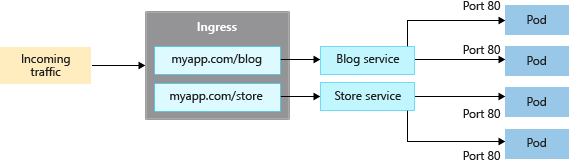
Create templates/ingress.yaml:
{{- if .Values.ingress.enabled }}
apiVersion: networking.k8s.io/v1
kind: Ingress
metadata:
  name: {{ .Release.Name }}-app
spec:
  ingressClassName: {{ .Values.ingress.className | quote }}
  rules:
    - host: {{ .Values.ingress.host | quote }}
      http:
        paths:
          - path: {{ .Values.ingress.paths.api | quote }}
            pathType: Prefix
            backend:
              service:
                name: {{ include "frontend-lab.backendName" . }}
                port:
                  name: http
          - path: {{ .Values.ingress.paths.websocket | quote }}
            pathType: Prefix
            backend:
              service:
                name: {{ include "frontend-lab.backendName" . }}
                port:
                  name: http
          - path: {{ .Values.ingress.paths.frontend | quote }}
            pathType: Prefix
            backend:
              service:
                name: {{ include "frontend-lab.frontendName" . }}
                port:
                  name: http
{{- end }}
This is path forwarding, not path rewriting: a request for /api/items reaches the backend with that path. Set these paths to match routes your backend actually serves. /ws also needs an Ingress controller that supports WebSocket connections; rendering an Ingress cannot verify an upgraded connection. Before an installation, check that className matches your controller and replace the example host with the host you intend to use. The example contains no TLS configuration and is not suitable for sending real credentials over a public HTTP endpoint.
For a concrete local override, create charts/frontend-lab/values-lab.yaml with non-secret values appropriate to your lab. For example:
frontend:
  image:
    repository: replace-me.azurecr.io/frontend
    tag: "a-tag-you-pushed"
backend:
  image:
    repository: replace-me.azurecr.io/backend
    tag: "a-tag-you-pushed"
  config:
    logLevel: DEBUG
ingress:
  enabled: true
  host: app.example.invalid
An override file changes only the keys it supplies; the resource requests and path defaults still come from values.yaml. These example repositories, tags, and host let you inspect templating, but do not make the output deployable.
Cost of this practical activity: editing chart files, helm lint, and helm template locally creates no new Azure charge. Existing AKS nodes, registry storage, databases, and networking resources continue to incur their normal charges until cleaned up. Do not install this chart or provision an Ingress controller for this activity.
From the repository root, run:
helm lint ./charts/frontend-lab -f ./charts/frontend-lab/values-lab.yaml

helm template ui-lab ./charts/frontend-lab \
  --namespace app-lab \
  -f ./charts/frontend-lab/values-lab.yaml
Inspect the rendered YAML for five objects: frontend and backend Deployments, frontend and backend Services, and one Ingress. Both Services must select the labels on their respective Pods. The Ingress must point to ui-lab-backend for /api and /ws, and ui-lab-frontend for /. Confirm that the backend image tag and LOG_LEVEL reflect the override, while its resources reflect the defaults.
For comparison, rendering without the override should produce four objects and no Ingress:
helm template ui-lab ./charts/frontend-lab --namespace app-lab
Rendering checks the chart’s output, not whether an image exists, a Secret is present, the probes succeed, or browser requests reach the right service. In particular, do not install this alongside the manually managed application yet: its Services have release-based names, and a second Ingress with overlapping host and paths could compete with the existing route.
What you have built
The chart now has one set of defaults for two container images, their resource settings, non-secret backend configuration, and optional Ingress paths. Named helpers make each Deployment, Service, and route refer consistently to the same component, while the database credential remains outside the chart.
Keep the locally rendered output for comparison with your existing manifests. In the next lesson, you will validate the chart as a release, plan the transition from manually managed resources, and then inspect upgrades and rollbacks on AKS.