Recommended resources
The freely available resources this lesson will direct you to.
Hello! This course starts with Python and Colab, then builds toward data and mathematics, model training on hosted GPUs, CUDA, tool-using agents, and the economics of the AI stack. Colab gives you a place to run code without setting up Python—or owning a GPU—on your computer.
In this first lesson, you’ll create a notebook and make it recoverable: after its runtime is deleted, you’ll reopen the saved notebook and reload a required file. Allow about 40 minutes, including the hands-on steps.
A notebook and its runtime are different things
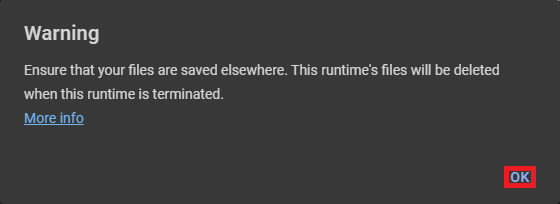
A notebook is the document containing your code cells, notes, and saved outputs. A runtime is the temporary computer that executes its code. Keeping the notebook does not necessarily keep files created on that temporary computer.
Read the short explanation in All About Google Colab File Management by KDnuggets before creating anything:
All About Google Colab File Management - KDnuggets
Read “How Colab Works” to establish why saving a notebook and saving its required files are separate tasks.
In “How Colab Works,” begin with the runtime explanation. Stop after the bullet about files disappearing when the runtime resets. Focus on what is temporary, rather than on the article’s later file-management methods.
The distinction matters throughout this course. A future training notebook might remain safely saved while a dataset downloaded into its runtime—or a model checkpoint written there—disappears. For today, we’ll use a tiny text file so you can see the behavior without learning dataset or model code first.
Create and save your notebook
Open Google Colab in your browser, sign in, and choose New notebook. Click its title at the top and rename it something recognizable, such as Colab file recovery.
Make sure you are editing a Drive-saved copy. If you opened a sample or someone else’s notebook, use File → Save a copy in Drive, then continue in that copy. For a notebook you created yourself, check that it appears in Google Drive and that Colab indicates your changes have been saved. The exact menu wording can vary; the important check is that you can find and reopen the notebook from Drive.
A code cell holds instructions for the runtime. You can run one with its play button or Shift+Enter. When you run a cell, its output appears beneath it. We’ll use a few cells in a specific order; you do not need to understand every Python symbol yet. The next lessons will unpack the language.
Give the runtime access to persistent storage
We’ll store the required file in Google Drive. Colab can mount Drive, making its files available to code through a path beginning with /content/drive. Mounting is a connection for the current runtime, not a permanent part of every future runtime.
The official Google Colab notebook demonstrates the mount command:
Read the “Mounting Google Drive locally” example to recognize the command that makes Drive files available to a Colab runtime.
Under “Mounting Google Drive locally,” start at the mounting example and stop at its “Mounted at /content/drive” output. Focus on the drive.mount code, not on reproducing the example’s older authorization-code transcript; follow the authentication prompts Colab actually displays for you.
In your notebook, put this in the first code cell and run it:
from google.colab import drive

drive.mount("/content/drive")
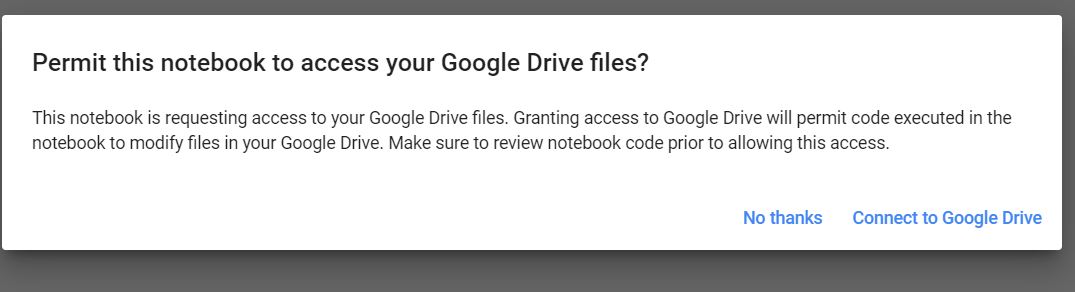
Colab may ask you to connect your account and approve access. Review the request before agreeing: code run in a notebook with Drive access can modify your Drive files. Grant access only to a notebook whose code you trust.
After mounting, the folder icon in Colab’s left sidebar lets you browse the runtime’s files. Look for drive beneath /content; your own Drive files are usually beneath /content/drive/MyDrive. If your interface shows a different folder name, use the path shown in the file browser for the later cells.
Create a file that will survive
Add a second code cell containing the following code, then run it. It creates a small project folder and a text file in Drive, not merely in the temporary runtime.
from pathlib import Path

project = Path("/content/drive/MyDrive/colab_foundations")
project.mkdir(parents=True, exist_ok=True)

source = project / "required_note.txt"

if not source.exists():
    source.write_text(
        "Saved in Drive; ready for the next session.\n",
        encoding="utf-8",
    )

print("Drive file:", source)
Here, Path represents a file or folder location. project.mkdir(...) creates the folder if needed. The if prevents another run of this cell from overwriting the existing file. You should see a printed location ending in colab_foundations/required_note.txt. You can also check for the file in Drive’s website.
Now add a third code cell and run it:
from pathlib import Path
import shutil

source = Path("/content/drive/MyDrive/colab_foundations/required_note.txt")
local = Path("/content/required_note.txt")

if not source.is_file():
    raise FileNotFoundError(f"Missing Drive file: {source}")

shutil.copyfile(source, local)
print(local.read_text(encoding="utf-8"))
This cell checks that the required Drive file exists, copies it into the runtime, and prints its contents. The printed line should be:
Saved in Drive; ready for the next session.
You now have two copies with different roles. The Drive file is the persistent source. The copy at /content/required_note.txt is convenient for this running session but disposable. Later, the same pattern can help you bring a dataset into a fresh runtime; for now, the text file makes the recovery process visible.
Prove that you can recover after a reset
First, confirm the notebook’s latest changes are saved in Drive. Then use Colab’s Runtime → Disconnect and delete runtime option, if available, and confirm the action. This removes the temporary runtime, including its local files. Menu names can change; if you cannot find that option, you can test with a genuinely fresh runtime in a later session.
Do not use “Restart runtime” as your only test. A restart clears running Python state, but it is not a reliable test that the runtime’s file storage has been deleted.
Reconnect, then run the notebook in this order:
- Run the first cell to mount Drive again, approving access if prompted.
- Skip the second cell: recovery should work using the file that was already saved, without creating it again.
- Run the third cell to copy and read the required file.
If the same line prints, you have demonstrated the learning outcome: the notebook was saved, its required file persisted independently of the old runtime, and a new runtime could reload it.
If you see FileNotFoundError, check the file in Drive and compare its location with the source path in the third cell. In particular, check folder spelling and whether your mounted Drive uses MyDrive or a different name. If you see a message that Drive is unavailable, run the mounting cell again before the loading cell.
Takeaway
A reusable Colab notebook needs both a saved notebook document and a plan for any files its code requires. Files kept only in /content belong to a temporary runtime. Files saved in Drive can be located and loaded again after that runtime is gone—but Drive must be mounted in the new runtime first.
Next, you’ll begin learning the Python behind these cells: variables, basic data types, operators, and formatted output.