Recommended resources
The freely available resources this lesson will direct you to.
Hello. In the previous lesson, you traced storage symptoms to the affected path, filesystem, and process rather than treating every failed write as a slow disk. A service that fails to start calls for the same discipline: first establish what systemd tried to start, then determine whether a prerequisite failed, the service process failed, or the journal points to a more specific cause.
In about 40 minutes, you’ll follow a startup attempt through unit dependencies, systemd’s reported state and process exit information, and timestamped journal entries. The goal is to explain a failure from evidence before changing the service or restarting it.
Start with the service state—not a restart
Systemd manages a unit for each service. A unit’s state tells you where to begin, but not necessarily why startup failed. The diagram shows the ordinary service states and a distinct failed state.
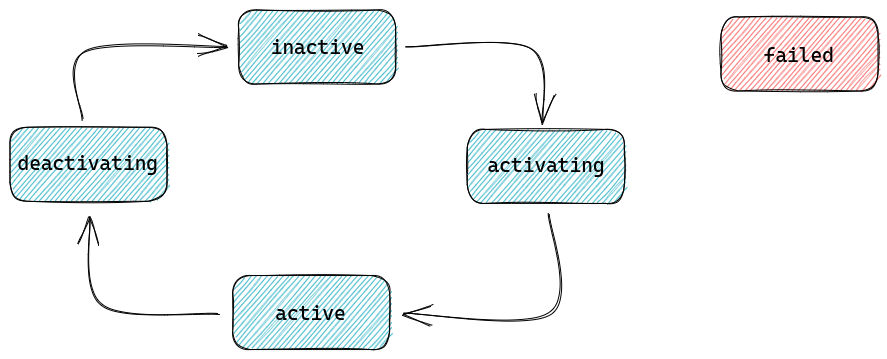
For a service named report-api.service, capture its current state first:
systemctl status --full --lines=30 report-api.service
systemctl is-failed report-api.service
Read status in layers. Loaded identifies the unit definition and may say whether it is enabled at boot; disabled does not mean that a manual start must fail. Active reports the current state, often with a Result such as exit-code or timeout. Process and Main PID lines identify which command ran and how systemd observed it ending. The lines at the bottom are only a recent log excerpt, not the complete startup record.
Also avoid treating inactive (dead) as synonymous with failure. A service may be intentionally stopped; a completed one-shot service may also be inactive. Conversely, a requested start can fail because a dependency job failed before the service’s own command ran. In that case, inspect the start-job messages even if the service itself is not marked failed. Capture the state and timestamps before taking action: a restart can replace the most useful immediate evidence with a newer attempt.
SUSE’s debugging guide gives a compact example of reading status and identifying the process that exited. The commands matter more here than the particular application in its example.
Read SUSE’s “Debugging a systemd service” section to see how an initial failure report is narrowed to a unit state and an exited process.
In Section 7, “Debugging a systemd service,” start at “List all available services and their current status.” Read the status walkthrough, ending just after the explanation of the failed process. Focus on the difference between the unit’s Result and the Process or Main PID exit information; do not treat the short status output as the whole log.
Ask whether a prerequisite prevented startup
A service can depend on another service, a mount, or another kind of unit. Two questions must be kept separate: Does starting this unit bring in another unit? And must one unit’s startup be ordered relative to the other?
Read the dependency explanations before interpreting a dependency tree. The documentation supplies the four directives you will encounter most often.
Read SUSE’s “Unit dependencies and order” section to distinguish prerequisite requirements from startup ordering.
In Section 4, “Unit dependencies and order,” begin with the paragraph explaining the two types of dependencies. Read the directive explanations through the After example at the end of “Unit order.” As you read, keep one distinction in view: bringing a unit into the startup transaction is not the same as waiting for it.
Wants= requests another unit but does not generally make its failure fatal to this one. Requires= expresses a stronger requirement. After= and Before= specify order when both units have start jobs; neither, by itself, pulls the other unit in. Thus After=srv-data.mount alone does not mean “start this mount.” A service that genuinely requires the mount might specify both Requires=srv-data.mount and After=srv-data.mount.
Inspect the effective unit configuration, including any drop-ins, rather than guessing from a package’s default unit file:
systemctl cat report-api.service
systemctl show report-api.service \
  -p Requires -p Wants -p After \
  -p ExecStartPre -p ExecStart
systemctl list-dependencies --all report-api.service
The dependency tree is a map for investigation, not proof that every listed unit caused this startup failure. Select a plausible prerequisite, then check its state and logs in the same incident window:
systemctl status --full srv-data.mount
journalctl -b -u srv-data.mount --since "30 minutes ago"
For example, if report-api.service requires srv-data.mount, the service journal reports a dependency failure, and the mount’s journal records a mount error at that time, investigate the mount first. You have not yet shown that report-api’s executable ran. If the mount is active and the service’s main process exited, follow the process evidence instead.
Ordering also has a limit: After= orders systemd unit jobs; it does not, on its own, prove that an application-level dependency is ready to answer requests. Keep that distinction in mind when a service starts in the intended order but still exits because it cannot use what it needs.
Determine which process failed—and how
A failed startup can involve a preparatory command, the main executable, or no successfully launched executable at all. In systemctl status, look for the command named beside the exit information:
Active: failed (Result: exit-code)
Process: 512 ExecStartPre=/usr/local/bin/check-config (code=exited, status=1/FAILURE)
This illustrative output says the pre-start check exited unsuccessfully. It does not establish that ExecStart ran. If the failing line instead names ExecStart, investigate the main launch. Where available, these properties offer a concise snapshot of the main process’s recorded outcome:
systemctl show report-api.service \
  -p ActiveState -p SubState -p Result \
  -p ExecMainCode -p ExecMainStatus
Interpret the fields without asking them to explain more than they contain:
Result=exit-codesays an unsuccessful exit was involved; the number alone rarely identifies the underlying configuration or resource error.code=exited, status=1/FAILUREmeans a process ran and exited with status 1. Find that process’s own error message.status=203/EXECis a systemd-reported execution failure: investigate the executable path and whether systemd could execute it. Do not interpret it as the application reporting its own “error 203.”- A termination by signal or a
timeoutresult calls for different evidence from a normal process exit. Check what systemd says happened and when before assuming the application rejected its configuration.
If a pre-start command failed, main-process fields may not tell the story; return to the specific Process line and journal. If systemd reports a dependency failure and there is no process line for this attempt, do not invent an application exit code. Unit result, failed command, and application message are three different pieces of evidence.
Read the journal for the same attempt
The journal connects systemd’s start-job messages with output emitted by the service. A unit filter removes much unrelated host activity; a time filter keeps you from mixing several restarts into one apparent failure.
Watch this short demonstration of -u and --since. It uses other services, but the filtering method is the one you need for a startup investigation.
journalctl Basics: How to Easily Check Your Linux Logs
Watch “journalctl Basics: How to Easily Check Your Linux Logs” from Learn Linux TV for a demonstration of narrowing the journal to a unit and an incident window.
Watch unit filtering for journalctl -u, then time filtering for --since. Focus on choosing the exact unit name and a start time before the failed attempt; the video’s service names and dates are examples, not values to reuse.
A useful first query is:
journalctl -b -u report-api.service \
  --since "30 minutes ago" --no-pager
-b selects the current boot. Adjust the time window to include the beginning of the attempt, not merely its final error. Read the entries in timestamp order: did systemd start the unit, did a pre-start check report anything, did the executable emit an error, and what result did systemd record? If there have been repeated attempts, keep their timestamps separate.
The journal can also answer questions the brief status excerpt cannot. SUSE’s journal guide explains how to choose a boot, bound a time interval, and filter by a process ID when a status line supplies one.
journalctl: Query the systemd Journal | Administration Guide | SLES 12 SP5
Read the filtering section of SUSE’s journal guide to learn how to isolate the boot and process associated with a failed attempt.
In Section 16.3, “Filtering the Journal Output,” read from 16.3.1, “Filtering Based on a Boot Number,” through 16.3.3, “Filtering Based on Fields.” Begin where the guide says how to list available boots and read the filtering examples through the explanation of combining different field matches. Focus on when to use the current or previous boot, an incident time interval, and _PID to investigate a process identified by status.
If the failure happened before a reboot, first check whether the previous boot’s journal is available:
journalctl --list-boots
journalctl -b -1 -u report-api.service --no-pager
A missing previous boot is not proof that nothing happened; older journal data may not be retained. If status identifies a PID, a PID-filtered query can help locate that process’s entries:
journalctl -b _PID=512 --since "30 minutes ago" --no-pager
Use the boot and time boundary alongside the PID so you do not confuse separate incidents. If the unit journal is sparse, inspect the implicated dependency’s journal too. Some applications write detailed errors to their own configured log files rather than the journal; the absence of an application error in journalctl -u is not, by itself, proof that no error was recorded.
Assemble a causal account
Consider two possible records for the same reported symptom: “report-api did not start.”
In the first, the service’s journal says its start job failed because of a dependency. Its configuration shows Requires=srv-data.mount and After=srv-data.mount. The mount unit is failed, and its journal contains an error at the startup time. The defensible account is: the required mount failed, so the service’s startup was blocked before its application command ran. The mount error—not a guessed service configuration change—is the next item to investigate.
In the second, the required mount is active. Status names ExecStart and reports code=exited, status=1/FAILURE; the service journal, at that PID and time, says it cannot open a file under the mounted path. Here the command did run. The evidence supports investigating that file access failure, not calling it a systemd dependency failure. Your previous storage checks may help if the message concerns a full or read-only filesystem; a permission error calls for different checks. The exit status marks the failed process, while the journal supplies the more specific lead.
Before applying a fix, state the account in one sentence with its evidence: which unit or command failed, its observed state or exit, and the log message from the matching attempt. After a targeted correction, verify a new start and its logs rather than treating a successful systemctl start command alone as proof that the service remains healthy.
Key takeaways
A failed startup is not one undifferentiated event. Check the unit’s state, inspect requirement and ordering separately, identify whether a prerequisite, pre-start command, or main process failed, and correlate its result with journal messages from the same boot and attempt. Record evidence before restarting; an exit code tells you what ended, while the relevant log often explains why.
Next, you’ll use the same evidence-first approach to isolate a host-level DNS or TCP connectivity failure, including cases where a service starts successfully but cannot reach what it depends on.