Recommended resources
The freely available resources this lesson will direct you to.
- How to Create Filter in Jira Step by Step Tutorial – Jira How-to's Series by Jexowww.youtube.com
- How to search for issues in Jira | Jira Software tutorialwww.youtube.com
- Manage filters | Jira Cloud | Atlassian Supportsupport.atlassian.com
- Saving your search as a filter | Jira Software Data Center 11.3 | Atlassian Documentationconfluence.atlassian.com
Hello. In the previous lesson, the Scrum board helped you plan and track a sprint—but a board shows only issues that meet its configuration. Issue search lets you ask a different question, such as “Which bugs are currently in progress across the projects I can see?” Saving that search as a filter makes it reusable; sharing and subscribing make it useful to others and useful over time.
This lesson stays with Jira’s basic search interface, so you can build a practical management filter without writing JQL. We’ll distinguish the search itself from the saved filter, its access settings, and its email schedule. The controls differ between an older Jira Server installation and current Jira Cloud, but those distinctions carry across both.
Find the right issues with basic search
A filter begins as an ordinary issue search. Unlike a board’s backlog, search is not tied to that board’s view of work. It still respects your issue permissions, however: a search cannot reveal an issue your account is not allowed to browse.
Watch Atlassian’s demonstration of basic search. The interface shown may not match your installation exactly; concentrate on how each selected criterion changes the results.
How to search for issues in Jira | Jira Software tutorial
“How to search for issues in Jira,” from Atlassian, demonstrates how to build a search with fields rather than query syntax.
Watch basic search. Follow the route into the issue search page, then notice the Project, Type, Status, and Assignee controls, the option to add more criteria, and the separate Search action used for the Contains text field. The demonstration also shows a date restriction in its search; check your own active criteria rather than assuming that restriction applies to every Jira installation.
On an older Server interface, you will commonly reach this page through Issues > Search for issues. Cloud navigation varies, but Filters or the main search menu will lead to an issue search page where you can select Basic if needed. The screenshot below shows a Server-style layout: criteria above the results, with Save as available once you have a useful search.

Suppose you need a standing view of bugs that are being worked on. Select an accessible Project, set Type to Bug, and choose the project’s actual In Progress status if it has one. Run or refresh the search and inspect a few results. A second project selected in the Project control generally means issues from either selected project; adding Type and Status narrows those results to issues meeting those additional criteria.
That last inspection matters. Workflows differ, so “In Progress” may not include bugs waiting for QA. Likewise, a zero-result search could mean no matching issues, an unintended date or assignee criterion, or insufficient browse access. Clear unintended criteria and verify the field values before treating zero as a delivery finding. Use Contains for a useful text clue, not as a substitute for a well-defined project, type, or status selection.
Save a search you can reliably reuse
Running a search answers a question now. Saving it records the criteria, not a frozen copy of today’s issue list. When you run the saved filter tomorrow, Jira evaluates those criteria against the issues you can then see. That is why a filter can serve as a repeatable QA or delivery view.
Read the Server/Data Center instructions for saving and finding a filter. This documentation describes a newer Data Center version, so use the route and concepts as a guide rather than expecting every control to occupy the same place in an older Server installation.
Saving your search as a filter | Jira Software Data Center 11.3 | Atlassian Documentation
Atlassian’s “Saving your search as a filter” gives the Server-style save and retrieval steps, then explains where sharing is configured.
In “Saving a search as a filter,” read the save steps, beginning with a completed search and ending with creation of the named filter. In “Running a filter,” start after the Issues > Search for issues instruction and read how to rerun it. Finally, locate “Sharing a filter” and read the sharing procedure; we will use it in the next section.
Give the filter a name that communicates scope and purpose, such as “Recovery — bugs in progress.” Before saving, compare its results with that name: if your search includes only one project and one status, “All active bugs” would overpromise. In Server, the save control may read Save as; in Cloud, it may read Save and prompt you for a name. Afterward, run the filter from your saved or favorite filters to confirm that it retrieves the intended work.
A favorite or starred filter is simply easier for you to find. It does not make the filter visible to colleagues. Also check the filter’s sharing settings after saving: the Server guidance notes that a profile sharing preference can affect a newly created filter, so do not assume every new filter is private—or shared—without verifying.
As the work changes, maintain the filter deliberately. In Cloud, changing its criteria and selecting Save updates the existing filter; Save as creates a separate filter you own. If colleagues already use the original, a seemingly small change to its search could change their reports or email subscriptions. Save a copy when the new question has a different purpose.
Manage filters | Jira Cloud | Atlassian Support
Atlassian’s “Manage filters” shows the current Jira Cloud controls for updating search criteria and setting filter access.
In “Update a filter’s search criteria,” read the update steps, then the Save as distinction. In “Update permissions of a filter,” read the access controls. Stop before “Subscribe to a filter”; that is the next section.
Share the filter, not just its address
Sharing has two separate layers. First, someone needs permission to view the saved filter. Second, they need permission to browse the issues it returns. Granting the first does not override the second. Sending a colleague a filter URL is therefore useful only if the filter is shared appropriately and the colleague already has access to the underlying issues.
For a cross-project QA view, start with the smallest appropriate audience. In Server, Issues > Manage filters provides sharing controls such as viewers and editors; Cloud’s Filters > View all filters and the filter’s Details or edit controls serve the equivalent purpose. Depending on the installation, you may be able to share with a group or project/space role. Viewers can use the filter; editors can alter it. Reserve edit access for people responsible for maintaining the definition.
If the sharing controls are absent, do not assume manager-level project access includes them. Configuring shared filters can require the Create Shared Object global permission. Ask an administrator to check that specific permission rather than requesting broad Jira administration access.
A quick check after sharing is to confirm the filter’s recorded viewers, then have an intended colleague run it. If they can open the filter but see fewer issues than you do, investigate issue browse permissions or security restrictions, not just filter sharing. Conversely, avoid broad or global filter sharing merely to make a link work—particularly when the filter’s name or criteria disclose sensitive work.
Subscribe to a useful snapshot
A subscription emails filter results on a schedule. It is appropriate for a periodic review—for example, a personal weekday summary of bugs still in progress. It is not an alert for every change to an individual bug; watching that issue serves a different purpose.
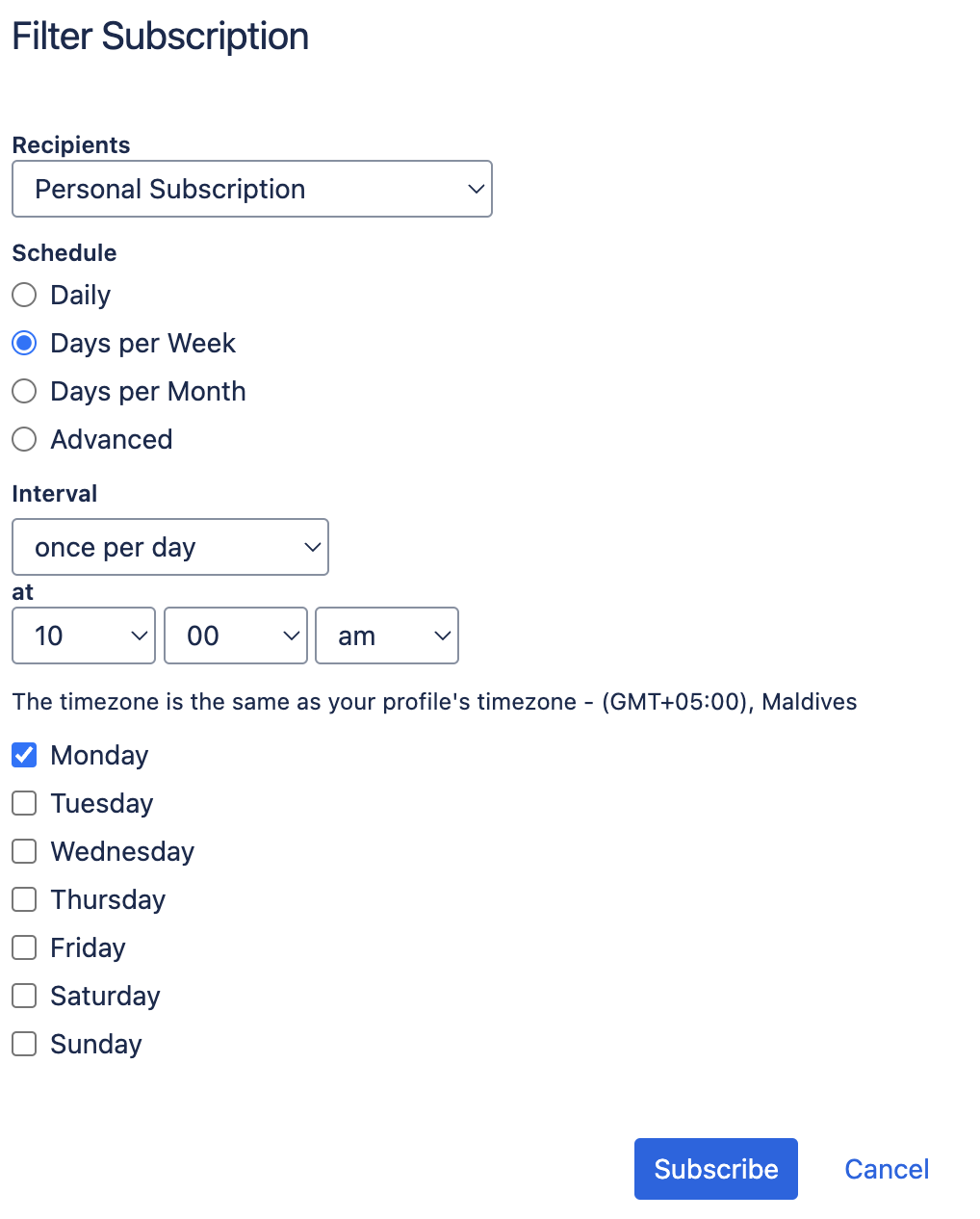
Read the Cloud subscription instructions before choosing recipients. The filter must already be saved.
Manage filters | Jira Cloud | Atlassian Support
The subscription portion of Atlassian’s “Manage filters” explains how to schedule the results of a saved filter and what to consider before emailing a group.
In “Subscribe to a filter,” read the subscription guidance, including “Create an email subscription for a filter,” “Recipients,” and “Schedule.” Stop before “Construct a cron expression for a filter subscription”; the ordinary schedule choices are sufficient here.
In Cloud, run the saved filter, open Details, choose New subscriptions, set the recipients and frequency, and select Subscribe. In an older Server installation, look under the saved filter’s details or its management page for subscription controls; the labels and placement may differ. Begin with a personal subscription at a frequency that matches a real review meeting. Confirm that the delivered results answer the question the filter’s name promises, then adjust the criteria or schedule if they create noise.
Group subscriptions need more care. Cloud’s guidance says they require Manage Group Filter Subscriptions global permission, and you can select only a group of which you are a member. Results can also differ by recipient because each person’s access is evaluated separately. Cloud documents a limit of the first 200 results in a subscription email, so an over-broad filter is a poor substitute for a focused review.
For a short, safe walkthrough in your own Jira environment, use a project you are permitted to inspect: search for one issue type and one meaningful status, save the search with an accurate name, verify its sharing settings, and create a personal subscription if email is appropriate. You can stop before changing sharing or scheduling email when working with sensitive production data.
Conclusion
A dependable issue filter has four parts: criteria that express a clear question, a saved name that accurately describes those criteria, sharing suited to its audience, and—when useful—a subscription scheduled for review rather than noise. Remember that saving preserves a search definition, sharing does not grant issue access, and a subscription reports matching results periodically rather than every issue change.
Next, you’ll use JQL to express searches that basic controls cannot describe cleanly, including Boolean logic, ordering, and relative dates.