Recommended resources
The freely available resources this lesson will direct you to.
- How to Run Python in Visual Studio Code on Windows 10/11 [ 2025 Update ] Python in VSCodewww.youtube.com
- Google Colab for Python Beginners - Visually Explainedwww.youtube.com
- Getting Started with Python in VS Codecode.visualstudio.com
- 4. Using Python on Windows — Python 3.14.2 documentationdocs.python.org
Hello! This course begins with Python because you will use it to connect model APIs, build retrieval systems, and assemble an AI project. For now, the goal is narrower: create a Python program, run it, and recognize its output. You do not need to understand the internals of generative AI to get started.
Choose one route below: a local Windows setup if you can install software, or a browser-based workspace if you want to begin without installing anything. Allow roughly 35–45 minutes, including setup. You can try the other route later.
What it means to run a program
A Python program is code you write for a Python interpreter to execute. The editor is where you write the code; the interpreter is what runs it. When your program uses print, its output appears in a terminal or beneath a browser notebook cell.
Both routes will run the same first instruction:
print("Python is ready for AI projects.")
The quotation marks mark the text to display. The parentheses pass that text to print. For this lesson, the important distinction is between typing code and running it: the message will not appear merely because you saved or entered the line.
Route A: Create and run a file on Windows
In this route, you will save your program as hello.py in a project folder. Visual Studio Code (VS Code) is the editor; Python must also be installed separately.
Getting Started with Python in VS Code
Read Microsoft's VS Code tutorial to distinguish the editor, Python extension, and interpreter, and to see how to check a Windows installation.
In “Understand the Python setup,” read the three roles. Then, under “Install a Python interpreter,” find the Windows subsection for the download guidance. In the note just before “Start VS Code in a workspace folder,” read the verification steps, focusing on the Windows command.
If you are installing Python now, the current Python documentation describes a Python install manager; your installation screens may therefore differ from those in older tutorials.
4. Using Python on Windows — Python 3.14.2 documentation
Read the Python documentation’s installation instructions so you can follow the current Windows installer rather than relying on a video’s particular set of installer screens.
In “4.1. Python install manager,” subsection “4.1.1. Installation,” read the installation guidance, from the Store or python.org options through the paragraph describing which commands should be available afterward. You can leave the later discussion of runtime directories and PATH customization for another time.
Follow these steps, pausing to confirm each result:
-
Install and check Python. Use the official installation option described above. Open a new Command Prompt and enter:
py -3 --versionA Python version number indicates that the command found an interpreter. If you installed Python while a terminal was open, close and reopen that terminal before checking again.
-
Install VS Code and its Python extension. Open VS Code, select Extensions, search for Python, and install the extension published by Microsoft. The extension adds editor support; it does not replace the Python interpreter.
-
Open a folder and create a file. Make a folder you can find again, then use File > Open Folder in VS Code. In the Explorer panel, create a new file named
hello.py. The.pyextension identifies it as a Python source file. -
Enter and save the program. Put this single line in
hello.py, then save with Ctrl+S:print("Python is ready for AI projects.") -
Run the whole file. Use the Run Python File button near the top right of the editor. Alternatively, right-click in the editor and choose Run Python > Run Python File in Terminal. Look in the terminal panel for:
Python is ready for AI projects.
This short video shows the folder, file, extension, and run controls. Use the written Python installation guidance above rather than the video's earlier installer steps, which show a specific older installation flow.
How to Run Python in Visual Studio Code on Windows 10/11 [ 2025 Update ] Python in VSCode
Watch “How to Run Python in Visual Studio Code on Windows 10/11” by Geeky Script for a visual demonstration of creating and running a file in VS Code.
Watch workspace setup for the folder, .py file, and Python extension. Then watch first run for saving the code, using the play button, and finding the output in the terminal. The exact message in your file can differ from the one shown.
The right-click option is useful if you cannot find the play button:
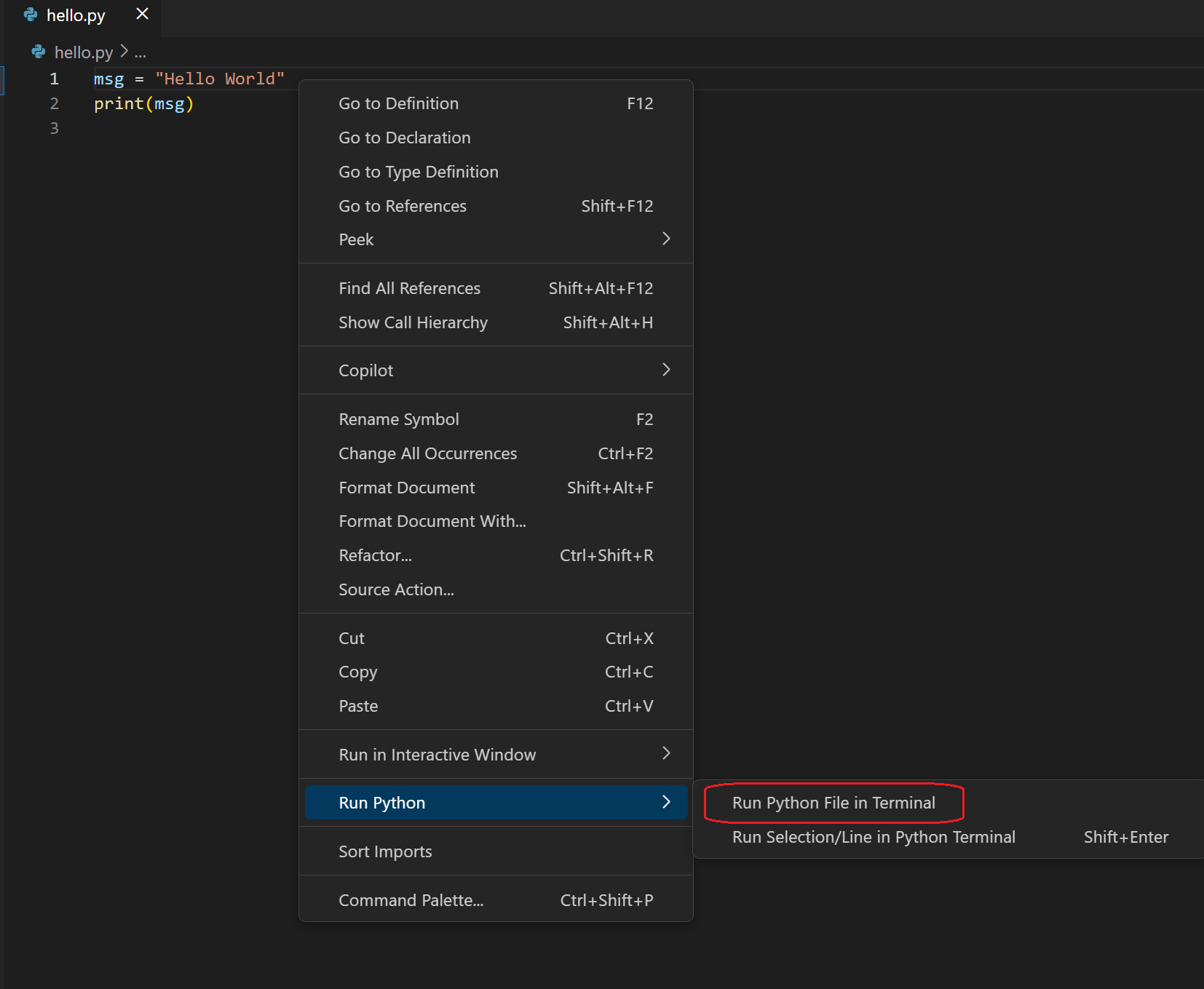
If VS Code asks you to choose an interpreter, open the Command Palette with Ctrl+Shift+P, search for Python: Select Interpreter, and choose the Python installation you just checked. If py -3 --version works but VS Code cannot find Python, reopen VS Code and try that selection again. If the run reports that it cannot find hello.py, check that you opened the intended folder and that the file is saved there—not merely in an untitled editor tab.
Route B: Create and run code in a browser
Google Colab provides a browser-based Python workspace. Instead of a .py file, you work in a notebook containing code cells. A cell can hold a small Python program, and its output appears directly beneath it. This route needs a browser and an account for the service, but no local Python installation.
Google Colab for Python Beginners - Visually Explained
Watch “Google Colab for Python Beginners - Visually Explained” by Visually Explained to see where to create a notebook, enter Python, and run a cell.
Watch open Colab for the route to a new notebook. Continue with run a cell; pay attention to the code cell, its play button, and the output that appears below it.
Create a new notebook, enter the same line in its first code cell, and click the play button beside that cell:
print("Python is ready for AI projects.")
You should see Python is ready for AI projects. beneath the cell. If the service asks to connect to a runtime, allow the connection and run the cell again. Rename the notebook so you can find it later—for example, first_python.ipynb. The notebook is saved separately from the temporary runtime that executes its cells; do not assume files created inside that runtime will remain there indefinitely.
A notebook cell and a .py file are different containers for Python code. The key achievement in either route is the same: you wrote an instruction, asked a Python interpreter to execute it, and observed its result.
Confirm your setup
Before moving on, change the displayed sentence to Python can run my code., then run the file or cell again. Confirm that the new sentence appears. This small edit checks more than the first run: you know how to return to your code, update it, and execute the updated version.
If you still see the old message, check that you reran the code after changing it. On Windows, also save the file and confirm you are running the hello.py you edited. In Colab, confirm you clicked the play button for the cell you changed.
You now have a working place to write and run Python. In the next lesson, you will make programs more useful by storing values and transforming input with variables, expressions, and strings.