
Hello! Welcome to the final quality gate before your book goes live. In our last lesson, we walked through the entire KDP upload process, from entering your book's metadata to uploading the manuscript and cover files. We ended at a critical, mandatory step: launching the previewer.
This lesson is a deep dive into that essential Quality Assurance (QA) process. Think of this as the final debugging stage for your book. Just as in software development, a small bug can ruin the user experience, a formatting error can pull a reader out of your world and lead to negative reviews. Your goal is to catch and fix these issues before anyone else sees them.
By the end of this lesson, you will be able to confidently use Amazon's suite of previewer tools to meticulously check your ebook and paperback files, identify common layout and formatting problems, and understand the workflow for fixing them.
What Are We Looking For? A Quality Control Checklist
Before we open the tools, it's crucial to know what to look for. Amazon's KDP platform is sensitive to a range of issues that can degrade the reader's experience.
Guide to Kindle Content Quality
To build our checklist, let's start with Amazon's official 'Guide to Kindle Content Quality'. This document explains the types of errors KDP looks for and why they matter.
Skim through the sections on 'Identifying errors,' 'Formatting issues,' 'Links,' and 'Image quality.' You don't need to memorize everything, but focus on grasping the main categories of problems.
Based on that guide and common best practices, here is a checklist of what you should be actively looking for in the previewer tools:
1. Ebook & Print: General Formatting
- Text Flow: Are there awkward page or line breaks in the middle of sentences?
- Paragraphs: Is there consistent separation between paragraphs (either an indent or a space, but not both)?
- Spacing: Are there large, unintentional blank spaces or extra lines?
- Consistency: Are headings, subheadings, and body text styled consistently throughout the book?
- Lists: Do bulleted or numbered lists appear correctly formatted?
- Special Text: Is bold, italic, or underlined text used correctly, and not applied to large blocks of body text by mistake?
2. Ebook & Print: Images and Visuals
- Clarity: Are images sharp and clear, not blurry or pixelated?
- Legibility: If an image contains text (like in a diagram or comic panel), is that text easy to read?
- Placement: Do images interrupt the flow of text awkwardly? For children's books, is the text and image placement correct on each page or spread?
3. Ebook Specifics
- Reflowable Text: As you change the font size in the previewer, does your text "reflow" correctly to fill the screen? It should. If it doesn't, it may mean your text was accidentally saved as an image.
- Links & Navigation:
- Does your Table of Contents (TOC) link to the correct chapters? Click on every single one to test it.
- Do any internal links (e.g., "See Chapter 5") or external links (e.g., to a website) work correctly?
4. Print-Specifics (Paperback/Hardcover)
- Margins: Is all text and important visual content within the safe margins? The previewer will flag anything that is in the "out of bounds" area, which risks being cut off during printing.
- Bleed: If you designed your book with "bleed" (images extending to the edge of the page), does it look correct in the previewer?
- Gutter: Is the inside margin (the gutter) wide enough so that text isn't lost in the book's spine when it's bound?
Keeping this checklist handy will turn your previewing from a passive glance into an active, systematic review.
The Previewer Toolbox
Amazon provides a few different tools for this job. Let's focus on the two you'll encounter directly in the KDP upload process: the Online Previewer for ebooks and the Print Previewer for paperbacks.
Using the eBook Previewer
After you upload your ebook manuscript (e.g., an EPUB or KPF file), you'll use the Online Previewer.
Upload and Preview Book Content - Kindle Direct Publishing
Let's review the official instructions from Amazon on how to access and use the Online Previewer for ebooks.
Read the section titled 'How to preview before publishing' under the 'eBooks' heading. Pay attention to the ability to switch between Tablet, Phone, and Kindle E-Reader modes.
The Online Previewer allows you to simulate how your book will look on different devices. This is crucial because you don't control what device or font size your reader uses.
- Device Type: Switch between Tablet, Phone, and Kindle E-Reader. Notice how the layout changes.
- Orientation: Toggle between portrait and landscape to see how your book adapts.
- Font Size: Use the font controls to make the text larger and smaller. This is the best way to test if your reflowable layout is working.
How to Upload a Book to Amazon KDP (Complete Step-By-Step Tutorial)
Let's see a quick, practical demonstration of launching the previewer and checking a hyperlink.
Watch from 04:41 to 04:58. The key action here is the confirmation that hyperlinks are active and need to be tested.
A Proactive Approach: Using Kindle Create
A highly effective workflow, especially for more complex books, is to use Amazon's free Kindle Create software before you even upload. This tool helps you format your book and has a built-in previewer that is very similar to the final online one.
Converting KDP Paperback into Kindle eBook to Sell on Amazon
The following video demonstrates how to use the Kindle Create tool. Pay close attention to its internal preview function, which allows you to catch errors early.
Watch two segments: 02:40 to 04:30: This shows you how to use the previewer inside Kindle Create to check your layout on different devices (tablet/phone) and orientations. 07:39 to 08:23: After exporting from Kindle Create and uploading to KDP, the video shows the final check in the KDP Online Previewer, confirming the process.
Using Kindle Create allows you to find and fix issues on your own computer before uploading, which is much faster than re-uploading to the KDP website each time you make a change.
Using the Print Previewer
The Print Previewer serves a different, more rigid purpose. It shows you exactly what will be sent to the printer.
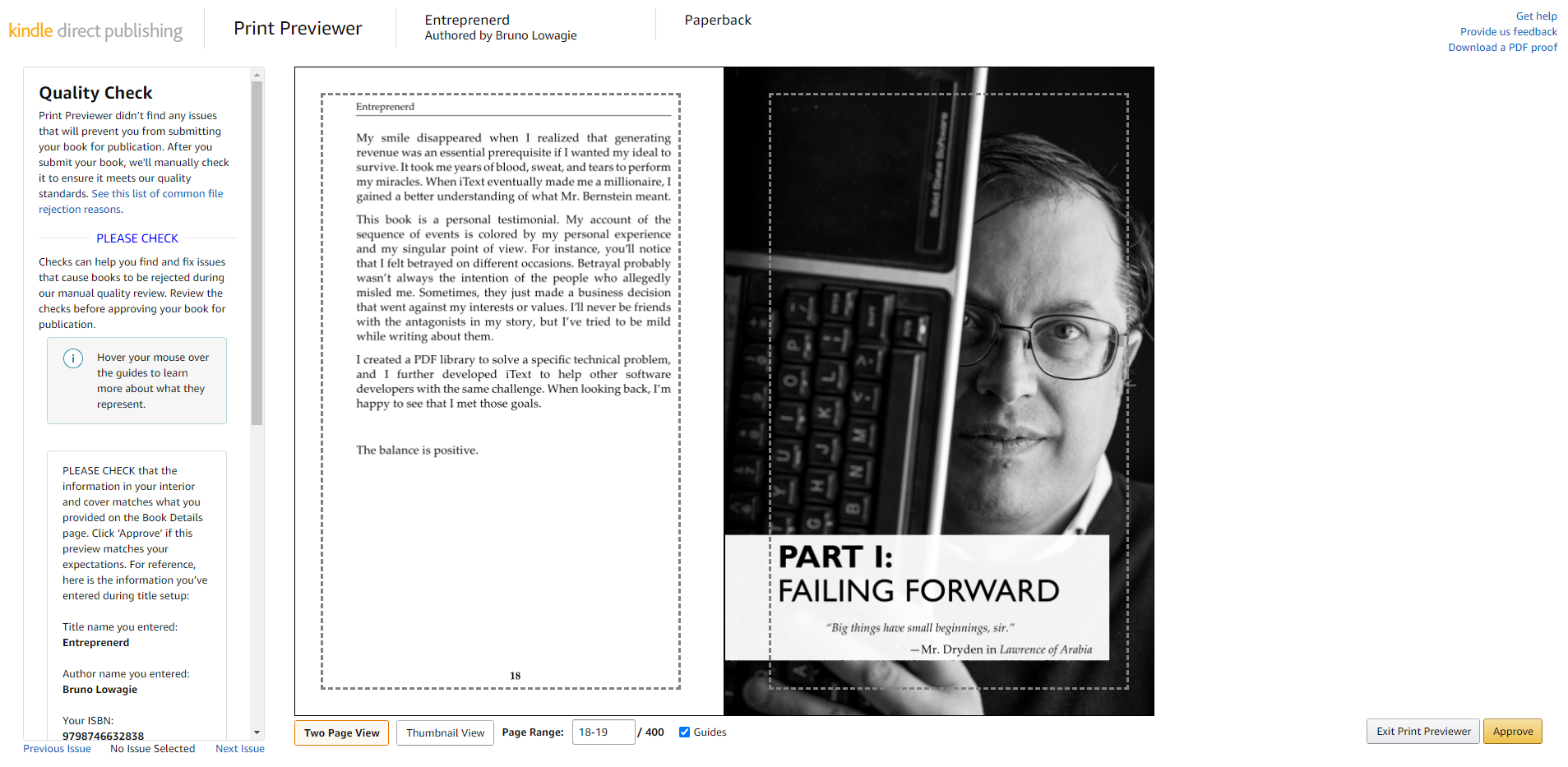
Upload and Preview Book Content - Kindle Direct Publishing
Now, let's look at the official documentation for the Print Previewer.
Read the section 'How to preview before publishing' under the 'Paperback and Hardcover' heading. This confirms its role in checking for errors before submission.
The most important feature of the Print Previewer is the Quality Check. It automatically scans your file for common print errors, such as:
- Content (text or images) extending beyond the print margins.
- Low-resolution images that will appear blurry when printed.
- Incorrect spine measurements for your page count.
How to Upload a Book to Amazon KDP (Complete Step-By-Step Tutorial)
This clip shows the Print Previewer in action. The key takeaway is where to look for automated error messages.
Watch from 07:31 to 08:08. The narrator points out that if there were any errors, they would appear in the panel on the left side of the screen. The absence of errors means the file has passed the automated check.
Even if no errors are automatically detected, you must still manually flip through every single page. Check your chapter headings, page numbers, and any images or diagrams to ensure they look exactly as you intended.
Test your understanding!
You've uploaded the manuscript for your tech mentoring book.
- In the Print Previewer, the automatic quality check flags a page, showing a diagram's caption is touching the outer dotted line. What is the problem and what is the risk?
- In the eBook Previewer, you test the Table of Contents. The link for "Chapter 3: Advanced Debugging" takes you to "Chapter 4: Team Leadership." Can you fix this inside the previewer? What is the correct procedure?
Show answer
- The caption is outside the safe print margin. The risk is that the text will be partially or fully cut off when the physical book is trimmed during manufacturing.
- No, you cannot fix content or link errors inside the KDP previewers. The correct procedure is to:
- Go back to your original source file (e.g., the Microsoft Word, Google Docs, or Calibre project).
- Correct the hyperlink for Chapter 3.
- Export a new, corrected manuscript file (e.g., EPUB).
- Go back to your KDP Bookshelf, navigate to the book's "Content" page, and upload the new file, overwriting the old one.
- Launch the previewer again to confirm the fix works.
Conclusion
Mastering the previewer tools is the difference between being an amateur and a professional self-publisher. It is your final line of defense against errors that can harm your credibility and lead to poor reviews. By treating this as a serious QA step, you ensure that the final product delivered to your readers is polished, professional, and provides an excellent reading experience.
Key Takeaways:
- Previewing your book is a critical, non-negotiable Quality Assurance (QA) step.
- Use a checklist to systematically look for issues in formatting, links, navigation, and image quality.
- The eBook Previewer is for testing reflowable content on different devices and screen sizes.
- The Print Previewer is for verifying fixed layouts, margins, bleed, and image resolution for physical printing.
- Errors found in the previewer must be fixed in your original source document, which you then re-export and re-upload.
Preview of the Next Lesson:
With your manuscript files uploaded, checked, and approved, your book is ready to be published. The technical work is done, and the marketing work begins. In our next lesson, we will dive into Module 9: Your First Book Launch and cover the essential components of a book launch plan to give your new book the best possible start.