Hello! Welcome to the fourth module of our course. In the previous module, you mastered the art of visual generation, learning how to direct the AI's camera and iterate on your prompts to refine your silent video clips. You've become the director and cinematographer of your project. Now, it's time to bring your world to life with sound.
This lesson marks our first step into audio world-building. Your goal is to create compelling narratives, and a crucial part of that is giving your characters a voice. Today, we'll focus on the learning outcome: Generate expressive AI voiceovers from a script using text-to-speech tools. We will move from simply converting text to audio to directing a nuanced, emotional performance from an AI.
From Robotic to Realistic: The Power of Modern TTS
Not long ago, text-to-speech (TTS) was synonymous with monotone, robotic voices. Today, thanks to advances in deep learning, AI can generate speech that is remarkably human-like, complete with emotional inflection, natural pacing, and personality.
To understand what makes this possible, let's look at a quick overview of the technology.
I Tried the Most Realistic AI Voice Generator (And It Was ...
The article 'I Tried the Most Realistic AI Voice Generator' on Medium gives a great, non-technical explanation of the technology behind modern TTS platforms like ElevenLabs.
Please read the subsections titled 'The Technology behind ElevenLabs' and 'Key Features & Capabilities'. Focus on the concepts of 'emotional modelling,' 'contextual awareness,' and 'hyper-realistic voice output.' This will give you a solid understanding of what these tools are actually doing.
As you read, the key takeaway is that these tools don't just read words; they interpret context and emotion, much like a human actor would. Our job as creators is to provide that context and direction effectively.
Your First Voiceover: The Basic Workflow
Let's start by walking through the fundamental process of generating a voiceover. For this, we'll use ElevenLabs as our primary example, as it's a powerful and popular tool, but the core steps are similar across most platforms.
This video from ElevenLabs provides a perfect tour of the basic interface and workflow.
How to make AI Voiceovers that sound Human (2025 ElevenLabs Text to Speech Tutorial)
The video 'How to make AI Voiceovers that sound Human' is an official tutorial from ElevenLabs. It will guide you through the entire process, from typing your first sentence to creating custom voices.
First, watch the introduction from the beginning to 01:07. This will show you the basic text input and generation process. Then, skip to the end and watch from 07:15 to 07:50 to see how you can download your generated audio file. We will cover the steps in between throughout this lesson.
The basic process is straightforward:
- Select a voice model.
- Choose a pre-made voice.
- Type or paste your script.
- Click 'Generate'.
- Download the audio file (usually as an MP3).
Now, let's get to the interesting part: making the voice expressive.
Directing the AI: Techniques for Expressive Voiceovers
Generating a basic voiceover is easy, but making it sound authentic and emotional is a craft. Think of yourself as a voice director. Your script and the settings you choose are your instructions to the AI "actor."
Technique 1: Scripting for Emotion (Punctuation and Emphasis)
The simplest yet most powerful tool you have is your script itself. The AI model reads your text and its punctuation to infer pacing and tone.

As the tip in this VoiceGen UI suggests, the naturalness of your AI voiceover starts with a well-written, natural-sounding script.
Let's see how you can use simple text formatting to direct the performance.
How to Add Emotions to A.I Voices on ElevenLabs - Sound Super Realistic Like Isaac 🚀
The video 'How to Add Emotions to A.I Voices' by 4tuneGuide provides an excellent demonstration of how to manipulate a script to control the AI's delivery.
Please watch the section from 01:36 to 02:52. Pay close attention to how the creator uses capital letters for emphasis, commas and ellipses (...) for pauses, and exclamation marks for excitement. Notice the dramatic difference in the 'before' and 'after' audio.
Your script-level toolkit includes:
- Commas (,): Create short pauses.
- Full stops (.) / Ellipses (...): Create longer, more definitive pauses.
- Exclamation marks (!): Indicate excitement or a raised voice.
- Question marks (?): Inflect the voice upwards for a question.
- ALL CAPS: Add emphasis or stress to specific words.
Technique 2: Fine-Tuning with Sliders
Most TTS tools offer settings to fine-tune the voice's characteristics. These are your next level of control. The two most common settings are Stability and Similarity (or Clarity).
Let's return to the ElevenLabs tutorial to understand what these do.
How to make AI Voiceovers that sound Human (2025 ElevenLabs Text to Speech Tutorial)
We'll now watch the section of the ElevenLabs tutorial that explains the voice settings.
Watch the segment from 02:13 to 03:12. Focus on the explanation of the 'Stability' and 'Similarity' sliders. The key is understanding the trade-offs: higher stability means more consistency but can sound monotone, while lower stability allows for more expression but might introduce variability.
- Stability: Controls the consistency of the voice. Lower it for more expression in longer texts; increase it for a more stable, predictable delivery.
- Similarity/Clarity: Controls how closely the generated voice matches the original voice sample. The default is usually best, as pushing it too high can cause artifacts.
Technique 3: Using Expressive Audio Tags
The most advanced models allow you to give direct "stage directions" within your script using tags. This is where you can explicitly tell the AI to laugh, sigh, or whisper.
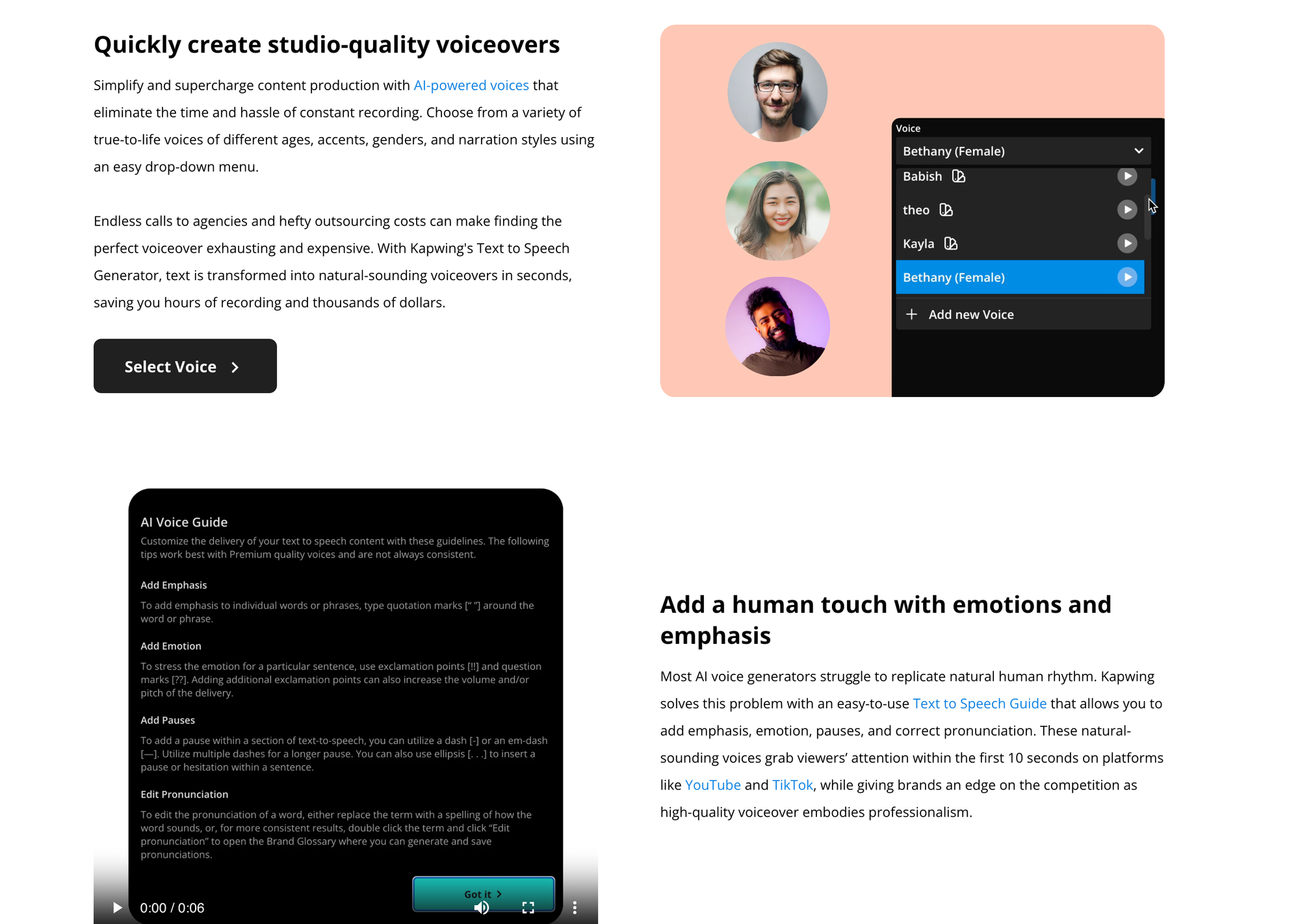
Many modern TTS tools, like Kapwing shown here, provide guides on how to use special text and tags to control emotion and delivery.
The ElevenLabs V3 model is particularly powerful in this regard.
How to make AI Voiceovers that sound Human (2025 ElevenLabs Text to Speech Tutorial)
This next section of the ElevenLabs tutorial is perhaps the most important for achieving nuanced performances. It covers 'audio tags'.
Watch from 03:12 to 04:45. Observe how adding simple tags like [laugh] or [gasps] or even descriptive phrases like [with a sense of urgency] completely transforms the delivery of the line. This is the closest you can get to directing a human actor.
The syntax is simple: just put the desired action or tone in square brackets [] before the line of dialogue. The possibilities are limited only by your imagination: [hesitantly], [shouting], [whispering conspiratorially].
Technique 4: Creating a Unique Voice for Your Character
For your video projects, you'll want characters with distinct voices. While you can browse a library of pre-made voices, many tools also allow you to design your own from scratch simply by describing it. This is a fantastic way to ensure your characters are unique.
How to make AI Voiceovers that sound Human (2025 ElevenLabs Text to Speech Tutorial)
Finally, let's explore the 'Voice Design' tool, which allows you to create entirely new voices for your characters.
Watch from 04:45 to 07:15. Note the two key inputs: the voice prompt (describing the voice's characteristics like age, gender, accent, and tone) and the preview text (a script that helps the AI understand the desired performance style).
This tool is incredibly powerful for storytelling. You can create a "gruff old wizard," a "cheerful, youthful adventurer," or a "cold, calculating AI" just by describing them.
Test your understanding!
You have written the following line for a character who has just discovered a hidden treasure after a long search: "I finally found it."
The default AI generation sounds flat and boring. How would you use at least three of the techniques we've discussed to make the line sound relieved, excited, and slightly out of breath?
Show answer
There are several great ways to do this. Here's one effective combination:
- Audio Tag: Add a tag to set the emotional context.
- Punctuation/Capitalization: Modify the script to add emphasis and pacing.
- Lower Stability: Adjust the slider to allow for more emotional variation.
A possible implementation would be:
- Script:
[gasps, joyfully] I FINALLY... found it! - Settings: Lower the "Stability" setting slightly to encourage a more varied, less monotone delivery.
This combination tells the AI to start with a gasp, deliver "FINALLY" with triumphant emphasis, pause, and then say the final words with a sense of arrival, all while allowing for more natural emotional fluctuation.
Conclusion
You have now learned the fundamental techniques for transforming plain text into an expressive performance. You are no longer just a user of a TTS tool; you are a voice director, guiding the AI to capture the precise emotion and tone your story requires.
Key Takeaways:
- Modern TTS uses deep learning to generate realistic, emotional speech.
- You can direct the AI's performance using a hierarchy of techniques:
- Script-Level: Use punctuation and capitalization to control pacing and emphasis.
- Settings-Level: Adjust sliders like 'Stability' to manage the trade-off between consistency and expressiveness.
- Tag-Level: Insert explicit directions like
[laughs]or[sadly]to dictate emotion.
- For unique characters, you can use voice design tools to create custom voices from a textual description.
In this lesson, you've learned the how of generating expressive voices. In our next lesson, "Select voice styles and tones that are appropriate for characters and narrative mood," we will build on this by focusing on the why. You'll learn how to analyze your characters and story to make deliberate, creative choices about the kind of voice that best serves your narrative.