Welcome back! In our last lesson, we explored the powerful two-way street between DuckDB and pandas, learning how to seamlessly move data between the SQL engine and in-memory DataFrames. You saw how this allows you to use the best tool for each part of your task—SQL for high-speed aggregations and pandas for complex, row-by-row logic.
However, all the work we did was in-memory. Once your script finished, your beautifully cleaned and transformed data vanished. For true automation, especially in finance where you might build up a dataset over a month, you need a way to save your progress. This lesson addresses that critical step: persisting your transformed data to a local DuckDB database file. This will serve as your personal, high-speed data mart, allowing you to run subsequent analyses without re-processing all your raw files from scratch.
From Volatile Memory to a Permanent Record
So far, we've been using duckdb.connect() without any arguments. This creates a temporary, in-memory database that is fast for intermediate steps but is destroyed the moment your Python script exits. Think of it as a whiteboard: perfect for quick work, but it gets erased at the end of the day.
To save our data permanently, we simply provide a file path to the connect function: duckdb.connect('my_database.db'). If the file doesn't exist, DuckDB creates it. If it does, DuckDB opens it. This file acts like a notebook, preserving all your tables and data between sessions.
This concept of persistence is a cornerstone of the data workflow that DuckDB enables.
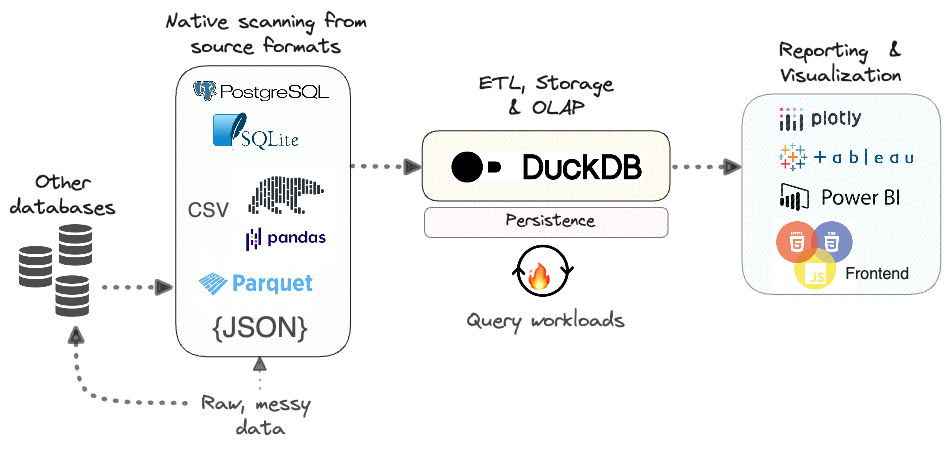
The following guide gives an excellent overview of this feature.
Ultimate guide to DuckDB library in Python - Deepnote
This article provides a fantastic explanation of DuckDB's persistent storage feature, comparing it to SQLite and highlighting its benefits for local analytics.
Please read the introductory paragraphs in the section on persistent storage, specifically the part labeled What it is. Pay attention to how it describes the .duckdb file as a convenient "local analytics database," which is exactly what we are aiming to build.
Seeing it in action makes the concept even clearer. The video below offers a quick demonstration.
DuckDB Tutorial - DuckDB course for beginners
This video from the "Data with Marc" channel shows the practical difference between connecting to an in-memory database versus a persistent file.
Watch the short segment from the beginning, where the presenter explains how to create a persistent database and you can see the file appear on disk.
Creating Your Local FP&A Data Mart
Now let's apply this to a practical financial data scenario. Imagine you have several monthly sales CSV files. Your goal is to combine them, clean them up, and save the result into a permanent table. This creates a single, reliable source for all future analysis, like variance or trend reporting.
Here is a complete workflow that combines what we've learned so far with our new goal of persistence:
import duckdb
import os
import pandas as pd


# --- Setup: Create some dummy CSV files for our example ---
os.makedirs('monthly_reports', exist_ok=True)
pd.DataFrame({
    'Transaction-ID': [101, 102],
    'Date': ['01/15/2024', '01/20/2024'],
    'Revenue': [5000, 8500],
    'CostCenter': ['CC-A', 'CC-B']
}).to_csv('monthly_reports/jan_2024_sales.csv', index=False)

pd.DataFrame({
    'Transaction-ID': [201, 202],
    'Date': ['02/12/2024', '02/25/2024'],
    'Revenue': [7200, 3100],
    'CostCenter': ['CC-A', 'CC-C']
}).to_csv('monthly_reports/feb_2024_sales.csv', index=False)


# --- End of Setup ---


# 1. Connect to a PERSISTENT database file.
# This file will be our local data mart.
db_path = 'fpna_datamart.db'
con = duckdb.connect(database=db_path, read_only=False)
print(f"Connected to persistent database: {db_path}")


# 2. Extract and Transform data from multiple CSVs (recap from previous lessons).
# We read all CSVs, unify their columns, and parse the date.
actuals_relation = con.execute("""
    SELECT
        "Transaction-ID" AS transaction_id,
        strptime(Date, '%m/%d/%Y') AS transaction_date,
        Revenue AS revenue,
        CostCenter AS cost_center,
        filename -- Keep the source filename for traceability
    FROM read_csv_auto('monthly_reports/*.csv', union_by_name=True, filename=True)
""")


# 3. Load the transformed data into a persistent table.
# 'CREATE OR REPLACE TABLE' is ideal for rerunnable automation scripts.
con.execute("""
    CREATE OR REPLACE TABLE actuals_clean AS
    SELECT * FROM actuals_relation
""")
print("Successfully created/replaced the 'actuals_clean' table.")


# 4. Close the connection to ensure all data is written to the file.
con.close()
print("Connection closed.")


# 5. VERIFICATION: Let's prove the data is saved.
print("\n--- Verifying Persistence ---")


# Reconnect to the same file, this time in read-only mode.
con_verify = duckdb.connect(database=db_path, read_only=True)


# Query the table we just created.
row_count = con_verify.execute("SELECT COUNT(*) FROM actuals_clean").fetchone()[0]
print(f"The 'actuals_clean' table exists and contains {row_count} rows.")

print("\nSample of persisted data:")
con_verify.table('actuals_clean').limit(5).show()

con_verify.close()
This script is a miniature ETL (Extract, Transform, Load) pipeline. It extracts data from raw files, transforms it in memory, and then loads it into a persistent database. The verification step is crucial: by closing the connection and reopening it, we confirm that our actuals_clean table wasn't just temporary but was written to the fpna_datamart.db file.
Two Methods for Saving Your Data
DuckDB offers two primary ways to save the results of your query into a table.
1. The SQL Method: CREATE TABLE AS
This is the approach used in the example above and is a standard, powerful pattern in the world of SQL. The CREATE OR REPLACE TABLE syntax is particularly useful for automation; it ensures that each time your script runs, it rebuilds the table with the latest data, preventing errors on subsequent runs.
This method is highly declarative and keeps your logic squarely within SQL, which is often desirable for clarity and performance. The guide below provides clear examples of this and other persistence patterns.
Ultimate guide to DuckDB library in Python - Deepnote
This guide provides excellent, practical examples of creating and verifying persistent tables.
First, review Example 1, which demonstrates the CREATE TABLE ... AS SELECT ... pattern to load data from a file into a persistent table. Next, look at Example 2, which shows the exact verification step we used in our code. Finally, check the quick syntax reference in the FAQ section for writing results to a table.
2. The Python Method: .to_table()
Alternatively, you can use a method directly on the DuckDB relation object. This can feel more "Pythonic" as it involves method chaining.
# Assuming 'con' is a connection to a persistent DB
# and 'actuals_relation' is the result of a con.execute() call


# First, drop the table if it exists, as .to_table() doesn't have a "replace" option
con.execute("DROP TABLE IF EXISTS actuals_clean")


# Now, write the relation object to a new table
actuals_relation.to_table('actuals_clean')
While this works perfectly well, the CREATE OR REPLACE TABLE SQL command is often more convenient because it handles the existence check and replacement in a single, atomic step.
The following video walks through the process of creating a relation and saving it using .to_table(), and it also makes a very important point about how relations are tied to their specific connection.
Starting With DuckDB and Python: An Introduction & Using DuckDB With Databases
This Real Python video provides a clear walkthrough of the .to_table() method and demonstrates the full persistence cycle.
Watch the section from the to_table call which shows the core method. Then, continue watching through the verification step, where the presenter closes the connection, reconnects, and proves the data was saved. Pay close attention to the error at the end, which highlights that a relation object belongs to the connection that created it.
Conclusion
You have now mastered a crucial component of building automated data workflows: persistence. By saving your cleaned and transformed data into a local DuckDB database file, you create a stable and high-performance foundation for all your subsequent financial analysis. This simple step is what elevates your script from a one-off tool to a reusable and efficient system.
Key Takeaways:
- You can create or connect to a persistent database file using
duckdb.connect(database='your_file.db'). - The
CREATE OR REPLACE TABLE table_name AS SELECT ...command is a robust and powerful SQL-native way to save your transformed data. - The
.to_table('table_name')method on a relation object offers a more programmatic alternative. - Persisting your processed data creates a local "data mart," dramatically speeding up future analysis by eliminating the need to re-run your entire data ingestion and cleaning pipeline every time.
In our next module, we'll expand on data storage. While DuckDB's native file format is excellent, sometimes you need to share your processed data or store it in a format optimized for the broader data ecosystem. We will begin by exploring Parquet, a modern, columnar file format that is the industry standard for efficient analytical data storage.