Hello! Welcome back to our module on data persistence with Core Data.
In our last lesson, we learned how to craft precise and efficient queries using NSPredicate and NSSortDescriptor. While this allows us to fetch data efficiently, all our operations so far have been performed on the main thread. This poses a significant risk: any long-running operation, like a large data import or a complex fetch, will freeze your app's user interface, leading to a frustrating user experience.
Today, we'll solve this critical issue. Our learning outcome is to use a background context to perform data processing without blocking the main thread. This is a cornerstone of building professional, responsive iOS applications that can handle significant data workloads gracefully.
The Problem: Core Data and Thread Safety
Before we jump into the solution, we need to understand the "why." You might be tempted to wrap a Core Data operation in a DispatchQueue.global().async block, a common pattern for moving work off the main thread. With Core Data, this will lead to crashes and data corruption.
The reason lies in Core Data's strict threading rules. To understand these rules, it's helpful to read a passage from a well-regarded article by developer Dave DeLong.
The article "The Laws of Core Data" explains the most common source of bugs when using the framework. Let's focus on the law governing concurrency.
Please read section 4, titled "Never ever ever ever ever use an NSManagedObject outside its context’s queue". Pay close attention to the explanation of "faulting" and why you must use perform or performAndWait to safely access managed objects.
As the article makes clear, here are the non-negotiable rules of Core Data concurrency:
NSManagedObjectContextis confined to its queue. A context created for the main queue must only be used on the main thread. A context created for a private background queue must only be used within that queue.NSManagedObjectinstances are not thread-safe. You cannot fetch an object on a background context and then pass it to the main thread to update the UI. These objects are bound to the context that fetched them.NSManagedObjectIDinstances are thread-safe. This special property acts as a universal identifier for a data record. It's the only safe way to pass a reference to an object between different threads and contexts.
Violating these rules is the number one cause of Core Data-related crashes.
The Solution: Working with Background Contexts
To perform work on a background thread, we need a separate NSManagedObjectContext that is configured to run on a private queue. NSPersistentContainer provides convenient APIs for this.
Let's watch a short video that demonstrates both the problem of working on the wrong thread and the correct solution.
How to safely work with Core Data on a background thread
The video "How to safely work with Core Data on a background thread" from the Swift Arcade channel provides a perfect demonstration of the concepts we're discussing.
Please watch these two sections: The Danger (00:41 - 02:25): The video starts by showing a common scenario: fetching data from a network and trying to save it to Core Data from the network completion handler, which is not on the main thread. This highlights the danger we've just discussed. The Solution with performBackgroundTask (02:25 - 03:28): Observe how persistentContainer.performBackgroundTask is used. This method creates a temporary background context for you and executes your code block on a safe background queue.
As the video shows, the simplest way to perform a one-off background task is with persistentContainer.performBackgroundTask(_:). This method handles the creation of a private queue context for you, passing it into the closure.
A Deeper Look at the Architecture
The pattern shown in the video, where a background context and the main viewContext operate as siblings, is the standard approach for background processing.
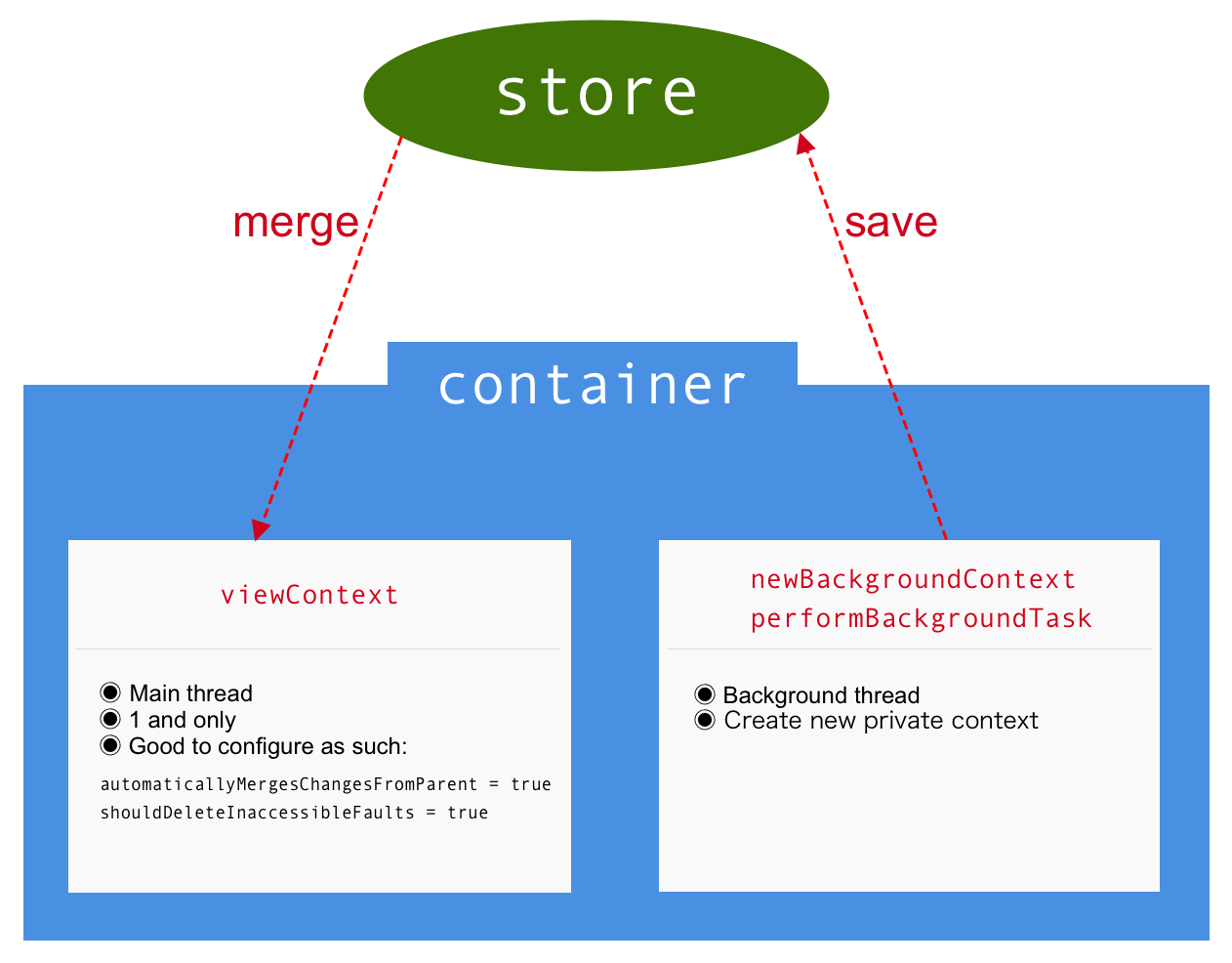
Here’s the flow:
- You create a background context.
- You perform operations (creating, fetching, saving) inside a
performblock on that context. - You
save()the background context. This writes the changes directly to the persistent store (the SQLite file). - The main
viewContextneeds to be notified of these changes to update its own in-memory objects and, consequently, the UI.
To make step 4 happen automatically, you need to set one important property when you initialize your Core Data stack:
// In your Persistence Controller or wherever you set up the container
let container = NSPersistentContainer(name: "YourAppName")

// This tells the main viewContext to automatically absorb
// changes that were saved to the store by other contexts.
container.viewContext.automaticallyMergesChangesFromParent = true

container.loadPersistentStores { ... }
Creating and Using a Background Context
There are two primary ways to get a background context from your NSPersistentContainer.
Core Data Background Fetch, Save, & Create - Advanced Swift
The article "Core Data Background Fetch, Save, & Create" provides a clear textual reference for background operations. It covers the different ways to create a context and use it.
Please read the section titled "Core Data Background Context". It details the two main approaches provided by NSPersistentContainer: performBackgroundTask(_:): For short, self-contained tasks. It creates and discards a context for you. newBackgroundContext(): To create a reusable background context that you manage. This is useful if you have a series of related background operations.
Putting It All Together: A Practical Workflow
Let's outline the code for a common task: fetching JSON from a network endpoint and importing it into Core Data without blocking the main thread.
Step 1: Ensure Automatic Merging is Enabled
As shown before, make sure viewContext.automaticallyMergesChangesFromParent is set to true on your persistent container. This is a one-time setup.
Step 2: Perform the Background Task
We'll use performBackgroundTask for this example.
// Assume 'container' is your NSPersistentContainer instance
// and 'Item' is an NSManagedObject subclass.
// 'ItemJSON' is a Codable struct representing the network data.

func importItemsFromServer() {
    let url = URL(string: "https://api.example.com/items")!

    // 1. Start the network request as usual.
    URLSession.shared.dataTask(with: url) { data, _, error in
        guard let data = data, error == nil else {
            print("Network request failed: \(error?.localizedDescription ?? "Unknown error")")
            return
        }

        // 2. Use performBackgroundTask to move Core Data work to a background queue.
        container.performBackgroundTask { backgroundContext in
            do {
                // 3. Decode the JSON data.
                let itemsJSON = try JSONDecoder().decode([ItemJSON].self, from: data)

                // 4. Process and save each item using the provided 'backgroundContext'.
                for itemJSON in itemsJSON {
                    let newItem = Item(context: backgroundContext)
                    newItem.id = itemJSON.id
                    newItem.name = itemJSON.name
                    newItem.timestamp = Date()
                }

                // 5. Save the background context. This writes changes to the persistent store.
                // It's crucial this happens *inside* the perform block.
                if backgroundContext.hasChanges {
                    try backgroundContext.save()
                }

                print("Successfully imported \(itemsJSON.count) items on a background thread.")

            } catch {
                print("Failed to import items: \(error)")
            }
        }
    }.resume()
}
With this implementation, the network request, JSON parsing, and Core Data insertions all happen in the background. Once backgroundContext.save() completes, Core Data will automatically merge these changes into your viewContext on the main thread, and your SwiftUI views using @FetchRequest or a UIKit NSFetchedResultsController will update reactively.
Conclusion
You have now learned one of the most important professional skills for working with Core Data. Keeping the main thread free is paramount for a high-quality user experience.
Key Takeaways:
- UI Responsiveness: Never perform long-running Core Data operations (batch imports, complex fetches, large saves) on the main thread.
- Threading Rules:
NSManagedObjectContextandNSManagedObjectare not thread-safe. Always interact with a context on its designated queue usingperform(_:)orperformAndWait(_:). - Background Contexts: Use
persistentContainer.performBackgroundTaskfor one-off tasks orpersistentContainer.newBackgroundContextfor more complex background work. - Automatic UI Updates: Set
viewContext.automaticallyMergesChangesFromParent = trueto have your UI update automatically after a background context saves its changes to the persistent store.
Preview of the Next Lesson:
We've made our app more responsive by moving heavy work to the background. In the next lesson, we'll continue our focus on performance by learning how to optimize fetch request performance using techniques like setting a fetchBatchSize. This will help us handle very large datasets without consuming excessive memory.