Hello! In this course, you’ll start with small console programs and gradually build toward an expense tracker. For this first lesson, the goal is concrete: get Dart running on your computer, write a file that calls print, and see its message appear in a terminal. Allow roughly 30–45 minutes, depending on whether Dart is already installed.
Get Dart ready
A terminal (called a command prompt on some systems) is a window where you type commands. The Dart SDK supplies the dart command that runs your programs. If you already have Dart installed, open a terminal and check it now:
dart --version
If you see a Dart SDK version, you can move on to the next section. The exact version number does not matter here. If the command is not recognized, install the SDK using the instructions for your operating system.
Read the official Dart installation guide to choose one installation method for your computer. You do not need to read its upgrade or uninstall instructions.
Under “Choose an installation option,” note that a Flutter SDK installation already includes Dart. Otherwise, go to “Install the Dart SDK” and follow only the instructions for your system. For Windows, use “Install using winget” if winget is available. The Windows options also describe Chocolatey. Then read “Verify your PATH includes Dart” and run dart --version. For Ubuntu or Debian, find “Install using the apt-get package manager.” The Linux introduction leads into the four numbered installation steps; follow those steps rather than the separate Debian-package option. For macOS, find “Install using Homebrew.” Follow its numbered steps, from Homebrew setup through installation. Then check the “Verify PATH includes Homebrew” subsection if the terminal cannot find Dart.
After installation, open a new terminal window and run dart --version again. A new window matters because an already-open terminal might not have picked up a change to your system’s command search path, known as PATH. If Dart is still not recognized, revisit the installation and PATH instructions before trying to run a program.
Write a program that prints
A Dart source file is a plain-text file ending in .dart. Open any plain-text code editor and create a file named hello.dart containing exactly this:
void main() {
  print('Hello, Dart!');
}
Save it in a folder you can find again. Check that the filename is hello.dart, not hello.dart.txt.
The program begins at main(). The braces enclose the instructions that run when the program starts. Inside them, print('Hello, Dart!'); displays the text between the quotes in the terminal. The semicolon ends that instruction. For now, you can treat void as part of the standard shape of this simple entry point; we’ll look more closely at functions later.
A short demonstration shows the edit-and-run cycle:
How To Install Dart On Windows - Learn Dart Programming 1
In “How To Install Dart On Windows - Learn Dart Programming 1,” John Elder creates a hello.dart file and runs it. Watch for the file, the main function, and the resulting terminal output; the editor and operating system shown need not match yours.
Watch file creation to see the program written and saved. Skip the editor-package setup, then watch running the file. The video uses dart hello.dart; below, you’ll use the more explicit dart run hello.dart.
Run it from the right folder
Open a terminal in the folder where you saved hello.dart. If your terminal opens elsewhere, use cd followed by the path to that folder; cd means “change directory.” Then type:
dart run hello.dart
You should see:
Hello, Dart!
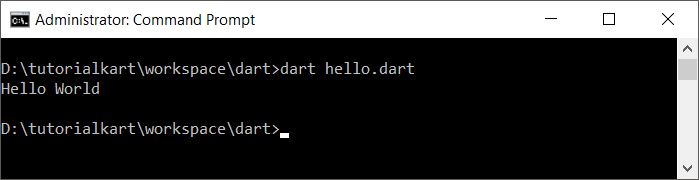
The command runs the file; the line beneath it is the output from print. The screenshot below shows the same distinction using the shorter dart hello.dart command. You do not need to open an administrator terminal just because the screenshot shows one.
To see the edit-and-run cycle once more, change your file to:
void main() {
  print('Hello, Dart!');
  print('My program is running.');
}
Save the file, then run dart run hello.dart again. Each print call writes its message on a new line, in the order the calls appear.
If something goes wrong, first check which step failed. If dart --version fails, the terminal cannot find Dart yet. If Dart runs but cannot find hello.dart, check the filename and the terminal’s current folder. If you receive a message pointing to the code, compare the quotes, parentheses, braces, and semicolons with the example. We’ll learn to use Dart’s diagnostic messages systematically later in this module.
Where you are now
You can verify the SDK with dart --version, put output instructions inside main(), and run a saved console program with dart run hello.dart. The key habit is to save, run, and inspect the output whenever you make a change.
Next, you’ll give programs named values using Dart variables, so their output can reflect data rather than only fixed messages.