Hello! Welcome back to our series on Docker.
In the last lesson, we saw how to achieve high availability by scaling services with docker compose up --scale. Running multiple container instances is a powerful feature, but it also means our application will consume more of the host machine's resources. This naturally leads to our next topic: resource management.
Today, you will learn how to configure resource limits (CPU and memory) for services in a Compose file. This is a critical skill for any DevOps professional, as it ensures that your applications run predictably and stably, preventing any single service from monopolizing system resources and causing performance issues or crashes.
1. Why and When to Set Resource Limits
Before we get into the syntax, let's establish why this is so important. As a DevOps Engineer, you're constantly balancing performance, stability, and cost. Resource limits are a key tool in this balancing act.
In a multi-service application, without any constraints, a single memory-leaking service or a CPU-intensive process could starve other critical services (like your database or reverse proxy), bringing down the entire application.
Docker on a budget : optimize Resource Limits.
The article 'Docker on a budget : optimize Resource Limits' provides an excellent overview of the rationale behind setting limits. Please read the sections 'What Are Resource Limits?' and 'When Should You Apply Resource Limits?'.
Start reading from the heading 'What Are Resource Limits?' and stop before 'Step by step guide'. Focus on the three key scenarios where applying limits is beneficial.
As the article highlights, setting limits is essential for:
- Preventing system instability: Avoiding crashes from out-of-memory errors (which often result in the infamous
exit code 137). - Cost optimization: Running services on smaller, cheaper virtual machines without risking performance degradation.
- Predictable performance: Ensuring services behave consistently across development, testing, and production environments.
2. How to Configure Resource Limits in Docker Compose
Now for the practical part. There are two primary ways to define resource limits in a Docker Compose file, and the one you choose depends on your deployment target. This is a frequent point of confusion, so let's clarify it.
Method 1: The deploy.resources Key (for Docker Swarm)
You might have seen a deploy key in various examples online. As we discussed in the last lesson with replicas, the deploy key and its sub-options are exclusively for use with Docker Swarm and docker stack deploy. They are ignored by the standard docker compose up command.
Under deploy, you can specify a resources section which contains two important sub-keys:
reservations: A "soft limit" that guarantees the service will have at least this amount of resources available. Docker ensures the container can allocate this much, but it can use more if available.limits: A "hard limit" that prevents the service from consuming more than this amount of resources. If a service tries to exceed its memory limit, it may be terminated.
Given your Kubernetes experience, you can draw a direct parallel:
- Docker's
reservationsare analogous to Kubernetesrequests. - Docker's
limitsare analogous to Kuberneteslimits.
Here's the structure:
services:
  my-app:
    image: my-app-image
    deploy:
      resources:
        limits:
          cpus: '0.50'      # Limit to 50% of one CPU core
          memory: 512M      # Limit to 512 Megabytes of RAM
        reservations:
          cpus: '0.25'      # Reserve 25% of one CPU core
          memory: 256M      # Reserve 256 Megabytes of RAM
This configuration is ideal for production deployments managed by Docker Swarm.
Docker on a budget : optimize Resource Limits.
To see this syntax in action with a multi-service example, let's return to the article 'Docker on a budget'.
Read the 'Step by step guide' section, paying attention to how different limits are set for the Web App, Database, and Reverse Proxy based on their expected workloads. This demonstrates a practical thought process for allocating resources.
Test your understanding!
You have a data processing service that should be guaranteed at least 512MB of RAM and 50% of a CPU core to function. To prevent it from impacting other services, you want to cap its usage at 2GB of RAM and 1 full CPU core. How would you write the resources block for this service?
Show answer
deploy:
  resources:
    limits:
      cpus: '1.0'
      memory: 2G
    reservations:
      cpus: '0.5'
      memory: 512M
Method 2: Top-Level Keys (for docker compose up)
So, what do you do for local development with docker compose up? The deploy key is ignored, but Compose provides an alternative using top-level keys that map directly to docker run options.
These keys are a legacy from an older version of the Compose file format, but they remain supported for this exact use case.
cpus: Sets a CPU limit (e.g.,'0.5').mem_limit: Sets a memory hard limit (e.g.,512m).mem_reservation: Sets a memory soft limit (e.g.,256m).
Here is how you would configure the same limits as before, but in a way that docker compose up will respect:
services:
  my-app:
    image: my-app-image
    # These keys are respected by 'docker compose up'
    cpus: '0.50'
    mem_limit: 512m
    mem_reservation: 256m
Setting Memory And CPU Limits In Docker
The article 'Setting Memory And CPU Limits In Docker' from Baeldung provides a concise reference for both the Swarm syntax and the older syntax.
Please read section 3, 'Setting Limits With the docker-compose File'. Notice how it explicitly separates the syntax for 'Versions 3 and Newer With docker swarm' (using deploy) and 'Version 2 With docker-compose' (using mem_limit). This reinforces the two methods we've just discussed.
Recommendation for your workflow:
- For production-like environments managed with
docker stack deploy, use thedeploy.resourceskey. - For local development with
docker compose up, use the top-levelcpusandmem_limit/mem_reservationkeys.
3. Verifying Resource Limits
Once you've configured the limits, you need to verify that they're being applied. The docker stats command provides a live view of your running containers' resource consumption.
Let's create a quick example. Create a docker-compose.yml file:
version: '3.8'

services:
  web:
    image: nginx:alpine
    # Limits for 'docker compose up'
    mem_limit: 512m
    cpus: '0.5'
    ports:
      - "8080:80"
- Run the container:
docker compose up -d - Now, check the stats:
docker stats
You'll see an output similar to this:
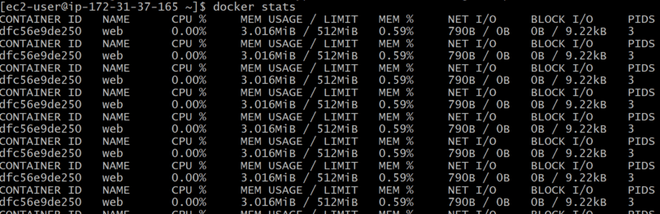
In your terminal, find your web container in the list. The MEM USAGE / LIMIT column should show the 512MiB limit we set, and the CPU % will be capped if the container ever tries to exceed 50% of a core. You can test the CPU limit by running a command inside the container that consumes CPU, like docker exec <container_id> sh -c "while true; do :; done".
Conclusion
You've now learned how to effectively constrain the resources for your Docker services. This is a fundamental practice for building robust and predictable systems, especially as you move towards orchestrated environments like Kubernetes.
Key Takeaways:
- Setting resource limits is crucial for application stability, performance, and cost management.
reservations(ormem_reservation) are soft limits that guarantee a minimum amount of resources.limits(ormem_limit/cpus) are hard caps that prevent a service from exceeding a certain amount of resources.- The
deploy.resourceskey is the modern standard but is only honored bydocker stack deploy(Docker Swarm). - For local development with
docker compose up, use the top-level keyscpus,mem_limit, andmem_reservation. - Always use
docker statsto verify that your limits are correctly applied.
In our next lesson, we will explore Compose profiles. This feature allows you to define different groups of services within a single Compose file and selectively enable them, which is perfect for managing configurations for different use cases like development, testing, or specific features.