Welcome back. In our previous lesson, you mastered data matching, learning how Grasshopper combines multiple data streams using the Shortest List, Longest List, and Cross Reference rules. You now have a solid understanding of how to manage relationships between different lists of data.
In this lesson, we shift our focus inward, to manipulating a single, complex data structure. We will explore how to precisely retrieve specific pieces of data—individual items or entire branches—from within a data tree. This skill is analogous to querying a database or accessing specific elements in a multi-dimensional array, allowing you to isolate the exact geometric or numerical information you need. By the end of our session, you'll be able to use a suite of selection components to surgically extract data, a crucial step in building sophisticated parametric models.
1. The Anatomy of Selection: Path and Index
Before we select data, let's briefly revisit the structure of a data tree. As we've seen, data is organized hierarchically. Think of it as a file system:
- Branches are like folders, each identified by a unique path, such as
{0;1}or{3;4;0}. - Items are the files within those folders, each identified by its numerical index within its branch (0, 1, 2, ...).
To retrieve any piece of data, we need its address, which is defined by its path and its index. Grasshopper provides dedicated components to perform this retrieval.
2. Basic Retrieval: Selecting Single Items and Branches
Let's start with the most direct methods of selection: grabbing a single item or an entire branch when you know its address.
Selecting an Item with List Item
The List Item component is your fundamental tool for retrieving a single piece of data from a list. When applied to a data tree, its behavior is particularly important: it retrieves the item at the specified index from every branch in the tree.
For example, if you have a tree representing a grid of points, with each branch being a row, using List Item with an index of 3 will give you the fourth point from every single row.
The following video provides a clear, practical demonstration of List Item and its counterpart, Cull Index, which removes an item at a specific index.
Grasshopper Basics: Understanding Data Trees
This video from HandleBar3D provides an excellent introduction to basic data selection.
First, watch the segment on the List Item tool to see how to select a specific point from a list. Then, observe how the Cull Index tool performs the inverse operation, deleting a specific item.
Selecting a Branch with Tree Branch
If you need an entire list of items rather than just one, you use the Tree Branch component. This component requires the full path of the branch you wish to retrieve.
But how do you find the path? The Param Viewer and Panel components are indispensable here. When you connect a data tree to them, they display the full structure, including all paths. You can then copy a path and paste it into a new Panel to use as the input for the Tree Branch component.
This next segment from the same video demonstrates this exact workflow.
Grasshopper Basics: Understanding Data Trees
The video now moves from selecting items to selecting entire branches, demonstrating the standard workflow.
Pay close attention to the sequence from this point. The presenter uses a Param Viewer to identify the paths, List Item to select a specific path, and then feeds that path into the Tree Branch component to isolate an entire column of points from the grid.
The image below shows a complete definition that uses this principle. First, the Tree Branch component is used to select a specific branch, and then List Item is used to retrieve a single item from within that newly isolated branch.
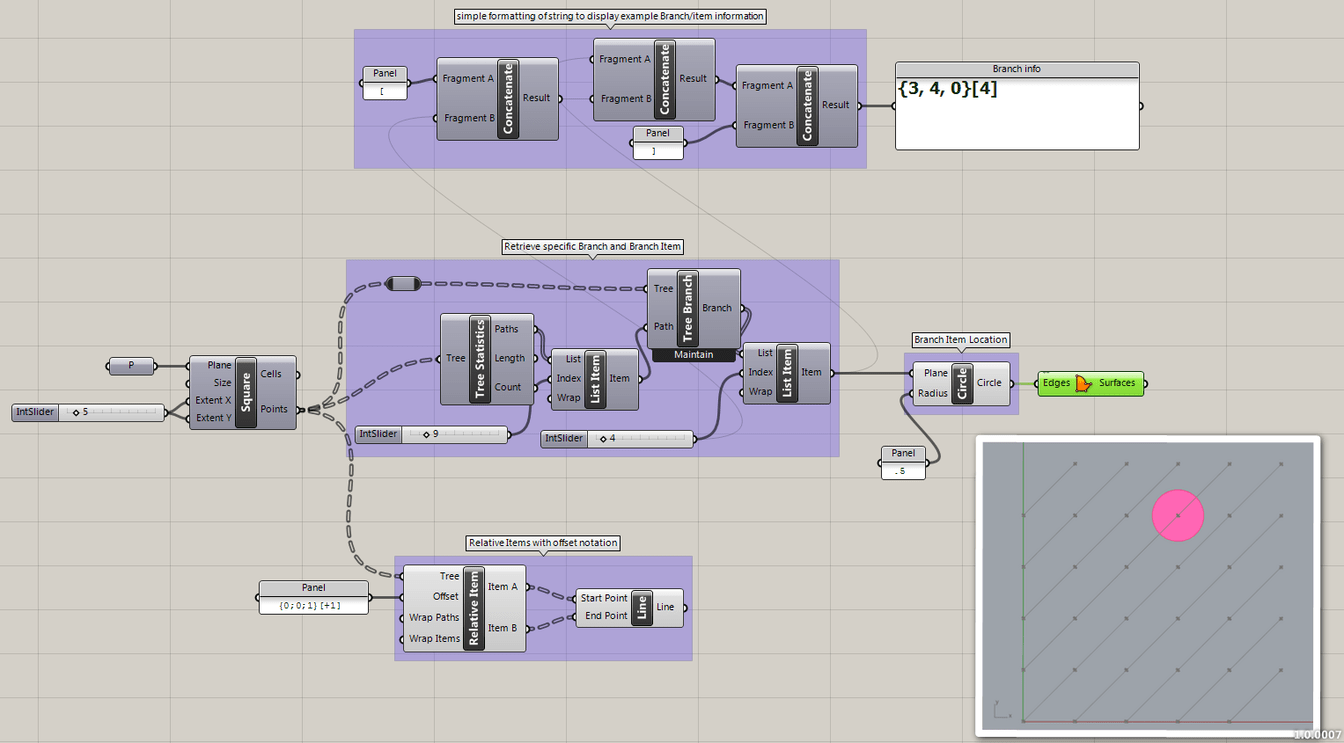
For a more detailed technical overview, the Rhino developer documentation provides a concise reference on these fundamental components.
Chapter 3: Advanced Data Structures - Rhino developer
This guide from the Rhino developers covers the primary components for navigating data trees.
Please read the section titled 3.4 Traversing trees. Focus on the descriptions and images for the Branch and Item components, and note the workflow for dynamically extracting a path using Param Viewer and List Item.
3. Pattern-Based Selection with Split Tree
Selecting items one by one is fine for simple cases, but what if you need to select all points on even-numbered rows? Or every third column in a facade grid? Manually specifying each path would be incredibly inefficient. For this, we use the Split Tree component, which allows for powerful pattern-based selection.
The Split Tree component takes a data tree and a "mask" as input. The mask is a text string that defines a rule or pattern. The component then outputs two new trees:
- Positive (P): A tree containing all the branches that matched the mask.
- Negative (N): A tree containing all the branches that did not match.
The Mask Syntax
The power of Split Tree lies in its flexible mask syntax. Given your background, you can think of this as a form of regular expression for data paths. Here are the key operators:
| Operator | Description | Example |
|---|---|---|
{A;B} |
Defines the path structure. | {0;1} matches the branch at path {0;1}. |
? |
Wildcard: matches any single integer. | {?;1} matches {0;1}, {1;1}, {2;1}, etc. |
* |
Wildcard: matches any sequence of integers. | {*} matches all branches. {0;*} matches any branch starting with 0. |
(A,B,C) |
Group: matches any of the integers listed. | {(0,2,4)} matches branches at paths {0}, {2}, and {4}. |
(A to B) |
Range: matches any integer from A to B, inclusive. | {(0 to 5)} matches paths {0} through {5}. |
(A,B,...) |
Sequence: matches an infinite sequence. | { (0,2,...) } matches all even-numbered paths {0}, {2}, {4}, etc. |
! |
Not: inverts the condition. | {!0} matches any path except {0}. |
This syntax allows you to construct highly specific and parametric selection rules. The following video, from one of Grasshopper's developers, provides an excellent walkthrough of this logic.
04 Selecting Items in Data Trees
This technical video from the official Grasshopper YouTube channel dives into the logic of selection patterns using the Split Tree component.
Watch from this segment, which introduces the basic concept of writing a text pattern to select even-numbered branches. Then, continue through the next section, where more advanced notations like wildcards (?) and sequences (0,2,...) are introduced to make the selection pattern more robust and parametric. Finally, note the explanation of the Positive and Negative outputs.
To master this syntax, it is best to study the rules directly. The Rhino developer guide provides a comprehensive table of all possible operators.
Chapter 3: Advanced Data Structures - Rhino developer
This guide contains the definitive reference for the Split Tree mask syntax, along with practical examples.
Navigate to the section 3.6.2 Split trees. Carefully study the tables under Mask syntax and the examples under Split mask by branches. Then, read the short tutorial that follows, which demonstrates using a mask to isolate specific points in a grid for transformation. This is a classic application of the Split Tree component.
Conclusion
You have now added some of the most crucial data management tools to your Grasshopper toolkit. Being able to precisely retrieve data is as important as being able to generate it. This allows you to apply different operations to different subsets of your model, which is the essence of creating complex, non-uniform parametric designs.
Key Takeaways:
- You can retrieve a single item from each branch of a tree using
List Itemand its index. - You can retrieve an entire branch using
Tree Branchand its specific path, which you can find usingParam Viewer. - For complex, pattern-based selections, the
Split Treecomponent is the tool of choice. It uses a text-based mask with a rich syntax of wildcards, ranges, and sequences to filter a data tree into matching (Positive) and non-matching (Negative) outputs.
In our next lesson, we will take this concept of data manipulation one step further. While Split Tree is excellent for filtering, a component called Path Mapper allows you to not only select but also fundamentally reorganize and re-address the paths of a data tree. It is the ultimate tool for advanced data wrangling, and mastering it will give you complete control over your data structures.