Hello! Welcome back to your Python for DevOps journey.
In our last lesson, you mastered exception handling, a critical skill for writing robust scripts that can gracefully manage unexpected errors. We discussed how file operations are a common source of exceptions like FileNotFoundError, and you learned to use try...except...finally blocks to handle them.
Today, we will apply that knowledge directly. As a DevOps engineer, you'll constantly work with structured data for configuration, reporting, and communicating with APIs. Two of the most common formats for this are CSV and JSON.
Today's Learning Outcome: By the end of this 60-minute lesson, you will be able to read from and write to JSON and CSV files in Python. We'll use Python's built-in csv and json modules, which are the standard tools for these tasks.
1. Working with CSV Files
CSV (Comma-Separated Values) is a simple, text-based format for storing tabular data, like a spreadsheet. Each line in the file is a data record (a row), and each record consists of one or more fields (columns), separated by commas. You might encounter CSV files when exporting reports from monitoring systems, managing user lists, or cataloging cloud resources.
While you could try to parse these files by splitting strings, this approach is brittle and fails when values themselves contain commas. Python's built-in csv module is the correct and robust way to handle this.
Reading from a CSV File
The csv module provides a reader object that intelligently iterates over lines in the CSV file, yielding each row as a list of strings.
Python Tutorial: CSV Module - How to Read, Parse, and Write CSV Files
To start, let's watch this excellent tutorial from Corey Schafer. He'll explain what CSV files are and demonstrate how to read them using Python's csv module.
Watch from the beginning to 4:53. Pay attention to: How to open a file and create a csv.reader object. How each row is returned as a Python list. How to skip the header row using the next() function.
Let's walk through an example. Imagine you have a file named servers.csv with the following content:
hostname,ip_address,location
web-01,192.168.1.10,us-east-1
db-01,192.168.1.15,us-east-1
You can read this file with the following Python code:
import csv

try:
    with open('servers.csv', 'r') as csv_file:
        csv_reader = csv.reader(csv_file)

        # Skip the header row
        header = next(csv_reader)
        print(f"Header: {header}")

        # Iterate over the remaining rows
        for row in csv_reader:
            # Each 'row' is a list of strings
            print(f"Hostname: {row[0]}, IP: {row[1]}")

except FileNotFoundError:
    print("Error: servers.csv not found.")
Notice the use of with open(...), which ensures the file is automatically closed, and the try...except block we learned about last lesson to handle a missing file.
Writing to a CSV File
To write data, you use a csv.writer object and its writerow() method.
Python Tutorial: CSV Module - How to Read, Parse, and Write CSV Files
Continuing with the same video, let's see how to write data to a new CSV file. This is useful for generating reports or saving processed data.
Watch from 4:53 to 9:11. Notice the delimiter argument, which lets you use characters other than commas (like tabs, creating a TSV file).
Here's how you could generate a new CSV file. Note the newline='' argument in open()—this is important to prevent blank rows from being inserted between your data on some operating systems.
import csv

# Data to be written (list of lists)
server_data = [
    ['hostname', 'os', 'status'],
    ['app-01', 'Ubuntu 20.04', 'online'],
    ['db-01', 'RHEL 8', 'offline']
]

with open('inventory_report.csv', 'w', newline='') as f:
    writer = csv.writer(f)

    # writer.writerow() writes one row
    # writer.writerows() writes all rows from an iterable
    writer.writerows(server_data)

print("inventory_report.csv created successfully.")
A Better Way: DictReader and DictWriter
Accessing data by index (e.g., row[0]) can make your code hard to read and maintain. What if a column is added or removed? A much better practice is to use csv.DictReader and csv.DictWriter, which treat each row as a dictionary, using the header row for keys.
Python Tutorial: CSV Module - How to Read, Parse, and Write CSV Files
This final segment on CSV will show you why using dictionaries is often the superior approach. It makes your code more explicit and readable.
Watch from 10:39 to 15:23. Focus on: How DictReader automatically maps header columns to dictionary keys. How DictWriter requires you to specify the fieldnames and lets you write a header with writeheader().
Here is the reading example refactored to use DictReader:
import csv

try:
    with open('servers.csv', 'r') as csv_file:
        # DictReader uses the first row as keys by default
        csv_reader = csv.DictReader(csv_file)

        for row in csv_reader:
            # Now access data by key name!
            print(f"Hostname: {row['hostname']}, IP: {row['ip_address']}")

except FileNotFoundError:
    print("Error: servers.csv not found.")
This version is much clearer and more robust against changes in column order.
2. Working with JSON Files
JSON (JavaScript Object Notation) is the de facto standard for data exchange on the web, especially for APIs. Its syntax maps almost perfectly to Python's dictionaries and lists, making it extremely easy to work with. You'll use JSON for everything from cloud provider API responses to application configuration files.
Loading JSON (from Files or Strings)
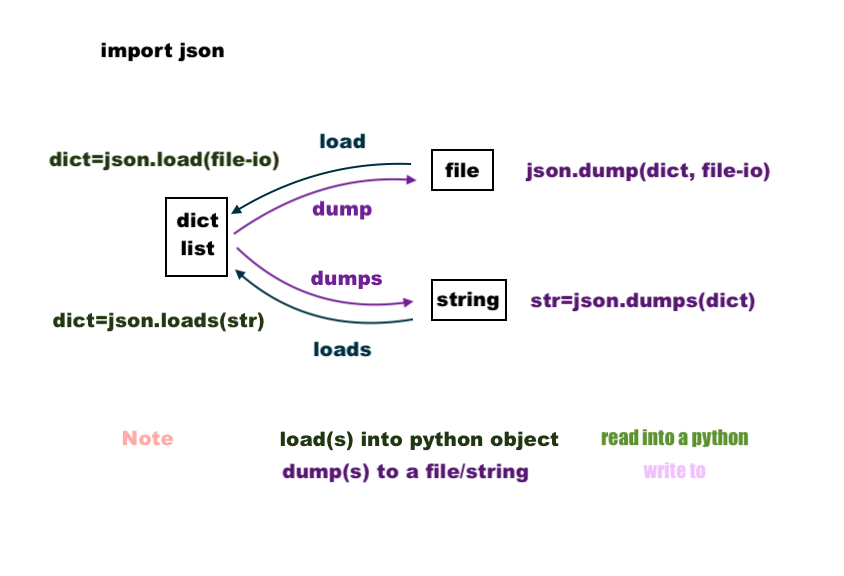
Python's json module provides two main functions for loading data:
json.load(): Reads from a file object and converts it into a Python object.json.loads(): Reads from a string (load-s) and converts it into a Python object.
This is a frequent point of confusion, so this diagram is helpful:
Python Tutorial: Working with JSON Data using the json Module
Corey Schafer also has an excellent tutorial on the json module. This first part will cover the basics of JSON and how to parse it into Python objects.
Watch from the beginning to 4:27, then jump to 6:45 and watch until 9:24. This covers: What JSON is and how it maps to Python types (object -> dict, array -> list, null -> None). Using json.loads() to parse a JSON string. Using json.load() to parse a JSON file.
Imagine a configuration file app_config.json:
{
  "appName": "WebApp1",
  "version": "1.2.0",
  "max_connections": 100,
  "features_enabled": [
    "feature_A",
    "feature_B"
  ],
  "monitoring": {
    "enabled": true,
    "endpoint": "http://monitor.svc.local/api"
  }
}
Here's how you'd load it in Python:
import json

try:
    with open('app_config.json', 'r') as f:
        config = json.load(f) # Use json.load() for files

    # 'config' is now a Python dictionary
    print(f"App Name: {config['appName']}")
    print(f"Monitoring enabled: {config['monitoring']['enabled']}")

except FileNotFoundError:
    print("Error: app_config.json not found.")
except json.JSONDecodeError:
    print("Error: The file is not valid JSON.")
Dumping JSON (to Files or Strings)
Similarly, there are two functions for writing data:
json.dump(): Writes a Python object to a file object as JSON.json.dumps(): Converts a Python object into a JSON-formatted string.
Python Tutorial: Working with JSON Data using the json Module
Now let's see the reverse: converting Python objects into JSON. The indent argument shown here is essential for creating human-readable configuration files.
Watch from 4:27 to 6:45, then jump to 9:24 and watch until 11:45. You'll learn: How to use json.dumps() to create a JSON string. How to use json.dump() to write to a JSON file. The importance of the indent argument for readability.
Here's how to create a new JSON file from a Python dictionary:
import json

new_config = {
    'service_name': 'auth-service',
    'version': '2.0.1',
    'replicas': 3,
    'ports': [8080, 8081]
}

with open('auth_service_config.json', 'w') as f:
    # Use json.dump() to write the dict to the file.
    # indent=4 makes it pretty and readable.
    json.dump(new_config, f, indent=4)

print("auth_service_config.json created successfully.")
Test your understanding!
You have a Python dictionary named my_data. You want to write it to a file named output.json in a human-readable format. Which line of code should you use inside a with open(...) block?
json.dumps(my_data, f, indent=4)json.dump(my_data, f, indent=4)json.load(my_data, f)json.loads(my_data)
Show answer
The correct answer is 2. json.dump(my_data, f, indent=4).
- You use
dump(without an 's') because you are writing to a file objectf. - You pass
my_dataas the object to serialize. indent=4ensures it's formatted for readability.
3. Practical Application: Converting CSV to JSON
A common task is to convert data from one format to another. For example, you might get an inventory of servers in a CSV file but need to feed it into an automation tool that consumes JSON.
This is a perfect way to combine what you've learned. The process is:
- Open the CSV file and use
csv.DictReaderto read the data into a list of dictionaries. - Open a new JSON file for writing.
- Use
json.dumpto write the list of dictionaries to the JSON file.
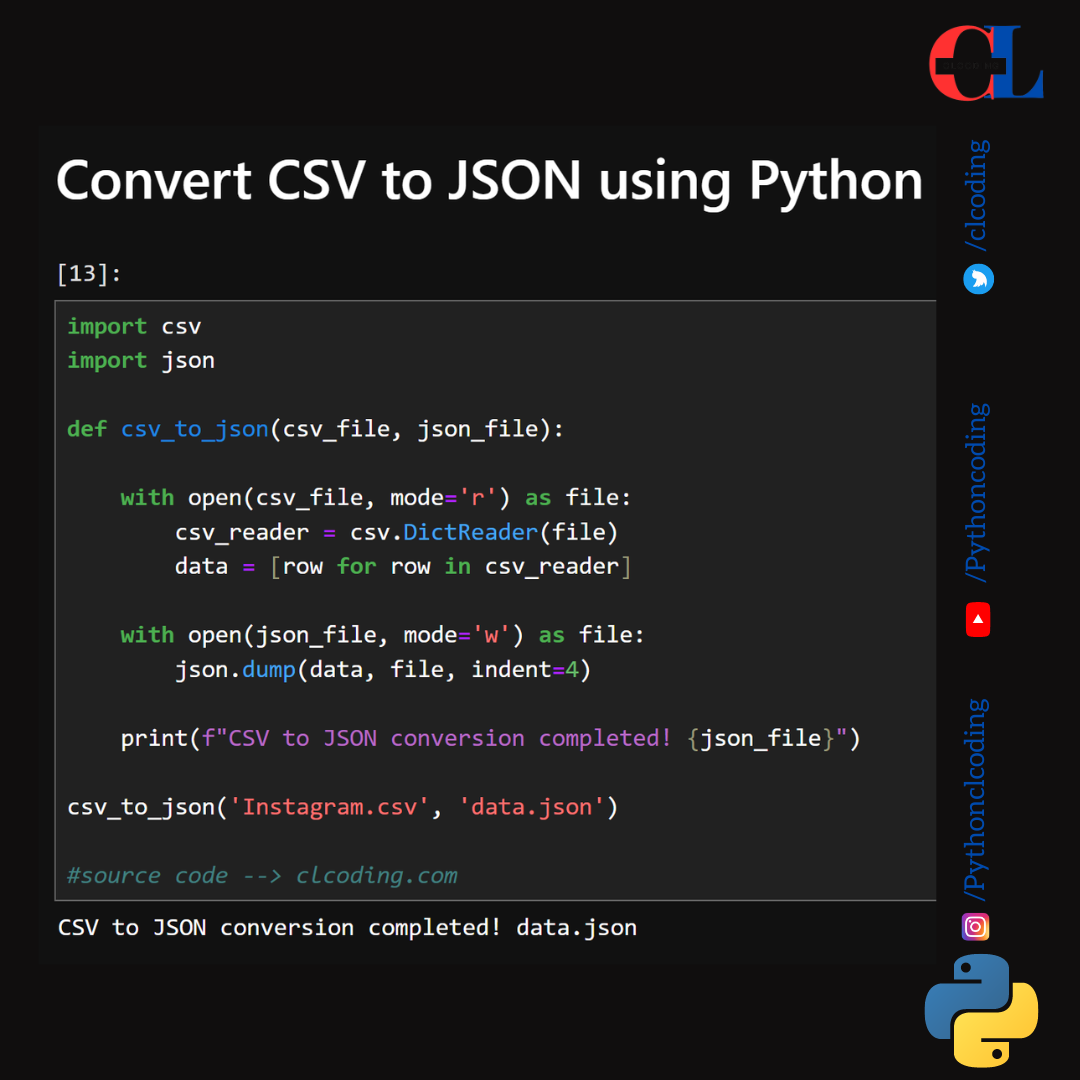
Here is the code you can run yourself. First, create the servers.csv file from our earlier example, then run this script:
import csv
import json

def convert_csv_to_json(csv_path, json_path):
    """Reads data from a CSV file and writes it to a JSON file."""
    data = []
    try:
        with open(csv_path, 'r', newline='') as csv_file:
            # DictReader converts each row to a dictionary
            reader = csv.DictReader(csv_file)
            for row in reader:
                data.append(row)

        with open(json_path, 'w') as json_file:
            # Dump the list of dictionaries to the JSON file
            json.dump(data, json_file, indent=4)

        print(f"Successfully converted {csv_path} to {json_path}")

    except FileNotFoundError:
        print(f"Error: The file {csv_path} was not found.")
    except Exception as e:
        print(f"An error occurred: {e}")

# --- Execute the conversion ---
convert_csv_to_json('servers.csv', 'servers.json')
After running this, you will have a new servers.json file containing your server data, perfectly formatted for another program to consume.
Conclusion
You now have the fundamental skills to handle the two most prevalent data formats in the DevOps world. This ability to read, manipulate, and write structured data is a cornerstone of automation.
Key Takeaways:
- Use the
csvmodule for CSV files. PreferDictReaderandDictWriterfor more readable and robust code. - Use the
jsonmodule for JSON data. Its structure maps naturally to Python dictionaries and lists. - Remember the
s:loadanddumpwork with files, whileloadsanddumpswork with strings. - Always use
with open(...)to ensure files are closed properly, and wrap file operations intry...exceptblocks to handle potential errors. - Use the
indentargument when writing JSON files to keep them human-readable.
Next Up
You've learned how to create and parse JSON data. But where does that data often come from? Web services and APIs! In our next lesson, you will use Python libraries like 'requests' to interact with REST APIs, fetching live data from the internet and putting your JSON handling skills to immediate practical use.