Hello! Welcome back to our journey through Git.
In our last lesson, we focused on git revert, the safe and non-destructive way to undo a commit that has already been shared with others. This approach preserves the project's history, which is crucial for collaboration.
Today, we're diving into a much more powerful—and potentially dangerous—command: git reset. This lesson is designed to teach you how to rewrite your local commit history using git reset with its --soft, --mixed, and --hard options. While revert creates a new commit to undo changes, reset actually moves your branch back in time, effectively erasing commits from your local history. This makes it an incredibly useful tool for cleaning up your own work before sharing it, but something to be used with great care.
The Foundation: Git's Three Areas
Before we can understand how git reset works, we must first have a clear mental model of the three fundamental areas where your code lives in Git. Confusing these is the primary source of difficulty when learning reset.
Git Will Finally Make Sense After This
This video, "Git Will Finally Make Sense After This," provides a concise and clear explanation of the three areas. Understanding this is the key to unlocking the behavior of git reset.
Please watch from 05:34 to 06:38. Focus on the definitions of the Working Directory, the Staging Area (Index), and the Repository.
To summarize, these three areas are:
- The Working Directory: The actual files and folders on your computer's filesystem that you can see and edit.
- The Staging Area (or Index): A waiting room where you prepare the next commit. When you run
git add, you move changes from the Working Directory to the Staging Area. - The Repository (.git directory): The permanent history of your project, consisting of all your commits.
git committakes what's in the Staging Area and saves it as a new snapshot in the Repository.
Every git reset operation manipulates these three areas in a specific way.
Rewriting History with git reset
At its core, git reset <commit> does one primary thing: it moves the tip of your current branch (the pointer often referred to as HEAD) to a different commit. Where it gets interesting is what it does after moving the branch pointer. This is controlled by the --soft, --mixed, and --hard flags.
Let's look at each mode in detail.
Git Will Finally Make Sense After This
The same video provides an excellent high-level overview of the three reset modes. It explains what each mode affects and provides a simple use case.
Now, continue watching from 07:07 to 08:35. Pay close attention to how each mode—soft, mixed, and hard—affects the branch, staging area, and working directory differently.
Now that you have the concept, let's break down each mode with a practical demonstration.
1. git reset --soft
This is the most gentle reset. It performs only one action:
- Moves the branch pointer (
HEAD) to the specified commit.
It leaves both your Staging Area and Working Directory completely untouched. The changes from the commits you just "removed" from the history will now appear as staged changes, ready to be committed again.
Common Use Case: Squashing multiple small, "work-in-progress" commits into a single, clean commit. You can reset back a few commits, and then create one new, well-described commit.
Git Tutorial #34: How to Use Git Reset Soft, Mixed, and Hard | Learn Git
This GitKraken tutorial provides a clear command-line demonstration of git reset --soft.
First, watch the explanation from 01:20 to 01:42. Then, jump to the practical demo from 03:07 to 04:33. Notice how after the reset, git status shows the changes as already staged.
2. git reset --mixed (The Default)
If you run git reset without any flag, this is the mode you get. It performs two actions:
- Moves the branch pointer (
HEAD). - Resets the Staging Area to match the state of the commit you reset to.
Your Working Directory is left untouched. The changes from the "removed" commits will now appear as unstaged changes in your working directory.
Common Use Case: You made a commit, but you want to change what's in it. You can do a mixed reset, modify the files, and then re-stage and re-commit them, perhaps splitting them into multiple commits.
Git Tutorial #34: How to Use Git Reset Soft, Mixed, and Hard | Learn Git
Next, let's see a demo of git reset --mixed.
Watch the explanation from 01:42 to 02:16, and then the demo from 04:33 to 06:11. See how git status shows the changes as unstaged ('not staged for commit').
3. git reset --hard (The Dangerous One)
This is the most powerful and final mode. It performs three actions:
- Moves the branch pointer (
HEAD). - Resets the Staging Area.
- Resets the Working Directory.
This command makes all three areas—the repository, the staging area, and your files on disk—match the state of the commit you reset to. Any uncommitted changes in your staging area and working directory will be permanently destroyed. Use this command with extreme caution.
Common Use Case: You've made some commits and some local changes that are completely wrong, and you want to burn it all down and start fresh from a known good commit.
Git Tutorial #34: How to Use Git Reset Soft, Mixed, and Hard | Learn Git
Finally, let's look at the demonstration for the powerful git reset --hard.
Watch the explanation from 02:16 to 03:07, and then the demo from 06:11 to 07:44. Notice how the file contents actually change on disk, and the changes are completely gone.
This visual guide provides a great summary of the effects of each command.
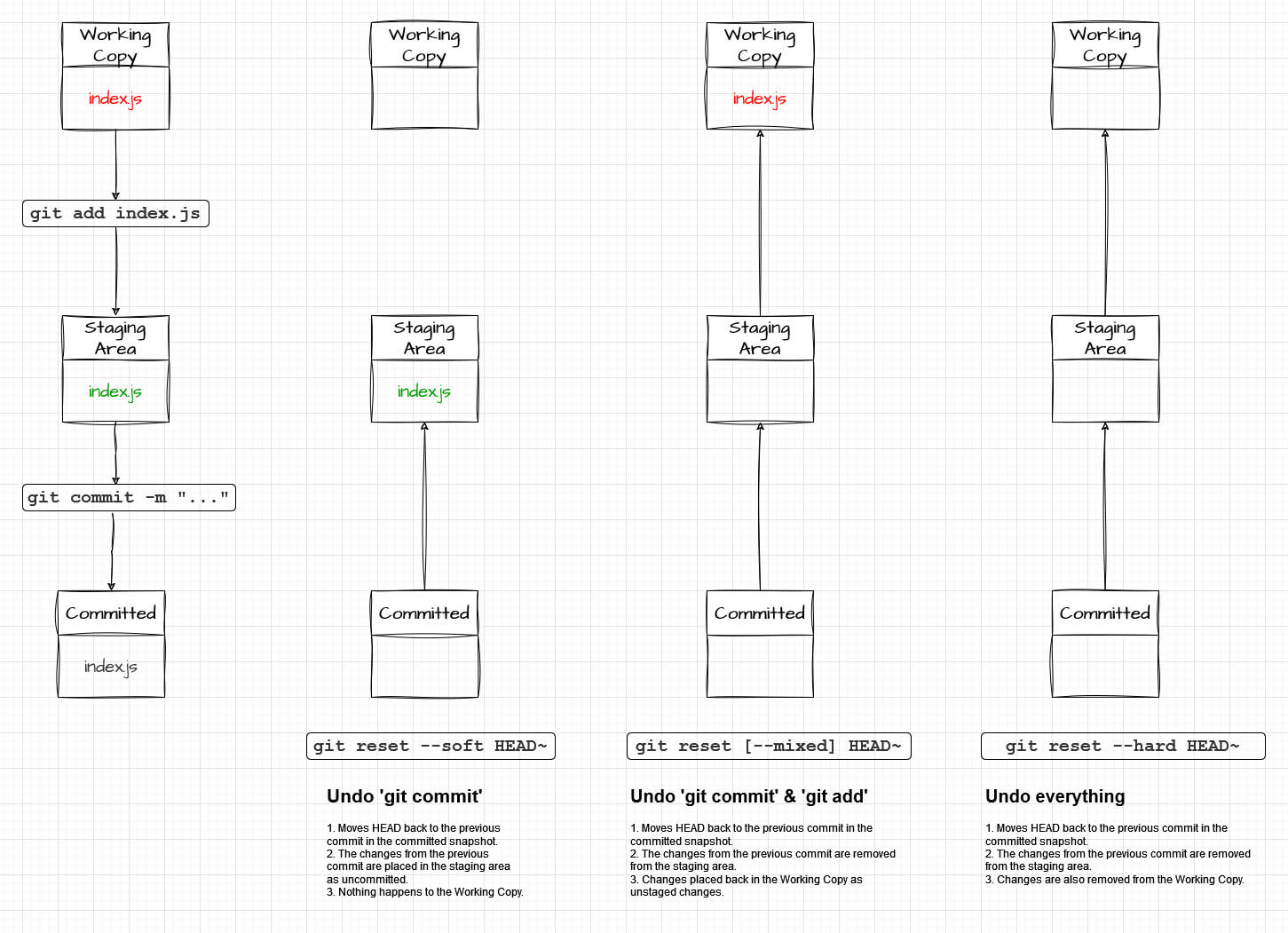
Test your understanding!
You've made three messy commits on your local feature branch: "fix typo", "wip", and "add stuff". Before you create a pull request, you want to combine them into one clean commit with a proper message. You don't want to lose any of the code changes.
Which git reset command would you use to start this process, and why?
Show answer
You would use git reset --soft HEAD~3.
HEAD~3tells Git to move the branch pointer back by three commits, to the point before your messy work began.--softensures that only the branch pointer moves. The changes from all three commits will be preserved and will remain in your Staging Area, ready for you to create a single, new commit withgit commit -m "Implement new feature".
The Golden Rule of git reset
Now for the most important rule of this lesson, one that is critical for any DevOps professional responsible for maintaining repository health.
Git Reset | Atlassian Git Tutorial
The Atlassian Git Tutorial has an essential section that you must read and internalize. It explains why reset is considered dangerous for collaborative workflows.
Please read the sections titled "Resetting vs reverting" and "Don't reset public history". This explains the fundamental difference in philosophy between reset and revert and the collaboration problems that arise from resetting public commits.
The rule is simple: You should never use git reset on commits that have been pushed to a public or shared repository.
When you use reset, you are rewriting history. If other team members have pulled that history and based their work on it, your rewritten history will diverge from theirs. When they try to sync up, it will cause confusing and difficult merge conflicts.
git resetis for cleaning up your local history before you share it.git revertis for undoing changes that are already public.
Conclusion
You've now learned about git reset, one of Git's most powerful and nuanced commands. Understanding how it manipulates the three areas of Git is key to using it effectively and safely.
Key Takeaways:
- Git manages your work across three areas: the Working Directory, the Staging Area (Index), and the Repository.
git resetmoves the branch pointer (HEAD) to a specified commit, rewriting local history.--soft: MovesHEADonly. Changes remain staged.--mixed(default): MovesHEADand unstages changes, moving them to the Working Directory.--hard: MovesHEADand discards all changes from both the Staging Area and Working Directory. This is destructive and can lead to data loss.- The Golden Rule: Only use
git reseton local commits that you have not yet pushed to a shared repository. Usegit revertfor public changes.
In our next module, we'll put our Git skills into practice in a collaborative setting. We will begin exploring GitHub, where you'll learn to set up your account, manage remote repositories, and contribute to projects using workflows that are central to modern DevOps.