Welcome back! In our first lesson, we established what Claude is, how it works, and its general strengths and weaknesses for web development. We saw that its large context window and strong reasoning abilities make it a powerful partner, but it's not infallible.
Now, we'll dive into a more practical question that's central to your goal of achieving maximum efficiency: how should you work with Claude? This lesson compares the two fundamental workflows for AI-assisted development. The first is the method you're likely using now: interacting through the Claude.ai chat interface. The second is a more advanced approach where the AI is integrated directly into your code editor, VS Code. Understanding the trade-offs between these two models is key to building a professional and highly efficient development process.
Two Philosophies of AI Development
When using AI for coding, you can think of the process in two distinct ways, which we can call "Terminal Autonomy" and "IDE Velocity."
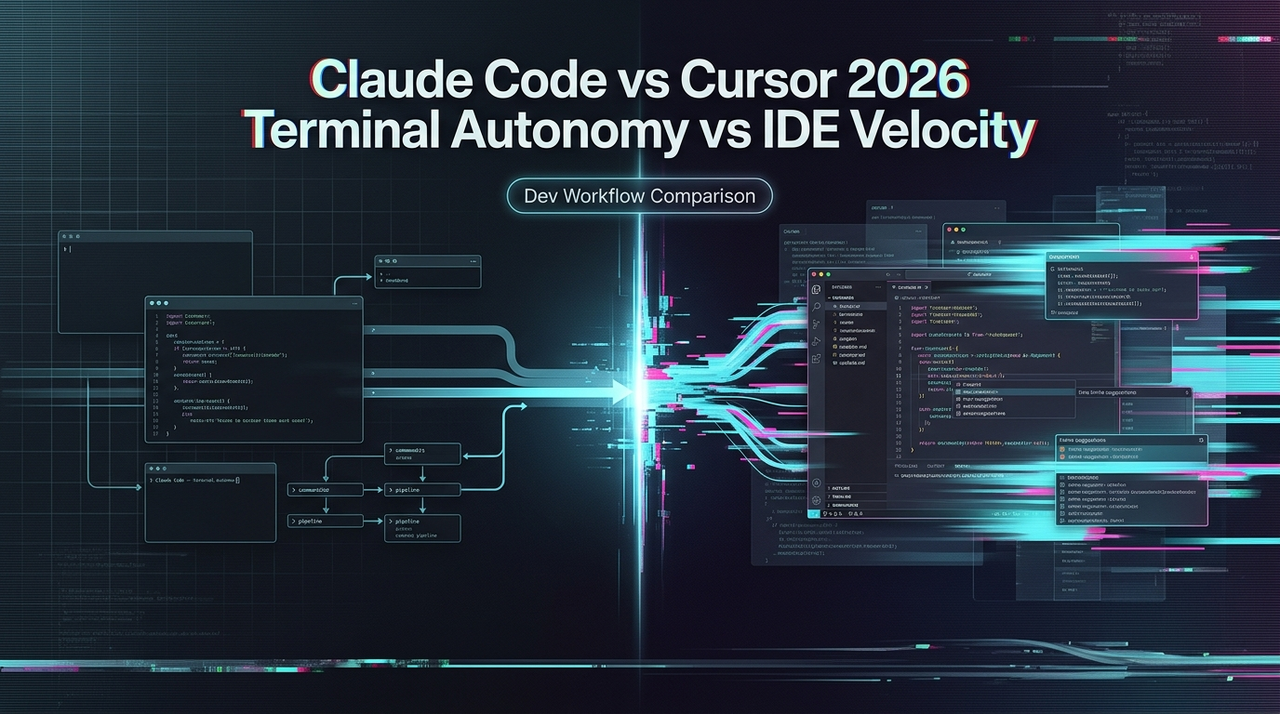
This image illustrates the two main workflows. On the left, "Terminal Autonomy" represents a chat-based, step-by-step interaction. On the right, "IDE Velocity" represents a deeply integrated, fluid workflow directly within your code editor.
Let's break down what each of these means in practice.
Workflow 1: The Chat Interface (Terminal Autonomy)
This is the workflow you've likely been using on the Claude.ai website. It’s characterized by a clear separation between your conversation with the AI and your actual codebase.
The typical loop looks like this:
- You write a prompt in the chat window, describing what you want.
- Claude processes the request and generates a response, often including code blocks and a live "Artifact" preview.
- You review the code and the preview.
- You manually copy the code from the chat window.
- You paste the code into the appropriate file in VS Code.
- You save the file and test it locally.
- To make changes, you return to the chat window, provide feedback or new instructions (often pasting your existing code back in for context), and repeat the cycle.
This approach treats the AI as a powerful reasoning engine or an expert consultant. You have a conversation, get a detailed plan or a finished component, and then you manually perform the integration.
To better understand this concept, let's turn to an article from Cosine that compares several AI coding tools. It provides a great high-level summary of the different approaches.
A Practical Comparison of Cosine, Cursor, Claude, and Lovable — Which AI Engineer Delivers?
This article explains the different philosophies behind various AI coding tools. We'll focus on its descriptions of Claude and Cursor, which serve as excellent archetypes for the two workflows we're discussing.
Please read the section Part 1. Pay close attention to the descriptions of Cursor and Claude. Notice how the article describes Claude's strength as reasoning but highlights that the "orchestration is manual." This perfectly captures the essence of the chat interface workflow.
The key takeaway is that the chat interface excels at understanding complex requests and generating well-thought-out, commented code. However, the process of transferring that code into your project is entirely up to you.
Workflow 2: The IDE-Integrated Assistant (IDE Velocity)
The second workflow aims to eliminate the manual copy-paste cycle by bringing the AI directly into your Integrated Development Environment (IDE), which for us is VS Code. Tools like the official Claude extension for VS Code (which we will cover in a later module) or dedicated AI-first editors like Cursor operate this way.
The loop is much tighter:
- Within VS Code, you might select a piece of code or just open a chat panel.
- You write a prompt, asking the AI to refactor the selection, add a feature, or fix a bug.
- The AI has direct access to your project's files. It reads the necessary context automatically.
- It applies the changes directly to your files, often showing you a "diff" (a red and green comparison of what was changed) so you can approve or reject the edits.
- The feedback loop is instantaneous, and you never leave your editor.
This approach treats the AI as a pair programmer sitting right next to you. It's all about speed and flow, or "IDE Velocity."
This short video from Codevolution gives a clear, concise comparison of how these two workflows feel in practice, using Cursor as the example for the IDE-integrated approach.
Cursor vs Claude Code | The Ultimate Comparison Guide
This video directly compares the user experience of an IDE-integrated tool (Cursor) and a terminal-based agent (which the video calls "Claude Code"). The concepts map perfectly to the two workflows we're discussing.
Watch the first few minutes of the video, covering the following points: The fundamental difference in user experience. How code is generated in each tool. How code is edited after being generated. Notice the distinction between the "pure terminal" feel of the autonomous agent and the "smooth, visual" flow of the integrated editor.
The Efficiency Bottleneck: Why Integration Matters
So, which workflow is better? For your goal of "max efficiency," the answer is nuanced, but there's a clear trajectory. The chat workflow is fantastic for starting out, but as you tackle larger projects, you'll encounter a significant bottleneck: permissions and manual updates.
Every time the chat-based Claude wants to create a file, edit a file, or run a command, it can't do it. It has to ask you. This leads to a constant back-and-forth that breaks your focus. The following article, written for non-developers, brilliantly explains this pain point and why moving to an integrated VS Code workflow is a game-changer.
Claude Code. - by Ruben Hassid - How to AI
This article provides a step-by-step guide for moving from a chat-based workflow to the faster, integrated VS Code workflow. It's perfectly aligned with the path we'll be taking in this course.
Read through the article, focusing on these key sections: Start with "Step 3: Code, but without code" (your endless feedback loop) to see the description of the chat-based workflow. Now, read the crucial section "I can make you code 100x faster" (This section). The author identifies the "permissions" pop-up as the main thing that "kills the flow." Pay close attention to how the article frames the solution: installing VS Code and the Claude extension to "bypass permissions" and achieve an uninterrupted workflow. Finally, read the author's conclusion under "Where Claude Code falls short", specifically point #4: The desktop Code tab is limited. This reinforces the idea that the integrated workflow is the more powerful and efficient option.
Head-to-Head Comparison
Let's summarize the key differences:
| Feature | Claude.ai Chat (Terminal Autonomy) | IDE-Integrated Assistant (IDE Velocity) |
|---|---|---|
| Environment | Separate web interface | Directly inside VS Code |
| File Access | None. You must provide all code as context. | Direct access to all project files. |
| Applying Changes | You manually copy and paste code. | AI applies edits directly to files. |
| Iteration | Re-prompt with new instructions. Feels like a conversation. | Inline commands and edits. Feels like pair programming. |
| Best For... | Initial project scaffolding, high-level reasoning, generating self-contained components, learning new concepts. | Refactoring existing code, making changes across multiple files, debugging, day-to-day coding speed. |
| Analogy | Claude is a consultant in another room. | Claude is a pair programmer at your keyboard. |
As the Codevolution video wisely concludes: "Cloud code builds the house. Cursor paints the walls." For our purposes, we can adapt this: The chat interface designs the blueprint and builds the frame. The IDE extension finishes the interior and performs the renovations.
Conclusion
In this lesson, we've compared the two primary workflows for using Claude in web development. You now have a clear mental model for the difference between the "Terminal Autonomy" of the chat interface and the "IDE Velocity" of an integrated assistant.
Key Takeaways:
- The Chat Workflow (Terminal Autonomy): You work in the Claude.ai interface. It's excellent for reasoning, architectural planning, and generating initial code, but requires manual copy-pasting and can be slow for iterative changes due to its lack of direct file access.
- The Integrated Workflow (IDE Velocity): You work entirely within VS Code. The AI has direct access to your files, allowing for rapid, in-place edits and refactoring. This is the path to maximum efficiency for day-to-day development.
- The Path Forward: For this course, we will follow the learning path you preferred: starting with the chat workflow to build foundational skills and then graduating to the integrated workflow for enhanced productivity. This lesson shows you why that transition is so valuable.
Now that we've established the "what" (what is Claude) and the "how" (the workflows), our next lesson will focus on the "where." We'll get our local development environment ready by setting up a standard, professional project folder structure in VS Code. This organized foundation will be crucial for managing the code we generate, regardless of which workflow we use.