In our last lesson, we mastered vectors, learning how to group related data points into a single object. This was a crucial step, but all the functions we've used so far—like c(), mean(), or the arithmetic operators—are part of R's "base" installation. While powerful, this is just the beginning. The true strength of R for specialized fields like meta-analysis lies in its vast ecosystem of add-on packages.
This lesson will introduce you to these packages. You will learn what they are, where to find them, and how to install them onto your computer using the install.packages() function. Think of this as outfitting your workshop: base R gives you a hammer and screwdriver, but for a complex project like a meta-analysis, you need to bring in specialized power tools. By the end of this lesson, you will have installed the core packages we will use for the rest of this course.
What are R Packages?
R packages are collections of functions, data, and documentation that extend R's capabilities. They are created by statisticians, researchers, and data scientists from around the world to solve specific problems. For instance, instead of you having to write complex code to calculate a standardized mean difference from scratch, a package can provide a ready-made function to do it for you.
These packages are typically stored in a central online repository called the Comprehensive R Archive Network (CRAN). You can think of CRAN as an official app store for R.
The following video provides an excellent overview of what packages are and introduces the concept of CRAN.
RStudio: Installing and loading packages and here()
This video from Andy Field, "RStudio: Installing and loading packages," begins by explaining the role of packages in extending R's functionality.
Please watch the first few minutes, from the beginning of the discussion on packages up to the end of the CRAN explanation. The analogy to browser extensions or software add-ins is particularly helpful.
Installing vs. Loading: A Critical Distinction
Before you can use a package, you must first install it from CRAN onto your computer. This is a one-time action for each package (per computer or R installation). It's like downloading an app from the app store and installing it on your phone.
However, just because a package is installed doesn't mean R can use its functions immediately. To make a package's functions available in your current R session, you must load it. This is an action you must perform every time you start a new R session and want to use that package. It's like tapping on a phone app's icon to open it and bring it into active memory.
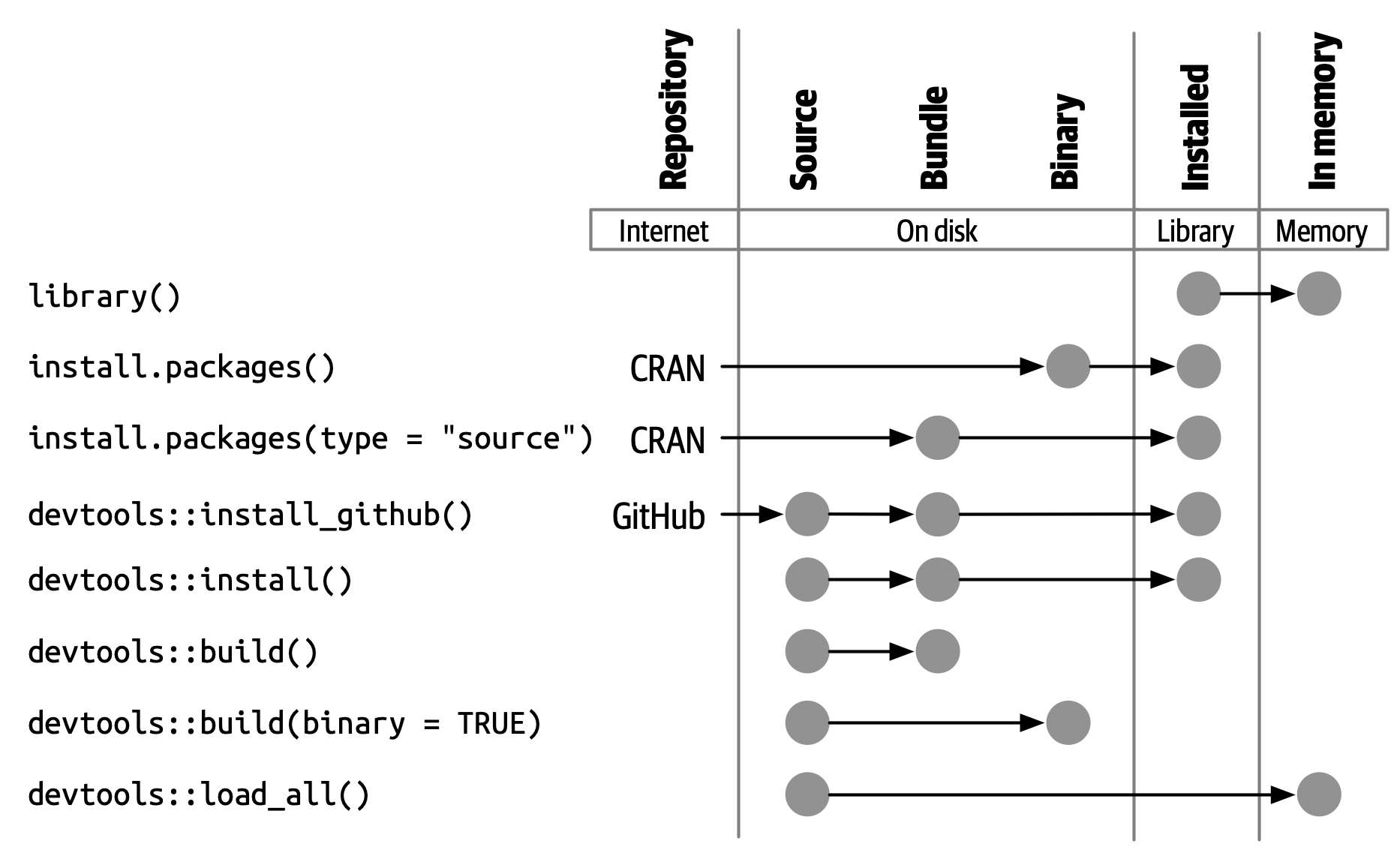
This distinction is fundamental to working with R. The diagram below illustrates this process. The install.packages() function moves a package from an online repository (like CRAN) to your computer's local library (on disk). The library() function (which we will cover in the next lesson) moves the package from your library into R's active memory for the current session.
The video you just started has a clear segment explaining this very point.
RStudio: Installing and loading packages and here()
Let's continue with the same video to solidify the difference between installing and loading a package.
Please watch the segment from the start of the distinction. This short clip reinforces the concept that installation is a one-time setup, while loading happens in each session.
How to Install Packages from CRAN
The command to install a package from CRAN is install.packages(). The syntax is simple: you provide the name of the package you wish to install as a character string (i.e., inside quotation marks).
For example, to install a package named examplepkg, you would type the following command directly into your RStudio Console (the bottom-left pane) and press Enter:
install.packages("examplepkg")
It is very important to run this command in the console, not in an R script file. Because installation is a one-time setup, you don't want to re-install the package every time you run your analysis script.
The following reading from the book Doing Meta-Analysis in R explains this process and introduces the three key packages we will rely on throughout this course.
Chapter 2 Discovering R | Doing Meta-Analysis in R
This excerpt provides a clear, meta-analysis-focused introduction to packages and the install.packages() function.
Please read the section titled 2.2 Packages. Pay close attention to the syntax for the install.packages function and the description of the three packages essential for our work: tidyverse, meta, and metafor.
When you run the command, R will connect to CRAN, download the necessary files, and install them. You will see several lines of text appear in your console, which is normal. The screenshot below shows an example of a successful installation of a package called janeaustenr, and you can see it then appears in the "Packages" tab in the bottom-right pane of RStudio.

Let's watch a practical demonstration of this process.
RStudio: Installing and loading packages and here()
Returning to the "RStudio: Installing and loading packages" video, the next part demonstrates the install.packages() command live and offers a crucial tip.
Please watch these two segments: First, watch the section explaining how to use the function. Note the advice to always install packages from the console. Then, watch the live demonstration where the tidyverse and here packages are installed.
Installing Multiple Packages and Troubleshooting
You can install several packages at once. Since you've already learned how to create a vector with the c() function, you can use that same skill here. Simply provide a vector of package names to the install.packages() function.
The following resource from a tutorial published in the journal Evidence-Based Mental Health demonstrates this technique.
How to perform a meta-analysis with R: a practical tutorial - PMC - NIH
This excerpt demonstrates how to install the meta package, which is central to our course.
Read the section beginning with the R command to install packages. Notice how the c() function is used to combine the names of the meta and metasens packages into a single command.
Now, let's put this into practice and install the main packages we will need for conducting meta-analyses.
Your Turn: Install the Core Packages
Go to your RStudio console, type the following command, and press Enter. This will install the meta package (for performing meta-analyses), the tidyverse package (a collection of powerful data manipulation and visualization tools), and metafor (another major meta-analysis package that meta relies on). This may take a few minutes.
install.packages(c("meta", "tidyverse", "metafor"))
Occasionally, installations can fail, often due to permission issues on your computer. If you see an error message mentioning a lack of "write permission," a common solution on Windows is to close RStudio and re-open it by right-clicking the icon and selecting "Run as administrator," then try the installation command again.
Conclusion
In this lesson, you've taken a significant step from being a user of base R to becoming someone who can leverage the global R community's work. You now have the primary tools for modern data analysis and meta-analysis installed on your machine.
Here are the key takeaways:
- R packages are add-ons that provide new functions and data.
- CRAN is the main repository where packages are stored and downloaded from.
- The
install.packages("package_name")command, run in the console, downloads and installs a package to your computer. - Installation is a one-time action, whereas loading a package into memory is required for every new R session.
We have successfully installed our toolset. In the next lesson, we will learn how to load these packages into our R session using the library() function, finally unlocking their powerful capabilities for our work.