In our first lesson, we successfully installed the essential software for your journey into R: the R language itself and the RStudio Integrated Development Environment (IDE). Now that your digital workspace is set up, it's time to get acquainted with its layout. This lesson provides a guided tour of the RStudio interface, which will be your primary environment for conducting all your analyses. Understanding the purpose of each component is like learning the layout of a new research lab or clinic—knowing where your tools, data, and results are is fundamental to working efficiently.
By the end of this lesson, you will be able to navigate the RStudio interface with confidence, identifying and explaining the function of the four main windows: the Console, the Script Editor (Source), the Environment pane, and the multi-purpose Plots pane.
The RStudio Dashboard: An Overview
When you open RStudio, you are greeted by an interface that is typically divided into four main sections, or "panes." Each pane has a distinct and important role in the data analysis workflow.
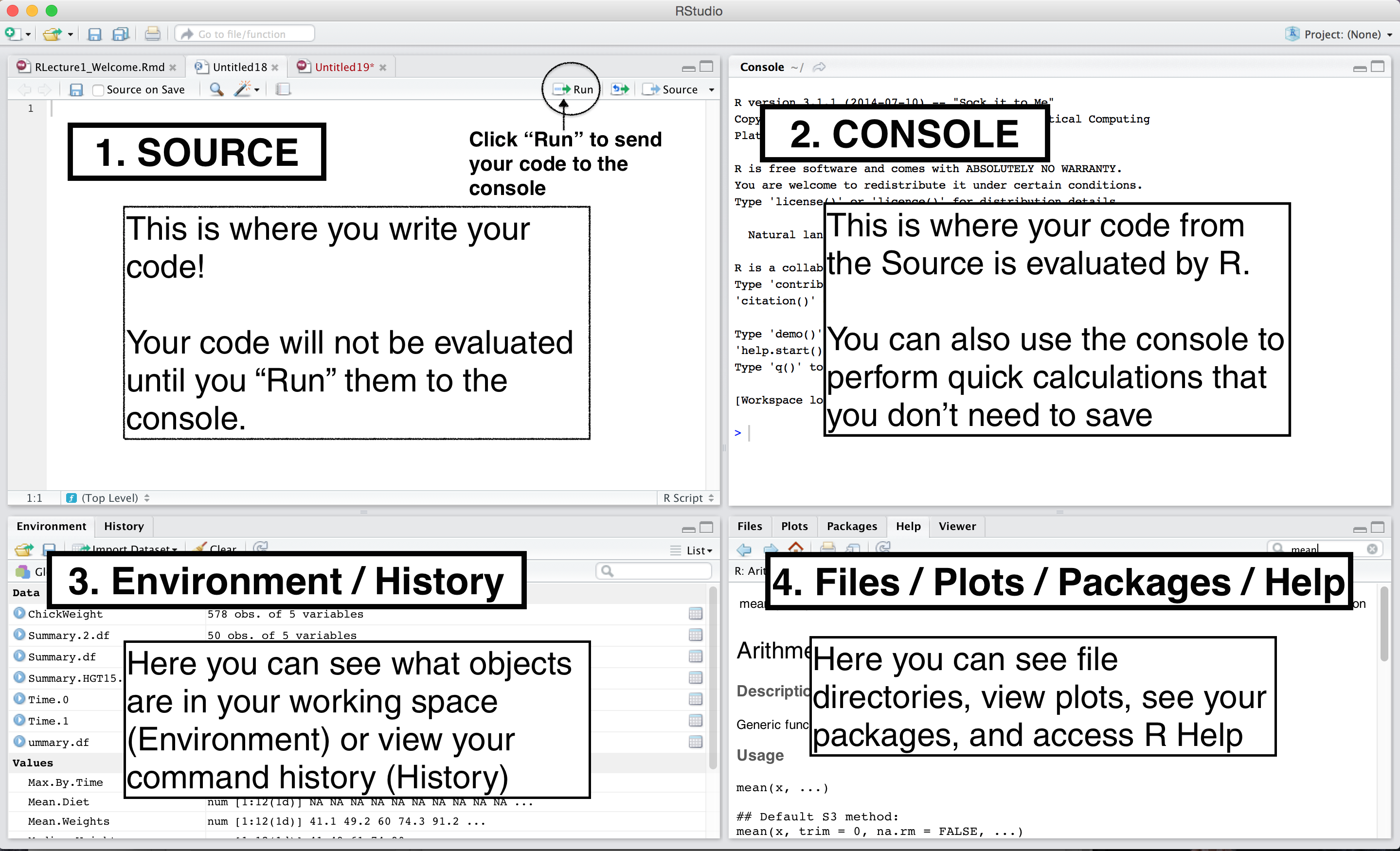
This layout is your command center. Let's start with a video walkthrough to see these panes in action before we examine each one in detail.
RStudio for the Total Beginner
This video from HRanalytics101.com provides a concise and clear tour of the four main RStudio panels, demonstrating how they work together during a typical analysis.
Watch the entire video from start to finish. As you watch, pay attention to the role of each panel: Source: Where code is written and saved. Console: Where code is executed and results appear. Environment: Where created variables and datasets are listed. Plots/Help/Packages: Where you view graphs, access documentation, and manage add-on functionalities.
The video gives you a dynamic sense of the workflow. Now, let's solidify that understanding by exploring each pane's function more methodically.
A Deeper Dive into the Four Panes
The official RStudio user guide provides an excellent reference for the interface. We'll use it to anchor our exploration.
Get Started – RStudio User Guide
This guide from Posit (the creators of RStudio) offers a definitive description of the main interface components.
Read the section titled RStudio Panes. This text provides a concise summary of the purpose of the Source, Console, Environment, and Output panes.
Building on the video and the reading, let's connect these functions to the practical work of a researcher.
1. The Console (Lower Left): The Direct Command Line
The Console is your direct, interactive line of communication with R. When you type a command here and press Enter, R executes it immediately.
- Function: For quick calculations, testing a single line of code, or inspecting a variable.
- Analogy: Think of the Console as giving a quick verbal instruction. It's immediate and effective for simple tasks, but it's not recorded in a structured way.
- In Practice: In the last lesson, you used the Console to verify your installation by typing
1 + 1. The Console immediately returned[1] 2. This immediate feedback loop is one of its key strengths.
However, for a systematic review, your analysis will involve many steps that must be documented, repeatable, and shareable. Relying only on the Console would be like performing a clinical trial without a written protocol—unthinkable for rigorous research. This is why we have the Source pane.
2. The Source Pane (Upper Left): The Digital Lab Notebook
The Source pane is where you write, edit, and save your R code in files called scripts (which have a .R extension). This is the heart of reproducible research.
- Function: To write a complete, ordered set of instructions for your analysis from start to finish.
- Analogy: This is your detailed research protocol or lab notebook. Every step is written down in order, ensuring that you (or a colleague) can reproduce the exact same analysis later.
- In Practice: You will write your code here to import data, calculate effect sizes, run the meta-analysis, and create plots. To run code from your script, you place your cursor on a line (or highlight multiple lines) and press Ctrl+Enter (on Windows) or Cmd+Enter (on Mac). The commands are sent to the Console, and the results are displayed there.
Note: If you don't see the Source pane when you open RStudio, you can open a new script by going to File > New File > R Script.
3. The Environment Pane (Upper Right): The Data Inventory
The Environment pane keeps track of all the "objects"—such as datasets, variables, and results—that you create during your R session.
- Function: To give you a live overview of all the data and values currently stored in R's memory.
- Analogy: This is the inventory for your project. If you load a dataset of study results, it will appear here. If you calculate a pooled effect size and save it, that will appear here too.
- In Practice: If you run the command
study_count <- 25in your script or the console, you will seestudy_countappear in the Environment pane with the value25next to it. This helps you check that your code is creating the objects you expect.
4. The Output Pane (Lower Right): The Utility Drawer
This multi-tabbed pane is a versatile area for viewing various outputs and managing your workspace. The most important tabs for now are:
- Files: A built-in file browser to navigate your project folders, open scripts, or find data files.
- Plots: When you create a graph, such as a forest plot or funnel plot, it will be displayed here. You can scroll through previous plots and export them for your manuscript.
- Packages: This tab lists all the R packages installed on your system. Packages are collections of specialized functions that extend R's capabilities. Your meta-analyses will rely on the
metapackage, which we will install in a future lesson. - Help: An invaluable resource. If you want to know how a function works, you can type
?followed by the function name in the console (e.g.,?mean), and the documentation will appear here.
A Crucial Step for Reproducible Research
One of the main reasons for using scripts is to ensure your work is reproducible. A key principle of reproducibility is starting with a "blank slate" every time. This ensures that your script contains every single step needed to get to the final result, and that you are not accidentally relying on objects created in a previous session.
When you close RStudio, it may ask if you want to save your "workspace." Saving the workspace means all the objects in your Environment pane are saved to a hidden file (.RData) and are automatically reloaded the next time you open RStudio. This is generally a bad practice for reproducible research.
We will configure RStudio to never save the workspace, forcing us to rely on our saved scripts.
R Tutorial (Part 1): The Basics
This tutorial explains the importance of not saving your workspace and guides you through changing the RStudio settings.
Find the section titled "Dealing with the Workspace" and follow the instructions to adjust your settings. Go to Tools > Global Options, and ensure that: "Restore .RData into workspace at startup" is unchecked. "Save workspace to .RData on exit" is set to Never.
This one-time adjustment will enforce a good habit that is essential for the reliable and reproducible analyses required in systematic reviews.
Conclusion
You have now completed a comprehensive tour of the RStudio interface. You are familiar with your new digital laboratory and the function of each core component.
The key takeaways are:
- Source Pane: Your lab notebook for writing and saving reproducible R scripts.
- Console: Your direct command line for quick tests and viewing output.
- Environment Pane: Your inventory, showing all active data and objects.
- Output Pane: Your utility area for viewing plots, files, packages, and help documents.
- Reproducibility: Starting with a blank slate by not saving your workspace is a cornerstone of good scientific practice in R.
Now that you can confidently navigate the interface, our next lesson will focus on using the Console and Source pane to write and execute your first R commands, assign values to variables, and perform basic arithmetic.