In our last session, we mastered canvas transformations to create a pannable and zoomable camera for your whiteboard. This is a critical piece of the puzzle, as it allows users to navigate an infinite canvas. Now, we'll populate that canvas with one of the most fundamental elements of any notebook or document: text.
This lesson focuses on drawing text using Skia's core text rendering capabilities. You will learn how to use SkFont, SkTypeface, and the SkCanvas::drawString method to render text onto your canvas. Because text is drawn like any other graphical element, it will automatically respect the canvas transformations we implemented, allowing you to pan and zoom your text content seamlessly alongside your drawings. We will also look under the hood to understand what a font character really is from a graphics pipeline perspective.
What is Text? A Vector Graphics Perspective
Given your interest in low-level systems, it's worth starting with what a font character, or glyph, actually is. It's not a small image or bitmap. In modern graphics, a glyph is defined as a set of vector paths, much like the SkPath objects you've already worked with.
This short video provides an excellent conceptual breakdown of how vector-based fonts work.
Font rendering in 3 minutes! [v2]
This video from RL Hugh, "Font rendering in 3 minutes! [v2]", explains how font glyphs are constructed from vector curves.
Glyphs and Contours: Watch from the beginning to this point to understand that characters are made of one or more closed loops called contours. Vector Nature: Continue watching from this section, which explains that these contours are defined by points and Bezier curves. This is why text can be scaled to any size without losing quality, a crucial property for your zoomable whiteboard. Bezier Construction: The segment from here explains how a simple quadratic Bezier curve is mathematically constructed. This is the same principle Skia uses to draw curved paths with SkPath::quadTo.
The key takeaway is that when you ask Skia to draw text, it's essentially being instructed to draw a series of pre-defined, complex SkPath objects. This insight helps demystify text rendering—it's just another form of vector drawing.
The Skia Text Rendering Pipeline
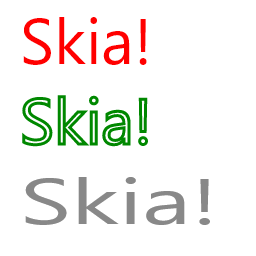
To draw text in Skia, you need to correctly assemble a few key components. The process looks like this:
SkFontMgr(Font Manager): This is your gateway to the fonts installed on the operating system. Its job is to find and load the raw font data.SkTypeface: This object represents the actual font data for a specific font family and style (e.g., "Arial Bold", "Times New Roman Italic"). It contains the vector definitions for all the glyphs in that font.SkFont: This is a lightweight object that bundles anSkTypefacewith specific rendering properties, most notably the text size. You will primarily interact withSkFontwhen drawing.SkPaint: Just as with shapes, anSkPaintobject controls the visual style of the text, such as its color and whether it should be filled or stroked.SkCanvas::drawString: The final step, where you pass the text string, coordinates, the configuredSkFont, and theSkPaintto the canvas for rendering.
A Common Pitfall: Finding Fonts
A frequent point of confusion and error for developers new to Skia is the initialization of the font manager. If Skia cannot find any fonts, it will simply fail to draw your text without any explicit error.
This is a scenario where seeing the problem and the solution is highly instructive.
c++ - Skia drawSimpleText() not rendering text - Stack Overflow
This Stack Overflow thread perfectly illustrates the common problem of text not appearing and how to solve it by correctly initializing the font manager.
First, look at the problematic code. Notice the line sk_sp<SkFontMgr> fontMgr = SkFontMgr::RefEmpty();. This creates a font manager that, as its name implies, knows about zero fonts. When legacyMakeTypeface is called, it returns nullptr, and the text fails to render. Next, examine the core of the working solution. The key change is sk_sp<SkFontMgr> skFontManager = SkFontMgr_New_FontConfig(nullptr);. This function creates a font manager that uses the system's fontconfig library (on Linux) to locate installed fonts. For other platforms like macOS or Windows, Skia provides different factory functions (SkFontMgr_New_CoreText, SkFontMgr_New_DirectWrite). Using SkFontMgr::RefDefault() is often the easiest cross-platform approach as it attempts to find the best manager for the current OS. Finally, read the comment at the bottom. It correctly identifies that a valid SkTypeface must be set on the SkFont object for rendering to succeed.
Drawing Text with drawString
Now that we understand the components, let's look at a complete example of how they are used together to draw a string.
skia-c-examples/SkiaSDLExample.cpp at main · HinTak/skia-c-examples
This C++ source file provides a practical example of setting up and using the text rendering objects within an application loop.
First, examine the initialization code. You can see the platform-specific creation of the SkTypeface and its assignment to an SkFont object. Next, find the drawString call within the application loop. This shows the final canvas->drawString call, bringing all the pieces together to render the helpMessage string at coordinates (100, 100).
One crucial detail about drawString is the meaning of its x and y coordinates. Unlike drawRect, the (x, y) position does not specify the top-left corner of the text's bounding box. Instead, it specifies the starting point of the text on its baseline.
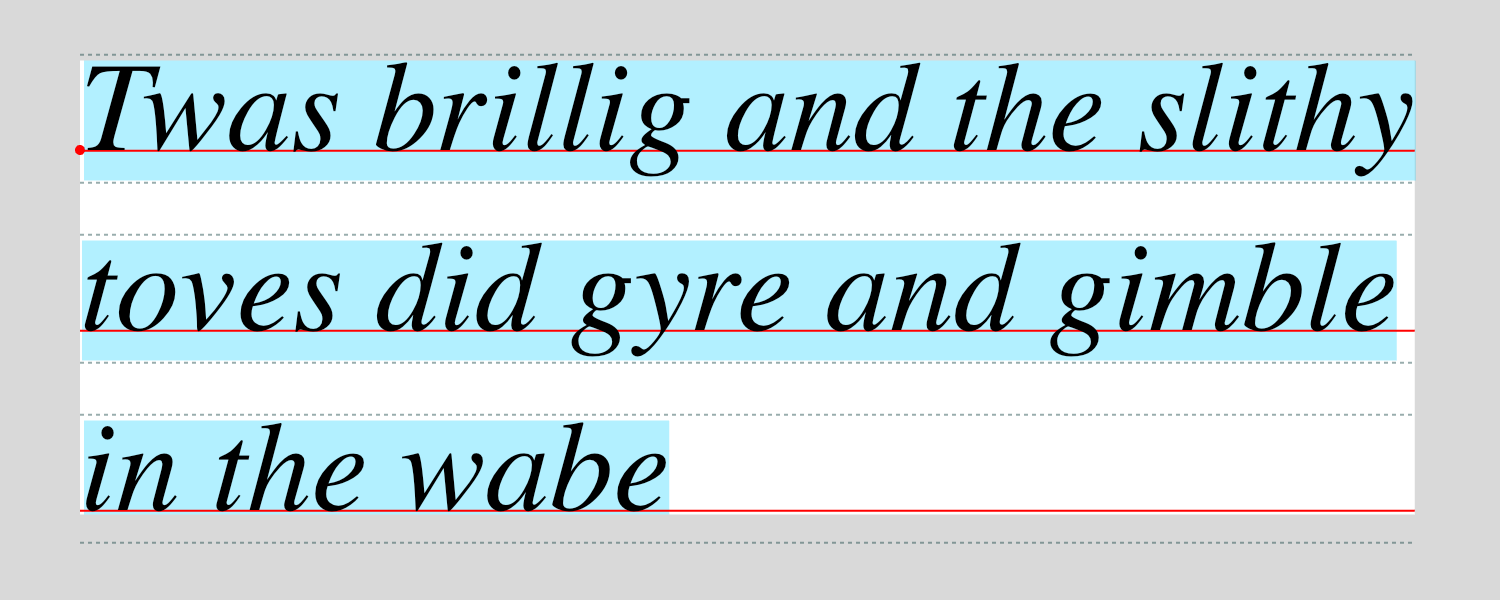
Understanding the baseline is essential for precisely positioning text, especially when aligning it with other graphical elements.
Here is a consolidated C++ snippet demonstrating the full process:
void drawMyText(SkCanvas* canvas) {
    // 1. Get the default font manager for the OS.
    sk_sp<SkFontMgr> fontMgr = SkFontMgr::RefDefault();

    // 2. Create a typeface. Request "Helvetica" and get a default if not found.
    sk_sp<SkTypeface> typeface = fontMgr->matchFamilyStyle("Helvetica", SkFontStyle::Normal());
    if (!typeface) {
        typeface = SkTypeface::MakeDefault();
    }

    // 3. Create a font object with a size.
    SkFont font(typeface, 32.0f);

    // 4. Configure the paint for the text.
    SkPaint textPaint;
    textPaint.setColor(SK_ColorBLACK);
    textPaint.setAntiAlias(true);

    // 5. Draw the string. The (50, 150) coordinate specifies the
    // origin of the text on its baseline.
    canvas->drawString("High-Performance Whiteboard", 50.0f, 150.0f, font, textPaint);
}
This code is robust: it attempts to load a specific font but gracefully falls back to a system default, ensuring that your application doesn't fail if a particular font is missing.
Conclusion
You now have the tools to render text, a core requirement for your notebook application. By understanding the roles of SkFontMgr, SkTypeface, and SkFont, you can reliably load fonts and draw strings to the canvas.
Key Takeaways:
- Font glyphs are vector graphics, typically composed of Bezier curves, which allows for perfect scalability.
- To render text, you must create a
SkTypeface(the font data) using aSkFontMgr(the font loader). - A common error is using an empty
SkFontMgr, which cannot find any fonts. Always use a system-specific manager likeSkFontMgr::RefDefault(). - The
SkFontobject combines aSkTypefacewith a size and other properties. SkCanvas::drawString(text, x, y, font, paint)renders the text, with(x, y)defining the start of the text on its baseline, not its top-left corner.
In the next lesson, we will address a key performance consideration. While drawString is simple and effective, it can be inefficient if you need to draw the same piece of complex text repeatedly. We will learn how to use SkTextBlob, an object that pre-calculates and caches the glyph positions and shapes, providing a significant performance boost for text-heavy applications. This aligns perfectly with your goal of building a highly performant system.