Hello! Welcome to your second lesson.
In our last session, we established the core strategic difference between Google and Meta Ads: Google captures existing demand from active searchers, while Meta is a powerful tool to generate new demand by reaching people during their leisure time.
Today, we shift from the "why" to the "where." Our goal is to navigate the Ads Manager interface to locate key campaign management tools. Think of this as a guided tour of the cockpit. Before you can fly, you need to know where the most important controls are and what they do. Your experience with the Google Ads interface will be helpful here, as many concepts like account selection and performance columns have direct parallels.
Getting Oriented: The Meta Ads Manager
All of your advertising activities on Facebook, Instagram, Messenger, and their partner networks are managed from one central hub: the Meta Ads Manager. It's where you'll create campaigns, define audiences, manage budgets, and analyze performance.
Before we jump in, you'll need:
- A Facebook Page for your business.
- A Meta Business Suite (or the older Business Manager) account, which acts as a container for all your business assets like your page, ad account, and pixels.
- A payment method linked to your account.
You can access Ads Manager directly by bookmarking facebook.com/adsmanager.
A Tour of the Main Dashboard
When you first open Ads Manager, you'll land on the main campaign management view. It can look intimidating, but it's logically organized.
Let's start with a high-level visual guide.
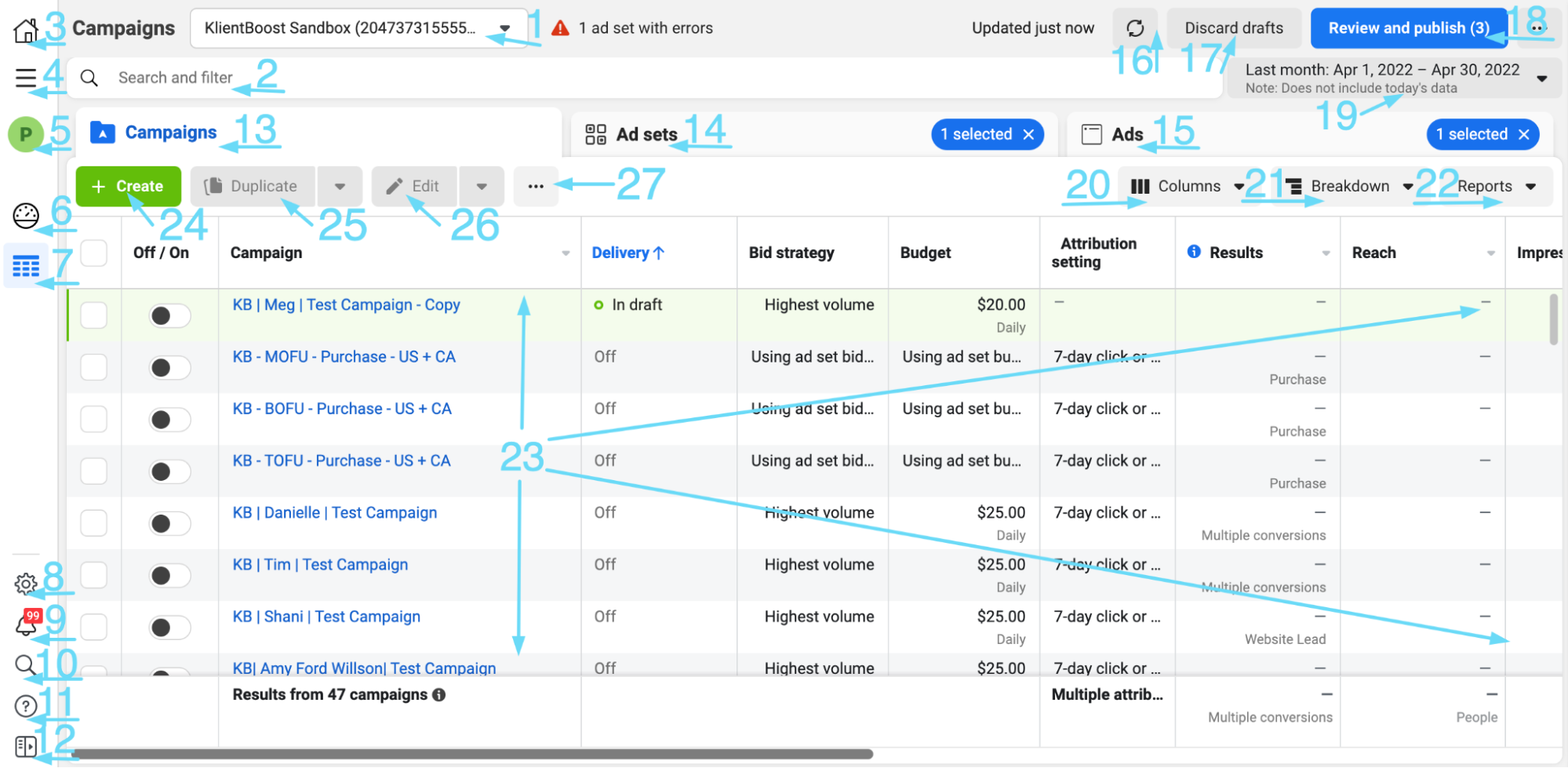
This view is your home base. From here, you can see all your campaigns, turn them on or off, and get a quick snapshot of their performance. The most important thing to notice is the three tabs at the top: Campaigns, Ad Sets, and Ads. This reflects the hierarchical structure of how campaigns are built, which we'll cover in detail in the next lesson.
Locating Key Tools: A Video Walkthrough
The best way to get comfortable is to see the interface in action. We'll watch a video that gives a comprehensive tour. I'll break it down into sections, focusing on the tools you'll use most often.
How to Use Meta Ads Manager (Beginner’s Guide to Facebook Ads Manager 2025)
This video from digital marketing expert Jamie Stenton provides an excellent, clear tour of the Meta Ads Manager. We'll use it to find the most important tools.
First, watch from 00:58 to 01:36. This short clip covers two fundamental actions you'll always perform: selecting the correct ad account and setting the date range for the data you want to see.
The "All Tools" Menu: Your Navigation Hub
While the main dashboard shows your campaigns, most of the specialized tools you need are tucked away in a menu. Look for an icon with a grid of dots or several horizontal lines (often called a "hamburger menu") on the left-hand side labeled All Tools. Clicking this opens up the full suite of advertising tools.
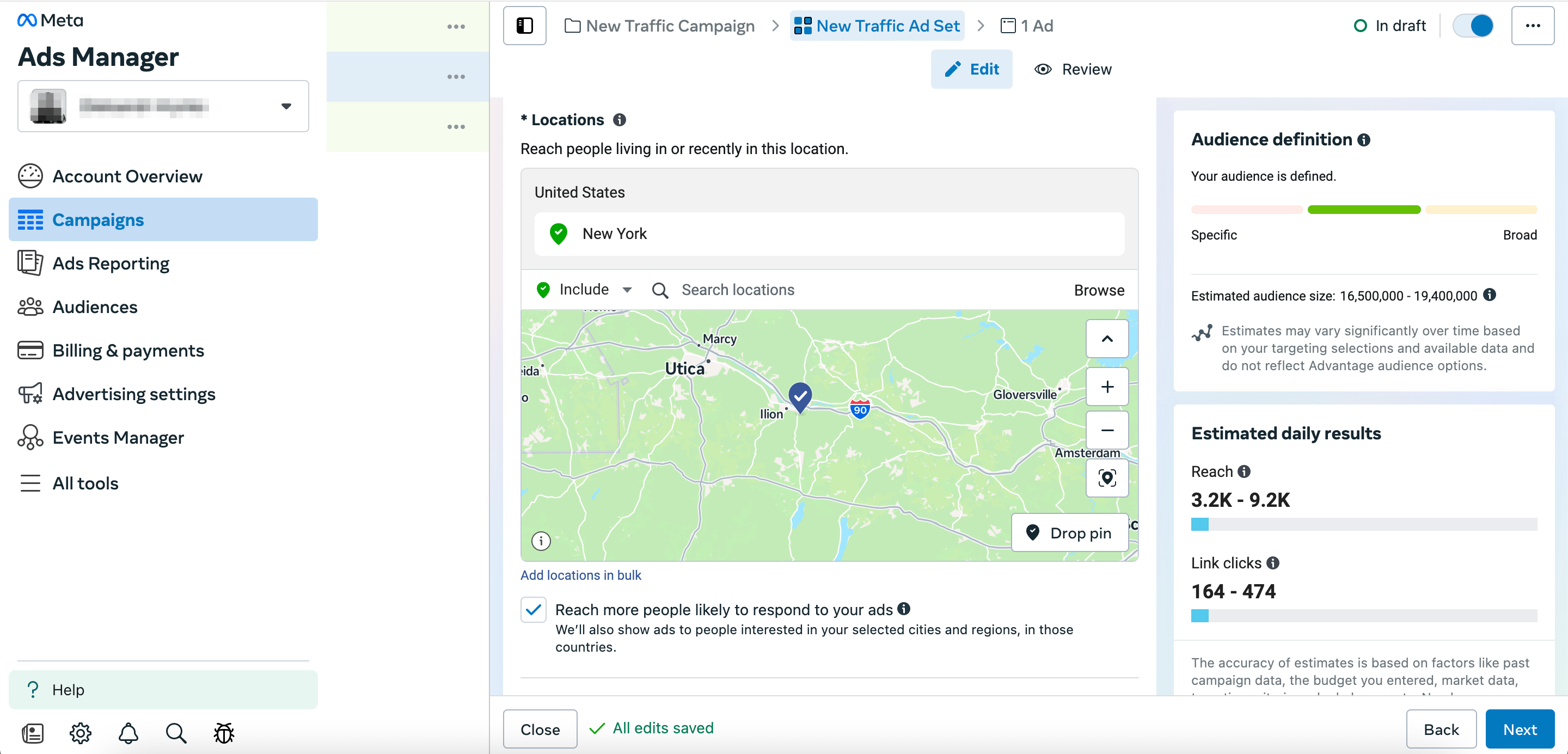
Now, let's use our video guide to find the most critical sections within this "All Tools" menu.
How to Use Meta Ads Manager (Beginner’s Guide to Facebook Ads Manager 2025)
Let's return to the video to locate some of the most important tools you'll access from the 'All Tools' menu.
Please watch the following segments: Events Manager (03:40 - 04:25): Pay attention to where you find your Pixels and data sources. This is the heart of your website tracking, which we'll cover in depth in Module 2. Audiences (06:53 - 07:36): This is where you will build and manage your targeting lists, like Custom Audiences from your website visitors or Lookalike Audiences to find new customers. Billing (07:36 - 08:08): See how to find your invoices and manage payment methods. This is essential for budget management and reporting. Business Settings (12:27 - 13:20): This section shows you where to manage who has access to your ad account, and how different assets like your Facebook Page and Instagram account are connected.
Tools for Analysis and Reporting
Once your campaigns are running, your focus will shift to analyzing performance. Ads Manager has powerful built-in tools for this. Just as you'd customize columns in Google Ads to see your most important KPIs, you'll do the same here.
Let's find the essential reporting tools.
How to Use Meta Ads Manager (Beginner’s Guide to Facebook Ads Manager 2025)
Now we'll focus on the tools you'll use to analyze what's working and what isn't.
Watch these final clips from the video tour: Customizing Columns (01:55 - 03:00): See how to change the data columns to show the metrics that matter most, like 'Cost per Purchase' or 'Return on Ad Spend' (ROAS). Using Breakdowns (10:07 - 11:06): This is a powerful feature. Learn how to break down your campaign results by age, gender, placement (e.g., Facebook Feed vs. Instagram Stories), and more to find hidden insights. Viewing Ad Creative Performance (11:24 - 12:15): This is a fantastic tool for you as a creative-focused marketer. It shows you which specific images, videos, and headlines are performing best.
Test your understanding!
You've been running a campaign for a week and need to report back to your team. Answer the following:
- You need to show your boss the total amount spent and get a downloadable invoice. In which section, accessible from the "All Tools" menu, would you find this?
- You have a theory that your video ads are performing much better on Instagram Stories than on Facebook Feed. Which analysis tool would you use to confirm or deny this theory?
- Your main KPI is "Cost per Website Purchase," but you don't see it in the main dashboard view. What feature would you use to add it to your report?
Show answer
- You would go to the Billing section.
- You would use the Breakdown feature and select "Placement" to see the performance data for Instagram Stories vs. Facebook Feed separately.
- You would use the Columns customization feature to search for and add the "Cost per Website Purchase" metric to your view.
Conclusion
Great work today! You've completed a comprehensive tour of the Meta Ads Manager. While it can seem complex, you now know where to find the essential tools for managing and analyzing your campaigns.
Here are the key takeaways from our tour:
- The Ads Manager is your central hub for all Meta advertising.
- The main view is organized into Campaigns, Ad Sets, and Ads tabs.
- The "All Tools" menu (the hamburger icon) is your gateway to specialized sections like Events Manager (for tracking), Audiences (for targeting), Billing, and Business Settings.
- You can analyze performance using the Columns customizer to see the right metrics and the Breakdown feature to segment your data for deeper insights.
You don't need to have every single button memorized. The goal was to build a mental map of the platform so you know where to look. In our next lesson, we will dive deeper into the first three tabs you saw on the main screen and explain the three-tier campaign structure: Campaigns, Ad Sets, and Ads. You'll learn the specific job of each level, which is the foundational concept for building any campaign on Meta.