Hello! Let's get started on the next step of your KDP journey.
In our last lesson, we identified key free marketing channels—like Pinterest, TikTok, and niche Facebook groups—where you can find your first potential customers. We answered the question of where to market your coloring book. Now, we need to tackle the equally important question: what do you post?
This lesson will show you how to create simple promotional images for social media sharing. A professional-looking image is your hook; it's what stops someone from scrolling and makes them curious about your book. We'll move beyond simple screenshots of your Amazon page and learn how to create beautiful, compelling "mockups" that make your book look like a tangible, high-quality product. This is a fundamental skill for marketing any digital or print-on-demand product.
Why Mockups are Your Best Marketing Tool
Before we dive into the "how," let's cover the "why." A mockup is a digital image that realistically represents what your physical product looks like. For a KDP author, this means making your cover and interior files look like a real book.
Compare a flat image of your cover to an image of a physical book sitting on a table. The mockup feels more real and helps a customer visualize owning it.

For a coloring book, you can go a step further and show your book in an appealing, relevant setting. This helps sell the experience of using your book.
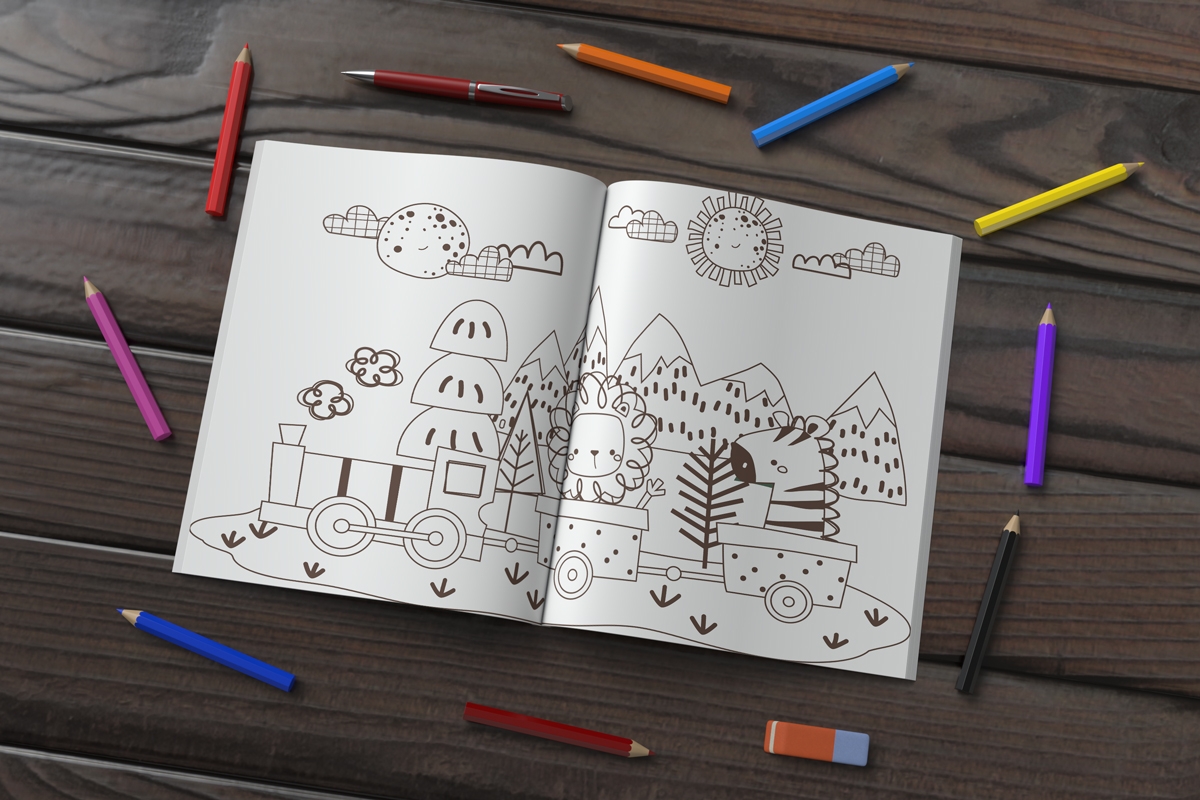
Our goal today is to learn how to create both types of images using a fantastic, beginner-friendly tool: Canva.
Your Toolkit: Canva and Your Book Cover
We will use Canva for all our design work. If you don't have an account, you can sign up for a free one. You will also need the flat, 2D image file of your book cover (the JPG or PNG you uploaded to KDP).
Design Amazing Social Media Graphics and Content with Canva
First, take a moment to familiarize yourself with Canva's general process for creating social media graphics. This page gives a quick, helpful overview.
Read the short, 5-step section titled 'How to create social media graphics.' This will give you a mental map of the process we're about to follow.
Step 1: Create a 3D Mockup of Your Book Cover
Our first task is to turn your flat cover file into a 3D book asset. There are two great ways to do this.
Method A: Using a Free External Tool (Recommended for Beginners)
This method uses a free, third-party website to generate the 3D book image, which you then import into Canva to build your final promotional graphic. It's a reliable and flexible workflow.
Canva author book promo tutorial. How to create a simple social media promo image in canva Video 11
This video from L.T. Marshall demonstrates the entire process of creating a promotional image. For now, we'll focus only on the part where she creates the 3D book asset.
Watch from 01:26 to 02:31. The creator introduces a free website called '3D book cover maker'. Pay close attention to how she uploads her flat cover, generates the 3D version, and downloads it as a PNG file. A PNG with a transparent background is ideal because it can be placed on any background in Canva without a white box around it.
Method B: Using Canva's Integrated "Smartmockups" (Canva Pro often required)
Canva has its own powerful mockup tool built-in called Smartmockups. It's incredibly convenient, though many of the best mockups are part of the paid Canva Pro plan. It's good to know this feature exists as you grow.
Create a Book Cover and 3D Mockup with Smartmockups and Canva
This blog post by LaShonda Brown explains how to use the Smartmockups feature directly within Canva. This is a faster, more integrated workflow.
Read the section that begins 'Now we're going to go back to the Canva dashboard.' Follow the steps for navigating to Tools > Smartmockups, finding the 'book' category, and uploading your cover to generate the mockup. Notice how you can download it directly or use it in a new Canva design.
For now, I recommend sticking with Method A as it's completely free. Once you have your 3D book mockup downloaded as a transparent PNG, you're ready for the next step.
Step 2: Design Your Promotional Image in Canva
Now for the fun part. We will take your 3D book asset and place it into a social media template to create a polished, professional promotional image.
Designing a General-Purpose Post (for Instagram, Facebook, etc.)
A square format is versatile and works well on most platforms. We'll add a background, text, and other elements to make your book stand out.
Canva author book promo tutorial. How to create a simple social media promo image in canva Video 11
Let's return to the video tutorial by L.T. Marshall. This time, we'll watch the full process of assembling the final image in Canva.
Watch the video from the beginning (or from 02:31 if you're continuing). Observe how she: Starts with a template (00:29): She chooses a square 'Instagram Post' template. Adds the 3D mockups (02:31): She imports the 3D book and a Kindle version. Adds background & text (03:31): She finds a textured background, adds the book title, and experiments with fonts. Adds branding & CTA (06:40): She adds a 'pre-order' badge (a Call to Action), an Amazon logo, and her website address. Adds finishing touches (10:59): She adds small graphic elements that match the book cover's theme to create a cohesive look. Don't worry about copying it exactly. Focus on understanding the components she uses and why.
Designing a Specific Post for Pinterest
As we discussed in the last lesson, Pinterest is a powerful channel. Pinterest pins have a vertical format, and "lifestyle" images perform very well. This video will show you an alternative way to create a mockup specifically for a Pinterest pin.
Make a Pinterest pin for your kdp books - easy way on Canva
This video from The Home Boss demonstrates how to create a Pinterest pin by placing your flat cover onto a stock photo of a book.
Watch from 03:12 to 13:05. The process here is slightly different but very effective: Template: Starts with a tall 'Pinterest Pin' template in Canva. Background Image: Finds a 'book mockup' stock photo to use as the background. Superimposing the Cover: Uploads her flat KDP cover and carefully places it over the book in the photo. Adding Text: Adds a title and a Call to Action ('great gift idea'). Branding and Color: Adds her website and uses Canva's color picker to match the text colors to the book cover for a branded look.
This technique of layering your flat cover over a stock photo is excellent for creating those "lifestyle" scenes without needing to be a photographer.
Your Action Plan: Create Two Promotional Images
Now it's your turn to apply what you've learned. Using Canva and your coloring book's cover file, create two different promotional images:
- A Square "3D Mockup" Post: Use the method from the first video (LINK). Create a 3D version of your book cover and place it on a simple, branded background. Add your book title and a call to action like "Available on Amazon."
- A Vertical "Pinterest Pin" Post: Use the method from the second video (LINK). Find a nice stock photo of a desk scene or a person holding a blank book. Place your flat cover over the book in the photo. Add text appropriate for Pinterest, like "New Mindfulness Coloring Book" or "Relaxing Patterns to Color."
This exercise will give you two versatile assets you can use immediately in your marketing.
Conclusion
You now have the practical skills to create eye-catching promotional images for your KDP book. This is a critical step in turning a potential viewer into a potential customer.
Key Takeaways:
- Mockups are essential: They make your digital product look like a real, desirable item.
- Canva is your primary tool: It provides templates, graphics, and features to build professional-looking social media posts.
- You have two main methods for mockups:
- Create a 3D book asset and place it in a scene.
- Place your flat cover onto a stock photo of a book ("lifestyle mockup").
- A good promo image includes: a mockup, the title, a call to action (CTA), and consistent branding (colors, fonts).
Preview of the Next Lesson:
You've created the beautiful visuals for your posts. But what do you write in the caption? In our next lesson, we will focus on crafting the text that accompanies these images. You will learn how to draft a value-driven post that adheres to community guidelines, encouraging clicks and engagement without sounding like spam.