Hello! Welcome to the first lesson in our final module, "From First Sale to Next Book."
In our last module, you learned how to market your book and ethically request reviews to build social proof and hopefully generate your first sales. That activity, even if it results in zero sales, produces something incredibly valuable: data. Every day that your book is live, Amazon is collecting data on how customers interact with it.
This lesson is about becoming a detective. Your goal is to learn how to interpret the clues left in your KDP data to diagnose why your book isn't selling. We will focus on answering two critical questions:
- Are my keywords making my book visible to the right customers?
- Are my categories placing my book on the right "digital shelf" to be discovered?
By the end of this lesson, you will be able to analyze your post-launch data to decide whether to further adjust your keywords or categories, turning guesswork into a data-driven strategy.
The Analyze-and-Adjust Mindset
Successful KDP publishing isn't a "set it and forget it" business. It's an iterative cycle: you publish, you gather data, you analyze that data, and you make adjustments. This process of continuous improvement is how you turn an underperforming book into a consistent seller.
Your primary source of data is your KDP dashboard. Let's get familiar with it.
KDP Dashboard Explained: What to Watch and What to Ignore
This article from Written Word Media provides an excellent overview of the KDP dashboard. It will help you understand where to find key information and which metrics are most important for making decisions.
Please read the sections "The KDP Dashboard: Section by Section" and "Metrics That Matter." Focus on understanding what the 'Sales Dashboard' shows and why 'Units Sold' is a critical metric for you right now.
As the article highlights, the most important metric for you at this stage is Units Sold.

Part 1: Analyzing Your Keywords
Your keywords are the primary tool customers use to find your book through search. If your keywords are wrong, your book is effectively invisible.
Our first step is to determine if Amazon's algorithm has even acknowledged your keywords. This involves understanding the difference between indexing and ranking.
Keyword Research For Low Content Books For KDP - Are your keywords indexed?
This video from The Home Boss clearly explains the crucial difference between being indexed for a keyword and ranking for it.
Watch the segment from 01:50 to 03:12. Pay close attention to the definitions of indexing and ranking.
- Indexing: Amazon has scanned your book's metadata (title, subtitle, backend keywords) and agrees that your book is relevant for a specific keyword. Your book is now eligible to appear in search results for that term.
- Ranking: This is your book's position in the search results for that keyword.
You cannot rank if you are not indexed. Therefore, the very first diagnostic test is to check if your book is indexed for the keywords you chose back in Module 3.
How to Check if Your Keywords Are Indexed
There's a simple, free method to check for indexing. The same video shows you exactly how to do it.
Keyword Research For Low Content Books For KDP - Are your keywords indexed?
This next segment provides a step-by-step walkthrough of the indexing test. This is one of the most important practical skills for managing your KDP books.
Watch carefully from 03:21 to 07:06. The presenter demonstrates how to use your book's ASIN (or ISBN-10) combined with a keyword in the Amazon search bar.
Here is the process:
- Find your book's ASIN. Go to your book's product page on Amazon, scroll down to the "Product details" section, and find the 10-character ASIN.
- Go to the Amazon search bar.
- Type your ASIN, a space, and then one of your target keywords. For example:
B012345XYZ coloring book for adults. - Press Enter.
Interpreting the Results:
- If your book appears as the search result, you are indexed for that keyword.
- If you see a "No results for..." message, you are not indexed.
Decision Time: Adjusting Your Keywords
Now, you will test each of your 7 backend keywords (and your main title/subtitle keywords) using this method. This will lead to one of two scenarios:
Scenario 1: You are NOT indexed for a keyword.
This points to a technical problem.
- Cause: You may have exceeded the 249-byte limit in your backend keyword slots, used a forbidden word (like "free"), or repeated words from your title unnecessarily.
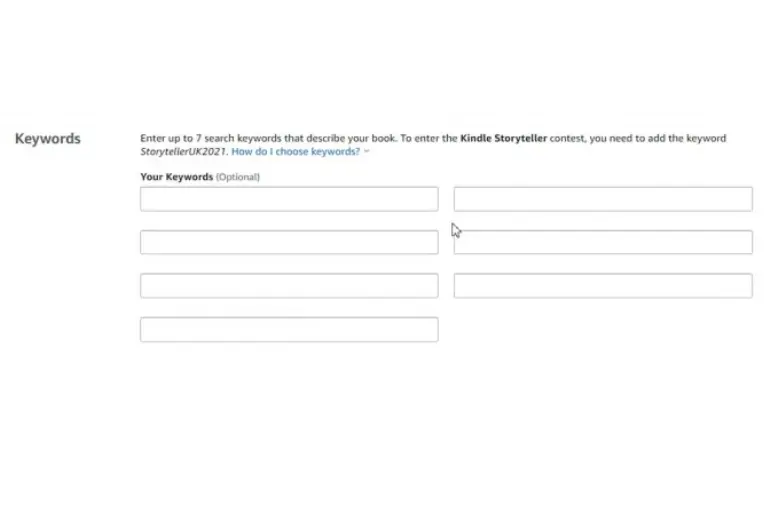
- Action: Go back to your KDP bookshelf, edit your book details, and fix your backend keywords. Ensure you are under the byte limit and that you are not repeating words. Save and publish the changes. Wait 3-5 days and test again.
Scenario 2: You ARE indexed, but have zero sales.
This is a more strategic problem. It means your keyword is not effective.
- Cause A (Too Competitive): The keyword has too much competition. You might be indexed on page 30 of the search results where no one will ever see your book.
- Cause B (Irrelevant): The keyword is bringing the wrong kind of traffic. People see your book in the results, but it's not what they're looking for, so they don't click or buy. This is a sign of a poor conversion rate.
- Action: This keyword is not working. Replace it. Go back to the keyword research you did in Module 3 and select a different, likely more specific (long-tail), keyword to test. This is an experiment. You are swapping one variable to see if it improves the outcome.
Part 2: Analyzing Your Categories
Categories are the "aisles" of the Amazon store where your book is shelved. Choosing the right categories helps customers find your book by browsing and is essential for earning a coveted "#1 Best Seller" badge.
With zero sales, it's unlikely you will rank highly in any category, but we can still analyze if you chose the right ones to begin with.
How to Pick the Right Amazon KDP Categories (& the Hack No One Talks About)
In this video, Rachel Harrison-Sund provides expert insights on choosing categories and, more importantly, how to analyze them for competitiveness.
Please watch these two key segments: Analyzing Category Competition (03:39 - 05:04): This shows you how to look at the books currently ranking in a category and estimate how many sales are needed to compete. Tips for Choosing Categories (06:24 - 07:38): This section gives crucial advice on picking relevant, niche categories instead of broad, highly competitive ones.
How to Analyze Your Current Categories
- Go to your book's product page and scroll down to the "Product details" section to see the categories it's listed in.
- Click on one of your categories. This will take you to the Best Sellers list for that specific category.
- Look at the #1, #10, and #20 books on that list. What is their Best Sellers Rank (BSR)? A low BSR (e.g., under 10,000) indicates high sales.
- As the video mentions, you can use a free tool like the Kindlepreneur Book Sales Calculator to translate that BSR into an estimated number of sales per day.
Decision Time: Adjusting Your Categories
Based on your analysis, ask yourself these questions:
- Is this category too competitive? If the #20 book has a BSR of 5,000 (selling dozens of copies per day), it will be extremely difficult for your new book to gain any visibility there.
- Is this category relevant? Do the other books on the best-seller list look like yours? Are they a similar theme and style? If not, you're on the wrong shelf. Customers browsing that category aren't looking for a book like yours.
Action: If your categories are too competitive or irrelevant, you should change them. Go back to your KDP account and select up to three new categories that are more niche and a better fit for your coloring book. A good category is one where the #20 book has a BSR of 50,000 or higher, as this indicates you can start to rank with just a few sales per day.
Conclusion
You are now equipped with a powerful, data-driven framework for optimizing your book. This isn't about guesswork; it's about forming a hypothesis, running a test, and analyzing the results.
Key Takeaways:
- Publishing is a Cycle: The process is to publish, analyze data, and make adjustments. Zero sales is simply data telling you a change is needed.
- Check Keyword Indexing First: Use the
ASIN + keywordsearch to verify that Amazon has recognized your keywords. If a keyword is indexed but not generating sales, replace it. - Analyze Category Competitiveness: Look at the BSR of the top books in your categories. If they are too competitive or irrelevant, find more specific, niche categories where your book has a real chance to become visible.
- Make One Change at a Time: When you're starting out, it's best to change either your keywords or your categories, but not both at the same time. This helps you isolate which change had an effect. Wait a week or two, analyze the new data, and then make your next adjustment.
Preview of the Next Lesson:
As you make these adjustments and your book starts to generate sales, you'll need to understand the financial side of your business. In our next lesson, you will learn how to track your revenue, costs, and profitability for your book, ensuring that your efforts are leading to actual income.