Hello! Welcome to the fourth lesson in our module on client-side routing.
In the last lesson, we built our application's navigation system using <Link> and <NavLink>, allowing users to move between static pages like /, /about, and /products. This is a great foundation, but many web applications need to display pages based on data in the URL itself—think of a user profile page at /users/jane-doe or a specific product at /products/123-xyz.
Today, we'll learn how to handle these dynamic URLs. This lesson is designed to help you master the learning outcome: Access dynamic URL parameters using the useParams hook with TypeScript. We'll explore how to define routes that can capture parts of the URL and how to access those captured values within your components in a type-safe way.
Step 1: Defining Dynamic Routes
The first step is to tell React Router that a part of a URL path is a dynamic placeholder, not a literal string. We do this using a colon (:) followed by a parameter name in the path prop of a <Route>.
For example, to create a route that matches any user ID, we would write:<Route path="/users/:userId" element={<UserProfile />} />
Here, :userId is the dynamic segment. React Router will match this route for URLs like /users/1, /users/gandalf, or /users/42. The part of the URL that matches the :userId segment will be captured and made available to our component.
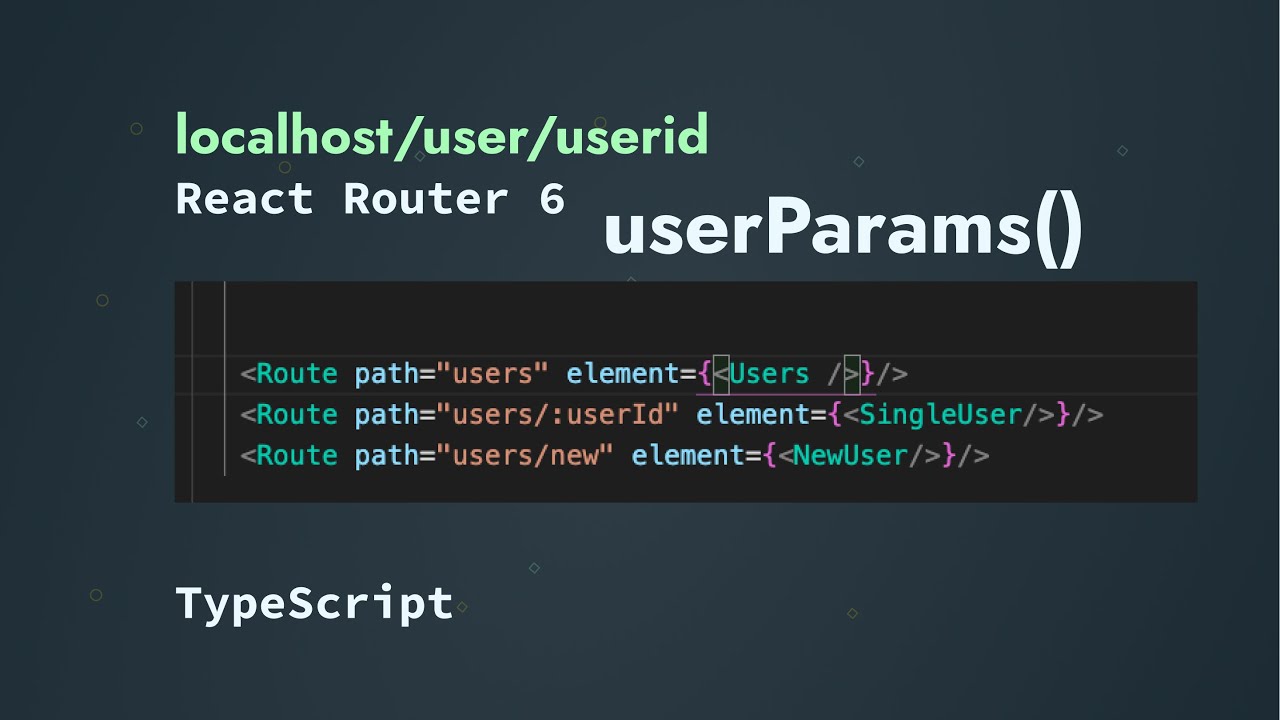
To see a clear demonstration of setting up a dynamic route, the following video is very helpful.
React Router - Complete Tutorial
Watch this clip from the 'React Router - Complete Tutorial' by Cosden Solutions. It shows exactly how to add a new route with a dynamic parameter to your route configuration.
Watch from 12:26 to 14:35. The video uses the example /profiles/:profileID. Pay close attention to the colon syntax and how it allows the route to match various URLs like /profiles/1, /profiles/2, etc.
Step 2: Accessing URL Parameters with useParams
Now that we've defined a route that can capture a parameter, how do we access that value inside our component (e.g., inside UserProfile)? This is where the useParams hook comes in.
The useParams hook, when called within a component rendered by a dynamic route, returns an object. The keys of this object correspond to the parameter names you defined in the route's path, and the values are the actual strings captured from the URL.
For a route <Route path="/users/:userId" ... /> and a URL /users/123, calling useParams() would return { userId: '123' }.
React Router - Complete Tutorial
Let's continue with the same video. This next segment demonstrates how to use the useParams hook to retrieve the profileID from the URL.
Watch from 14:35 to 16:21. Notice how useParams is imported from react-router-dom and how its return value is an object containing the dynamic parameter as a key-value pair.
Step 3: Typing useParams with TypeScript
Your background in TypeScript makes this next step particularly important. By default, useParams returns an object of type Record<string, string | undefined>. This is not ideal because it doesn't know the specific names of your parameters, leading to less robust code.
To add type safety, useParams can accept a generic type argument that describes the shape of the params object.
First, you define a type or interface for your parameters:
type UserProfileParams = {
  userId: string;
};
Then, you pass this type to the useParams hook:
import { useParams } from 'react-router-dom';

// ... inside the UserProfile component
const { userId } = useParams<UserProfileParams>();

// Now, TypeScript knows that `userId` is a string and that it exists.
// Autocomplete will work, and you'll get compile-time errors if you misspell it.
This simple step dramatically improves the reliability of your component.
The video you just watched has a great follow-up on this exact topic.
React Router - Complete Tutorial
This final clip from the Cosden Solutions video shows how to apply a type to useParams for full type safety.
Watch from 16:21 to 17:13. This short segment demonstrates the use of angle brackets (<...>) to provide a type to the hook, which is the standard way to use generics in TypeScript.
For a clear, text-based example of this pattern, you can also refer to the following article.
React Router Hook => useParam() (now w/ Typescript)
This article from dev.to, 'React Router Hook => useParam() (now w/ Typescript)', provides a concise written guide to this concept.
Read the sections starting from 'Here is what that same functionality looks like with the useParams() hook' and the 'Update' section that follows. This will reinforce how to use the hook and how to apply a generic type for TypeScript.
Putting It All Together: A Practical Example
Let's expand on the application we've been building. We'll create a list of products and make each one link to a detailed view.
-
Define some product data and routes:
// src/data/products.ts export const products = [ { id: 'p1', name: 'Quantum Keyboard', price: 159.99 }, { id: 'p2', name: 'Flux Capacitor Mouse', price: 89.50 }, { id: 'p3', name: 'Singularity Speakers', price: 299.00 }, ]; export type Product = typeof products[0]; -
Update
App.tsxwith the new dynamic route:// src/App.tsx import { Routes, Route } from 'react-router-dom'; // ... other imports import { ProductListPage } from './pages/ProductListPage'; import { ProductDetailPage } from './pages/ProductDetailPage'; // New page function App() { return ( <div> {/* ... Navbar from previous lesson ... */} <Routes> {/* ... other routes ... */} <Route path="/products" element={<ProductListPage />} /> <Route path="/products/:productId" element={<ProductDetailPage />} /> {/* Dynamic Route */} {/* ... */} </Routes> </div> ); } -
Update
ProductListPage.tsxto link to detail pages:// src/pages/ProductListPage.tsx import { Link } from 'react-router-dom'; import { products } from '../data/products'; export function ProductListPage() { return ( <div> <h1>Our Products</h1> <ul> {products.map((product) => ( <li key={product.id}> <Link to={`/products/${product.id}`}> {product.name} </Link> </li> ))} </ul> </div> ); } -
Create
ProductDetailPage.tsxto use the parameter:// src/pages/ProductDetailPage.tsx import { useParams } from 'react-router-dom'; import { products } from '../data/products'; type ProductDetailParams = { productId: string; }; export function ProductDetailPage() { const { productId } = useParams<ProductDetailParams>(); // In a real app, you would fetch data from an API using this ID. // Here, we'll just find it in our mock data. const product = products.find((p) => p.id === productId); if (!product) { return <div>Product not found!</div>; } return ( <div> <h1>{product.name}</h1> <p>Price: ${product.price.toFixed(2)}</p> <p>Product ID: {product.id}</p> </div> ); }
Important Note: URL parameters are always strings. If your ID is a number, you need to parse it. For example: const id = parseInt(productId, 10);. Always be prepared to handle the case where the string is not a valid number (i.e., parseInt returns NaN).
Test your understanding!
You are building a blog. You have a route defined as <Route path="/blog/:postSlug" element={<BlogPost />} />.
Inside your BlogPost component, how would you:
- Define the TypeScript type for the URL parameters?
- Use the
useParamshook to get thepostSlugin a type-safe way? - Display the slug in a
<h1>tag?
Show answer
// src/pages/BlogPost.tsx
import { useParams } from 'react-router-dom';

// 1. Define the TypeScript type
type BlogPostParams = {
  postSlug: string;
};

export function BlogPost() {
  // 2. Use the useParams hook with the defined type
  const { postSlug } = useParams<BlogPostParams>();

  // In a real app, you'd use postSlug to fetch the blog post content.

  return (
    <article>
      {/* 3. Display the slug */}
      <h1>Post: {postSlug}</h1>
      <p>Content for this post would go here...</p>
    </article>
  );
}
Conclusion
You have now added a powerful capability to your routing skillset. By combining dynamic route paths with the useParams hook, you can create data-driven pages that respond to the URL, forming the backbone of most modern web applications.
Key Takeaways:
- Define dynamic segments in a route's
pathusing the colon syntax (e.g.,:id). - Use the
useParamshook fromreact-router-domto access the values of these dynamic segments. - For type safety in TypeScript, create a
typeorinterfacedescribing your parameters and pass it as a generic to the hook:useParams<MyParamsType>(). - Always remember that URL parameters are strings and may need to be parsed or validated before use.
Preview of the Next Lesson:
So far, we have focused on declarative navigation, where the user clicks a <Link> to change routes. But what if you need to redirect a user based on an action, like after they log in or submit a form? In the next lesson, we will explore programmatic navigation by learning how to perform programmatic navigation using the useNavigate hook.