Hello! Welcome to your first lesson.
This course is designed to equip you with the practical Excel skills needed for an MIS Executive role. We'll focus on hands-on techniques for building trackers, reports, and dashboards, moving from the fundamentals to advanced applications.
Today, we're starting with the single most important habit for Excel efficiency: navigating without a mouse. Your learning outcome for this lesson is to navigate worksheets and workbooks efficiently using keyboard shortcuts.
In roles like incident review or recruitment, speed and accuracy are critical. Mastering keyboard shortcuts is the foundation of that speed. By making these shortcuts second nature, you'll save a few seconds on every task, which quickly adds up to hours of saved time, allowing you to focus on analysis rather than just moving data around.
Let's begin.
1. Moving Around a Worksheet Like a Pro
The first set of shortcuts governs how you move within a single sheet. An MIS report can contain thousands of rows; scrolling with the mouse is simply too slow.
To see these core navigation techniques in action, watch the following video. It's fast-paced and demonstrates how professionals move around a spreadsheet.
How to Navigate Like a Pro In Excel | No Mouse Excel
This video, 'How to Navigate Like a Pro In Excel' from the Mouse Trap channel, demonstrates the essential shortcuts for moving and selecting data within a worksheet. Pay close attention to how the presenter combines keys to jump across large data blocks instantly.
Watch the following three segments: 'Jumping to the edge of data blocks' (01:01 - 02:09) 'Returning to Home (A1)' (02:09 - 03:23) 'Selecting large blocks of data' (03:39 - 04:40) As you watch, notice how Ctrl is used for jumping and Shift is used for selecting.
Here's a breakdown of those key concepts:
- Jumping to the Edge of Data: Holding
Ctrland pressing an arrow key (↑,↓,←,→) will jump the cursor to the last non-blank cell in that direction before hitting a blank cell, or the first non-blank cell after a block of empty cells. This is perfect for moving to the top, bottom, or sides of a data table. - Jumping to the Start/End of the Sheet:
Ctrl + Home: Instantly moves you to cellA1.Ctrl + End: Jumps to the last used cell on the worksheet (the bottom-right corner of your data range).
- Selecting Data Ranges: Adding
Shiftto the navigation shortcuts allows you to select cells as you move.Ctrl + Shift + Arrow Key: Selects all cells from your current position to the edge of the data block in that direction. This is the fastest way to select a whole column or row of data within a table.
2. Managing Your Workspace: Rows, Columns, and Edits
Once you can select data quickly, you need to be able to manage it. This includes selecting entire rows/columns and adding or deleting them efficiently.
Let's return to the same video to see how this is done.
How to Navigate Like a Pro In Excel | No Mouse Excel
Now, let's look at shortcuts for managing rows, columns, and editing cells. These are fundamental for structuring and cleaning your data.
Watch these three short clips from the same video: 'The magic stance' for editing cells (00:11 - 01:01) 'Selecting entire rows and columns' (04:40 - 05:36) 'Adding and deleting rows/columns' (05:36 - 06:05) Take note of the mnemonic for remembering the column vs. row selection shortcut.
Let's summarize these crucial shortcuts:
- Edit Cell (
F2): PressingF2places your cursor inside the active cell to edit its contents directly. PressingEsccancels the edit and exits the cell. ThisF2/Esccombination is faster than double-clicking and then clicking away. - Select Column (
Ctrl + Space): Selects the entire column of the active cell. The mnemonic is C for Control, C for Column. - Select Row (
Shift + Space): Selects the entire row of the active cell. - Add/Delete Rows/Columns:
- After selecting a column/row, press
Ctrl + Shift + +(the plus key) to add a new one. - After selecting a column/row, press
Ctrl + -(the minus key) to delete it.
- After selecting a column/row, press
3. Navigating Between Worksheets and Workbooks
MIS reports are rarely a single sheet. You'll often have a workbook with separate tabs for raw data, calculations, a summary, and a dashboard. Moving between these tabs (and even between different open Excel files) efficiently is a must.
The following article provides a clear guide to worksheet tab navigation.
7 Shortcuts for Working with Worksheet Tabs in Excel
Read the following sections from the article '7 Shortcuts for Working with Worksheet Tabs in Excel' on Excel Campus. It covers the essential shortcuts for moving between sheets and highlights a very useful but lesser-known feature for navigating large workbooks.
Please read the following three sections: Start with section #3 Select Next or Previous Sheet. Then read section #2 Navigating to the First or Last Sheet. Finally, read the Bonus Tip: Sheet List at the end of the article. Focus on the keyboard shortcuts and the right-click method for showing the sheet list.
To switch between different open Excel files (workbooks), the shortcut is Ctrl + Tab. This cycles through all open Excel windows, which is invaluable when you're comparing two reports or copying data from one file to another.
Here are the key takeaways for workbook and worksheet navigation:
- Switch between sheets:
Ctrl + Page Down: Moves to the next sheet to the right.Ctrl + Page Up: Moves to the previous sheet to the left.
- Jump to the sheet list: In a workbook with many tabs, right-click the navigation arrows (
< >) in the bottom-left corner to see a pop-up list of all sheets. You can then click to jump directly to any sheet. - Switch between workbooks:
Ctrl + Tab: Moves to the next open Excel workbook.
Hands-On Practice
Now it's time to put this all together. Theory is one thing, but building muscle memory is key.
Setup:
- Open a new, blank Excel workbook (
Ctrl + N). - Copy the sample data below.
- Click on cell A1 in your new sheet and paste the data (
Ctrl + V).
Incident ID	Date Opened	Assigned To	Status	Category
CYB-001	2023-10-01	Ana	Closed	Phishing
CYB-002	2023-10-02	Carlos	Open	Malware
CYB-003	2023-10-02	Priya	Closed	Unauthorized Access
CYB-004	2023-10-03	Ana	Open	Phishing
CYB-005	2023-10-04	David	Open	Malware

CYB-007	2023-10-06	Priya	Closed	Phishing
CYB-008	2023-10-07	Carlos	Open	Data Leak
CYB-009	2023-10-08	Ana	Closed	Malware
CYB-010	2023-10-09	Priya	Open	Unauthorized Access
Notice the blank row. This is intentional to test how navigation works.
Your Task (use only the keyboard):
- Your cursor is at
A1. Jump to the last incident ID (CYB-005) before the blank row.- Hint:
Ctrl + ↓
- Hint:
- From
CYB-005, jump toCYB-007.- Hint:
Ctrl + ↓again.
- Hint:
- Now, jump straight to the last cell in your data (
Unauthorized Access).- Hint: Go home first, then use
Ctrl + End.
- Hint: Go home first, then use
- You need to check all the statuses. Select the entire "Status" column data from
Statusdown toOpen.- Hint: Navigate to cell
D1, then useCtrl + Shift + ↓twice.
- Hint: Navigate to cell
- Your manager wants to add a "Priority" column between "Assigned To" and "Status".
- Hint: Select the "Status" column (
Ctrl + Space) and then pressCtrl + Shift + +.
- Hint: Select the "Status" column (
- Actually, that was a mistake. Delete the new column you just added.
- Hint:
Ctrl + -
- Hint:
- Add a new worksheet where you can make some notes.
- Hint:
Shift + F11is the shortcut to add a new sheet.
- Hint:
- Quickly switch back to the sheet with your data.
- Hint:
Ctrl + Page Up.
- Hint:
Spend a few minutes repeating these actions. The goal is to perform them smoothly without having to stop and think about the keys.
Summary and Cheat Sheet
Efficient navigation is the bedrock of professional Excel use. By replacing mouse clicks with keyboard shortcuts, you build speed and precision.
Here is a visual cheat sheet and a summary of the most important shortcuts from today's lesson.
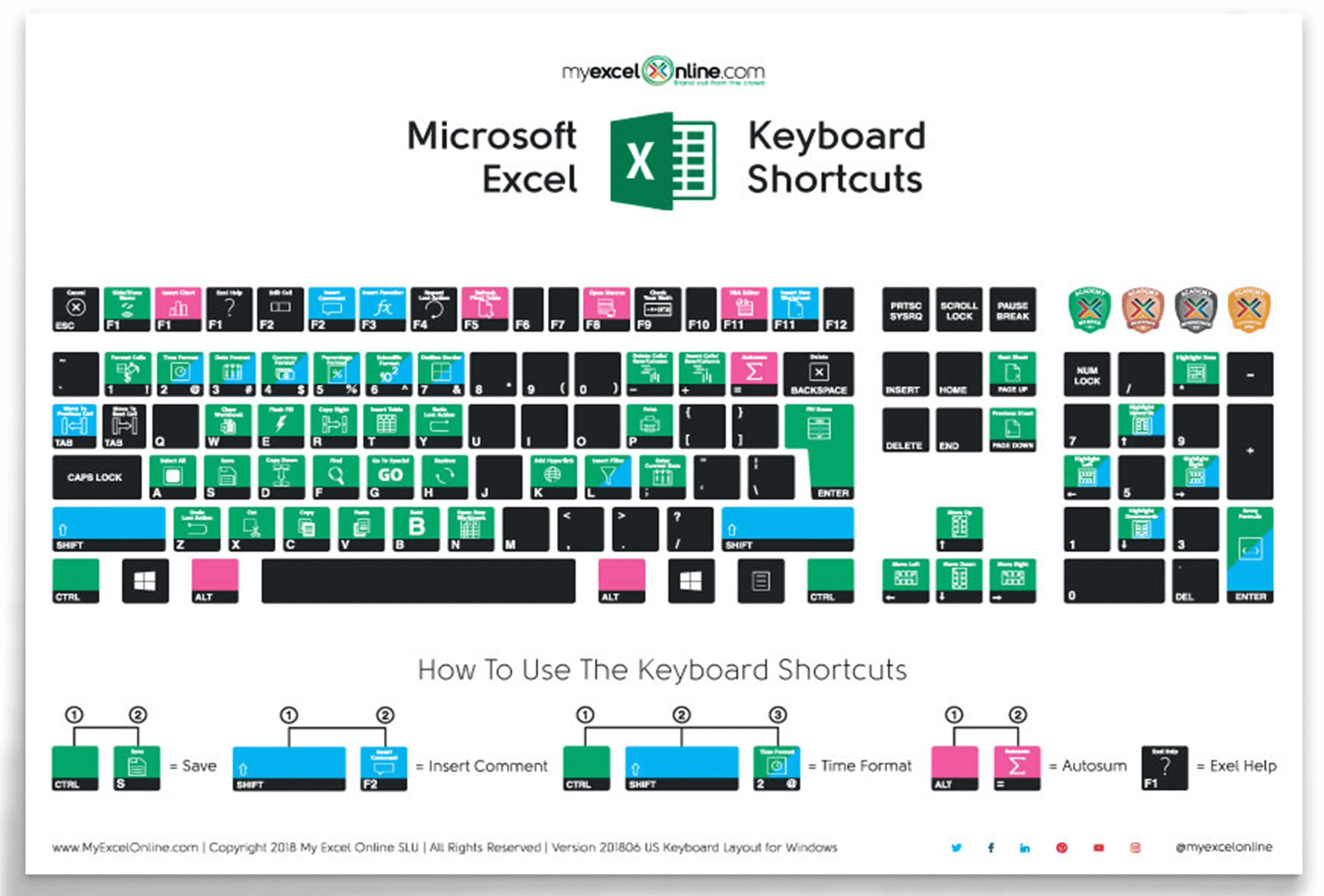
Key Takeaways:
- Move to Edges:
Ctrl + Arrow Keys - Select to Edges:
Ctrl + Shift + Arrow Keys - Go to Start/End:
Ctrl + Home/Ctrl + End - Select Column/Row:
Ctrl + Space/Shift + Space - Add/Delete Column/Row:
Ctrl + Shift + +/Ctrl + - - Switch Sheets:
Ctrl + Page Up/Ctrl + Page Down - Switch Workbooks:
Ctrl + Tab - Edit Cell:
F2
Next Lesson
Great work on completing your first lesson! Practice these shortcuts whenever you're in Excel. In our next session, we'll build on this by learning how to apply cell formatting (number formats, borders, colors) to improve data readability. Once you can navigate quickly, the next step is to make your data clean and easy to understand at a glance.