Hello! In our last lesson, you learned how to efficiently create a ModelForm directly from a Django model. This covered the "what"—the structure of the form itself. Now, it's time to focus on the "how": the logic that brings your form to life.
Today's lesson is all about how to process form submissions in a view and save the data to the database. This is the engine that powers the 'Create' part of any CRUD (Create, Read, Update, Delete) application. Mastering this process is a fundamental step toward building your Task Manager portfolio project.
The Form Handling Lifecycle
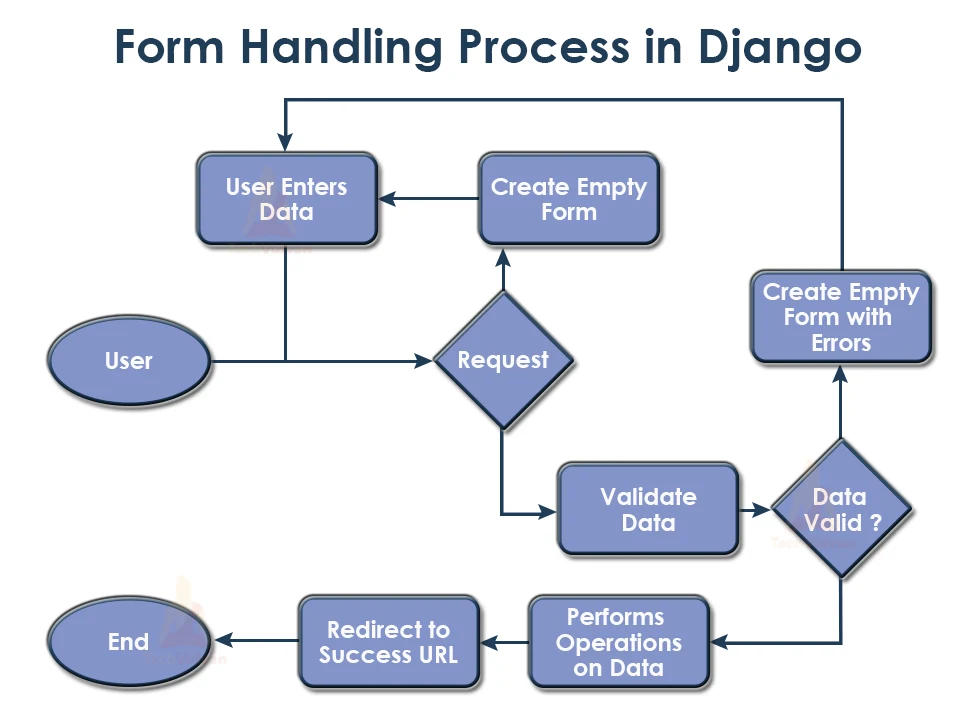
Before diving into the code, let's visualize the journey of a form submission. When a user interacts with a form, your Django view needs to handle two distinct scenarios:
- The Initial Visit (
GETrequest): The user navigates to the page for the first time. Your view's job is to create a blank form and display it. - The Submission (
POSTrequest): The user fills out the form and clicks "Submit." The browser sends the data back to your server. Your view must now receive this data, validate it, save it if it's valid, and then decide what to show the user next.
This flowchart illustrates this entire process, from the user's initial request to the final successful save.
Dissecting the View's Logic
The core of form processing happens inside your view function. The standard pattern is to use an if statement to check if the incoming request is a POST request. Let's break down the code you'll typically write.
Here is the common structure for a view that handles form submissions:
# In views.py
from django.shortcuts import render, redirect
from .forms import TaskForm # Assuming you have a TaskForm

def create_task(request):


    # This block executes ONLY when the form is submitted
    if request.method == 'POST':


        # Step 1: Bind the submitted data to a form instance
        form = TaskForm(request.POST)


        # Step 2: Validate the data
        if form.is_valid():


            # Step 3: Perform the action (save the data)
            form.save()


            # Step 4: Redirect to a new page (e.g., the task list)
            return redirect('name-of-your-task-list-url')


    # This block executes on a GET request OR if the POST data was invalid
    else:


        # Create a blank, unbound form
        form = TaskForm()


    # Step 5: Render the template with the form
    context = {'form': form}
    return render(request, 'tasks/task_form.html', context)
Let's explore these steps in more detail.
Create Model Objects With a ModelForm
This article from OpenClassrooms provides an exceptionally clear explanation of this view logic. It starts with a "pseudocode"-style breakdown of the lifecycle, which makes the Python code much easier to understand.
Please read the section titled "Update the View Logic to Create a New Object". Focus on the if request.method == 'POST' block and the logic for what happens when a form is valid versus when it's a GET request.
Let's summarize the key points from that reading:
- Binding Data:
form = TaskForm(request.POST)creates a "bound" form. It's no longer empty; it's filled with the user's submitted data and is ready for validation. - Validation:
form.is_valid()is the critical gatekeeper. It runs all validation rules defined in your model and form. If the data is clean, it returnsTrueand populates a specialform.cleaned_datadictionary. If not, it returnsFalseand attaches error messages to the form object. - Redirecting After POST: The
return redirect(...)is essential. This is part of the Post/Redirect/Get (PRG) pattern. It prevents a user from accidentally re-submitting the same data by refreshing the page after a successful submission. Your experience with web fundamentals (HTML, JavaScript) will help you appreciate why this is a best practice to avoid duplicate database entries. - Handling Invalid Forms: If
form.is_valid()returnsFalse, the view simply continues on to the finalrendercall. The template receives the same form object, but now it contains the user's previously entered data and the validation errors, allowing you to display them back to the user without clearing their work.
Seeing It in Action
Theory is great, but seeing this implemented makes it click. This short video demonstrates the exact process of updating a view to handle a POST request.
To see this entire process in a real-world example, let's watch a section of the tutorial by Dave Gray. He implements this exact logic for creating a new blog post.
Watch from 08:39 to 11:27. Follow how he modifies the post_new function to handle POST requests, validates the form with is_valid(), and redirects upon success.
Critical Pattern: Associating Data with the Logged-in User
For your Task Manager project, a new task must be linked to the user who created it. You don't want a dropdown menu where users have to select themselves! The view should handle this automatically and silently.
However, the user field won't be part of the form the user fills out. So, how do you save the form data and add the request.user?
You do this with form.save(commit=False).
This tells Django: "Create a model object from the form data in memory, but do not save it to the database just yet. I need to modify it first."
The process looks like this:
new_task = form.save(commit=False): Creates theTaskobject but doesn't hit the database.new_task.user = request.user: You can now modify the object, assigning the logged-in user (available in therequestobject) to itsuserfield.new_task.save(): Now that the object is complete, you save it to the database.
This pattern is extremely common and powerful. Let's watch the next part of the same video, where the instructor implements this exact technique to assign an author to a post.
Now for a critical technique you'll need for your Task Manager project. How do you save a new task and automatically assign it to the logged-in user? This video segment demonstrates the commit=False pattern to achieve exactly that.
Watch from 12:48 to 18:40. Pay special attention to the moment he uses form.save(commit=False), assigns the author with new_post.author = request.user, and then calls new_post.save().
Test your understanding!
Let's assume you have a Task model with a user field that is a ForeignKey to the User model, and a TaskForm that does not include the user field.
# models.py
class Task(models.Model):
    user = models.ForeignKey(User, on_delete=models.CASCADE)
    title = models.CharField(max_length=200)
    description = models.TextField()


    # ... other fields


# forms.py
class TaskForm(forms.ModelForm):
    class Meta:
        model = Task
        fields = ['title', 'description'] # Note: 'user' is NOT in the form
Inside your view, within the if form.is_valid(): block, write the three lines of Python code required to save the new task and correctly associate it with the currently logged-in user (request.user).
Show answer
# 1. Create the object in memory without saving to the database.
new_task = form.save(commit=False)


# 2. Assign the logged-in user from the request object.
new_task.user = request.user


# 3. Save the fully prepared object to the database.
new_task.save()
Conclusion
You have now learned the complete, standard Django pattern for processing user input and creating new database records. This is a workflow you will use again and again.
Key Takeaways:
- Views handle
GETrequests by showing a blank form andPOSTrequests by processing submitted data. - The standard processing pattern is: Bind data (
MyForm(request.POST)) -> Validate (form.is_valid()) -> Act (form.save()) -> Redirect (redirect()). - The Post/Redirect/Get pattern is a best practice that prevents duplicate form submissions.
- If a form is invalid, Django re-renders it with the user's data and error messages for a better user experience.
- Use
form.save(commit=False)when you need to modify the model object before saving it to the database, such as assigning the current user.
Preview of the Next Lesson:
We've handled the logic in the view, but what about the template? How do you display the form fields in a more organized way, and how do you show validation errors to the user when they make a mistake? In our next lesson, we will focus on displaying form fields and validation errors in a template, giving you full control over the look and feel of your forms.