Hello! Welcome back to our course on Linux system administration.
In our last lesson, we focused on inspecting services using systemctl status to check their health and journalctl to dive into their logs. This is like being able to read the dashboard and diagnostics of a car. Today, we're taking the driver's seat.
This lesson directly addresses the learning outcome: Control active services (start, stop, restart) and configure them to start at boot. We will learn how to actively manage the lifecycle of services on your system, a fundamental skill for any Linux administrator and a core topic for your CompTIA Linux+ exam.
1. Recap: What is a Service?
As a quick refresher, a service (or daemon) is a program that runs in the background, independent of any user session, to provide essential system functions. Examples include a web server (httpd), an SSH server (sshd), or a database service (mysqld). On modern Linux systems, these are all managed by systemd, and we interact with systemd using the systemctl command.
2. Managing Services in the Current Session
Let's start with the commands that control a service's state right now, for your current running session. These actions are temporary and won't persist after a reboot. Because these commands change the state of the operating system, you'll need to use sudo to execute them.
The best way to see these commands in action is to watch a demonstration.
Systemd Explained: How to Manage Linux Services Easily
The video "Systemd Explained: How to Manage Linux Services Easily" provides a clear, hands-on walkthrough of the essential service management commands. We will focus on the sections covering session management first.
Watch the video from 04:54 to 12:26. The presenter uses the Apache web server (httpd or apache2) as an example, which is perfect for our purposes. Focus on the following commands and what they do: systemctl start <service> systemctl stop <service> systemctl restart <service> systemctl reload <service> Pay close attention to the distinction made between restart and reload.
Let's summarize and solidify those key concepts.
Start, Stop, and Verify
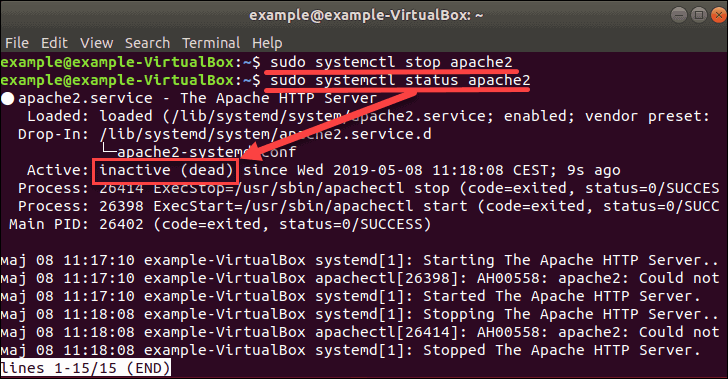
The most basic actions are start and stop.
sudo systemctl start <service_name>: Starts a service that is currently stopped.sudo systemctl stop <service_name>: Stops a service that is currently running.
After running either of these, you should always use the systemctl status <service_name> command we learned in the last lesson to verify that the service is in the expected state (active (running) or inactive (dead)).
Restart vs. Reload
When you change a service's configuration file, you need to tell the service to apply those new settings. You have two main options for this:
-
sudo systemctl restart <service_name>: This is the "heavy-handed" approach. It completely stops the service and then starts it again. This is guaranteed to apply all changes, but it causes a service outage. For a web server, any active user connections would be dropped. -
sudo systemctl reload <service_name>: This is the graceful approach. It tells the service to reread its configuration files without shutting down. Not all services support this, but for those that do (like most web servers and databases), it's the preferred method as it avoids downtime.
If you're unsure if a service supports reloading, you can use:
sudo systemctl reload-or-restart <service_name>: This command will attempt areloadfirst. If the service doesn't support it, it will fall back to arestart.
Test your understanding!
You've just edited the configuration file for your company's SSH server (sshd) to improve security. There are several administrators currently logged in and working on the server.
Which command should you use to apply your changes, and why is it the best choice here?
Show answer
The best command to use is:sudo systemctl reload sshd
Reasoning: The reload command tells the sshd service to apply its new configuration without terminating existing connections. Using restart would forcefully disconnect all currently logged-in administrators, disrupting their work. Since sshd supports the reload operation, it's the professional and non-disruptive choice.
3. Configuring Services to Start at Boot
Starting a service manually is great, but what happens when you reboot the server? The changes are lost. To ensure a critical service like a web server is always running, you need to configure it to launch automatically at boot.
We'll use a combination of video and text to cover this, as it's a critical concept.
Systemd Explained: How to Manage Linux Services Easily
Let's return to the "Systemd Explained" video to see a demonstration of configuring services for boot.
Watch the segment from 12:26 to 15:12. This part covers the enable and disable commands.
Now, let's reinforce this with a clear written explanation. It's very important to understand that these commands work independently of start and stop.
Manage Systemd Services with systemctl on Linux
The DigitalOcean article we used in the previous lesson, "Manage Systemd Services with systemctl on Linux", has an excellent section that clarifies how enabling and disabling works.
Please read the section titled "Enabling and Disabling Services". The most important takeaway is that enable does not start the service now, and disable does not stop it now. These commands only affect what happens at the next boot.
Enable and Disable
-
sudo systemctl enable <service_name>: This command configures the service to start automatically every time the system boots up. Behind the scenes,systemdcreates a symbolic link in a special target directory. Crucially, this does not start the service in the current session. -
sudo systemctl disable <service_name>: This does the opposite. It removes the symbolic link, preventing the service from starting automatically at boot. This does not stop a service that is currently running.
The --now Shortcut
Having to run sudo systemctl start and then sudo systemctl enable is a very common two-step process. To make this more efficient, systemctl provides a handy --now flag.
sudo systemctl enable --now <service_name>: This single command both enables the service for boot and starts it in the current session.sudo systemctl disable --now <service_name>: This command both disables the service for boot and stops it in the current session.
4. Summary of Commands
You now have a complete toolkit for managing the lifecycle of a systemd service.
| Command | Purpose | Affects Current Session? | Affects Boot? |
|---|---|---|---|
systemctl start <service> |
Starts a service. | Yes | No |
systemctl stop <service> |
Stops a service. | Yes | No |
systemctl restart <service> |
Stops and then starts a service (disruptive). | Yes | No |
systemctl reload <service> |
Applies configuration changes without stopping the service (graceful). | Yes | No |
systemctl enable <service> |
Configures a service to start automatically at boot. | No | Yes |
systemctl disable <service> |
Prevents a service from starting automatically at boot. | No | Yes |
systemctl enable --now <service> |
Enables a service for boot and starts it immediately. | Yes | Yes |
systemctl disable --now <service> |
Disables a service for boot and stops it immediately. | Yes | Yes |
systemctl status <service> |
Checks the current running status and boot configuration of a service. | N/A | N/A |
Conclusion
In this lesson, we transitioned from passively observing services to actively controlling them. You are now equipped with the essential systemctl commands to manage a service's state both in the current session and across reboots.
Key Takeaways:
- Session Management:
startandstopcontrol a service right now.restartandreloadare used to apply configuration changes, withreloadbeing the preferred non-disruptive method. - Boot-time Management:
enableanddisablecontrol whether a service starts automatically when the system boots. They do not affect the currently running state. - The
act and verifypattern is crucial: always usesystemctl statusafter making a change to confirm it had the desired effect. - The
--nowflag is an efficient shortcut for combining session and boot-time management into a single command.
Preview of the Next Lesson:
We've learned how to manage services that run continuously. But what about tasks you want to run at a specific time or on a recurring schedule? In the next lesson, we will explore how to schedule automated tasks using cron and at, another vital skill for automating system administration.