Hello! Welcome to the first lesson in your course to prepare for the CompTIA Linux+ certification.
Based on your preference for starting with a solid theoretical foundation, this lesson is designed to do just that. We'll begin our journey by exploring the fundamental architecture of the Linux operating system. Our goal is to explain the Linux operating system architecture and kernel structure.
Understanding this "big picture" is crucial. It provides the context for every command you'll type and every concept you'll learn. By the end of this lesson, you will be able to describe how the different parts of the system fit together, from the hardware all the way up to the applications you use.
Let's get started.
1. The Layered Architecture of Linux
At its core, an operating system's job is to manage a computer's hardware and provide services for applications. Linux accomplishes this using a layered architecture, which creates a powerful and stable environment. The two most fundamental layers are Kernel Space and User Space.
To get a clear overview of these concepts, please read the following short article from Red Hat. It provides an excellent, high-level introduction.
This article, 'What is the Linux kernel?' from Red Hat, clearly explains the kernel's role and the fundamental separation between user space and kernel space.
Please read the entire article. Pay close attention to the sections 'What the kernel does' and 'Where the kernel fits within the OS'. Focus on understanding the four main jobs of the kernel and the difference between user mode and kernel mode.
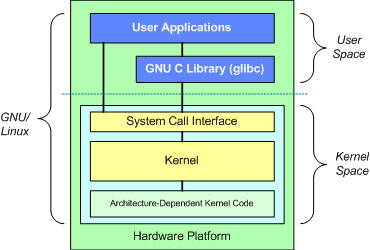
As the article explains, the system is broadly divided into:
- Hardware: The physical components of your computer (CPU, RAM, disks, etc.).
- Kernel Space: This is where the kernel, the core of the OS, lives and runs. Code in kernel space has unrestricted access to the hardware.
- User Space: This is where your applications (like web browsers, text editors, and the command-line shell) run. Code in this space has restricted access to hardware and must ask the kernel for permission to perform most operations.
This separation is a critical design feature. If a user application crashes, it's contained within its own space and won't bring down the entire system. A crash in the kernel, however, is much more serious and can halt the entire computer.
This diagram provides a great visual summary of the architecture:
2. Communicating with the Kernel: System Calls
So, if an application in user space can't directly access hardware, how does it do things like read a file from the disk or send data over the network? It uses system calls.
A system call is a formal request from a user-space program to the kernel to perform a privileged operation. When a system call is made, the CPU switches from user mode to kernel mode, executes the kernel's code for that task, and then switches back to user mode to return the result to the application.
The following video provides a clear, concise explanation of this process.
Linux Architecture and the Kernel
This clip from the 'Linux Architecture and the Kernel' video by Oracle Learning effectively explains the layered architecture and the role of system calls.
Watch the video from the beginning until 02:20. Focus on how the narrator describes the shell and applications interacting with the kernel through system calls.
As the video mentions, you don't typically write system calls yourself. Instead, you use programs and programming libraries (like the GNU C Library, or glibc, shown in the diagram) that translate high-level commands into the specific system calls the kernel understands. For example, when you use the cp command to copy a file, it uses system calls like open(), read(), write(), and close() behind the scenes.
Test your understanding!
An email client in your graphical desktop needs to check for new mail. This involves opening a network connection to a mail server. Based on what you've learned, does the email client application directly command the network card to do this? Explain the process in terms of user space, kernel space, and system calls.
Show answer
No, the email client cannot command the network card directly.
- The email client (running in user space) makes a request to open a network connection using a library function.
- This function triggers a system call, asking the kernel to perform the networking task.
- The system switches to kernel mode. The kernel's networking subsystem and the network card's device driver (running in kernel space) handle the task of creating the connection and sending/receiving data.
- Once the operation is complete (or if there's an error), the kernel returns the result to the email client, and the system switches back to user mode.
3. The Structure of the Linux Kernel
Now that we understand the kernel's place in the overall architecture, let's look more closely at its internal design.
Monolithic vs. Microkernel
Operating system kernels are generally designed in one of two ways:
- Monolithic Kernel: The entire operating system (file systems, process management, networking, device drivers, etc.) runs as a single, large program in kernel space. This design offers high performance because communication between components is very fast (just a function call). Linux uses a monolithic design.
- Microkernel: Only the most basic functions (like process communication and scheduling) run in kernel space. Other services (like file systems and device drivers) run as separate processes in user space. This can be more secure and stable, as a crash in a device driver won't crash the whole kernel, but it comes at a performance cost due to the overhead of passing messages between user space and kernel space.
While Linux is monolithic, it is also extremely modular. You can load and unload pieces of kernel code, known as kernel modules, at runtime without rebooting. This is how Linux supports a vast array of hardware—you simply load the module (driver) for your specific device.
Core Subsystems of the Kernel
The monolithic Linux kernel is organized into several major subsystems that work together. Understanding these gives you a map of the kernel's structure.
The following reading from the Linux Kernel documentation provides an excellent breakdown of OS concepts and the kernel's architecture. We'll use it as a reference to explore the kernel's main parts.
Introduction — The Linux Kernel documentation
This documentation from 'The Linux Kernel documentation' project explains key OS terms and details the primary components of the Linux kernel.
First, read the sections 'Monolithic kernel' and 'Micro kernel' to solidify your understanding of these design types. Then, skim the section titled 'Linux kernel architecture' and its subsections ('Process management', 'Memory management', etc.). You don't need to memorize every detail; the goal is to get a feel for the major components and their responsibilities.
Based on that reading and our overall understanding, here are the key subsystems within the Linux kernel:
- Process Scheduler (or Process Management): This subsystem is responsible for multitasking. It decides which process gets to use the CPU and for how long, creating the illusion that many programs are running simultaneously.
- Memory Manager: This subsystem manages the computer's RAM. It keeps track of which parts of memory are in use, allocates memory to processes when they need it, and handles virtual memory (using disk space as an extension of RAM, known as swap).
- Virtual File System (VFS): This is an abstraction layer that provides a single, uniform interface for applications to interact with different types of file systems (e.g.,
ext4on your hard drive,NFSover a network, orISO9660on a CD-ROM). This is why commands likelsandcpwork the same way regardless of the underlying storage. - Networking Subsystem: This handles all network communication, managing the flow of data through protocols like TCP/IP and interfacing with the network hardware.
- Device Drivers: This is the collection of code that allows the kernel to communicate with and control specific pieces of hardware. Nearly every device in your computer, from your keyboard to your graphics card, has a corresponding driver in the kernel.
Conclusion
In this lesson, you've built a foundational mental model of how the Linux operating system is put together. This is the bedrock upon which all your practical Linux skills will be built.
Here are the key takeaways:
- Linux uses a layered architecture with a strict separation between User Space (applications) and Kernel Space (the OS core).
- The kernel acts as the central manager, controlling hardware access and providing services to applications.
- Communication across the user/kernel boundary happens via system calls, which ensure stability and security.
- Linux is a monolithic kernel, meaning all core OS services run in kernel space, but it is highly modular, allowing drivers and features to be loaded on demand.
- The kernel is internally structured into several key subsystems, including the process scheduler, memory manager, virtual file system, networking stack, and device drivers.
In our next lesson, we will move from this abstract architecture to the real world of Linux. We will identify major Linux distributions and their use cases, exploring how this core kernel is packaged with user-space tools to create the complete operating systems you know, such as Ubuntu, Fedora, and Debian.