Hello! Welcome to your first lesson in the "Text Processing and File Searching" module.
In our last lesson, you learned how to use file globbing and wildcards (*, ?, []) to manage large groups of files efficiently. That skill is about acting on files based on their names. Now, we're going to move from the outside to the inside. This lesson will teach you how to view the content within those files directly from the command line.
This is a fundamental skill for any Linux user, especially for system administration. You'll constantly need to read configuration files, check log entries, and inspect scripts. Today, you will learn to master four essential commands for this purpose: cat, less, head, and tail. Each serves a different purpose, and knowing when to use each one is key to working effectively.
1. Viewing Entire Files with cat
The cat command, short for "concatenate," is the simplest way to view a file. It reads a file and prints its entire contents to the screen. Because it displays everything at once, it's best suited for short files, like configuration files or files containing just a few lines of text.
The name "concatenate" also hints at its other function: you can give it multiple filenames, and it will string them together, one after the other.

To see cat in action, let's watch a short video.
LCL 02 - looking at files using cat, more, less, head, tail - Linux Command Line tutorial forensics
This video from BlueMonkey 4n6 demonstrates the two primary uses of cat: displaying a single file and concatenating multiple files.
Watch from 00:14 to 02:00. Pay attention to how cat is used first on a single file, and then on two files to combine their output.
The main drawback of cat becomes obvious when you try to view a long file: the text will fly by, and you'll only be able to see the last part that fits on your screen. This is where "pagers" come in.
2. Interactive Viewing with Pagers: less
When a file is too long to view with cat, you need a "pager"—a tool that displays content one screen at a time. The original pager on Unix systems was more, but its modern, more powerful successor is less (as the saying goes, "less is more").
less is interactive. It allows you to scroll up and down through the file, search for text, and jump to specific lines. It's the standard tool for reading long log files, documentation, or any large text file.
The following video and documentation provide a solid overview of how to use less.
LCL 02 - looking at files using cat, more, less, head, tail - Linux Command Line tutorial forensics
This segment from the BlueMonkey 4n6 video introduces less as a superior alternative to more for viewing long files.
Watch from 07:21 to 09:16. Focus on the basic navigation commands: using the spacebar and arrow keys to move, / to search for text, and q to quit.
For a handy reference of the navigation commands in less, take a look at the official Rocky Linux documentation.
Linux Commands - Documentation
This documentation provides a quick reference table of the most common commands you can use inside less.
In the "Visualization" section, find the subheading for the less command. Review the table of commands to familiarize yourself with the keys for navigation and searching.
3. Peeking at the Start and End: head and tail
Sometimes you don't need to see the whole file. You might just want to check the first few lines to identify a file or the last few lines to see the most recent entries in a log. For this, head and tail are perfect.
head: Displays the first 10 lines of a file by default.tail: Displays the last 10 lines of a file by default.
Both commands accept the -n option to specify a different number of lines. For example, head -n 5 shows the first five lines, and tail -n 20 shows the last twenty.
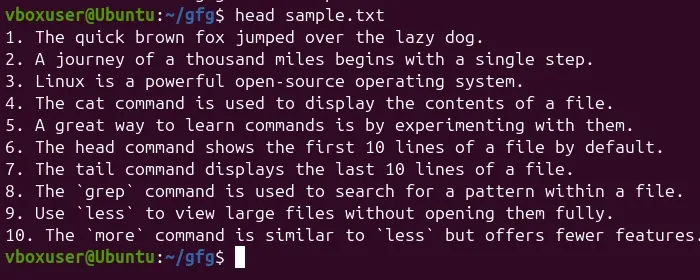
Let's see a quick demonstration of both commands.
LCL 02 - looking at files using cat, more, less, head, tail - Linux Command Line tutorial forensics
This part of the BlueMonkey 4n6 video quickly demonstrates the default behavior of head and tail and how to use the -n option to customize the number of lines shown.
Watch from 09:16 to 11:08. Notice how head -n 3 and tail -n 3 change the output compared to the default.
Test your understanding!
You need to quickly check the most recent user login attempts on a server. You know these are recorded at the end of the /var/log/auth.log file. Which command would be most appropriate for this task?
cat /var/log/auth.logless /var/log/auth.loghead /var/log/auth.logtail /var/log/auth.log
Show answer
The correct answer is 4. tail /var/log/auth.log.
Since the most recent events are at the end of the file, tail is the most direct and efficient command to view them without having to scroll through the entire file. cat would be inefficient for a potentially large log file, and less would require you to jump to the end manually. head would show you the oldest entries, which is the opposite of what you want.
4. A Critical Skill: Real-Time Monitoring with tail -f
One of the most powerful and frequently used features in a system administrator's toolkit is an option for the tail command: -f (for "follow").
tail -f filename will display the last few lines of a file and then wait. As new lines are added to the file by another process, tail -f will automatically print them to your screen in real time. This is essential for monitoring log files to watch for errors or activity as they happen.
The following video gives an excellent practical demonstration of using tail -f to troubleshoot a service.
Linux Crash Course - The head and tail Commands
This video from Learn Linux TV provides a fantastic real-world example of using tail -f to monitor log files while troubleshooting an SSH login issue.
Watch from 11:07 to 17:02. Pay close attention to how the terminal on the left (running tail -f) updates automatically in response to the actions performed in the terminal on the right. This demonstrates the power of live log monitoring.
Test your understanding!
You want to view lines 10 through 15 of a file named config.txt. You know head can get the first part of a file and tail can get the last part. How could you combine them using a pipe (|) to achieve this?
Think about how you could first select the top 15 lines, and then from that result, select the last 6 lines.
Show answer
A correct command would be:head -n 15 config.txt | tail -n 6
head -n 15 config.txt: This command takes the first 15 lines ofconfig.txt.|: The pipe sends the output of theheadcommand (those 15 lines) as the input to the next command.tail -n 6: This command takes the last 6 lines from the input it received from the pipe. The last 6 lines of the first 15 are lines 10, 11, 12, 13, 14, and 15.
Conclusion
You have now learned the four fundamental commands for viewing file content on the command line. Mastering them is a significant step toward Linux proficiency.
Key Takeaways:
cat: Use for short files that you want to see all at once.less: Use for long files where you need to scroll and search. It's your default pager.head: Use to quickly see the beginning of a file.tail: Use to quickly see the end of a file.tail -f: Use to monitor a file in real-time, an indispensable tool for watching logs.
In our next lesson, we will build directly on this foundation. Now that you can view files, you'll learn how to search for specific text patterns within them using the powerful grep command.