Welcome! In our last session, you successfully wrote, compiled, and ran your first Java program, the classic "Hello, World!". You saw how an IDE like IntelliJ IDEA automates the process of turning your human-readable code into instructions the computer can execute. This is the fundamental workflow of a developer.
Today, we'll build on that by learning how to add notes directly into our code. These notes, called comments, are for human readers—yourself included! They are completely ignored by the Java compiler but are essential for writing code that is clear, understandable, and easy to maintain. By the end of this lesson, you will be able to use both single-line and multi-line comments to document your Java code and temporarily disable parts of it for testing.
Why Do We Need Comments?
As you write more complex programs, you'll find it's easy to forget why you wrote a certain piece of code a particular way. Comments serve as a form of in-code documentation. They can explain the purpose of a tricky algorithm, leave a reminder to fix something later, or simply make the code easier for another person (or your future self) to understand.
Another powerful use for comments is to temporarily "turn off" lines of code without deleting them. This is a common practice when debugging or testing different approaches.
To start, let's watch a short video from Giraffe Academy that introduces the core idea behind comments.
This video provides a great overview of why comments are a useful feature in any programming language.
Please watch the introductory segment that explains what comments are and why they are used. Focus on the distinction between code for the computer and comments for humans. You can watch from the beginning until the explanation ends.
Types of Comments in Java
Java provides two primary ways to write comments. Let's look at each one.
The W3Schools page on Java comments offers a very clear and direct explanation of the syntax for both types.
This resource clearly defines and provides examples for the two main types of comments in Java.
Please read the article from the beginning. Pay close attention to the syntax and examples for single-line comments and multi-line comments. The final note, "Single or multi-line comments?", gives a good rule of thumb for when to use each.
To summarize what you've just read:
-
Single-Line Comments: These start with two forward slashes
//and continue to the end of the line. They are perfect for brief notes.// This is a single-line comment. System.out.println("Hello, World!"); // This is also a single-line comment. -
Multi-line Comments: These start with
/*and end with*/. They can span multiple lines and are ideal for longer explanations./* This is a multi-line comment. It can be used to write detailed descriptions of a class or method. */ public class MyProgram { // ... }
Practical Application: Commenting Out Code
One of the most frequent uses for comments during development is to temporarily disable code. This is much safer than deleting it, as you can easily bring it back.
Let's say you have the following code from our last lesson's practice exercise:
public class HelloWorld {
    public static void main(String[] args) {
        System.out.println("Hello, World!");
        System.out.println("Hello, World!");
        System.out.println("Hello, World!");
    }
}
If you wanted to see what happens when you only print the message once, you could "comment out" the other two lines:
public class HelloWorld {
    public static void main(String[] args) {
        System.out.println("Hello, World!");
        // System.out.println("Hello, World!");
        // System.out.println("Hello, World!");
    }
}
Now, when you run the program, the compiler will ignore the commented-out lines, and you'll only see "Hello, World!" printed once.
This technique is incredibly useful for isolating problems or testing changes. The following clip from the Giraffe Academy video demonstrates this exact use case.
This part of the video shows how to use comments to temporarily disable code.
Watch the section from the demonstration to see this in action.
A Programmer's Best Friend: The Comment Shortcut
Manually typing // at the beginning of every line you want to comment out would be tedious. Thankfully, your IDE, IntelliJ IDEA, has a powerful shortcut for this.
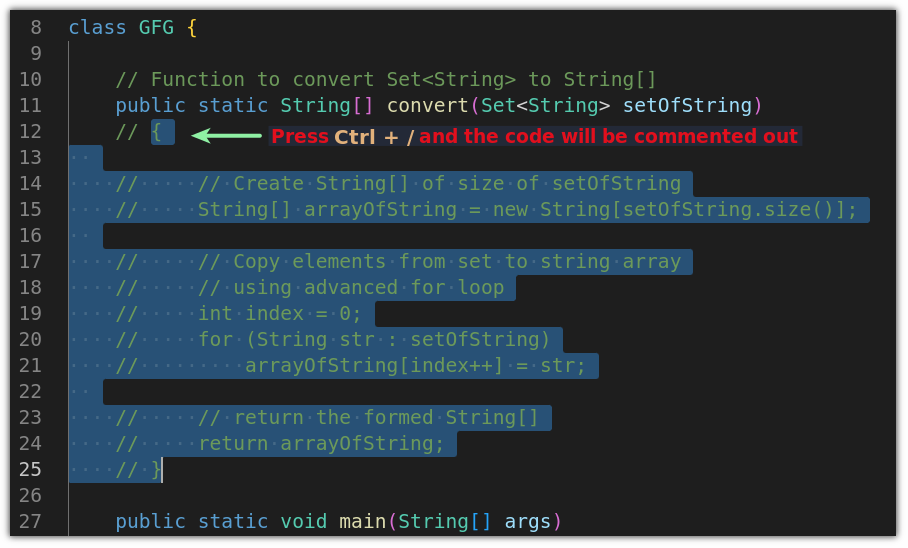
You can comment or uncomment a single line (or a whole block of selected lines) by pressing Ctrl + / on Windows/Linux or Cmd + / on macOS.
The following video from Alex Lee's channel clearly demonstrates this shortcut.
This video clip shows the shortcut for toggling comments on and off in an IDE.
Watch from the demonstration where he highlights multiple lines and uses the keyboard shortcut to comment and uncomment them.
The image below illustrates exactly what this looks like in an editor. A block of code has been selected, and the shortcut has been used to place // at the start of each line, effectively disabling the entire block.
Practice Time
Now it's your turn to put this into practice.
- Open the
HelloWorldproject you created in the last lesson. - At the very top of the
HelloWorld.javafile, before thepublic class HelloWorld {line, add a multi-line comment that includes your name, today's date, and a brief description of what the program does. - Above the
System.out.println("Hello, World!");line, add a single-line comment that explains what that line of code does. - If you still have the ten
System.out.printlnlines from the previous lesson's practice, select five of them and use theCtrl + /(orCmd + /) shortcut to comment them out. - Run your program. You should see "Hello, World!" printed only five times.
- Now, select the same five commented lines and use the shortcut again to uncomment them. Run the program to confirm all ten lines are working again.
Conclusion
In this lesson, you've learned a fundamental skill for writing clean and maintainable code. Documenting your work and knowing how to test it by commenting out sections are practices you will use throughout your entire programming career.
Here are the key takeaways:
- Comments are notes for human readers that are ignored by the Java compiler.
- Single-line comments begin with
//. - Multi-line comments are enclosed between
/*and*/. - A primary use of comments is to explain the "why" behind your code.
- Commenting is also a vital tool for debugging by temporarily disabling code.
- Modern IDEs provide a shortcut (
Ctrl + /orCmd + /) to quickly comment and uncomment lines of code.
You have now completed the first module on Java fundamentals! You know what Java is, how to set up your environment, the basic structure of a program, how to print output, and how to document your code.
In our next lesson, we will begin the second module and start making our programs much more interesting by introducing variables. You will learn how to declare and use variables to store and manipulate data like numbers, text, and true/false values.