Hello! In the previous lesson, you identified whether code needs a browser or Node.js by examining the APIs it uses. Now you’ll run code in the Node.js environment: starting with a TypeScript file, building it, and identifying exactly which command produces the output you see.
This is a small but important interview skill. When a backend project prints an unexpected value—or prints nothing—you need to know whether you are looking at a build problem, an old JavaScript file, or the behavior of the program itself.
What actually runs?
In the project used for this lesson, the TypeScript compiler, tsc, converts a .ts source file into a .js file. Node.js then executes that JavaScript file. Building and running are separate actions: building creates the file to run; running executes it.
Read the short Node.js guide for that distinction. Its example contains types and a function you do not need to study yet; focus on the commands and the files they use.
Running TypeScript code using transpilation | Node.js Learn
This Node.js Learn guide explains the compile-then-run workflow that you will use in the project below.
Read the opening explanation. Then find Step 3: Compile your TypeScript code to JavaScript and read the compile step. Finally, in Step 4: Run your JavaScript code using Node.js, read the run step. Stop before the type-error example.
This terminal screenshot shows the same two actions without npm project scripts:
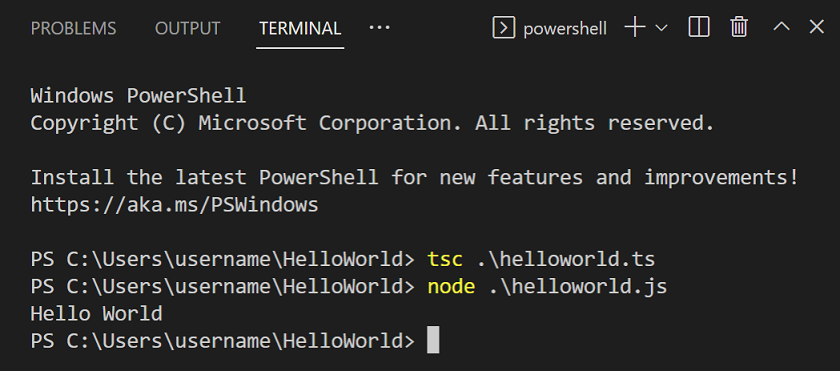
Some newer Node.js versions can handle certain TypeScript syntax directly. That does not change this project’s workflow: its build script uses tsc, and its start script runs the generated JavaScript.
Read the project before running it
Suppose you are handed a small Node.js project with this structure:
package.json
package-lock.json
tsconfig.json
src/
  main.ts
Its package.json contains these scripts:
{
  "scripts": {
    "build": "tsc",
    "start": "node dist/main.js"
  },
  "devDependencies": {
    "typescript": "^5.0.0"
  }
}
The "build" script invokes the project’s TypeScript compiler. The "start" script tells you something equally important: the file Node.js will execute is dist/main.js, not src/main.ts.
The relevant compiler settings in tsconfig.json are:
{
  "compilerOptions": {
    "target": "ES2020",
    "module": "CommonJS",
    "rootDir": "src",
    "outDir": "dist",
    "strict": true,
    "noEmitOnError": true
  },
  "include": ["src/**/*.ts"]
}
Here, rootDir identifies the source directory and outDir identifies where compiled files go. With this layout, building src/main.ts produces dist/main.js. The noEmitOnError setting prevents a build with TypeScript errors from generating new JavaScript; do not treat an old file already in dist as a successful new build.
Projects often wrap these commands in npm scripts instead of asking you to remember file paths. Watch how a larger example separates its build command from its start command. You can skip the video’s development-mode setup for now.
How to Run TypeScript in Visual Studio Code
“How to Run TypeScript in Visual Studio Code,” from JayMartMedia, shows where build and start scripts fit in an npm project.
Watch the project setup for the purpose of the two phases. Skip ahead to build and start, where the compiler writes JavaScript and the start command executes it. Finish with running the output. The video uses different filenames; follow the roles of the files rather than their names.
Run the program and read its output
The project’s src/main.ts contains:
const membership: string = "active"
const attempts: number = 3

console.log("Membership:", membership)
console.log("Attempts remaining:", attempts - 1)
You have seen why the type annotations do not remain in the JavaScript that runs. For this lesson, concentrate on the two console.log calls.
In a terminal opened at the project root—the directory containing package.json—run the following commands in order:
npm ci
npm run build
npm start
npm ci installs the project dependencies from its supplied lockfile. If dependencies are already installed, you can skip it. If you are recreating this example in a new folder without a lockfile, use npm install instead.
After a successful build, dist/main.js should exist. The program’s output is:
Membership: active
Attempts remaining: 2
Npm may also print lines identifying the script it is running. Those lines come from npm, not from either console.log call. You can run the generated file directly to see just the program output:
node dist/main.js
To interpret the result, trace each call in order. The first prints its label and the value of membership; console.log places a space between its comma-separated arguments. The second evaluates attempts - 1 before printing, so its numeric value is 2. Each call produces a separate line. The program then finishes.
A backend’s terminal log is not an HTTP response. Nothing here sends a response to a browser or changes a database record; these calls only print information from the running Node.js process.
For one controlled change, edit attempts in src/main.ts from 3 to 5. Run npm run build and then npm start again. The second output line should now read Attempts remaining: 4. This confirms that your changed source was built and the new JavaScript was run.
When the output is missing or surprising
Think about which phase you reached before trying to fix the code:
| What you observe | First thing to check |
|---|---|
npm run build reports an error |
Read the compiler error; do not assume the source was rebuilt. |
npm start cannot find dist/main.js |
Check whether the build succeeded and whether the start script names the actual output file. |
| Output still reflects an earlier edit | Rebuild before running; Node.js may be executing JavaScript generated from older source. |
| The program runs but prints an unexpected value | Trace the expressions passed to console.log in their execution order. |
This is particularly useful when approaching an unfamiliar backend repository. Read its package.json scripts first: not every project calls its entry file main.ts, and not every project writes compiled files to dist.
Conclusion
You can now distinguish the TypeScript source, the compiled JavaScript, and the terminal output produced when Node.js runs that JavaScript. In a project with build and start scripts, run the build first, then start the program; if the output is stale, check whether you rebuilt the source you edited.
Next, you’ll work directly with let, const, and typed string, number, and boolean values—the building blocks you just saw inside this running program.