Hello! Welcome to your next lesson on mastering Notion for businesses.
In our last session, we focused on optimizing the performance of your active data by implementing "lazy loading" and view-based template design. This ensures your day-to-day dashboards are fast and responsive. But what happens when that data is no longer active? A scalable system must manage the entire data lifecycle, from creation to archival.
Today, we'll address that final stage. Our learning outcome is to design and implement a data archiving workflow that preserves relational integrity. This is a critical skill for preventing your clients' workspaces from becoming slow and cluttered with outdated information, while still retaining valuable historical context.
This lesson marks the final piece of our module on database architecture. By the end, you will have a complete framework for designing databases that are normalized, efficient, performant, and maintainable over time.
The Archiving Dilemma: Why You Can't Just "Move" Pages
When faced with old projects, completed tasks, or inactive client records, the most intuitive solution might seem to be creating a separate "Archive" database and simply moving the old pages there.

This approach, however, presents a significant problem in Notion, one that can undermine the very structure of the systems you build. To understand why, let's turn to an expert analysis of applying organizational systems like PARA to Notion.
Using the PARA method with Notion
Marie Poulin's article 'Using the PARA method with Notion' clearly articulates the central challenge of archiving in a relational tool like Notion. It explains why a literal folder-based approach doesn't work.
Please read the section titled 'The Challenges of PARA in Notion.' Focus on the paragraph that begins 'The problem with how Notion stores data is that moving pages from one database to another means losing any relations that were attached to that data'. This is the core concept we need to solve for.
As the article highlights, moving a database page is a destructive action for its relationships. If you move an archived Project page, it will lose its connections to all related Tasks, Contacts, Meetings, and Documents. The rich, interconnected context you worked so hard to build is lost.
For a consultant designing robust systems, this is unacceptable. Your archiving workflow must be non-destructive.
The Solution: Archive via Status and Filters
The architecturally sound solution is elegant: Don't move the data; simply change its state.
Instead of physically relocating a page, you mark it as "Archived" using a property within its existing database. Then, you use filters to control its visibility across your workspace. Active views will hide archived items, while a dedicated "Archive" view will show them.
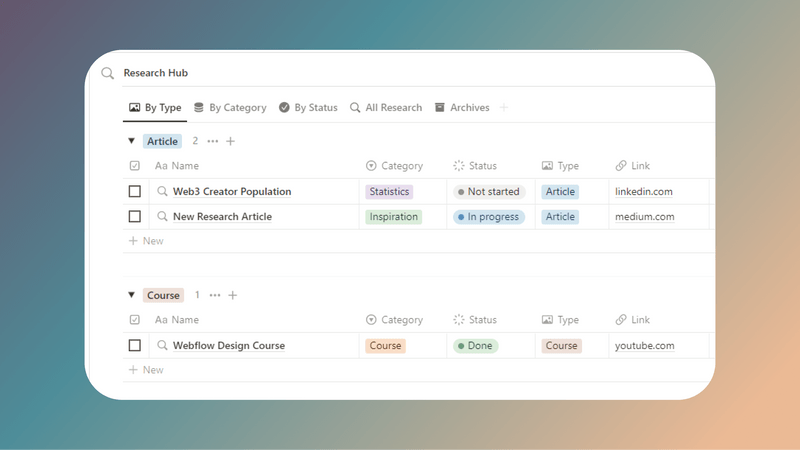
This method ensures 100% relational integrity. An archived project, when viewed in the archive, still shows all of its original tasks, meetings, and related data. Let's explore the implementation.
Using the PARA method with Notion
Both of the following resources explicitly endorse this filter-based archiving strategy. They provide a clear, practical confirmation of this best practice.
First, in the section 'Overview of our PARA Notion setup', read the final bullet point about 'Archives'. Then, read the short section titled 'ARCHIVES' for a more detailed explanation. Notice the emphasis on retaining metadata.
The Bulletproof Notion Workspace
The 'Bulletproof Notion Workspace' guide offers another concise summary of this exact technique.
Please read the short section titled 'If you like, disregard Archives.' It directly states the rationale for using filters over a separate archive database.
Implementing the Workflow
Here is the step-by-step process for designing this workflow for a client's Projects database:
-
Add an Archival Property: Add a new property to the
Projectsdatabase. The most common choices are:- A
Statusproperty with anArchivedoption. - A
Checkboxproperty namedArchived. - A
Selectproperty with anActiveandArchivedoption.
TheStatusproperty is often preferred as it groupsArchiveditems separately fromCompleteitems in board views and has a distinct visual style.
- A
-
Update Active Views: Go to every existing linked view of the
Projectsdatabase that your client uses for day-to-day work (e.g., Kanban boards, "My Projects" lists). Add a filter to hide items where the archival property is set. For example:Statusis notArchivedArchivedisUnchecked
-
Create an Archive View: On a system administration or "backend" page, create a new linked view of the
Projectsdatabase. Name this view "Archived Projects." Add a filter to show only items that are archived. For example:StatusisArchivedArchivedisChecked
This view is the gateway to all historical data. It's typically a
Tablelayout to show key metadata like completion date, project owner, and client.
This three-step process creates a robust, non-destructive, and easily reversible archiving system.
Test your understanding!
You have built a CRM for a client with a Contacts database. The client wants to "archive" contacts they haven't interacted with in over a year to declutter their main contact list, but they must not lose the contact's history of past meetings or associated projects.
Briefly outline the three main steps you would take to implement this archiving workflow.
Show answer
- Add an Archival Property: Add a
Checkboxproperty named "Archived" to theContactsdatabase. - Update Active Views: Modify the client's main "All Contacts" list view. Add a filter:
ArchivedisUnchecked. This will immediately hide any archived contacts from their daily view. - Create an Archive View: Create a new page called "Archived Contacts" (or a new view on an existing page). Add a linked view of the
Contactsdatabase and apply the filter:ArchivedisChecked. This gives them a safe place to find old contacts without losing any relational data.
Designing an Archiving Policy
Implementing the mechanism is only half the battle. As a consultant, your value lies in helping clients define the process and policy around archiving. The workflow should be clear and, where possible, automated.
Consider these strategic questions for your client:
-
What is the trigger for archiving?
- Manual: A project manager must manually check the "Archived" box when a project is officially closed. This is simple but relies on human action.
- Status-driven: When a project's
Statusis moved toComplete, does it get archived immediately, or after a "grace period" (e.g., 30 days)? - Time-based: Should items be archived automatically after a certain period of inactivity? You could design a "Stale Projects" view with a filter like
Last edited timeis on or before90 days ago. The system owner can then review this list and perform a bulk archival.
-
What is the scope of the archive?
- When a
Projectis archived, what happens to its relatedTasks? Typically, the tasks would already beDone. They simply remain in theTasksdatabase, still linked to the now-archived project. This is the beauty of this method—no further action is needed. - Should there be a "deep archive" or "permanent deletion" policy for data older than, say, 7 years, for compliance reasons (like GDPR)?
- When a
-
Who is responsible for archiving?
- Is it the project manager's job? A central system administrator? Defining ownership is key to a successful process.
Defining these rules is a core part of building a scalable system and a key deliverable in a client handover document.
When is a Separate Archive Database Justified?
The Notion Mastery article you read mentions a rare exception: "if you want to clear out Projects older than 1-2 years old and want to remove them from showing up in your database searches altogether."
This is an extreme measure for exceptionally large databases (tens of thousands of entries) where even the presence of archived items might clutter search results or cause performance concerns. In this scenario, you might create a separate Projects Archive database and move very old pages there, but you must do so with the explicit understanding and acknowledgement that all relational context will be lost. This is a strategic trade-off between performance/clarity and historical integrity, and it should be a deliberate, well-documented decision.
Conclusion
You have now mastered the final element of scalable database architecture in Notion. You can design systems that are not only efficient during their active use but also remain lean and manageable over the long term.
Key Takeaways:
- The Problem: Moving Notion database pages to a separate archive database breaks their
Relationproperties, destroying valuable context. - The Solution: The best practice is to use a property (like
Statusor aCheckbox) to mark items as archived within the same database. - Implementation: Use filters to hide archived items from active views and show them in a dedicated "Archive" view. This workflow is non-destructive and preserves 100% of relational data.
- Strategy: Your role as a consultant goes beyond the technical setup; it includes helping clients define a clear archiving policy that outlines triggers, scope, and ownership.
In our next lesson, we will move from the granular level of database architecture to the 10,000-foot view. We will begin Module 2 by analyzing architectural models for entire enterprise workspaces, exploring the pros and cons of centralized vs. decentralized structures.