Hello! Welcome to the third lesson in our exploration of TanStack Query.
In our last session, we set up the essential plumbing for TanStack Query by installing the necessary packages and wrapping our application in the QueryClientProvider. We now have a QueryClient instance ready to manage our application's server state.
Today, we'll put that setup to work. This lesson is all about the useQuery hook, the primary tool you'll use for fetching, caching, and displaying data. We will cover:
- The basic syntax and required options for
useQuery. - How to handle loading, error, and success states to create a responsive user interface.
- How
useQuery's caching provides an instant user experience on subsequent data requests.
By the end of this lesson, you'll be able to confidently fetch and display server state in your React components.
1. From useEffect to useQuery
In our very first lesson, we built a custom useFetch hook using useState and useEffect. This gave you a solid understanding of the manual work involved: managing loading states, error states, and the data itself.
TanStack Query's useQuery hook abstracts away all of that boilerplate. Let's look at a quick comparison to see how much cleaner it is.
TanStack Query Basics: Make Data Fetching Easy in React
This article provides a great side-by-side comparison of fetching data with a traditional useEffect approach versus using useQuery.
Please read the introduction, focusing on the two code blocks that fetch a list of posts. Notice how much less state management is required with useQuery.
As you can see, useQuery bundles the data, loading status, and error information into a single, declarative hook, which drastically simplifies your component logic.
2. The Anatomy of useQuery
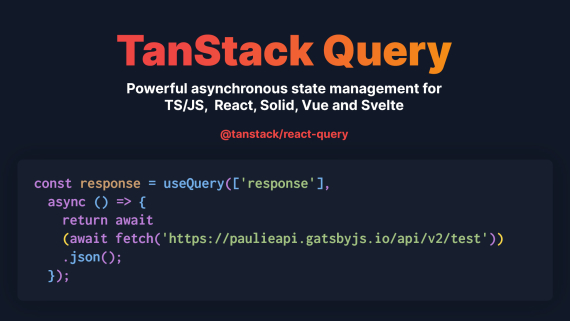
The useQuery hook is the workhorse for reading data. At its core, it requires an object with two essential properties: queryKey and queryFn.
-
queryKey: This is a unique, serializable array that identifies your query. TanStack Query uses this key to cache the data internally. Any time you calluseQuerywith the same key, you'll get the cached data for that query. If you need to fetch data that depends on a variable (like a user ID), that variable must be included in the query key.['todos']- A key for a list of all todos.['todos', 1]- A key for the specific todo with ID 1.['todos', 'done']- A key for a list of todos that are marked as done.
-
queryFn: This is an asynchronous function that you provide to fetch the data. This function must return a promise that either resolves with your data or throws an error. You can usefetch, Axios, or any other data-fetching library inside yourqueryFn.
Let's see how these two properties work together in a practical example.
3. Fetching Data in a Component
We're going to build a UserProfile component that fetches and displays data for a specific user from the JSONPlaceholder API.
This article provides an excellent, self-contained example of a UserProfile component that uses useQuery to fetch data and manage its state. We will use this as our main reference.
Please study the code block for the UserProfile component. Pay close attention to how useQuery is called with a queryKey and queryFn, and how query.isLoading, query.error, and query.data are used to render the component's UI.
Let's break down the key parts of the UserProfile component from the article.
The Code
import { useQuery } from '@tanstack/react-query';

const fetchUser = async (userId) => {
  const response = await fetch(`https://jsonplaceholder.typicode.com/users/${userId}`);
  if (!response.ok) {
    throw new Error('Failed to fetch user');
  }
  return response.json();
};

function UserProfile({ userId = 1 }) {
  const query = useQuery({
    queryKey: ['user', userId],
    queryFn: () => fetchUser(userId),
  });

  if (query.isLoading) {
    return <p>Loading user profile...</p>;
  }

  if (query.error) {
    return <div>Error: {query.error.message}</div>;
  }

  return (
    <div>
      <h2>{query.data.name}</h2>
      <p>Email: {query.data.email}</p>
    </div>
  );
}
Key Concepts in Action
-
Dynamic Query Key: The query key is
['user', userId]. By includinguserIdin the array, we ensure that if we callUserProfilewith a different ID (e.g.,<UserProfile userId={2} />), TanStack Query will treat it as a separate query and cache its data independently. -
Query Function: The
queryFnis an anonymous function() => fetchUser(userId)that calls our data-fetching logic. It returns the promise fromfetchUser. -
Handling States: The component uses the properties returned by
useQueryto render the correct UI for each state:query.isLoading: Whiletrue, a "Loading..." message is displayed.isLoadingis onlytrueon the initial fetch when no cached data is available.query.error: If the promise fromqueryFnis rejected,query.errorwill contain the error object, and we can display an error message.query.data: Once the fetch is successful,query.datais populated, and we can render the user's information.
4. Witnessing the Cache
The real power of TanStack Query becomes apparent when a component re-renders or is mounted a second time.
Imagine the UserProfile component is unmounted and then mounted again (for example, by toggling its visibility with a button). Here's what happens:
- First Mount:
isLoadingistrue. The component shows a loading indicator whilefetchUserruns. The data is fetched and displayed. The data is now in the cache, associated with the key['user', 1]. - Second Mount: The component renders again. TanStack Query finds the data for
['user', 1]in its cache. It returns this cached (stale) data immediately.isLoadingisfalse, so the user sees the profile data instantly—no loading screen!- In the background, TanStack Query silently triggers a "background refetch" to get fresh data. During this time,
isFetchingwill betrue. - If the refetched data is different from the cached data, the component will seamlessly re-render to display the fresh information.
This is the stale-while-revalidate strategy we discussed previously, and it's the key to creating fast, responsive applications.
5. Conditionally Fetching a Query
Sometimes, you might not want to fetch data immediately when a component mounts. For example, you might need to wait for a user to select an item from a dropdown before fetching details for that item. The enabled option is perfect for this.
TanStack Query Basics: Make Data Fetching Easy in React
Let's look at how to use the enabled option to control when a query runs.
Read the paragraph that starts with 'To conditionally query...' and study the short code snippet that uses the enabled: !!postId option.
As the article shows, you can pass a boolean to the enabled option. The query will only run if enabled is true.
const { postId } = useParams(); // e.g., from a URL like /posts/123

const { data, isPending } = useQuery({
  queryKey: ['post', postId],
  queryFn: () => getPostById(postId),
  // The query will only run if postId is a truthy value.
  enabled: !!postId,
});
This is a very common pattern for "dependent queries," where one query depends on the result of another or on some user input.
Conclusion
You've now mastered the fundamentals of reading data with TanStack Query! You've gone from the manual state management of useEffect to the streamlined power of useQuery.
Key Takeaways:
- The
useQueryhook simplifies data fetching by managing loading, error, and data states for you. - It requires a unique
queryKeyfor caching and aqueryFnthat returns a promise. - You can create dynamic UIs by checking the
isLoading,isError, anddataproperties returned by the hook. - TanStack Query's caching provides an instant UI on subsequent renders by serving stale data while refetching in the background.
- The
enabledoption gives you precise control over when a query should be executed.
Next Lesson Preview:
Reading data is only half the story. In our next lesson, we will explore the other side of server state management: writing data. You'll learn how to use the useMutation hook to create, update, and delete data on the server, and how to intelligently update your client state after a successful mutation.