Hello! Welcome to your next lesson in the "Advanced Bash Scripting" module.
In our previous lessons, we explored powerful external commands for text processing. We saw how grep finds lines, sed edits them, and awk processes them column by column. These tools are essential, but they come with a small performance cost: each time you call one in a script, the shell has to create a new process to run it.
Today, we shift our focus inward to the shell itself. Your learning outcome is to manipulate strings using Bash parameter expansion for slicing, substitution, and case modification. This is a fundamental skill for writing efficient and clean Bash scripts. By using these built-in operators, you can perform many common string operations without forking external commands, resulting in scripts that are faster and more self-contained.
1. Why and How: The Core of Parameter Expansion
At its simplest, you've been using parameter expansion every time you've written $MY_VAR. The more explicit form, ${MY_VAR}, is where the real power lies. Using braces {} not only prevents ambiguity (e.g., echo "${MY_VAR}_suffix" vs. $MY_VAR_suffix) but also unlocks a rich set of operators for string manipulation.
Before we dive into the techniques, it's crucial to understand why this is a preferred method in many cases.
Mastering Bash Parameter Expansion
The article 'Mastering Bash Parameter Expansion' by Nawaz Dhandala on OneUptime provides an excellent overview of the benefits.
Please read the introduction (the section just below the main title) and the 'Performance Benefits' section at the end of the article. This will frame why learning these operators is so valuable for a DevOps engineer.
As you've just read, the performance gain from avoiding subprocesses can be significant, especially inside loops that process many files or data points.
2. Slicing and Dicing: Substring Extraction
One of the most common string operations is extracting a piece of a string, or a "slice." Parameter expansion provides a clean syntax for this.
- String Length:
${#variable}returns the number of characters in the variable. - Substring Extraction (Slicing):
${variable:offset:length}extracts a substring oflengthcharacters starting fromoffset(zero-indexed).
Let's look at a concrete example:
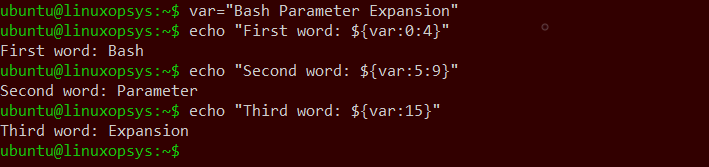
Notice how var:0:4 extracts "Bash". If you omit the length, it extracts everything from the offset to the end of the string.
Mastering Bash Parameter Expansion
For a detailed written explanation of these operators, let's return to the OneUptime article.
Read the sections 'String Length' and 'Substring Extraction'. Pay special attention to the note about the required space for negative offsets, as ${var:-1} has a different meaning.
Now, let's see these concepts demonstrated in a live terminal session.
The video 'Bash variable expansion' from the nixcasts channel provides a practical walkthrough of these concepts.
Watch the segment from 03:47 to 06:15. This part demonstrates: The need for braces to disambiguate variables (e.g., ${test}s). Substring extraction (${test:6:4}). Getting the string length (${#test}).
3. Pattern-Based Manipulation
Where parameter expansion truly begins to replace tools like sed, cut, basename, and dirname is in its pattern-matching operators.
Prefix and Suffix Removal
This is incredibly useful for tasks like manipulating file paths.
- Remove from Front (Prefix):
${variable#pattern}: Deletes the shortest match ofpatternfrom the beginning.${variable##pattern}: Deletes the longest (greedy) match ofpatternfrom the beginning.
- Remove from End (Suffix):
${variable%pattern}: Deletes the shortest match ofpatternfrom the end.${variable%%pattern}: Deletes the longest (greedy) match ofpatternfrom the end.
The distinction between "shortest" and "longest" is key. For example, given file="report.tar.gz", ${file%.*} removes .gz (shortest match), while ${file%%.*} removes .tar.gz (longest match).
Basic Parameter Expansion in Bash - You Suck at Programming #026
The video 'Basic Parameter Expansion in Bash' from You Suck at Programming has a fantastic explanation of this, using the common DevOps task of getting a filename and directory path.
Watch from 00:28 to 02:35. The video clearly explains how ${filepath##*/} works like basename and ${filepath%/*} works like dirname by using greedy and non-greedy removal.
Search and Replace
You can also perform search-and-replace operations directly in the shell.
${variable/pattern/string}: Replaces the first match ofpatternwithstring.${variable//pattern/string}: Replaces all matches ofpatternwithstring.
If you omit /string, the matched pattern is deleted.

You can also "anchor" the replacement to the beginning or end of the string:
${variable/#pattern/string}: Replaces only ifpatternmatches at the beginning.${variable/%pattern/string}: Replaces only ifpatternmatches at the end.
Mastering Bash Parameter Expansion
The OneUptime article provides excellent examples for both pattern removal and substitution.
Read the sections 'Pattern Removal' (including its subsections on removing from the front and end) and 'Search and Replace' (including 'Anchored Replacement').
4. Case Modification
Since Bash 4.0, you can also change the case of characters in a string, which is very useful for normalizing input.
${variable^}: Uppercase the first character.${variable^^}: Uppercase all characters.${variable,}: Lowercase the first character.${variable,,}: Lowercase all characters.
env="PROD"
echo "Deploying to ${env,,} environment."


# Output: Deploying to prod environment.
This is a much cleaner and more efficient way to handle case changes than piping to tr or awk.
Mastering Bash Parameter Expansion
Let's review the syntax for this in our reference article.
Read the short 'Case Conversion' section for a summary of the operators.
5. Putting It All Together: A Practical Scenario
Let's combine these techniques to solve a common problem. Imagine you have a script that processes files, and you need to normalize the filenames for logging.
Input: filepath="/data/RAW_SALES_2026-Q1.CSV"
Desired Output: raw_sales_2026-q1
How would you achieve this? Think about it for a moment. You'll need to chain a few operations.
...
Here's the sequence:
- Extract the filename from the path. We need to remove the longest match of
*/from the beginning.filename="${filepath##*/}" # filename is now "RAW_SALES_2026-Q1.CSV" - Remove the file extension. We need to remove the shortest match of
.*from the end.base="${filename%.*}" # base is now "RAW_SALES_2026-Q1" - Convert the result to lowercase.
normalized="${base,,}"


# normalized is now "raw_sales_2026-q1"
Putting it all on one line can be less readable, but it is possible by nesting temporary variables:
filepath="/data/RAW_SALES_2026-Q1.CSV"
tmp="${filepath##*/}"
echo "${tmp%.*}" | tr '[:upper:]' '[:lower:]' # Using tr for older bash


# or with bash 4+
normalized_base="${${filepath##*/}%.*}" # This syntax can be tricky
normalized="${normalized_base,,}"
echo "$normalized"
The step-by-step approach is generally clearer and easier to debug.
Conclusion
Today you've added a powerful set of native Bash tools to your scripting arsenal. By mastering parameter expansion, you can write more efficient, readable, and self-reliant scripts that don't depend on external commands for basic string manipulation.
Key Takeaways:
- Always use
"${variable}"with braces for clarity and to enable operators. - Slicing (
${var:offset:length}) allows you to extract substrings withoutcut. - Pattern Removal (
#,##,%,%%) is a fast replacement forbasename,dirname, and simplesedcommands for stripping prefixes and suffixes. - Search and Replace (
/,//) providessed-like substitution capabilities directly within the shell. - Case Modification (
^,^^,,,,,) is the modern, efficient way to normalize string case, replacingtr.
Preview of the Next Lesson:
We've mastered operating on single string values. But what happens when you need to manage a list of items, like a set of server hostnames or a list of files to process? In the next lesson, we will explore how to use indexed and associative arrays to manage collections of data in Bash scripts, moving from single variables to structured data management.