Hello! In our last lesson, we mastered sed, a powerful tool for performing substitutions on streams of text. We saw how it operates line-by-line to find and replace content. This is great for many tasks, but what happens when the data has a clear columnar structure, and you want to make decisions based on the value in a specific column?
For instance, sed can find lines containing "Failed login," but it can't easily answer a question like, "Show me the usernames from all lines where the 6th word is 'Failed'." For that, we need a tool that is field-aware.
This brings us to today's lesson, where we will tackle the learning outcome: Extract specific fields from structured text and perform simple actions using awk.
awk is a cornerstone of command-line data processing. It's a versatile scripting language designed to scan and process text files line by line, but its real power lies in its ability to automatically split each line into fields (columns). This allows you to write simple but powerful programs to filter, reformat, and perform calculations on structured data. For anyone in cybersecurity or system administration, awk is indispensable for parsing log files, processing command output, and automating data analysis.
Let's begin!
1. The Core of awk: Records and Fields
awk processes text by breaking it down into two fundamental units:
- Record: By default, a record is a single line of text.
awkreads one record at a time. - Field: Each record is automatically split into fields based on a field separator. By default, the field separator is one or more spaces or tabs.
You can access these fields using special variables:
$0: Represents the entire record (the whole line).$1: Represents the first field.$2: Represents the second field, and so on.$NF: A very handy variable that represents the Number of Fields, giving you access to the last field on the line, regardless of how many fields there are.
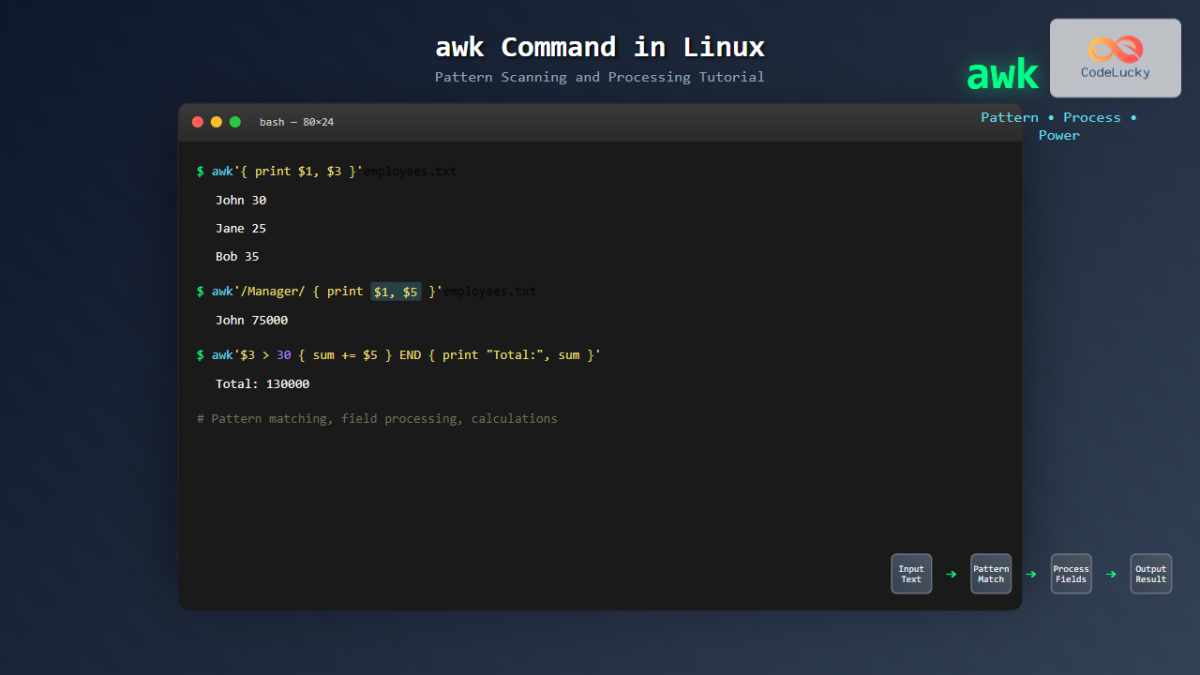
The simplest awk program just prints something for each line. Let's see how to select and print specific fields.
Learning Awk Is Essential For Linux Users
The video "Learning Awk Is Essential For Linux Users" from the DistroTube channel provides a very clear, hands-on introduction to fields. We'll start by watching how to extract fields from the output of the ps command, which you're likely familiar with.
Watch from the beginning to 02:17. Focus on how $1, $2, and $0 are used to select and print different columns from the ps output.
Working with Different Field Separators
The default separator of whitespace is great for command output, but many important files use other characters. For example, the /etc/passwd file, which is critical to Linux security, uses a colon (:) to separate its fields.
To handle this, we use the -F option to specify a custom Field separator.
Learning Awk Is Essential For Linux Users
Let's continue with the DistroTube video to see how to handle files like /etc/passwd. This is a classic and essential use case for awk.
Watch from 02:17 to 04:56. Pay close attention to the -F ':' option and how it allows awk to correctly parse the user data. Also, notice how you can print multiple fields and even add your own text (like a tab \t) between them for better formatting.
For a detailed written reference on these core concepts, the following article is an excellent resource.
Awk Command in Linux with Examples
The article "Awk Command in Linux with Examples" on Linuxize provides a solid foundation. These sections will reinforce what we've just seen about records, fields, and separators.
Please read the sections titled "How awk Works" (specifically the part on "Records and Fields") and "Changing the Field and Record Separator." This will solidify your understanding of how awk views text and how to tell it what character to use as a delimiter.
2. The awk Program: pattern { action }
So far, we've only used the action part of an awk command (the part in the {...} braces). The true power of awk is realized when we combine actions with patterns.
The full structure of an awk program is a series of pattern { action } rules:
awk 'pattern1 { action1 } pattern2 { action2 }' file.txt
For each line (record) that awk reads:
- It checks if the line matches
pattern1. If it does,action1is executed. - It checks if the line matches
pattern2. If it does,action2is executed. - And so on.
Key points:
- If you provide an
actionwith no pattern, the action runs for every line. This is what we did in the first section. - If you provide a
patternwith no action, the default action isprint $0(print the whole line). Soawk '/error/' log.txtworks just likegrep 'error' log.txt.
This structure makes awk incredibly expressive.
How The 'awk' Command Made Me A 10x Engineer
The video "How The 'awk' Command Made Me A 10x Engineer" by Robert Elder has one of the best explanations of this fundamental pattern-action model. He calls it an 'implicit if statement', which is a great way to think about it.
Watch from 04:36 to 07:23. This segment brilliantly breaks down how awk processes lines against a set of pattern-action rules. This is the most important conceptual part of the lesson.
Patterns and Actions in Practice
Now let's apply this. A pattern can be a regular expression, like /error/, or it can be a logical comparison based on a field's value. This second type is where awk truly shines.
We can also perform simple actions like arithmetic. Let's see this in action by parsing the output of the df command (disk free).
Learning Awk Is Essential For Linux Users
Returning to the DistroTube video, this next clip demonstrates how to filter lines based on a string pattern and then perform simple arithmetic on the fields of the matching lines.
Watch from 08:18 to 10:12. Notice how he filters for lines containing a specific string (/dev/loop) and then shows how you can not only print fields ($1, $2) but also calculate their sum ($2 + $3).
BEGIN and END: Setup and Summary
awk provides two special patterns that don't match any lines in the input file:
BEGIN: The action inside this block is executed beforeawkstarts reading any lines. It's perfect for initializing variables or printing a header.END: The action inside this block is executed after all lines have been read and processed. It's ideal for performing final calculations and printing summaries, like a total or an average.
How The 'awk' Command Made Me A 10x Engineer
The Robert Elder video has a perfect example of this, where he calculates the average temperature from a file. This demonstrates the power of BEGIN for initialization and END for final reporting.
Watch from 09:28 to 10:22. See how he initializes a total in the BEGIN block, adds to it for each line, and then calculates and prints the average in the END block.
To round out your understanding, let's go back to the Linuxize article one last time.
Awk Command in Linux with Examples
This reading covers the pattern { action } syntax, different types of patterns, and the special BEGIN and END patterns in detail.
Read the sections: "Awk Program", "Awk Patterns" (you can skim the Range Patterns for now), "Awk Actions" (focus on the print statement), "Built-in Variables" (pay attention to NR and NF), and "Practical Examples" (look at the /etc/passwd and piped command examples).
3. Hands-On Practice: Analyzing a Log File
Let's apply these concepts to a scenario you'd encounter while monitoring a system. Create a file named auth.log.sample and paste the following content into it. This is a simplified sample of a system authentication log.
May 10 10:22:01 server sshd[1502]: Accepted publickey for user root from 192.168.1.10 port 54321
May 10 10:23:15 server sshd[1605]: Failed password for invalid user visitor from 203.0.113.55 port 12345
May 10 10:23:20 server sshd[1608]: Failed password for root from 203.0.113.55 port 12346
May 10 10:24:05 server sshd[1710]: Accepted password for user admin from 192.168.1.12 port 60123
May 10 10:25:30 server sshd[1800]: Failed password for root from 10.0.0.200 port 22222
May 10 10:25:45 server sshd[1815]: Disconnected from 192.168.1.10 port 54321
Now, write a single awk command for each of the following tasks.
-
List Attackers' IPs: Print just the IP addresses for every line that contains the words "Failed password".
- Hint: The IP address is the 11th field (
$11). Your pattern should look for/Failed password/.
- Hint: The IP address is the 11th field (
-
Find a Specific Attacker: Count how many times the IP address
203.0.113.55tried to log in with a failed password.- Hint: You'll need two conditions in your pattern, joined by
&&(AND). Check if$7is "Failed" and$11is "203.0.113.55". Use a variable likecount++in your action, and anENDblock to print the final count.
- Hint: You'll need two conditions in your pattern, joined by
-
List Successful Logins: Print the username and IP address for all accepted logins.
- Hint: The pattern should match "Accepted". The username is the 9th field (
$9) and the IP is the 11th field ($11).
- Hint: The pattern should match "Accepted". The username is the 9th field (
-
Challenge: Calculate the total number of "Failed password" attempts and print the summary at the end.
- Hint: This is very similar to the temperature averaging example. Use a pattern to identify the right lines, increment a counter in the action, and print the counter's value in an
ENDblock.
- Hint: This is very similar to the temperature averaging example. Use a pattern to identify the right lines, increment a counter in the action, and print the counter's value in an
Take your time to construct these commands. This is where the theory connects to practical, real-world application.
Conclusion
Excellent work! You've just learned the fundamentals of awk, a tool that dramatically expands your ability to process text on the command line. Where grep finds lines and sed modifies them, awk understands their structure, allowing you to build logic around the data within columns.
Key Takeaways:
awkprocesses text as records (lines) and fields (columns).- The core structure is
pattern { action }. Actions are performed on lines that match the pattern. - Fields are accessed with
$1,$2,$NF, etc. The-Foption sets a custom field separator. - Patterns can be regular expressions (
/regex/) or logical conditions on fields ($3 > 100). - The
BEGINblock runs before any lines are processed, and theENDblock runs after all lines are processed, perfect for setup and summary tasks. - You can perform simple arithmetic and use variables to aggregate data as you process a file.
Next Lesson Preview:
You now have three powerful text-processing tools in your arsenal: grep for filtering, sed for substituting, and awk for field-based processing. In our next lesson, we will focus on how to combine these tools—along with a new utility called xargs—to build sophisticated, multi-stage command pipelines. This is where you'll start to see how individual commands can be chained together to solve complex problems efficiently.