Hello! Welcome to the next lesson in our "Data Transformation for Analysis" module.
In our previous lessons, we focused on combining data from different sources by merging columns and appending rows. Now that you know how to build a unified dataset, the next logical step is to enrich it. Often, the raw data you've gathered doesn't contain all the information you need for a full analysis. You need to create it.
This lesson directly addresses the learning outcome: Create custom columns using basic arithmetic operations. We'll explore how to use Power Query to perform calculations on your data, creating new columns like Total Revenue, Profit, or Unit Cost. For the managers in your workshop, this is a crucial skill that moves them from simply organizing data to actively creating new business insights from it.
By the end of this lesson, you will be prepared to teach your audience how to:
- Navigate the 'Custom Column' interface in Power Query.
- Create new columns using basic arithmetic: addition (+), subtraction (-), multiplication (*), and division (/).
- Use parentheses to control the order of operations in formulas.
- Understand how creating custom columns is a form of 'feature engineering' that powers deeper analysis.
What is a Custom Column?
A custom column is a new column that you add to your table inside the Power Query Editor. The value in each row of this new column is calculated based on a formula that you write. This formula can use values from other columns in the same row.
Think of it as adding a formula column in an Excel spreadsheet, but with a major advantage: it becomes a permanent, repeatable step in your data preparation process. Every time you refresh your data, the custom column is recalculated automatically, ensuring consistency and saving significant time.
To get started, you first need to open the "Custom Column" dialog. This is found in the Add Column tab of the Power Query Editor.
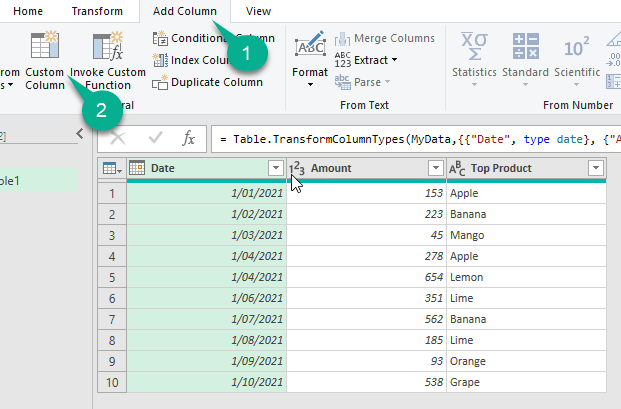
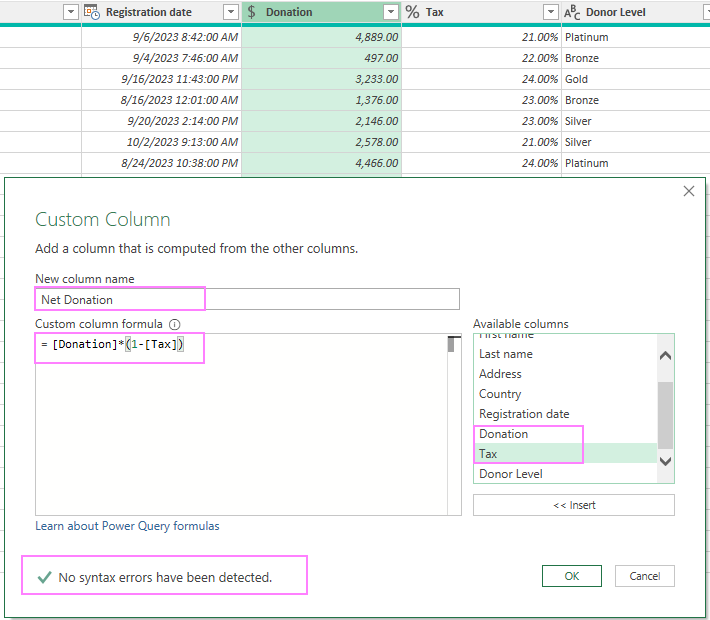
Once clicked, this opens the Custom Column dialog box, which has a few key areas to understand:
- New column name: This is where you will give your new column a clear, descriptive name (e.g., "Total Sale" instead of "Column1").
- Available columns: On the right, this list shows all the columns currently in your table. You can double-click a column name to insert it into your formula. This is the best practice to avoid typos.
- Custom column formula: This is the main text box where you will write your calculation using column names and arithmetic operators.
- Syntax checker: At the bottom, a small message will tell you if your formula is valid ("No syntax errors have been detected") or if there's a problem.
Performing Arithmetic Operations
Let's see how this works with the four basic arithmetic operations. We'll start with the most common one: multiplication.
Multiplication (*) and Subtraction (-)
A classic business scenario is calculating a total sale value and then applying a discount. The official Microsoft documentation provides a perfect, concise walkthrough for this. Please read through the following sections to see how to build two custom columns that depend on each other.
Add a custom column - Power Query
This guide from Microsoft Learn, 'Add a custom column', will walk you through creating two new columns. The first uses multiplication to calculate a total, and the second uses subtraction and multiplication to calculate a discounted total.
Read the sections titled 'Create a custom column', 'Adding the Total Sale before Discount column', and 'Adding the Total Sale after Discount column'. Pay close attention to how the second formula, [Total Sale before Discount]* (1-[Discount]), uses the column created in the first step and includes parentheses to ensure the subtraction happens before the multiplication.
The example you just read is excellent for your workshop because it introduces two important concepts:
- Building on steps: The
Total Sale after Discountcolumn uses theTotal Sale before Discountcolumn that was created just one step earlier. - Order of Operations: Using parentheses
()is critical in more complex formulas. The formula[Total Sale before Discount] * (1 - [Discount])correctly calculates the discount percentage first before multiplying. Without the parentheses, the formula would calculate incorrectly due to the standard mathematical order of operations.
Addition (+) and Division (/)
Now let's explore addition and division. These are often used to aggregate counts or calculate ratios and percentages. The following video uses the famous Titanic dataset to demonstrate these operations in the context of "feature engineering"—creating new data columns (features) to enable better analysis.
Excel Power Query Tutorial - Add Custom Column 1
This video from David Langer provides a fantastic demonstration of creating columns that add significant analytical value. He creates a 'Family Size' column using addition and then calculates ratios using division.
Watch from 05:19 to 11:56. You'll see two key techniques to teach: Addition (05:19 - 07:32): Notice how he creates the 'Family Size' column by adding two existing columns ([SibSp] + [Parch]) and a constant value (+ 1) for the passenger themselves. This shows that you can include fixed numbers in your formulas. Division (09:16 - 11:56): He then uses this new 'Family Size' column to calculate a 'SibSp Ratio' ([SibSp] / [FamilySize]). This reinforces the idea of using newly created columns in subsequent calculations and introduces the division operator (/).
Quick Reference for Your Workshop
Here is a simple table you can use as a handout or slide in your workshop to summarize the basic arithmetic operators for your audience.
| Operation | Symbol | Example Formula | Business Use Case |
|---|---|---|---|
| Addition | + |
[ProductCost] + [ShippingCost] |
Calculating Total Cost |
| Subtraction | - |
[Revenue] - [Expenses] |
Calculating Profit |
| Multiplication | * |
[Quantity] * [UnitPrice] |
Calculating Total Sales |
| Division | / |
[Profit] / [Revenue] |
Calculating Profit Margin |
Test your understanding!
Imagine you have a table of product sales with the columns Product, Revenue, and Cost. Your goal is to add two new columns for analysis: one for the raw profit and another for the profit margin percentage.
How would you create these two columns in Power Query? What would the formula be for each?
Show answer
You would create two sequential custom columns:
-
Create the 'Profit' column:
- New column name:
Profit - Custom column formula:
[Revenue] - [Cost]
- New column name:
-
Create the 'Profit Margin' column:
- New column name:
ProfitMargin - Custom column formula:
[Profit] / [Revenue] - (Note: After creating this column, you would change its data type to 'Percentage' for correct formatting in reports.)
- New column name:
This exercise demonstrates both subtraction and division, and crucially, it shows how the second calculation depends on the result of the first.
Conclusion
You are now equipped to teach managers how to move beyond basic data cleaning and start creating valuable new information within their datasets. By mastering custom columns with arithmetic operations, they can calculate essential business metrics on the fly, automate these calculations for future reports, and prepare their data for more advanced analysis.
Key Takeaways for Your Workshop:
- The Custom Column feature in the Add Column tab is your tool for creating calculations.
- Basic arithmetic is done with simple operators:
+,-,*,/. - Always double-click column names from the Available columns list to avoid formula errors.
- Use parentheses
()to control the order of operations in more complex formulas. - Creating these columns is a foundational step for deeper analysis and for preparing data for Power BI's AI features.
Preview of the Next Lesson:
We've covered the math, but what if you need to apply business rules? In our next lesson, we will build on this foundation by learning how to create conditional columns using IF/THEN logic. This will allow you to categorize data, create flags, and apply rules that go beyond simple arithmetic.