Hello again!
In our last lesson, we dove into JSX, learning how to write UI with an HTML-like syntax and embed dynamic JavaScript expressions using curly braces {}. This was our first step toward describing what our UI should look like in a declarative way.
Today, we'll take that knowledge and use it to build the fundamental units of every React application: components. By the end of this lesson, you will be able to create a functional component that returns JSX. This is the core skill for building modular, reusable, and maintainable user interfaces in React.
What is a React Component?
Think of a React application not as one giant file, but as a tree of independent, reusable pieces. Each of these pieces is a component. A component can be as small as a button or as large as an entire page.
Just like a JavaScript function, a component can accept inputs (which we'll soon learn are called "props") and returns a description of the UI that should appear on the screen. This approach allows you to break down a complex UI into manageable building blocks.
To visualize this, watch the beginning of the following video which introduces the concept of a component-based architecture.
This segment from Programming with Mosh's tutorial provides a great high-level overview of what components are and how they form the structure of a React application.
Watch from 02:32 to 04:49. Focus on the idea of breaking down a web page into smaller, reusable components like a navigation bar, a card, or a button.
Modern React development primarily uses functional components, which are essentially JavaScript functions. Given your background in modern JS, you'll find this pattern very natural.
Creating Your First Functional Component
Creating a functional component involves three simple steps. The official React documentation provides an excellent guide that we'll follow.
This article from the official React documentation walks through the essential steps of creating and using a component. We'll focus on the 'Defining a component' section.
Read the first part of the article, from the beginning down to the section titled 'Using a component'. Pay close attention to the three steps outlined and the 'Pitfall' regarding component naming.
Let's break down those steps:
Step 1: Define the Function
A component is just a JavaScript function. You can use either the traditional function declaration or an arrow function, which you're already familiar with from ES6+.
The most important rule is that component names must start with a capital letter. This is a convention called PascalCase. React uses this capitalization to distinguish between your custom components (e.g., <MyButton />) and regular HTML tags (e.g., <button />).
// Using a function declaration
function MyComponent() {
  // ...
}

// Using an arrow function (also very common)
const AnotherComponent = () => {
  // ...
};
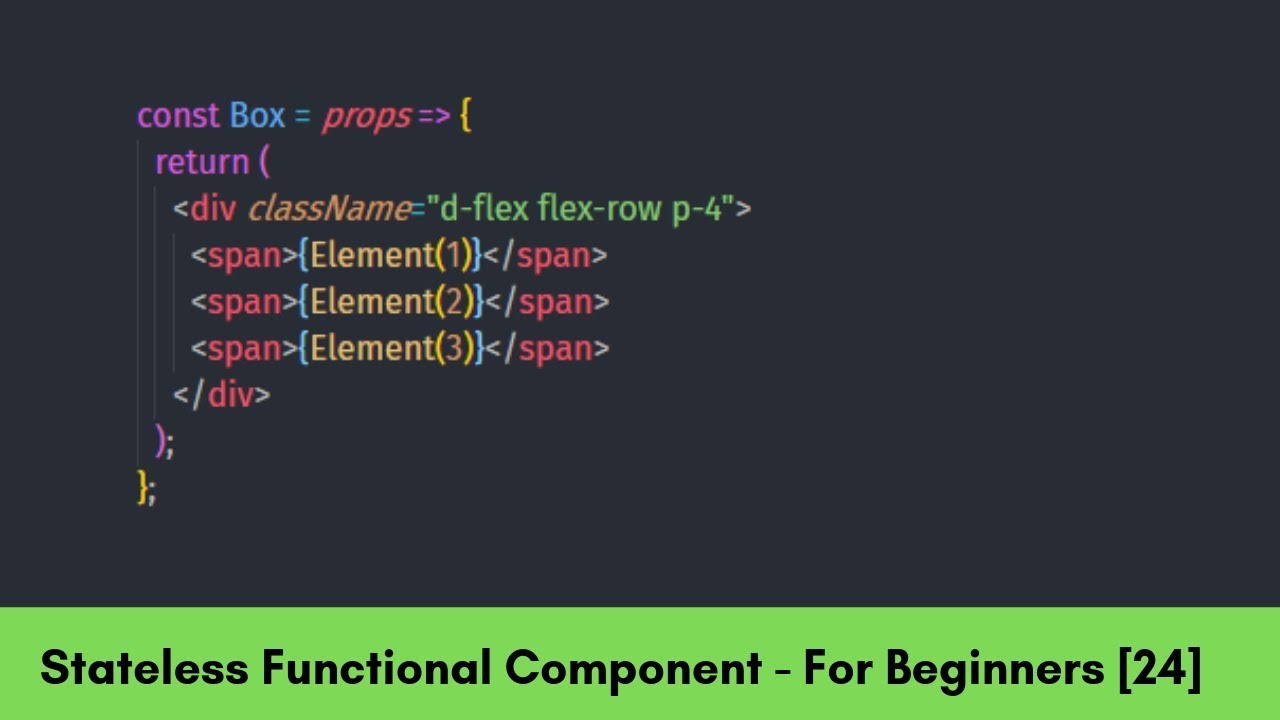
This image shows a concise example of a component defined with an arrow function.
Step 2: Return JSX Markup
The function must return the UI you want to display, written in JSX. This JSX must follow the rules we learned in the last lesson: it must have a single root element, and all tags must be closed.
If your JSX spans multiple lines, you need to wrap it in parentheses ().
function WelcomeMessage() {
  // The return statement contains the JSX for this component.
  return (
    <div>
      <h1>Welcome to My App!</h1>
      <p>This is my first React component.</p>
    </div>
  );
}
Step 3: Export the Component
To use your component in other parts of your application, you need to export it from its file using the export default syntax, which you'll know from your work with JavaScript modules.
// In a file named WelcomeMessage.jsx
function WelcomeMessage() {
  return (
    <div>
      <h1>Welcome to My App!</h1>
      <p>This is my first React component.</p>
    </div>
  );
}

export default WelcomeMessage;
Putting It All Together: A Practical Example
Now, let's see this entire workflow in action. The following video demonstrates creating separate components for a header, main content, and a footer, and then assembling them in the main App component. This is a very common and practical pattern.
React JS Functional Components | Learn ReactJS
Watch how Dave Gray creates a new Header component in its own file, imports it into App.js, and then renders it. This is a complete, practical cycle of component creation and usage.
Watch from 01:44 to 04:53. Note the steps: create a new file, define the component function (he uses a handy snippet), return semantic HTML as JSX, export the component, and finally import and use it in the parent App component.
By creating separate files like Header.jsx, Content.jsx, and Footer.jsx, you keep your code organized and promote reusability. The main App.jsx file then acts as an assembler, composing your UI from these smaller, focused building blocks.
Test your understanding!
Now it's your turn to practice. Your task is to create a Footer component.
- In your project's
srcfolder, create a new file namedFooter.jsx. - Inside
Footer.jsx, create a functional component namedFooter. - This component should return a
<footer>element containing a copyright message. Bonus: Make the year dynamic by usingnew Date().getFullYear()inside your JSX, reinforcing what you learned in the last lesson. - Export the
Footercomponent as the default export. - Finally, open
src/App.jsx, import your newFootercomponent, and render it below the main content.
Show answer
src/Footer.jsx
function Footer() {
  const currentYear = new Date().getFullYear();
  return (
    <footer>
      <p>Copyright © {currentYear} My Awesome App</p>
    </footer>
  );
}

export default Footer;
src/App.jsx
// Other imports might be here...
import Footer from './Footer'; // Make sure the path is correct

function App() {
  return (
    <>
      {/* Your existing App content goes here */}
      <h1>My Application</h1>
      <p>Some content...</p>

      {/* Add your new Footer component here */}
      <Footer />
    </>
  );
}

export default App;
Conclusion
Congratulations! You've successfully created your first functional component. This is a foundational concept that you will use constantly as you build React applications.
Let's quickly recap the key points:
- Components are the reusable, self-contained building blocks of a React UI.
- A functional component is a JavaScript function that returns JSX.
- Component names must start with a capital letter (PascalCase).
- You use
export defaultto make a component available for use in other files, andimportto bring it into the file where you want to use it. - You render a component using JSX tag syntax, like
<MyComponent />.
So far, we've created components and placed them inside our main App component. But how does that App component itself actually get displayed in the browser? In our next lesson, we will uncover the final piece of this puzzle by learning how to render a React component to the DOM.