Hello! In our last session, we mapped out the Micro Focus modernization ecosystem, identifying Enterprise Analyzer, Developer, and Server as the key tools for the analyze, develop, and deploy phases. This gave us a high-level view of the journey ahead. Today, we take our first practical step into the distributed environment where these tools operate.
This lesson is dedicated to learning the command-line interface (CLI). While you are accustomed to interacting with the mainframe via interfaces like TSO/ISPF, the primary method of interaction in Linux and other Unix-like systems—the target environments for modernization—is the command line. It is the foundational skill required for everything from managing source code with Git to automating build and deployment processes.
By the end of this lesson, you will be able to navigate the file system and manage files and directories using the five essential command-line tools: cd, ls, mkdir, cp, and rm.
Getting Started: The Terminal and the Shell
In distributed systems like Linux, you interact with the operating system's core through a program called a shell. The window that you type commands into is called a terminal. For our purposes, these terms are often used interchangeably.
Unlike the panel-driven navigation of ISPF, the shell is command-driven. It's a text-based conversation with the computer. The most common shell on Linux systems is bash (Bourne Again SHell). Let's dive into the fundamentals with an excellent tutorial from the Ubuntu documentation, which is one of the most popular Linux distributions.
The Linux command line for beginners
This tutorial provides a gentle but thorough introduction to the command line. We'll use it as our guide for this lesson.
First, read the sections A brief history and the transition to software terminals. This provides context on why this text-based interface is so prevalent and powerful, drawing a parallel to the terminals used to connect to mainframes.
Finding Your Bearings: pwd and cd
Every action you take in the shell happens in a specific location within the file system, known as the working directory. This is a crucial concept. On the mainframe, you work with partitioned datasets (PDS) or sequential files with specific names. In Linux, you are always "in" a directory.
To find out where you are, you use the pwd command, which stands for print working directory. To move around, you use cd, or change directory.
A key difference from mainframe dataset naming is the concept of a hierarchical file system with a single root, denoted by a forward slash (/). All other directories and files exist within this single tree.
Let's explore these foundational commands.
The Linux command line for beginners
This section covers the core concepts of navigation. Pay close attention to the distinction between absolute and relative paths.
Please read the material starting from Opening a terminal. Then, continue through the section A sense of location, which explains pwd and how to use cd with /, .., and on its own to return to your home directory.
Absolute vs. Relative Paths
As you just read, a path in Linux is either absolute or relative.
- An absolute path starts from the root (
/) and is unambiguous, regardless of your current working directory. For example,/home/youruser/documents. - A relative path starts from your current working directory. For example, if you are in
/home/youruserand you typecd documents, it works. If you are in/var/logand typecd documents, it will fail because there is nodocumentssubdirectory there.
This is a fundamental concept. You also learned about two important shortcuts:
~(tilde): Represents your personal home directory (e.g.,/home/youruser)...(two dots): Represents the parent directory of your current location.
Let's solidify this by reading the next part of the tutorial.
The Linux command line for beginners
This section explicitly breaks down the difference between path types.
Please read the segment titled Relative and absolute paths. The examples clearly illustrate how the same cd command can have different results based on your starting point and the path type you use. It also introduces the ~ shortcut.
Creating and Viewing the Landscape: mkdir and ls
Now that you can navigate, let's start creating things. The mkdir (make directory) command is used to create new directories. The ls (list) command is used to see the contents of a directory.
These commands are your primary tools for organizing your workspace, analogous to how you might allocate new datasets or libraries on the mainframe.
The Linux command line for beginners
This part of the tutorial guides you through creating a safe "sandbox" directory to practice in. This is an excellent habit.
Follow the instructions starting from the section Creating folders and files. Pay attention to how you can create multiple directories at once and how to create a nested structure using the -p option. Also, note the advice on handling spaces in file names—it's generally best to avoid them.
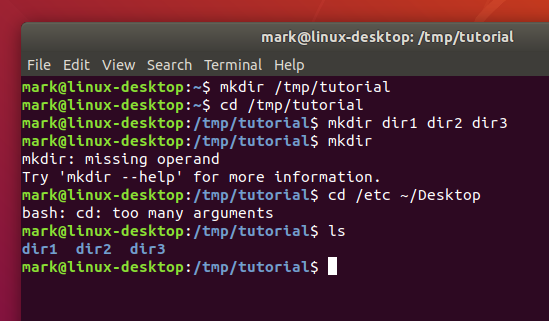
The image below shows some of the commands you've just learned in action. It demonstrates creating a tutorial directory, changing into it, creating multiple subdirectories, and then listing them. It also shows common errors, like running mkdir with no arguments.
Managing Files and Directories: cp, mv, and rm
With directories created, the next step is managing the files and directories within them. For this, we use three core commands:
cp(copy): Creates a duplicate of a file or directory.mv(move): Moves a file or directory to a new location, or renames it.rm(remove): Deletes files and directories.
Let's continue with our guide, which now covers these manipulation commands.
The Linux command line for beginners
This section covers file manipulation and, crucially, deletion. Please read the warnings about the rm command very carefully.
Start at the section titled Moving and manipulating files. This will walk you through examples of mv and cp, including using . to represent the current directory. Next, read Deleting files and folders. This introduces rm and rmdir. Unlike mainframe systems where you might uncatalog a dataset, rm is immediate and permanent. The -r (recursive) option, which deletes a directory and everything inside it, is extremely powerful and must be used with caution.
The image below illustrates some of these file management commands. It shows several mv commands being used to rename directories (removing spaces from their names), followed by an attempt to use rm on directories, which correctly produces an error because rm by default does not remove directories.

A Note on Case Sensitivity
One final, critical difference from many mainframe environments and Windows is that Linux is case-sensitive. MyFile.txt and myfile.txt are two completely different files. It is a common convention to use lowercase for most file and directory names to avoid confusion.
The Linux command line for beginners
This is a short but vital point to understand.
Please read the section A note about case.
Conclusion
In this lesson, we transitioned from theory to practice, taking our first steps in the distributed command-line environment. Mastering these basic commands is essential, as they form the alphabet of interaction for developers working on Linux systems.
Key Takeaways:
- The shell (or terminal) is the primary interface for interacting with Linux systems.
- You are always in a working directory.
pwdshows you where you are. cdis used for navigation. Paths can be absolute (from/) or relative (from your current location).lslists the contents of a directory.mkdircreates new directories.cpcopies files, andmvmoves or renames them.rmpermanently deletes files. Userm -rwith extreme caution to delete directories and their contents.- The Linux file system is case-sensitive.
In our next lesson, we will build directly on these skills. Now that you can create and navigate directories from the command line, you are ready to learn about Git, the dominant version control system in modern software development. You will see how Git uses these fundamental file system operations to track changes to your source code.