Hello! Welcome to the final lesson of your Notion course.
In our last session, you took the monumental step of creating a live digital storefront on Gumroad. You now have a polished product, a compelling sales page, and a system to handle payments and delivery. The shop is open, but now you need to guide customers to the front door.
This lesson focuses on the crucial final step in the sales process: listing your template on relevant marketplaces, such as the official Notion Template Gallery. This is how you move from simply having a product to actively marketing it to a global audience of Notion users. We'll explore the most important marketplace—Notion's own—and discuss other platforms to maximize your visibility.
1. Why Marketplaces are Your Best Friend
For a new template creator, marketplaces are the single most powerful tool for discovery. Instead of needing to build a large social media following or a blog to attract visitors, you can place your template directly in front of people who are actively searching for solutions like yours.
There are two main types of marketplaces:
- The Official Notion Marketplace (formerly Template Gallery): This is the central hub run by Notion. Being listed here provides the most credibility and access to the largest audience.
- Third-Party Marketplaces: These are independent websites dedicated to curating Notion templates. Examples include Notionland, Notion Everything, and even broader creative marketplaces like Etsy.
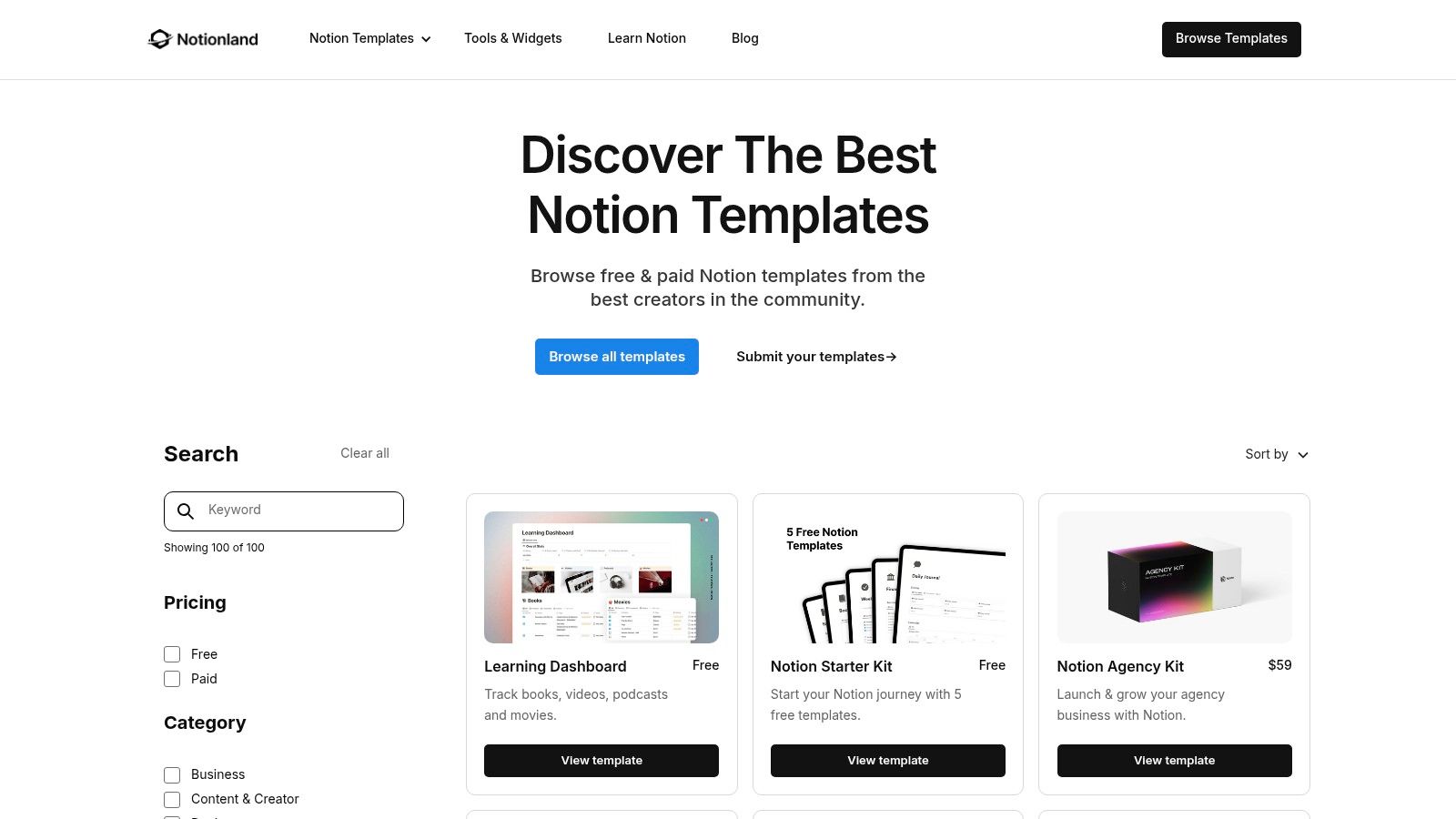
While submitting to multiple platforms is a good long-term strategy, our primary focus will be on getting your template approved and listed on the official Notion Marketplace.
2. Pre-Submission Checklist: What Makes a Good Template?
The Notion Marketplace has a review process to ensure quality. Before you submit, it's vital to ensure your template meets their standards. A rejection can be discouraging, so a quick quality check now will save you time later.
The ultimate guide to Notion templates
Notion's official guide, 'The ultimate guide to Notion templates,' provides clear criteria for what they look for in a submission. Let's review their checklist.
Read the sub-section under 'Creating and sharing your own templates' that starts with 'Before you set off building and sharing...'. Focus on the four key characteristics: useful, differentiated, scalable, and the basics.
Based on that reading, ask yourself these questions about your Project & Task Manager template:
- Is it useful? Does it solve a clear problem (managing projects and tasks) for a clear audience (individuals, freelancers, small teams)? (Yes)
- Is it differentiated? Does it combine core Notion features (databases, relations, views) in a way that's more powerful than a simple to-do list? (Yes)
- Is it scalable? Would it still be functional with 100 tasks or 10 projects? (Yes, this is a key strength of using databases).
- Does it have the basics? Is the spelling and grammar correct? Is the structure intuitive? (You polished this in a previous module).
By meeting these criteria, you significantly increase your chances of a smooth approval.
3. The Submission Process: Two Paths for Paid Templates
When you submit a paid template to the Notion Marketplace, you have two options for how you handle the sale.
- Sell with Notion: You connect a Stripe account and use Notion's built-in payment system. Notion handles the transaction, delivery, and even offers features like template locking to prevent unauthorized sharing. The trade-off is a higher transaction fee. The official "Everything You Need to Know About Marketplace" article from Notion (resource ID LINK) details these benefits.
- Link to an External Store: You list your template on the marketplace, but the "Purchase" button directs customers to your Gumroad page (or another storefront). You get the visibility of the Notion Marketplace but use Gumroad's lower fees and payment processing.
For your first template, linking to your Gumroad store is the recommended approach. It keeps all your sales in one place and is generally more cost-effective. The following video demonstrates exactly how to do this.
How To Sell Notion Templates in 2026 With ZERO Budget (Step-by-step Guide)
The video 'How To Sell Notion Templates in 2026' by Payhip provides a clear, visual walkthrough of submitting to the Notion Marketplace and linking to an external store. This is exactly what we need to do.
Watch from 06:51 to 08:15. The creator explains how to sign up as a creator and, most importantly, how to skip the Stripe setup and instead paste your external store link into the 'Purchase URL' field. The video uses Payhip, but the process is identical for your Gumroad link.
Test your understanding!
You are submitting your paid template to the Notion Marketplace. You want to use the Gumroad page you already set up. Do you need to connect a Stripe account during the Notion creator sign-up process? Why or why not?
Show answer
No, you do not need to connect a Stripe account. As the video demonstrated, you can skip that part of the creator profile setup. You will instead provide the URL to your Gumroad product page in the "Purchase URL" field when you list your template.
4. Step-by-Step: Listing on the Notion Marketplace
Let's combine everything we've learned into a clear, actionable plan.

Here is the process from start to finish:
- Navigate to the Marketplace: Go to notion.so/templates.
- Become a Creator: Click
Submit a template. You'll be prompted to sign up and create a Creator Profile. This is your public-facing page on the marketplace. - Fill Out Your Profile: Add a profile picture, a short bio, and links to your website or social media. This builds trust with potential buyers.
- Skip Stripe (for now): As discussed, you can skip the section asking for Stripe information if you are linking to Gumroad.
- Start a New Template Submission: Once your profile is ready, click
Start a New Template. - Fill in Template Details:
- Template Link: This is the public, shareable link to your Notion template itself (the one you put inside your delivery PDF).
- Title, Category, Description: Use the compelling copy you wrote in the previous module.
- Paid Template: Toggle this on and set your price. This price should match the price on your Gumroad page.
- Purchase URL: This is the most important step for our strategy. Paste the link to your Gumroad product page here.
- Media: Upload the high-quality mockups and visuals you created.
- Submit for Review: Double-check all your information and submit. The Notion team will review your template against their quality guidelines. This can take anywhere from a few days to a couple of weeks. You will be notified via email once it's approved and live.
✍️ Exercise: Submit Your Template
It's time to put your template out into the world. In this exercise, you will submit your "Project & Task Manager" to the official Notion Marketplace.
- 1. Gather Your Links:
- Find the public share link for your Notion template.
- Find the link to your Gumroad product page.
- 2. Create Your Creator Profile:
- Go to notion.so/templates and click
Submit a template. - Follow the prompts to create your account and profile. Skip the Stripe integration.
- Go to notion.so/templates and click
- 3. Start a New Submission:
- Begin a new template submission form.
- 4. Complete the Submission Form:
- Fill in all the required fields (title, description, category, etc.).
- Upload your visual assets.
- Set the price to match your Gumroad page.
- In the
Purchase URLfield, paste your Gumroad product link.
- 5. Review and Submit: Read through your submission one last time, then click
Submit for Review. - 6. (Optional) Explore Another Marketplace:
- Visit a third-party marketplace like Notionland or search for others.
- Investigate their submission process. Note how it's similar to or different from Notion's official process.
Conclusion
Congratulations! You have officially completed the journey from being a Notion user to a Notion template creator and entrepreneur. By setting up your storefront and submitting your work to the largest marketplace, you have built the foundation for a new income stream.
Key Takeaways:
- Marketplaces are essential for driving traffic and discovering new customers without a pre-existing audience.
- The official Notion Marketplace is the most important platform for visibility and credibility.
- You can choose to sell directly through Notion (with higher fees) or link to an external store like Gumroad (with lower fees).
- Meeting Notion's quality guidelines (useful, differentiated, scalable, well-made) is critical for getting your template approved.
This lesson concludes our course. You started with the basics of pages and blocks, mastered complex databases and relations, built three powerful projects, and have now navigated the entire process of packaging, marketing, and selling a professional-grade template. The skills you have acquired open up a world of possibilities, from optimizing your own life and work to building a thriving business helping others do the same.
Keep creating, keep refining, and we wish you the best of luck on your journey as a Notion creator