Hello! Welcome to the sixth and final lesson in our module on polishing your template for sale.
In our last lesson, you performed a "factory reset" on your template. By clearing all placeholder data and resetting your views, you created a pristine, professional product ready for a new user. Your Project & Task Manager [FOR SALE] page is now a blank canvas.
But is it a perfect canvas? Before you can confidently offer your template for sale, you need to walk a mile in your customer's shoes. This lesson is all about final quality assurance, ensuring the entire user journey—from receiving the link to duplicating the template—is smooth, intuitive, and error-free.
Your goal for this lesson is to learn how to test the duplication process and user experience from a customer's perspective. This step separates amateur templates from professional, sellable products.
1. Adopting the Customer Mindset: Why This Matters
Before we dive into the "how," let's focus on the "why." A new user doesn't have your context or familiarity with the system you've built. What seems obvious to you might be confusing to them. A poor first impression can lead to frustration, support requests, and even refund demands.
Your background in design has taught you the importance of user-centered thinking, and that's precisely the mindset we need here. We must treat every potential customer as if they are brand new to Notion.
How I Made $500,000 Selling 1 Notion Template
To understand the impact of user experience, watch this segment from the video 'How I Made $500,000 Selling 1 Notion Template' by creator Koi. He shares a powerful story about his first sale and the crucial lesson he learned about simplicity and the user's perspective.
Watch from 03:49 to 07:14. Pay close attention to his realization that 'simplicity sells, confusion repels' and his advice to treat every buyer as someone who is 'brand new to Notion.'
As Koi's experience shows, the first 24 hours are critical. Your goal is to create a delightful experience that empowers the user, not overwhelm them. Our testing process is designed to find and fix any points of confusion before a customer ever sees them.
2. The Incognito Test: Simulating the First Encounter
The single most effective way to test your template from a customer's perspective is to use a private or incognito browser window. This simulates how a new user would access the link, without your own Notion account interfering with the experience.
Here’s the step-by-step process:
-
Get Your Shareable Link:
- Navigate to your
Project & Task Manager [FOR SALE]page. - Click
Sharein the top right. - Click
Publishand ensure "Allow duplicate as template" is turned on. - Click
Copy web link. This is the link you would send to a customer.
- Navigate to your
-
Open an Incognito/Private Window:
- In your browser, go to
File > New Incognito Window(orNew Private Window).
- In your browser, go to
-
Paste the Link:
- Paste the link into the incognito window's address bar and press Enter.
You should now see what your customer sees: a public version of your page with a prominent Duplicate button in the top-right corner.

- Duplicate the Template:
- Click the
Duplicatebutton. - Notion will prompt you to log in. Log in to your Notion account.
- The template will be duplicated as a private page into your workspace.
- Click the
This duplicated copy is your test environment. It is an exact replica of what your customer will receive.
3. The User Experience (UX) Audit Checklist
Now that you have a fresh copy, it's time to perform a thorough audit. Your project management skills in structured thinking will be invaluable here. Go through the template systematically and check the following:
-
1. The Onboarding Experience:
- Is it immediately clear where to start?
- Are your instructions (from Lesson 10.2) visible, clear, and easy to follow?
- Do any "Getting Started" or "Read Me First" sections stand out?
-
2. Database Functionality:
- Relations: Add a new test Project and a new test Task. Can you successfully link the task to the project? This is a critical check, as database relations can sometimes break upon duplication if not set up correctly.
- Database Templates: Go to your "Projects" database. Click the
Newbutton's dropdown arrow. Does your "New Project Brief" template appear? When you use it, does it generate the pre-defined page structure correctly? - Views: Do the Kanban boards, calendars, and filtered lists look correct (even if empty)? As you add new test items, do they appear in the right views? (e.g., does a task with today's date show up in the "Due Today" view?).
-
3. Buttons and Automations:
- If you included any Buttons (e.g., "Add New Task"), do they work as expected?
- If you set up any basic database automations, do they trigger correctly when you change a property?
-
4. Visual Polish:
- Did all icons and cover images load correctly?
- Is the layout consistent? Are there any alignment issues or awkward spacing?
- Are there any broken image links or missing embeds?
-
5. Final Cleanup Check:
- Double-check for any stray personal notes, comments, or data you may have missed in the last lesson. Is the template truly pristine?
Test your understanding!
You duplicate your template for testing and find that the relation between your "Tasks" and "Projects" databases isn't working. When you click on the "Project" property in a new task, your list of projects is empty, even though you've added test projects. What is the most likely cause?
Show answer
The most likely cause is that the relation was linked to the original "Projects" database in your private workspace, not the one inside the template you shared. When the template was duplicated, that link was broken. To fix this, you must go back to your master template page, edit the relation property, and ensure it points to the database that is also on that same page or nested within it, not an external one. This is a common and critical error to catch during testing.
4. The Gold Standard: Simulating the Purchase Flow
The incognito test is excellent for checking the template itself. However, to create a truly professional customer experience, you should also test the entire delivery process. This involves simulating the purchase from a platform like Gumroad or Lemon Squeezy to ensure the customer gets the template smoothly after payment.
While we haven't set up a sales platform yet, it's valuable to see what this process looks like in practice.
How I Make and Sell Notion Templates (Behind the Scenes, Step by Step!)
In this final clip from Vanessa Lau's 'How I Make and Sell Notion Templates' video, you'll see a real-world demonstration of an end-to-end test. She uses a test mode and a fake credit card to simulate a purchase and verify that the customer gets access to the course portal and the Notion template link correctly.
Watch from 25:47 to 27:19. This is an excellent preview of how you will test your full sales funnel in a later module. Notice how she methodically checks each step: the purchase, the success page, and the final access to the template.
This end-to-end testing is the final seal of approval. It confirms that not only is your product great, but your delivery system is flawless. We will revisit this process when we set up your digital storefront.
✍️ Exercise: Become Your First Customer
It's time to put your Project & Task Manager [FOR SALE] template through its paces.
-
1. Perform the Incognito Test:
- Get the shareable link for your template.
- Open a new incognito/private browser window.
- Paste the link and duplicate the template into your own workspace.
-
2. Conduct the UX Audit:
- Using the fresh, duplicated copy, work through the UX Audit Checklist from section 3 of this lesson.
- Add at least two sample projects and five sample tasks.
- Test the relations, database templates, and all filtered views.
- Document any bugs, confusing elements, or areas for improvement in a separate notes page.
-
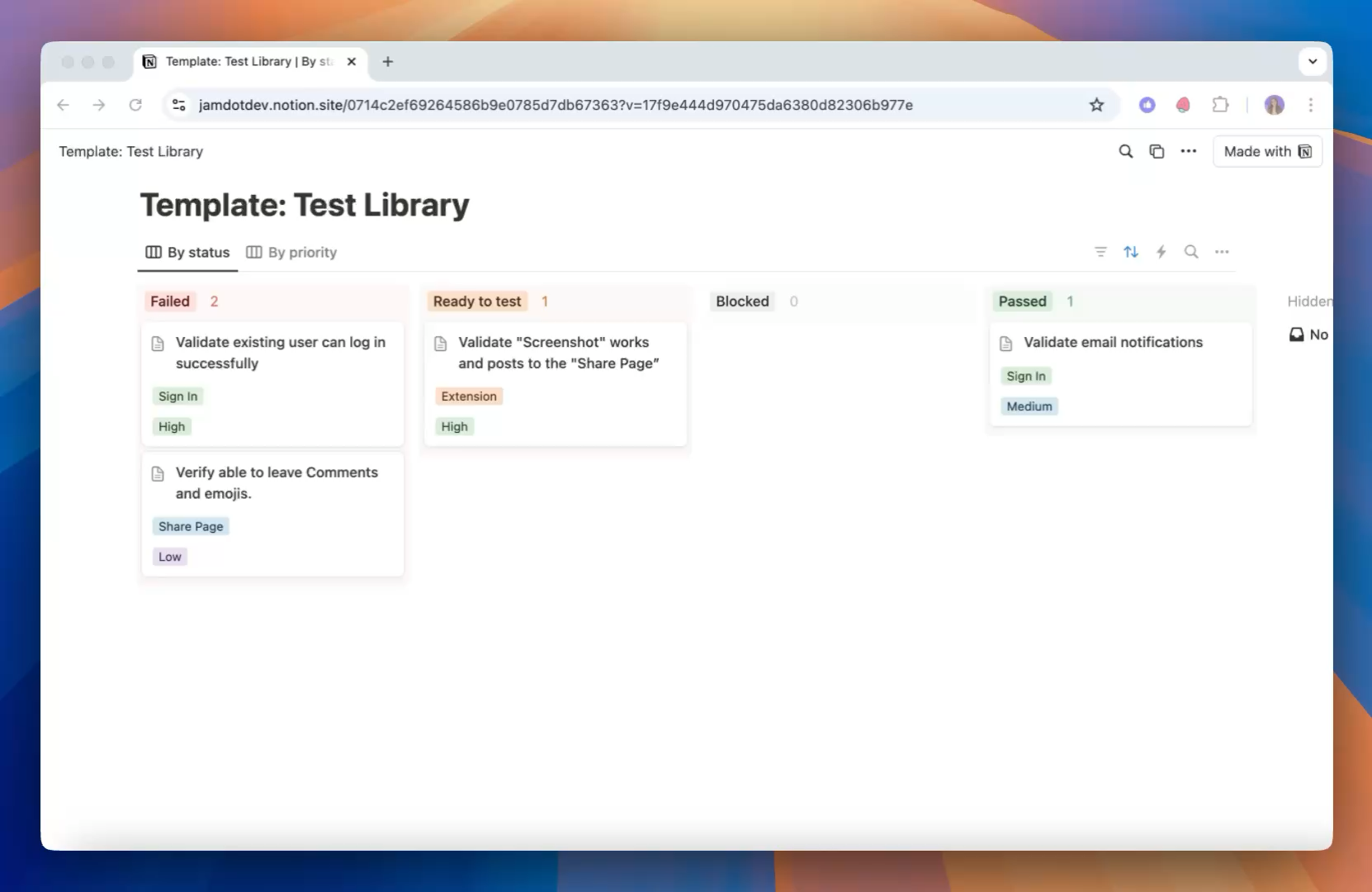
3. (Optional) Create a Test Tracker:
- To practice a more formal QA process, create a simple Kanban board in your private workspace to track your findings.
- Create a database with properties for
Test Case(e.g., "Link Task to Project"),Expected Result("Task shows project name"),Status(To Test, Passed, Failed), andNotes. This is great practice for managing more complex template builds in the future.
Conclusion
Congratulations on completing this crucial quality assurance step! By simulating the customer journey and conducting a thorough UX audit, you have moved beyond simply building a template to engineering a positive customer experience. This empathetic, user-centered approach is fundamental to creating products that people not only buy but also love to use.
Key Takeaways:
- Always test from a customer's perspective using an incognito/private browser window.
- A systematic UX audit should check for onboarding clarity, functional integrity (especially relations), and visual polish.
- The goal is to identify and eliminate any points of friction or confusion before your first sale.
- End-to-end testing of the purchase flow is the professional standard for ensuring a smooth delivery.
Preview of the Next Lesson:
You've built, polished, and self-tested your template. You have completed the "Packaging and Polishing a Template for Sale" module! Now, we begin a new module: "Principles of Sellable Template Design." In the first lesson, we will analyze successful Notion templates to identify what makes them valuable and sellable, moving from your own creation to learning from the best in the market.