Welcome to our new lesson. In our last session, we brought your trackers to life with conditional formatting, creating a visual system to instantly flag at-risk and overdue items. Now that your data can signal its own urgency, we'll focus on making your trackers work together seamlessly.
Today's learning outcome is to use XLOOKUP to cross-reference data between your PO, parts, and implementation trackers. This powerful function is the modern successor to older lookup formulas in Excel. By mastering it, you'll eliminate redundant data entry and ensure consistency across your project files. We will connect your individual trackers, creating a network of information that updates automatically—a critical step toward building a single source of truth for your projects.
The Modern Way to Look Up Data: An Introduction to XLOOKUP
For anyone comfortable with Excel, you've likely encountered or used VLOOKUP. XLOOKUP is its more powerful and flexible replacement. It overcomes many of VLOOKUP's classic limitations, making it the go-to function for modern data cross-referencing.
The basic idea is simple: you tell Excel what value to look for, where to look for it, and what corresponding information to return.
The syntax is: XLOOKUP(lookup_value, lookup_array, return_array, [if_not_found], [match_mode], [search_mode])
For most of your needs, you will only use the first three required arguments.

To get a formal understanding of the function's arguments and its advantages, please review the following resource.
XLOOKUP function in Excel with formula examples - Ablebits.com
This guide from Ablebits provides a clear and comprehensive overview of the XLOOKUP function.
Start by reading the introductory sections to understand the function's purpose and syntax, from the main syntax through the basic formula example. Then, read the section on left lookups. This highlights a key benefit over VLOOKUP—you are no longer restricted to looking up data in columns to the right of your lookup column.
Your Turn: Linking the PO Tracker and Parts Tracker
Now, let's apply this to your project management files. A common need is to see supplier details in your Parts_Tracker without having to manually copy them from your PO_Tracker. We can automate this with XLOOKUP.
Imagine your Parts_Tracker has a column for the PO_Number. We will add new columns for Supplier and PO_Date and use XLOOKUP to pull this data automatically from the PO_Tracker.
This video provides an excellent, step-by-step demonstration of how to perform a lookup from a different worksheet. We will adapt this technique for our trackers.
How to XLOOKUP from Another Worksheet (Sheet) in Excel
This tutorial clearly breaks down the process of using XLOOKUP across different sheets.
First, watch this segment to understand the fundamental process of selecting the lookup value and arrays on different sheets. Next, it's critical to understand absolute references. Watch this part, which explains how to "lock" your lookup and return arrays using the F4 key. This ensures the formula works correctly when you copy it down a column. If you are using Excel Tables, this is handled automatically for you using structured references. Finally, one of XLOOKUP's most powerful features is returning multiple columns at once. Watch this demonstration to see how you can pull both the price and cost in the example with a single formula.
Let's build the formula for your workbook.
-
Open your project tracking file. Go to the
Parts_Trackersheet. -
Add new columns: If they don't exist, add columns for
SupplierandPO_Date. -
Write the formula: In the first cell of the
Suppliercolumn (e.g., assumingPO_Numberis in column B, you'd be in cell C2), type the following formula. This assumes yourPO_Trackersheet has the master data.=XLOOKUP(B2, PO_Tracker!$A:$A, PO_Tracker!$C:$D)Let's break this down:
B2: This is thelookup_value—the PO Number in the current row of yourParts_Tracker.PO_Tracker!$A:$A: This is thelookup_array. We are telling Excel to look in the entire column A of thePO_Trackersheet for the PO Number. We use$A:$Ato lock the column reference.PO_Tracker!$C:$D: This is thereturn_array. By selecting two columns (Supplierin C andPO_Datein D, for example), we are tellingXLOOKUPto return the values from both columns. Excel will automatically "spill" the results into the adjacent cell.
-
Press Enter. You should see the
SupplierandPO_Dateappear. You can now drag this formula down the rest of your table.
This technique of creating a single formula that populates multiple columns is incredibly efficient for consolidating information.
For another quick, real-world example of this in action, see how XLOOKUP is used in this inventory management system.
Create an Automated Inventory Management System in Excel (FREE Template)
This video from MyOnlineTrainingHub demonstrates a complete inventory system, and a key part of it is linking product information with XLOOKUP.
Watch from this timestamp to see how a single XLOOKUP formula is created to pull a product description and then quickly copied and edited to pull the supplier, cost, and reorder level. This mirrors exactly what we are doing with our trackers.
A Glimpse at Advanced Lookups: The 2-Way XLOOKUP
Sometimes, you need to look up a value based on both a row and a column criterion. For example, finding a commission rate based on a sales Team (the row) and a Plan type (the column). This is known as a 2-way or matrix lookup.
You can achieve this by nesting one XLOOKUP inside another. The inner XLOOKUP finds the correct column to return, and the outer XLOOKUP finds the correct row.
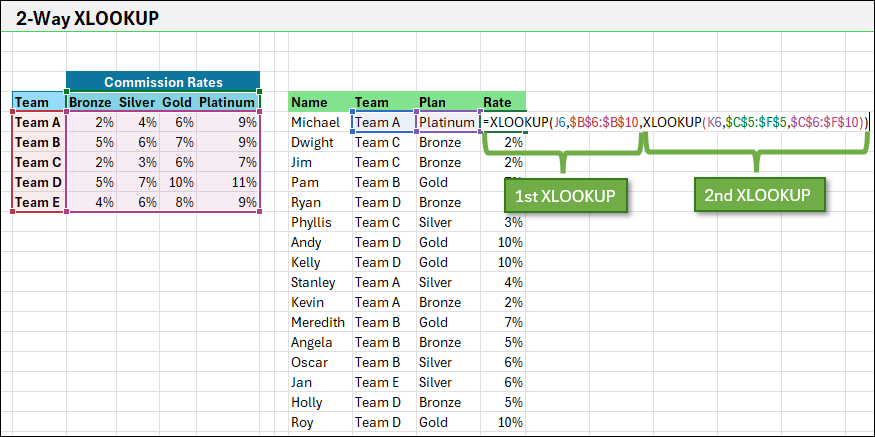
While we won't build this today, it's a powerful technique to be aware of as your data needs become more complex. It's another example of how XLOOKUP's versatility can solve advanced challenges with clean, readable formulas.
Conclusion
You have now equipped your trackers with the ability to communicate with each other. By using XLOOKUP, you have created a dynamic link between your data sheets, ensuring that information is consistent and automatically updated. This not only saves time but also dramatically reduces the risk of manual data entry errors.
Key Takeaways:
XLOOKUPis the modern, flexible function for finding and retrieving data in Excel.- It can easily pull data from other worksheets, forming the backbone of an interconnected tracking system.
- Using whole-column references (e.g.,
$A:$A) or Excel Tables makes your formulas robust as you add more data. - A single
XLOOKUPformula can return multiple columns of related information, which is a major efficiency gain.
In our next lesson, we will take all the components we've built—tables, data validation, conditional formatting, and XLOOKUP—and focus on organizing them into a clean, multi-sheet workbook that serves as a single source of truth.