Introduction
In the previous module, we concluded our exploration of Python's control flow patterns by mastering generator-based coroutines to model state machines. This allowed us to write complex, stateful logic in a clean, sequential manner.
Now, we pivot from these abstract patterns to the concrete challenges of interacting with the "real world": files, operating systems, and network resources. This module is all about writing robust, production-ready I/O code.
Our first step is to modernize how we handle file paths. Coming from a background in other languages like Java, you might be accustomed to manipulating paths as simple strings. Python's os.path module supports this, but it often leads to verbose and error-prone code. Today's lesson will introduce you to a superior, object-oriented approach.
The learning outcome for this lesson is to: Use pathlib.Path for modern, object-oriented, and cross-platform path manipulation instead of os.path. You will learn why this is the idiomatic standard in modern Python and how it makes your code cleaner, more readable, and more reliable.
The Problem: Why os.path Is Un-Pythonic
Before diving into pathlib, it's crucial to understand the limitations of the traditional approach using the os.path module. This will make the benefits of pathlib crystal clear.
The core issues with os.path are:
- It's String-Based: Paths are just strings. This means you lose semantic information. Is
"data"a file, a directory, or just part of a name? The string itself doesn't say. - It Leads to Clunky Code: Operations are function calls, often nested, which are read from the inside out. For example, getting the grandparent directory of the current script:
os.path.dirname(os.path.dirname(os.path.abspath(__file__))). This is hard to read and reason about. - It's Fragmented: Path manipulation is in
os.path, but filesystem operations are scattered acrossos(os.mkdir,os.rename) andshutil(shutil.copy). The API is not cohesive. - Cross-Platform Pain: You constantly have to think about path separators (
/vs.\), whichos.path.joinhelps with, but it's still a manual consideration.
Python Tutorial: Pathlib - The Modern Way to Handle File Paths
To see these issues in a real-world context, let's start with this video from Corey Schafer. He begins by contrasting an old Django project's settings file (using os.path) with a new one (using pathlib). This comparison immediately highlights the readability problem.
Watch the first 3 minutes and 39 seconds of the video. Pay close attention to the side-by-side comparison of the Django project settings. Notice how the os.path version is longer, requires nested calls, and reads less intuitively than the chained pathlib version.
The Solution: pathlib.Path Objects
Introduced in Python 3.4, the pathlib module approaches file paths as objects, not strings. This object-oriented design solves all the problems of os.path.
A Path object represents a specific path on the filesystem and has methods and properties tailored for path manipulation.
Instantiating Path Objects
You can create a Path object in several ways.
from pathlib import Path


# 1. From a string representing a path
my_file = Path("data/results.csv")


# 2. Get the current working directory
cwd = Path.cwd()


# 3. Get the user's home directory
home = Path.home()

print(f"Current Directory: {cwd}")
print(f"Home Directory: {home}")
When you print a Path object, it might look like a string, but it's a WindowsPath or PosixPath object depending on your OS. This object encapsulates the path logic for that specific operating system.
The Pythonic Way to Build Paths: The / Operator
One of the most elegant features of pathlib is the ability to join path components using the division operator (/). This replaces the verbose os.path.join().
The Old Way (os.path):
import os
base_dir = "/home/user/project"
config_path_str = os.path.join(base_dir, "config", "settings.ini")
The pathlib Way:
from pathlib import Path
base_path = Path("/home/user/project")
config_path_obj = base_path / "config" / "settings.ini"

print(config_path_obj)


# Output: /home/user/project/config/settings.ini
This is not only more concise but also more readable. It works seamlessly across Windows, macOS, and Linux, automatically using the correct path separator.
If you find the operator overloading strange, you can use the equivalent .joinpath() method, but the / operator is considered highly idiomatic.
config_path_obj_alt = base_path.joinpath("config", "settings.ini")
A Deep Dive Into Pathlib And The Magic Behind It
ArjanCodes provides an excellent demonstration of the / operator and then explains the Python magic (operator overloading with __truediv__) that makes it work. Given your background, you'll appreciate understanding the mechanism behind the syntax.
Watch these two segments: 04:39 - 05:16: See how intuitively the / operator is used to construct paths from parts, including starting from Path.cwd(). 12:22 - 16:30: This is a deep dive into operator overloading. It explains how pathlib implements a __truediv__ dunder method to give the / operator its special path-joining behavior. This is a great example of Python's data model in action.
Accessing Path Components and Properties
Once you have a Path object, you can easily access its components as properties, eliminating the need for string splitting or functions like os.path.splitext.
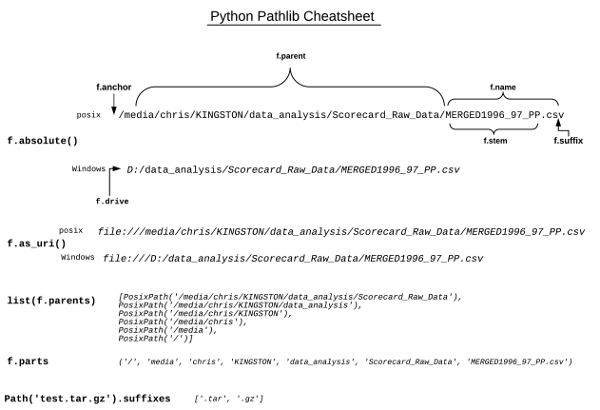
Here's a code example demonstrating these properties:
p = Path("/home/user/project/src/main.py")

print(f"Full path: {p}")
print(f"Parent directory: {p.parent}")  # Returns a new Path object
print(f"File name: {p.name}")          # Returns a string
print(f"File stem (name w/o ext): {p.stem}") # Returns a string
print(f"File suffix (extension): {p.suffix}") # Returns a string
print(f"Path anchor (root): {p.anchor}") # Returns a string
Resolving Paths and Checking Existence
Common tasks like getting a file's absolute path or checking if it exists are also streamlined.
.exists(): ReturnsTrueif the path exists..is_file(): ReturnsTrueif the path exists and is a file..is_dir(): ReturnsTrueif the path exists and is a directory..resolve(): Returns the canonical, absolute path, resolving any symlinks and..components. This is generally what you want for an absolute path..expanduser(): Expands the~symbol to the user's home directory.
Python Tutorial: Pathlib - The Modern Way to Handle File Paths
Let's return to Corey Schafer's tutorial, where he provides clear explanations for these methods.
Watch the following sections: 10:01 - 10:50: See the .exists() method in action. 10:50 - 16:39: This is a key section. Pay close attention to the explanation of .parent and the crucial difference between .absolute() and .resolve(). The example with .. clearly demonstrates why .resolve() is usually the better choice. 16:39 - 19:07: This part covers handling home directory paths, showing how to use .expanduser() or, more cleanly, Path.home().
Filesystem Operations
The pathlib module also consolidates many basic filesystem operations, which were previously in the os and glob modules, into methods on the Path object itself.
| Operation | pathlib Method |
Description |
|---|---|---|
| Read Text | .read_text(encoding='utf-8') |
Opens, reads, and closes the file, returning content as a string. |
| Write Text | .write_text('content', encoding='utf-8') |
Opens, writes, and closes the file. Overwrites by default. |
| Create File | .touch(exist_ok=True) |
Creates an empty file, like the Unix touch command. |
| Create Dir | .mkdir(parents=True, exist_ok=True) |
Creates a directory. parents=True creates parent dirs if needed. |
| Delete File | .unlink() |
Deletes the file. |
| Delete Dir | .rmdir() |
Deletes an empty directory. |
| Rename/Move | .rename(new_path) |
Renames or moves the path to a new location. |
| Find Files | .glob('*.py') |
Finds patterns in the immediate directory. |
| Find Files Recursively | .rglob('*.py') |
Finds patterns recursively through all subdirectories. |
This API is much more cohesive. The object that represents the path is the same object you use to operate on it.
# Create a new directory
data_dir = Path("data")
data_dir.mkdir(exist_ok=True)


# Create a new file and write to it
new_file = data_dir / "log.txt"
new_file.write_text("Session started.\n")


# Find all text files in the data directory
for txt_file in data_dir.glob("*.txt"):
    print(f"Found: {txt_file}")


# Delete the file
# new_file.unlink()
Conclusion
You have now learned the modern, Pythonic way to work with filesystem paths. By replacing the old string-based functions in os.path with pathlib.Path objects, your code becomes more explicit, readable, and robust.
Key Takeaways:
- Object-Oriented Paths:
pathlibtreats paths as objects with methods and properties, not as simple strings. - Readable Construction: Use the
/operator to join path components idiomatically, replacingos.path.join(). - Convenient Properties: Access path components like
.name,.stem, and.suffixdirectly, avoiding complex string manipulation. - Consolidated API: Many common filesystem operations (
mkdir,touch,glob,unlink) are methods directly on thePathobject. - Cross-Platform by Default:
pathlibhandles differences between operating systems automatically.
Adopting pathlib is a significant step toward writing clean, modern Python. It's one of those changes that, once made, you'll never want to go back from.
In our next lesson, we will build upon this foundation and dive deeper into file I/O. We'll learn how to read and write text files safely using with open(...) and explicitly specifying encoding='utf-8', a critical practice for creating portable and bug-free applications.