Hello! Welcome back to the course.
In our last lesson, we focused on adapting AI-generated code to meet specific design requirements. You learned how to act as a creative director, guiding your AI assistant to style individual components like headers and footers. Now, we'll move from styling single components to building the pages that hold them together.
This lesson addresses a fundamental part of any content-rich website: lists. Whether it's a blog, a portfolio, or a list of services, you need a way to display collections of content dynamically. Our learning outcome is to write a prompt to generate a list page template that ranges over a section's content.
For someone with your background in SEO and content strategy, you know how crucial well-structured index pages are for user navigation and search engine visibility. We'll bridge that strategic understanding with the technical implementation in Hugo, all through the lens of "vibe coding."
We will cover:
- How Hugo automatically creates content "sections."
- The core Hugo function for creating lists:
range. - A structured approach to prompting an AI for a list page template.
Understanding How Hugo Organizes Content into Lists
Before we can create a list page, we need to understand what Hugo considers a "list." In Hugo, content organization directly influences the site structure. When you create subdirectories inside your main content/ folder, Hugo automatically treats each of these as a section.
For example, a content structure like this:
content/
├── blog/
│   ├── post-1.md
│   └── post-2.md
└── services/
    ├── service-a.md
    └── service-b.md
...will automatically create two sections: blog and services. Hugo will then generate index pages for them at /blog/ and /services/. These are the list pages we want to customize.

By default, these pages are very basic. To make them useful, we need to create a custom template.
How to customise Hugo sections
The article "How to customise Hugo sections" provides a clear explanation of how Hugo generates sections and how you can begin to customize their index pages.
Please read the sections "Hugo sections overview" and "Hugo also generates section index pages by default". This will solidify your understanding of how subfolders in your content directory automatically become sections with their own index pages.
The Engine of Hugo Lists: The range Function
At the heart of every Hugo list page is the range function. If you have some familiarity with programming, you can think of range as Hugo's version of a for loop. It iterates over a collection of items (in our case, pages) and lets you do something with each item.
To list pages, we combine range with a page variable. The most important ones to know are:
{{ .Site.Pages }}: A collection of all pages on your entire website.{{ .Pages }}: A context-aware collection. When used in a section's list template, it contains only the pages within that section.
For our goal of creating a section list page, {{ .Pages }} is precisely what we need.
The article "Listing page content in Hugo" offers an excellent deep-dive into the range function and page variables. It clarifies the crucial difference between .Site.Pages and .Pages.
Read the sections "What does it mean to list content?", "Understanding range", and ".Pages without .Site". Focus on how range is used to loop through a collection and why .Pages is context-dependent.
A basic list template using range looks like this:
{{/* layouts/_default/section.html */}}
<h1>{{ .Title }}</h1>

{{ range .Pages }}
  <article>
    <h2><a href="{{ .Permalink }}">{{ .Title }}</a></h2>
  </article>
{{ end }}
This code snippet does the following:
- Prints the section's title (e.g., "Blog").
- Starts a loop through every page within that section (
range .Pages). - For each page, it creates an
<article>block containing a linked title..Permalinkis the page's URL..Titleis the page's title from its front matter.
Crafting the AI Prompt for a List Page
Now that you understand the Hugo concepts, we can translate them into an effective AI prompt. We won't just ask the AI to "make a blog list." We'll provide specific, structured instructions, leveraging the prompt engineering principles you're becoming familiar with.
A good prompt gives the AI Context, a clear Task, and specific Instructions.
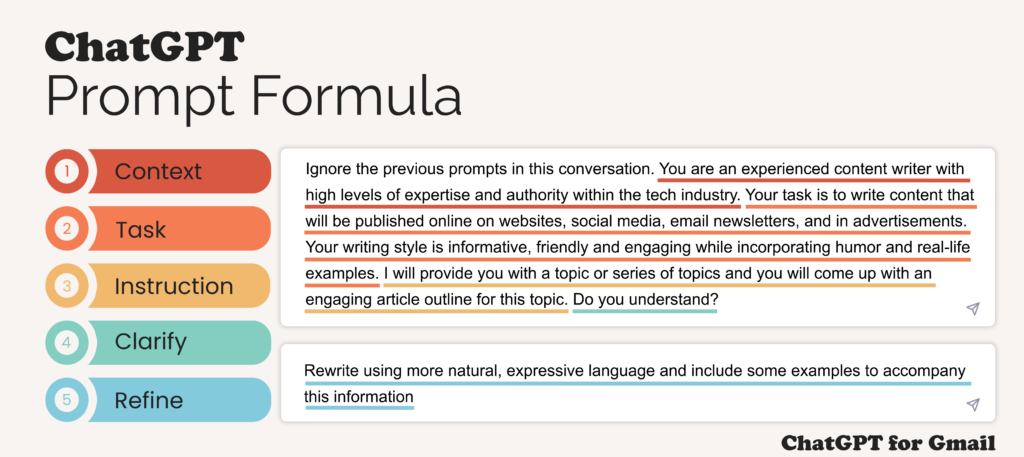
Let's apply this to generate our list page template.
The "Vibe Coding" Walkthrough
Imagine we have a content/blog/ section and we want to create its list page.
-
Define the Goal: We need a template that will render the page at
/blog/. Based on Hugo's template lookup order, a good place for this islayouts/_default/section.html. This file will serve as the default template for any section list. -
Formulate the Prompt: We will craft a prompt that is simple, specific, and short, as recommended by prompt engineering best practices.
Master the core principles of prompt engineering with GitHub Copilot
To refine our prompting skills, let's watch a quick video on the core principles of prompt engineering. This will help you structure your request to the AI for maximum clarity and effectiveness.
Watch the segment explaining the 'Specific' principle (02:39 - 04:31). Notice how providing clear context and details drastically improves the AI's output. This is the key to successfully generating Hugo templates.
Here is a well-structured prompt based on these principles:
Prompt:
I am building a website with Hugo. I need to create a list page template for my content sections.
Task: Generate the HTML code for a Hugo template file named
section.htmlthat will be placed inlayouts/_default/.Instructions:
- The template should be wrapped in a
<main>HTML5 tag.- Display the section's title in an
<h1>tag. Use the Hugo variable{{ .Title }}.- Use Hugo's
range .Pagesfunction to loop through all pages in the current section.- Inside the loop, for each page, create an
<article>with the classpost-preview.- Inside each article, include:
- An
<h2>containing a link to the page (.Permalink) with the page's title (.Title) as the text.- A
<p>tag displaying the page's summary (.Summary).
-
Analyze the Expected Output: The AI should return code that looks very similar to this:
<main>
  <h1>{{ .Title }}</h1>
  {{ range .Pages }}
    <article class="post-preview">
      <h2><a href="{{ .Permalink }}">{{ .Title }}</a></h2>
      <p>{{ .Summary }}</p>
    </article>
  {{ end }}
</main>
This code is ready to be placed in layouts/_default/section.html. Once saved, Hugo's development server will automatically pick it up, and when you navigate to /blog/, you will see a neatly formatted list of your posts. You can then use the design adaptation skills from the previous lesson to style the .post-preview class.
Test your understanding!
Imagine you have a content/portfolio/ section. Each project in this section has a custom parameter in its front matter called client.
Write a prompt to generate a list page template for the portfolio section. For each item, it should display the project's title (as a link) and the client's name underneath it in a <span> tag with the class client-name.
Show answer
Here's an effective prompt:
Prompt:
I'm using Hugo and need a list page template for my 'portfolio' section.
Task: Create the Go template code for
layouts/portfolio/list.html.Instructions:
- Start with an
<h1>for the section title:<h1>Our Work</h1>.- Use
range .Pagesto loop through the portfolio items.- For each item, display:
- The page title (
.Title) as a link (.Permalink) inside an<h2>.- The client's name from the front matter. It is stored in a parameter called
client. Display it inside a<span>with the classclient-name. You can access it with{{ .Params.client }}.
This prompt is effective because it specifies the exact file path (layouts/portfolio/list.html), the custom front matter variable (.Params.client), and the desired HTML structure.
Conclusion
You have now learned one of the most powerful and common patterns in Hugo development: listing content. By combining your understanding of Hugo's sections and the range function with structured AI prompting, you can quickly generate the backbone of any content-driven website.
Key Takeaways:
- Hugo organizes content in
content/subdirectories into sections, each getting an automatic index page. - The
range .Pagesfunction is the primary tool for iterating over a section's content within a list template (section.htmlorlist.html). - An effective AI prompt for a list page clearly specifies the context (Hugo, template file), the task (generate code), and the instructions (what variables and HTML tags to use).
Preview of the next lesson:
Our new list page works perfectly, but what happens when you have hundreds of blog posts? Displaying them all at once would be impractical. In the next lesson, we will solve this by learning how to implement pagination on a list page using Hugo's built-in Paginator object.