Hello, and welcome to the first step of your JavaScript-to-blockchain development path. This module builds the working habits you will use throughout the course: write a small program, run it deliberately, inspect what it says, and respond calmly when it fails.
For this lesson, the goal is practical: run a JavaScript file with Node.js, distinguish your program’s output from messages produced by development tools, and read the most useful parts of an error report. Plan for about 40–45 minutes, including a short setup check and a guided debugging cycle.
Node.js: the program that runs your JavaScript
A file ending in .js contains JavaScript source code: instructions written for people to edit. Node.js is a runtime: it reads those instructions and executes them on your computer.
When you enter:
node app.js
you are telling your terminal:
- Find the
nodeprogram. - Give it the file
app.js. - Run the JavaScript inside that file.
- Print any output or errors in the terminal.
This is the same basic loop you will later use for scripts that query blockchain data, run contract tests, and power parts of a dApp. For now, keep the loop small and observable.
Before creating a file, verify that Node.js is available. Open a new terminal—in VS Code, choose View → Terminal—and run:
node --version
A successful result looks roughly like this:
v22.0.0
Your number will probably differ; that is normal. The important point is that it begins with v and contains a version number.
If instead you see an error such as "node is not recognized" or "node: command not found," this is not a JavaScript error. Your terminal cannot yet find the Node.js program. Install the current Long-Term Support version of Node.js, then close and reopen the terminal before trying node --version again.
Node.js tutorial in Visual Studio Code
Read the short VS Code walkthrough to verify Node.js, create a first JavaScript file, and run it from the integrated terminal. It establishes the exact workflow you will use in this lesson.
In the article introduction, read the setup guidance through the version check. Then read the “Hello World” section and its “Running Hello World” subsection. Follow the file creation walkthrough, then continue to the run command. Notice that the integrated terminal is simply a terminal built into VS Code; it runs the same commands as a separate terminal window.
Your first repeatable run
Create a folder somewhere easy to find, such as your Documents folder. Call it node-basics. In VS Code, use File → Open Folder and choose that folder.
Create a file named run.js and add:
console.log("Node is running this file.");
console.log("I can see JavaScript output.");
Save the file. Then open the integrated terminal. It should be located in the folder you opened. Run:
node run.js
You should see:
Node is running this file.
I can see JavaScript output.
Then the terminal returns to its prompt, ready for another command.
What console.log does
console.log(...) sends a value to the console, which in this case is your terminal. It is an observation tool: it lets you see what your program reached and what value it produced.
Node runs the statements in order, top to bottom. Therefore the first message appears before the second. If you edit the first line, save the file, and run the same command again, the new output replaces your earlier expectation—not the old terminal text. The terminal preserves prior runs as history, so always look at the most recent command and the output immediately beneath it.
Two simple rules prevent many beginner frustrations:
- Save before running. Node runs the saved file on disk, not unsaved edits still sitting in the editor.
- Run from the correct folder.
node run.jsworks when the terminal’s current folder containsrun.js.
If your terminal is in the wrong folder, move into the project folder with cd. For example:
cd node-basics
node run.js
If the filename contains spaces, quote it:
node "my first script.js"
Using names such as run.js, block-info.js, and hash-demo.js avoids that friction.
Terminal output versus editor-extension output
VS Code may show output in several places: the Terminal, Output, Debug Console, or an extension-specific panel. For this course, prefer the integrated Terminal, because it makes the command and its result visible together.
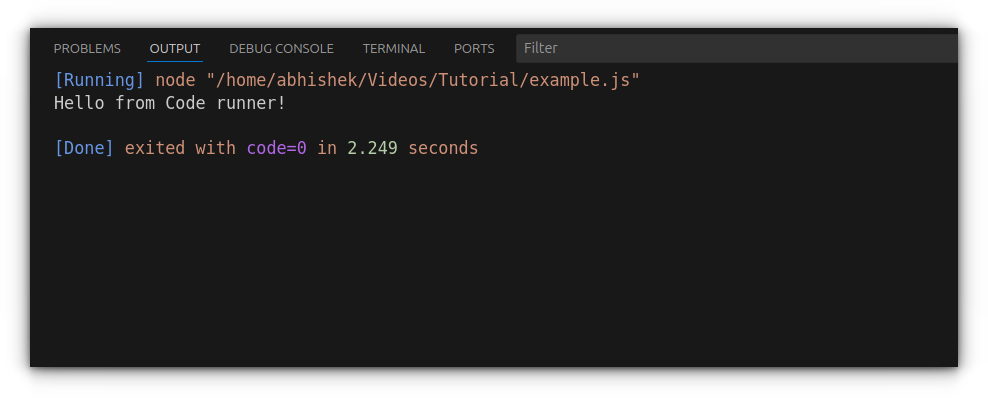
In the image, there are three different kinds of information:
[Running] node ".../example.js"— Code Runner is showing the command it executed.Hello from Code runner!— this is output produced by the JavaScript code, presumably throughconsole.log.[Done] exited with code=0— Code Runner’s status message. Exit code0conventionally means the program finished successfully.
A normal terminal often shows only your console.log output and then a new prompt; it may not print a friendly “Done” line. That does not mean the run failed.
When Node cannot run the file
Before looking at JavaScript errors, separate them from command or file-location problems.
| What you see | What it usually means | First action |
|---|---|---|
node is not recognized / command not found |
Node.js is not installed, or the terminal has not picked up its installation path | Reopen the terminal; verify installation with node --version |
Cannot find module ... after node run.js |
Node could not find the file at the path you supplied | Check the filename, save the file, and ensure the terminal is in the correct folder |
| Your expected old output appears | You probably ran a different file or did not save | Check the command and save the intended file |
| A named JavaScript error and file line appear | Node started your script and JavaScript encountered a problem | Read the error message and location |
The third row is worth remembering: a “cannot find module” message at this stage usually does not mean you need to install a package. It often simply means Node cannot find run.js in the directory from which you issued the command.
Reading JavaScript errors without guessing
Errors are not a verdict on your ability. They are structured reports from a literal machine. Treat each one as a sequence of clues.
Create another file named errors.js:
console.log("Checking the script...");
console.log(blockHeight);
console.log("This line will not run.");
Run it:
node errors.js
The precise formatting differs by operating system and Node version, but the essential output will resemble:
Checking the script...
ReferenceError: blockHeight is not defined
    at Object.<anonymous> (.../errors.js:2:13)
Interpret it in this order:
-
What successfully happened?
Checking the script...appeared, so Node did begin running the file. -
What kind of problem occurred?
ReferenceErrortells you JavaScript tried to use a name that does not exist. -
What exact message explains it?
blockHeight is not definedidentifies the missing name. -
Where did it occur?
errors.js:2:13means fileerrors.js, line 2, approximately column 13. In a larger application, start with the first location that points into your own file, rather than lines belonging to Node itself. -
What did not happen?
The lastconsole.logdid not appear. An unhandled error stops this simple script at that point.
blockHeight has not been created in this file, so Node cannot retrieve a value for it. For now, repair the script by replacing the problematic line with a message:
console.log("Block height will be supplied later.");
Save and run the file again. Successful debugging is not “thinking hard until the answer arrives.” It is a short loop:
Read the message → locate the code → make one focused change → save → run again
Three error categories you will encounter often
At this stage, recognize the category before trying to fix every detail.
| Category | Typical message | Meaning | Usual fix |
|---|---|---|---|
SyntaxError |
Unexpected token or Unexpected end of input |
JavaScript could not understand the program’s grammar | Check punctuation, quotes, parentheses, brackets, and braces |
ReferenceError |
name is not defined |
Code refers to a name JavaScript cannot find | Check spelling or define the missing value |
TypeError |
... is not a function |
A value is being used in an incompatible way | Check what the value is and how it should be used |
A syntax error happens before normal execution begins. For example, temporarily change errors.js to:
console.log("Starting"
console.log("Finished");
Node cannot correctly parse this code because the first console.log call lacks its closing parenthesis. As a result, neither message should run. The reported location is where JavaScript noticed the grammar had become impossible; the real mistake can sometimes be slightly earlier.
A type error occurs when JavaScript has found a value but you ask it to do something that value cannot do. For example:
console.log(Math.PI());
Math.PI is a number, not a function, so the parentheses are incorrect. Node will report a TypeError similar to:
TypeError: Math.PI is not a function
The repair is:
console.log(Math.PI);
The important habit is to read the full message literally. In this case, JavaScript is not saying that Math.PI is missing. It is saying that the value exists but cannot be called like a function.
Errors in JavaScript / Intro to JavaScript ES6 programming, lesson 6
Watch “Errors in JavaScript / Intro to JavaScript ES6 programming, lesson 6” from Codexpanse with Rakhim for a compact visual explanation of the main error categories and of stack traces.
Watch syntax errors for the grammar perspective. Continue with reference errors, focusing on how a stack trace leads back to the failing call. Then watch type errors. Finally, skip ahead to logic errors to see why a program can run without errors and still produce a wrong result.
Errors versus incorrect output
A program can fail in two importantly different ways.
An exception is explicit: Node stops and prints an error. A ReferenceError and TypeError are examples. You have a direct clue to investigate.
A logic error is quieter: the program runs, but the result is not what you intended. Consider:
console.log(50 - 32 * 5 / 9);
Node will happily print a number. There is no runtime error because the instruction is valid JavaScript. But if you intended to convert degrees Fahrenheit to Celsius, the intended calculation is:
The parentheses matter:
console.log((50 - 32) * 5 / 9);
For blockchain work, this distinction has real consequences. A script that crashes while displaying a block number is inconvenient but visible. A script that runs while calculating a transaction fee incorrectly is more dangerous, because it can look successful. Use console.log to inspect intermediate values whenever an output does not match your expectation.
A short debugging routine to keep
Finish by turning errors.js into a clean, successful run:
console.log("Starting node-basics.");
console.log("The script completed normally.");
Run:
node errors.js
Then deliberately introduce one problem at a time:
- Misspell
consoleasconsolto create aReferenceError. - Remove a closing quote to create a
SyntaxError. - Use
Math.PI()to create aTypeError.
After each run, use the same routine:
- Find the error type.
- Read the plain-English message.
- Find the first relevant file and line number.
- Change only the likely cause.
- Save, rerun, and verify the output.
Do not leave intentional broken code in the file at the end. Restore a successful version so that you have a known-good starting point for the next lesson.
You can now run a saved JavaScript file with node filename.js, recognize output from console.log, and separate tool messages from your program’s own output. You also have a practical method for interpreting syntax, reference, and type errors: error type, message, location, repair, rerun.
Next, you will make scripts more useful by declaring values with let and const, then choosing appropriate JavaScript primitive data types.