Introduction
In our last lesson, you successfully deployed a self-hosted n8n instance using a docker-compose.yml file that included services for both n8n and PostgreSQL. This lesson builds directly on that foundation. While the previous setup got the services running, today we will focus on why this architecture is critical for production and how to confirm it is configured correctly.
Our goal is to solidify your understanding of using PostgreSQL as a persistent database backend for n8n. We will explore the advantages of PostgreSQL over the default SQLite database, dissect the specific environment variables that link the n8n application to its database, and verify the role of Docker volumes in safeguarding your data. This deep-dive ensures your deployment is not just running, but is robust, scalable, and truly production-ready.
Why PostgreSQL is the Production Standard
By default, a simple n8n setup uses an embedded SQLite database. While this is convenient for initial testing, it is not suitable for a production environment, especially one orchestrating critical CI/CD pipelines. For any serious use case, a more powerful database like PostgreSQL is the recommended standard.
The article "How to Self-Host n8n on a High-Availability VPS" from the MassiveGRID blog provides an excellent breakdown of the reasons.
How to Self-Host n8n on a High-Availability VPS (Complete Docker Guide) | MassiveGRID Blog
This article clearly articulates the technical justifications for using PostgreSQL in a production n8n deployment.
Please read the section Why PostgreSQL Over SQLite. As you read, focus on the three key arguments: concurrency, reliability, and backup tooling.
To summarize the key points from the reading:
- Concurrency: SQLite uses file-level locking, meaning if one workflow is writing to the database (e.g., saving its execution log), other workflows that also need to write can be blocked. This can lead to significant bottlenecks and even failures in a busy system. PostgreSQL, with its advanced concurrency control, handles simultaneous reads and writes without this contention.
- Reliability: PostgreSQL is designed for high-reliability scenarios. It features write-ahead logging (WAL) and robust crash recovery mechanisms. An unexpected server shutdown is far less likely to corrupt a PostgreSQL database than an SQLite file.
- Backup Tooling: The ecosystem around PostgreSQL provides mature tools like
pg_dumpfor creating live, consistent backups without needing to stop the n8n application. This is essential for any production disaster recovery plan.
Given your goal of building resilient CI/CD automation, these factors make PostgreSQL a non-negotiable component of your self-hosted infrastructure.
The n8n-PostgreSQL Stack Anatomy
The docker-compose.yml file you created in the last lesson defines the relationship between the n8n application and its database. The two services, n8n and postgres, operate as independent containers but are connected through a Docker-managed network.
This diagram illustrates the architecture you have built:
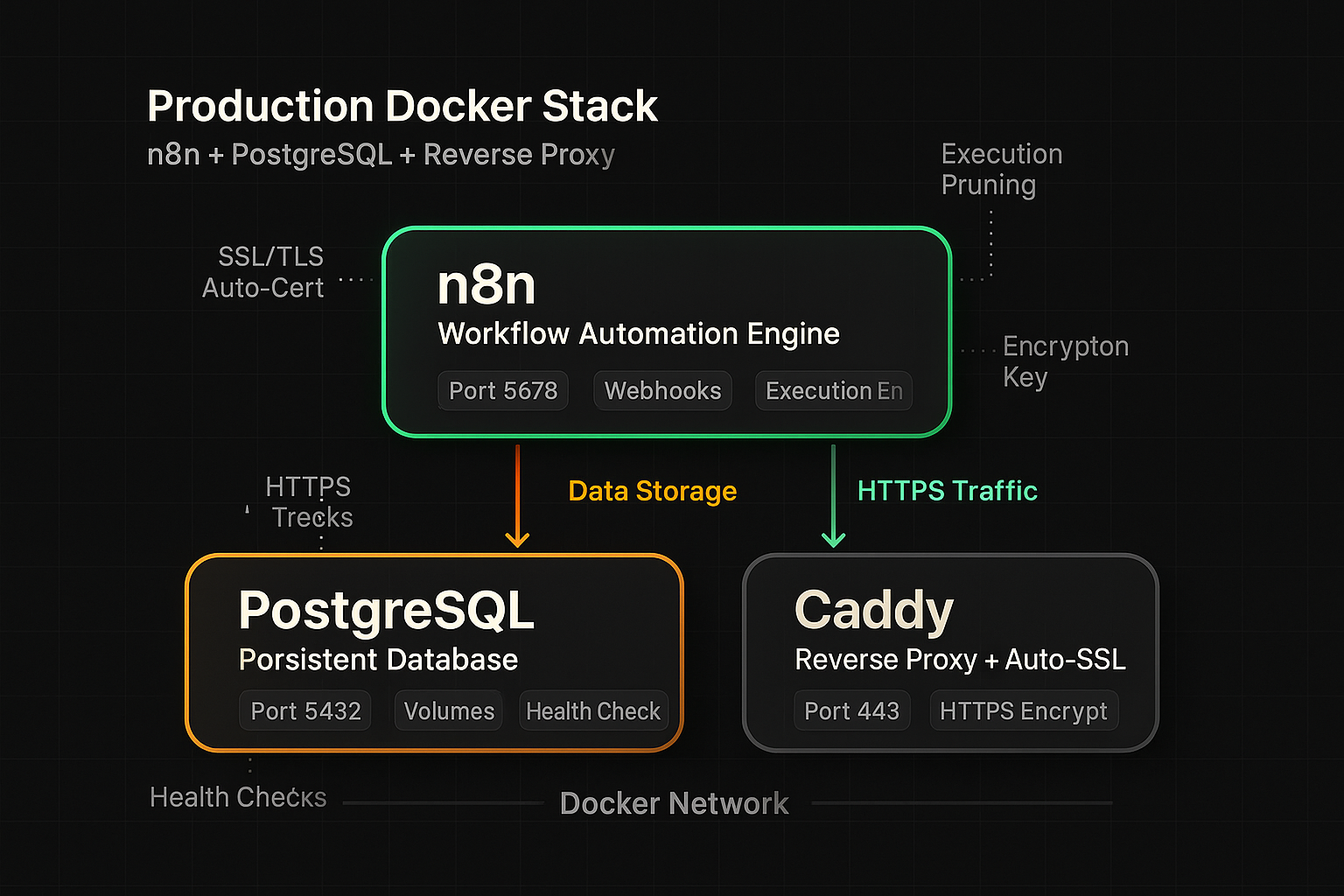
Let's break down how your configuration files make this connection happen.
1. Telling n8n to Use PostgreSQL
The crucial link is established in your .env file. The n8n application reads these variables to determine its database configuration.
# .env file snippet


# Database (Postgres)
DB_TYPE=postgresdb
DB_POSTGRESDB_HOST=postgres
DB_POSTGRESDB_PORT=5432
DB_POSTGRESDB_USER=n8n
DB_POSTGRESDB_PASSWORD=change_this_to_a_strong_password
DB_POSTGRESDB_SCHEMA=public
DB_TYPE=postgresdb: This is the primary switch. It tells n8n to use its PostgreSQL driver instead of the default SQLite.DB_POSTGRESDB_HOST=postgres: This is the key to inter-container communication. Because both services are in the same Docker Compose file, Docker's internal DNS allows then8ncontainer to resolve the hostnamepostgresto the IP address of thepostgrescontainer. The valuepostgreshere directly corresponds to the service name in yourdocker-compose.yml.- The remaining
DB_POSTGRESDB_*variables provide the credentials n8n will use to connect.
2. Configuring the PostgreSQL Service
Simultaneously, the postgres service in your docker-compose.yml uses environment variables to initialize itself.
# docker-compose.yml snippet

services:
  postgres:
    image: postgres:15
    restart: unless-stopped
    environment:
      POSTGRES_DB: ${DB_POSTGRESDB_DATABASE}
      POSTGRES_USER: ${DB_POSTGRESDB_USER}
      POSTGRES_PASSWORD: ${DB_POSTGRESDB_PASSWORD}
    volumes:
      - n8n_db_data:/var/lib/postgresql/data
The official postgres Docker image is designed to use these POSTGRES_* variables on its very first run. It automatically creates a database and a user with the credentials you provide. The ${...} syntax instructs Docker Compose to substitute these values from your .env file, ensuring your credentials are only defined in one place.
3. Ensuring Data Persistence with Volumes
The most critical line for data safety is volumes: - n8n_db_data:/var/lib/postgresql/data.
This instruction tells Docker to:
- Use the named volume
n8n_db_data. - Mount this volume at the path
/var/lib/postgresql/datainside thepostgrescontainer.
This path is the default location where PostgreSQL stores all of its data files (tables, indexes, logs, etc.). By mapping a Docker volume to this location, you decouple the database's data from the container's lifecycle. You can stop, remove, or even upgrade the postgres container, and as long as you re-attach the n8n_db_data volume, your new container will find all the existing data intact.
Hands-on Verification
Your stack should still be running from the previous lesson. Let's confirm that n8n is actively using the PostgreSQL database. Open a terminal in your project directory.
First, check the logs of both containers.
# Check the n8n logs for database migration messages
docker compose logs n8n


# Check the postgres logs for connection messages
docker compose logs postgres
In the n8n logs, you should see messages related to database migrations, which indicate it has successfully connected and is setting up its schema. In the postgres logs, you should see log entries showing that connections are being accepted.
For a definitive confirmation, you can connect directly to the database inside the container. This is a powerful debugging technique.
-
Execute the
psqlcommand-line client inside the runningpostgrescontainer:docker compose exec postgres psql -U n8n -d n8nThis command breaks down as:
docker compose exec postgres: Execute a command inside thepostgresservice container.psql -U n8n -d n8n: Run the PostgreSQL client, connecting as usern8n(-U) to the databasen8n(-d).
-
Once you have a
psqlprompt (e.g.,n8n=>), list the tables in the database:\dt
You should see a list of tables that n8n has created, such as workflow_entity, execution_entity, and credentials_entity. Seeing this list is absolute proof that your n8n instance is correctly configured and is using PostgreSQL for persistent storage. You can type \q to exit psql.
Conclusion
In this lesson, you've solidified your understanding of why and how to use PostgreSQL as the database backend for a production-grade n8n instance. You've moved beyond simply running the containers to deeply understanding the configuration that underpins this robust architecture.
Key Takeaways:
- PostgreSQL is essential for production n8n due to its superior concurrency, reliability, and backup capabilities compared to SQLite.
- The connection between n8n and PostgreSQL is configured through
DB_*environment variables in the.envfile, which are consumed by the n8n container. - The PostgreSQL container itself is initialized using
POSTGRES_*environment variables, with values sourced from the same.envfile. - Docker named volumes are critical for persisting the PostgreSQL data, ensuring that your workflows, credentials, and execution history survive container restarts and upgrades.
Your n8n instance is now running on a solid foundation. However, it's currently only accessible from localhost. In our next lesson, we will tackle networking, configuring your instance for external access so it can receive webhooks from services like GitHub and Jenkins, a crucial step toward building your CI/CD pipelines.