Hello! Welcome back to the course.
In the last lesson, we took a big step by learning how to execute a market order. You now know how to buy a cryptocurrency instantly at the best available price, prioritizing speed above all else. This is a fundamental skill for any trader.
However, what if you're not in a rush? What if you've analyzed a cryptocurrency and decided you only want to buy it if it drops to a specific, more favorable price? This is where a limit order comes in.
This lesson is all about gaining control. You will learn how to place a limit order to buy a cryptocurrency at a specific target price. By the end of this session, you'll be able to tell Binance exactly what price you're willing to pay and have the system automatically execute your trade if and when that price is met.
What is a Limit Order?
A market order says, "Buy for me now, at any price." A limit order says, "Buy for me, but only if the price is at this level or lower." It's an instruction you place on the order book that waits to be executed.
This gives you two main advantages:
- Price Control: You decide the maximum price you are willing to pay.
- Automation: You don't have to watch the market 24/7. Once you set the order, Binance's system does the waiting for you.
Let's watch a short video that clearly explains the concept of a limit order and how it differs from the market order we've already covered.
Binance Limit Order Tutorial (Limit, Stop Limit & Stop Loss)
This clip from the 'Binance Limit Order Tutorial' by MoneyZG provides an excellent introduction to what a limit order is and how the instruction works in the trading system.
Watch the first minute of the video (00:00 - 01:07). Focus on the core difference between a market order and a limit order, especially on the buy-side.
To solidify this, let's look at Binance's official definition.
What are Market Order and Limit Order, and How to Place Them
This FAQ from Binance provides a concise, official definition of a limit order.
Read the section titled 'What is a limit order?'. It's a short, clear paragraph that perfectly summarizes its purpose.
How to Place a Limit Buy Order on Binance
Now for the practical part you've been waiting for. Let's walk through placing your first limit buy order. We will assume you want to buy Bitcoin (BTC) with your USDT, and the current price is, for example, $60,000 USDT. You believe this is a bit high and you'd prefer to buy it if it drops to $59,500.
The Steps on the Web Interface:
- Go to the Spot Trading Interface: Navigate to
Trade->Spot. - Select the "Limit" Tab: Below the chart in the order panel, make sure you've selected the
Limittab. Unlike a market order, thePricebox will be active. - Set Your Target Price: In the
Price (USDT)box, enter the price you want to buy at. In our example, you would enter59500. - Set the Amount: In the
Amount (BTC)box, enter how much BTC you want to buy. Alternatively, use theTotal (USDT)box to specify how much you want to spend (e.g.,100USDT). The slider below is a quick way to use a percentage of your available funds. - Place the Order: Click the green
Buy BTCbutton.
Your order is now live! It won't execute immediately. Instead, it will appear in the "Open Orders" section at the bottom of your screen, waiting for the market price of BTC to fall to your target price of $59,500. If the price reaches your target, the order will be "filled," and the BTC will appear in your Spot Wallet. If the price never drops that low, the order will remain open until you decide to cancel it.
This video provides a perfect visual walkthrough of this process.
Binance Limit Order Tutorial (Limit, Stop Limit & Stop Loss)
Let's return to the MoneyZG tutorial. This segment will show you exactly how to place the limit buy order on the Binance interface and what happens after you click 'Buy'.
Watch from 01:07 to 02:40. Pay close attention to how the order is placed below the current market price and appears in the 'Open Orders' list at the bottom.
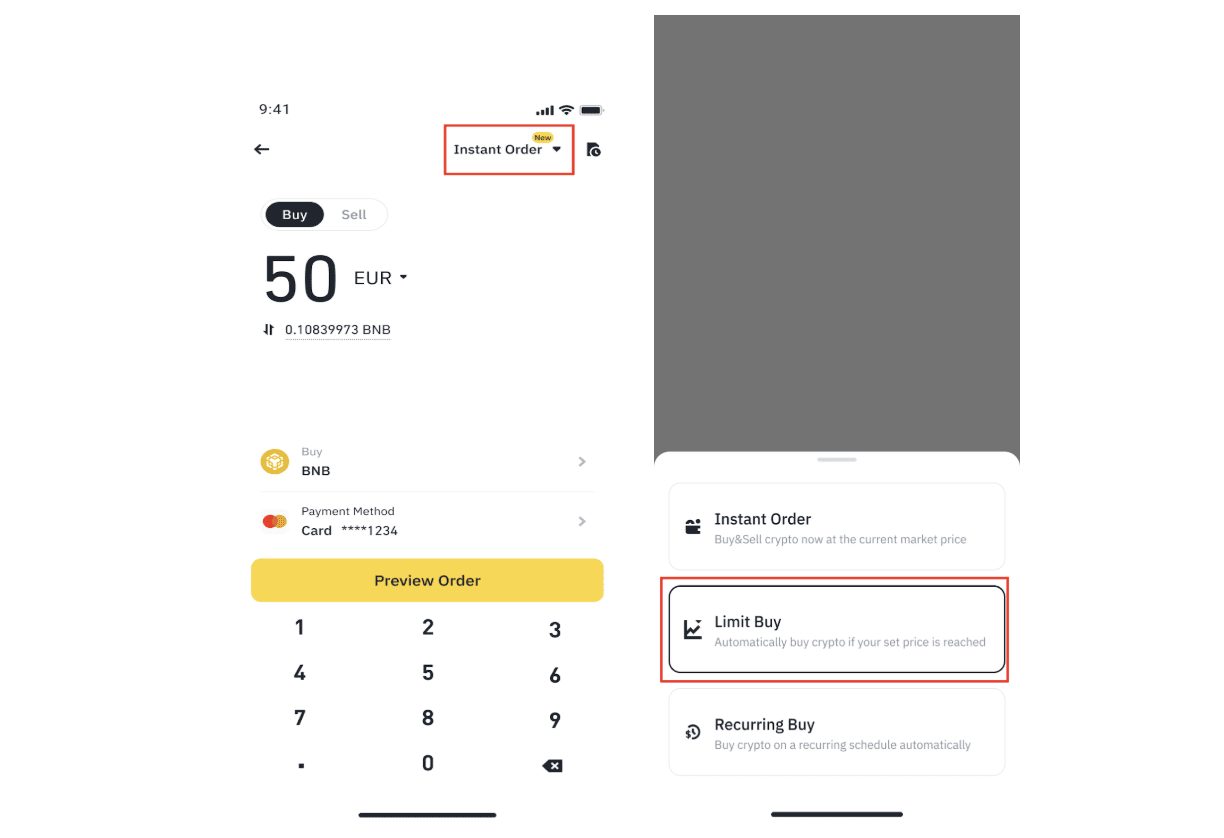
Placing a Limit Order on the Binance App
The process is very similar on the mobile app, which is great for managing trades on the go.
- On the buy screen, tap the order type (it usually defaults to 'Instant Order' or 'Market Order').
- Select 'Limit Buy' from the menu.
- You will now see a field to enter your 'Target Price'.

A Crucial Rule: Setting Your Price Correctly
What happens if you place a limit buy order with a price that is higher than the current market price?
For example, if BTC is trading at $60,000 and you set a limit buy price of $60,500, you are telling the system: "I am willing to pay up to $60,500." Since the market can offer you a better price ($60,000), the system will execute your order instantly at the best available market price, just like a market order.
This is a common beginner mistake that negates the entire purpose of a limit order. For a limit buy order, your target price should be below the current market price.
This reading from Binance explains this scenario clearly with examples.
What are Market Order and Limit Order, and How to Place Them
Let's go back to the Binance FAQ to see how it explains this important rule.
Read the subsection 'Limit order examples', focusing on the 'Buy order' example. It explains what happens when you set a limit price below, and above, the current price.
Conclusion
Excellent work! You've now added a powerful and precise tool to your trading toolkit. Where market orders give you speed, limit orders give you control, allowing you to execute your trading plan with patience and precision.
Key Takeaways:
- A limit order allows you to buy a cryptocurrency at a specific target price or lower.
- To place one, you select the 'Limit' tab, enter your desired
PriceandAmount, and click 'Buy'. - The order sits in the 'Open Orders' section and only executes if the market price reaches your target.
- A limit buy order set above the current market price will execute instantly like a market order.
What's Next?
You now know how to buy cryptocurrency using two distinct methods: instantly with a market order, and at a target price with a limit order. But buying is only half the story. To realize a profit or cut a loss, you need to sell. In our next lesson, we will complete the cycle by learning how to execute market and limit orders to sell a cryptocurrency.