Hello! Welcome back.
In our last lesson, we configured Nginx to serve your Django project's static files. However, we hit a deliberate roadblock: a 403 Forbidden error. We concluded that this wasn't a standard permission issue but was instead caused by Fedora's powerful security module, SELinux.
Today, you become an SELinux detective. Our goal is to diagnose SELinux denials using audit logs and set correct file contexts to allow Nginx to serve web content. By the end of this lesson, you will not only fix the error but also gain a fundamental understanding of how to troubleshoot SELinux, a critical skill for any administrator on a Red Hat-based system like Fedora.
1. Understanding the Crime Scene: SELinux Contexts
Before we dive into commands, let's understand why SELinux blocked Nginx. While standard Linux permissions control access based on users and groups (ownership), SELinux uses a more granular system called Type Enforcement. Every process and every file on the system has an SELinux label, or "context". A policy then defines rules about which process types can access which file types.
The Nginx process runs with the httpd_t type. By default, it's only allowed to access files with web-related types, like httpd_sys_content_t. Our problem is that the files we created in /var/www/myproject/static/ don't have this label.
This diagram perfectly illustrates the concept. Nginx (httpd_t) can access its web content but is explicitly denied access to the database's files, even if standard file permissions would allow it.
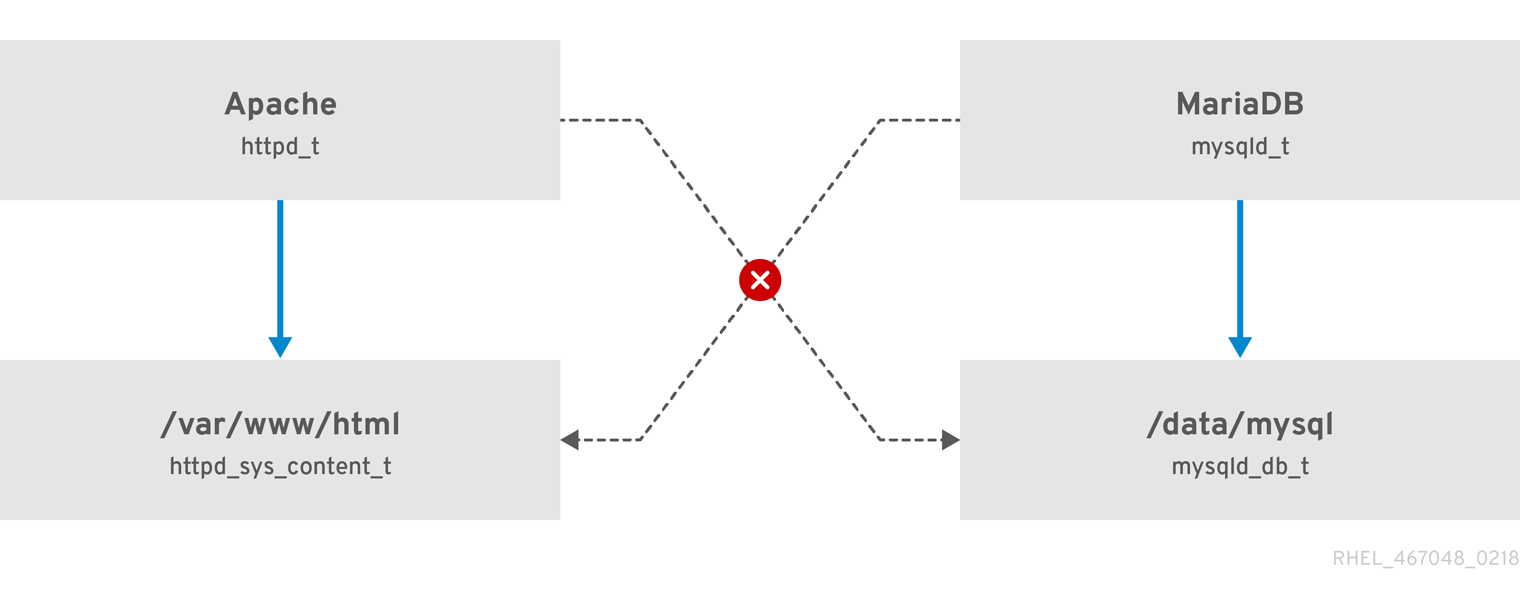
Our mission is to find the denial log, identify the incorrect file context, and change it to the correct one.
2. Gathering Your Detective Toolkit
To diagnose SELinux issues, you need the right tools. Most of these come from a package called setroubleshoot-server, which provides user-friendly analysis of the raw audit logs.
First, let's ensure you have the necessary utilities installed.
sudo dnf install setroubleshoot-server policycoreutils-python-utils
setroubleshoot-server: This package contains thesealertandaudit2whytools, which translate cryptic log messages into human-readable explanations and suggested fixes.policycoreutils-python-utils: This provides thesemanage,restorecon, andaudit2allowcommands for managing SELinux policy.
The following video provides a great overview of the tools we'll be using to read the "case files" in the audit log.
RHCSA RHEL 8 - Diagnose and address routine SELinux policy violations
Watch this video from Computers, Security & Gadgets to see a demonstration of the core SELinux diagnostic tools. It will show you how to find and interpret denial messages.
Watch from 04:00 to 08:21. Pay attention to these three commands and what they do: sealert -a /var/log/audit/audit.log: Gives a detailed, verbose report of all denials. ausearch -m avc: A more direct way to search for denial (avc) messages. audit2why: A powerful tool that explains why a denial occurred and often suggests a solution.
3. The Investigation: Finding the Denial
Now, let's apply these tools to our 403 Forbidden error. We'll follow a systematic workflow.
Hands-On Task Part 1: Confirm the Culprit
First, let's prove beyond a doubt that SELinux is the cause. We can temporarily put SELinux into permissive mode. In this mode, SELinux logs denials but doesn't enforce them.
- Switch to permissive mode in your terminal:
sudo setenforce 0 - Check the mode to confirm:
getenforce # Expected output: Permissive - Now, open your web browser and navigate again to your static file:
http://your_server_ip/static/admin/css/base.css. The page should now load successfully, showing the raw CSS code.
This confirms SELinux was the one blocking access. It is crucial to turn enforcement back on. Permissive mode is for debugging only.
- Switch back to enforcing mode:
sudo setenforce 1 - Verify by refreshing the browser page. The 403 error should be back.
Hands-On Task Part 2: Analyze the Evidence
Now that we are back in enforcing mode and have triggered a fresh denial, let's find the log entry.
-
The primary log file for SELinux is
/var/log/audit/audit.log. We will useausearchto find recent access denials (known as AVC - Access Vector Cache denials).# Search for denials in the last 10 minutes and pipe to audit2why for explanation sudo ausearch -m avc -ts recent | audit2why -
You will likely see an output similar to this:
type=AVC msg=audit(...): avc: denied { getattr } for pid=... comm="nginx" path="/var/www/myproject/static/admin/css/base.css" dev="..." ino=... scontext=system_u:system_r:httpd_t:s0 tcontext=unconfined_u:object_r:var_t:s0 tclass=file permissive=0
Let's break down this evidence:
denied { getattr }: Nginx was denied permission to get the attributes of the file (a basic read operation).comm="nginx": The command that was denied wasnginx.scontext=...:httpd_t:s0: The Source Context was the Nginx process type,httpd_t.tcontext=...:var_t:s0: The Target Context wasvar_t. This is a generic type for files under/varand is not a type thathttpd_tis allowed to read. This is our smoking gun.
- Confirm the file's context using
ls -Z:
You will see the incorrectls -lZ /var/www/myproject/static/admin/css/base.cssvar_tcontext on the file itself.
4. The Solution: Applying the Correct Context
We've diagnosed the issue: a context mismatch. Now we need to fix it. As the article "NGINX SELinux: Fix Permission Denied" points out in its second scenario, the solution is to apply the correct file context.
There are two ways to change a file's context:
chcon: Makes a temporary change. This is not recommended for production because the change can be reverted by a system-wide relabeling.semanage fcontext+restorecon: This is the correct, permanent method.semanageadds a new rule to the SELinux policy, andrestoreconapplies that rule.
The context we need is httpd_sys_content_t, which is the standard SELinux type for read-only web content.
Hands-On Task: Correct the File Contexts
-
Add a permanent policy rule. This command tells SELinux that the
/var/www/myproject/static/directory and everything inside it ((/.*)?) should have thehttpd_sys_content_ttype.sudo semanage fcontext -a -t httpd_sys_content_t "/var/www/myproject/static(/.*)?"Note: The
semanage fcontextcommand doesn't produce any output on success. -
Apply the new rule. Now, use
restoreconto apply this policy to the actual files on disk. The-Rflag makes it recursive, and-vshows you which files are being relabeled.sudo restorecon -Rv /var/www/myproject/static/You will see output listing the files whose contexts have been changed.
5. Verification: Case Closed
With the permanent fix in place, let's verify the outcome.
-
First, check the context again with
ls -Z:ls -lZ /var/www/myproject/static/admin/css/base.cssYou should now see the correct
httpd_sys_content_tcontext. -
Finally, go back to your browser and refresh the page for
http://your_server_ip/static/admin/css/base.css.
Success! The CSS file now loads correctly because Nginx (httpd_t) has permission from SELinux to read files labeled with httpd_sys_content_t.
For Future Reference: Read-Only vs. Read-Write
We used
httpd_sys_content_tbecause our static files only need to be read by the web server. If your Django application needed to write files (e.g., for user uploads or a cache), you would use thehttpd_sys_rw_content_tcontext for those specific writable directories. You can learn more about this in the "Setting Proper File Contexts for Web Content" section of theConfiguring SELinux on Fedora 38 for Web Serversarticle.
Conclusion
Fantastic work! You have successfully moved from being blocked by SELinux to understanding and controlling it. This is a huge step in becoming a competent Linux administrator, especially on Fedora.
Key Takeaways:
- SELinux denies access based on mismatched process and file security contexts (
type). - The troubleshooting workflow is: confirm the issue with permissive mode, find the denial log with
ausearch, and understand it withaudit2why. - The permanent way to fix incorrect file contexts is to add a policy with
semanage fcontextand apply it withrestorecon. - The standard SELinux type for web content that Nginx can read is
httpd_sys_content_t.
Preview of the Next Lesson:
We've solved the static file problem. Now, we need to get the Django application itself running. In the next lesson, you will set up Gunicorn as a WSGI server for your Django application. We will then configure Nginx to act as a reverse proxy, passing dynamic requests to Gunicorn. This will involve another trip into the world of SELinux, but this time we'll be looking at booleans that control network permissions.