Hello! Welcome to your next lesson in the "Incremental Data Ingestion" module.
In our last lesson, we focused on choosing the right tool—Auto Loader or COPY INTO—for ingesting new files into your Delta tables. We covered scenarios for batch and streaming data. However, modern data pipelines don't just handle new data; they must also contend with changes to existing data, such as updates and deletions in source systems.
This lesson tackles that exact challenge. We will explore one of Delta Lake's most powerful features for managing data modifications: Change Data Feed (CDF). This feature is fundamental to building robust Change Data Capture (CDC) pipelines, a common pattern in your work as a data engineer.
Today's lesson directly addresses the learning outcome: Enable and query Change Data Feed to track row-level changes in Delta tables. By the end of this lesson, you will understand how to turn on this feature and write queries in both SQL and Python to see exactly what has changed in your data over time.
1. What is Change Data Feed?
Traditionally, identifying row-level changes in a data lake required complex and often inefficient logic, like comparing two large versions of a table to find the differences. Change Data Feed (CDF) simplifies this process immensely.
When you enable CDF on a Delta table, Databricks begins to automatically record row-level changes—inserts, updates, and deletes—as part of the transaction log. This provides a clean, queryable history of all modifications.
To get a quick overview of what CDF is and the problems it solves, let's start with a short conceptual video from Databricks.
This video introduces the concept of Change Data Feed and explains the challenges data engineers faced before this feature was available.
Watch the first 3 minutes and 18 seconds of the video. Focus on understanding: The challenges of tracking changes in data lakes without CDF. How CDF provides a simple option to read only the changed data. The common use cases mentioned, such as improving ETL and powering dashboards.
The CDF Output
When you query the change feed, you get back not only the row data but also special metadata columns that describe the change. The following image provides a perfect illustration of what this looks like.
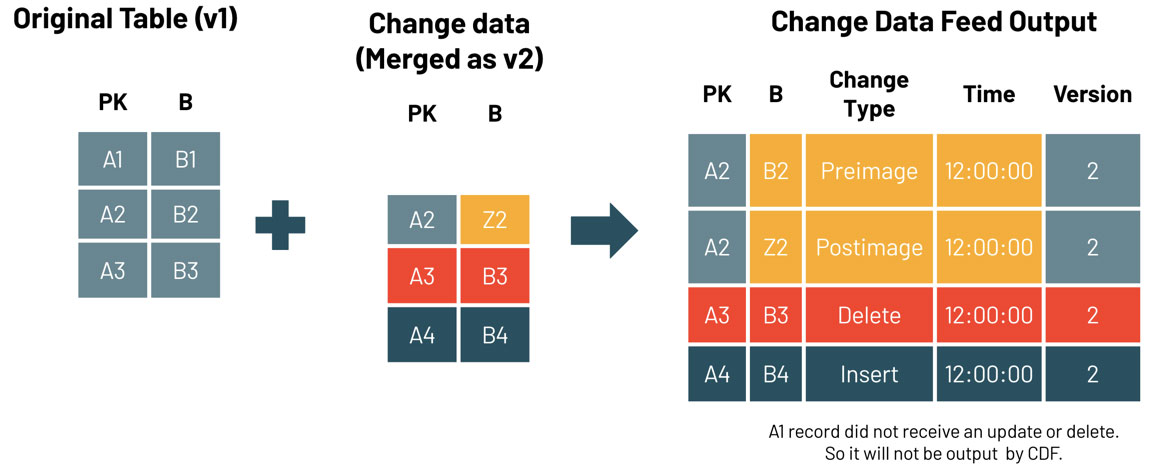
To work with this output, you need to understand the key metadata columns.
Use Delta Lake change data feed on Databricks
The official Databricks documentation provides a clear definition of the CDF schema. Let's review it.
Read the section titled 'Change data feed schema'. Pay close attention to the table defining the three metadata columns and the meaning of the _change_type values, especially the distinction between update_preimage and update_postimage.
As you saw, the three essential columns are:
_change_type: Tells you if the row was aninsert,delete,update_preimage, orupdate_postimage._commit_version: The table version number in which the change occurred._commit_timestamp: The timestamp of the commit.
2. Enabling Change Data Feed
CDF is not enabled by default. You must explicitly enable it on a table-by-table basis. It's a simple change to the table's properties.
Important: CDF is a forward-looking feature. It only begins recording changes after you enable it. It cannot capture historical changes made before it was turned on.
You can enable it in a few ways, as shown in the official documentation.
Use Delta Lake change data feed on Databricks
This section of the documentation provides the exact SQL syntax for enabling CDF.
Review the code snippets in the 'Enable change data feed' section. Note the syntax for: A new table (CREATE TABLE ... TBLPROPERTIES). An existing table (ALTER TABLE ... SET TBLPROPERTIES). All new tables in a session (using SET spark.databricks.delta.properties.defaults.enableChangeDataFeed). This is a useful setting for standardizing environments.
Here is a quick summary of the SQL commands for your reference:
For a new table:
CREATE TABLE my_table (id INT, name STRING)
TBLPROPERTIES (delta.enableChangeDataFeed = true);
For an existing table:
ALTER TABLE my_table SET TBLPROPERTIES (delta.enableChangeDataFeed = true);
3. Querying Change Data
Once CDF is enabled and some data modifications (INSERT, UPDATE, DELETE, MERGE) have occurred, you can query the changes. This is the core of the feature and where you'll spend most of your time. Given your preference for hands-on work, we will now watch a detailed demonstration.
This video walks through a full, practical scenario:
- Creating
silverandgoldtables. - Enabling CDF on the
silvertable. - Performing
UPDATEandMERGEoperations. - Querying the resulting changes using the
table_changesfunction. - Using those changes to update the
goldtable.
This demo from Databricks is an excellent, practical walkthrough of the entire CDF workflow in a notebook.
Watch the segment from 11:48 to 16:45. Follow the steps the presenter takes in the notebook. Pay close attention to: The syntax of the table_changes('silver_table', start_version, end_version) function. The output of the query, and how it shows insert, update_preimage, and update_postimage rows. How the MERGE command's source is the table_changes function, demonstrating how you can use the CDF output to propagate changes downstream.
As you saw in the video, you can query changes in both SQL and PySpark.
SQL Syntax
The table_changes function is the standard way to query CDF in SQL. You can specify a range using versions or timestamps.
-- Query changes between version 1 and 5
SELECT * FROM table_changes('my_table', 1, 5);

-- Query all changes starting from version 3 to the latest
SELECT * FROM table_changes('my_table', 3);

-- Query changes within a specific timestamp range
SELECT * FROM table_changes('my_table', '2023-10-26T00:00:00.000Z', '2023-10-27T00:00:00.000Z');
PySpark Syntax
In PySpark, you use the .option("readChangeData", "true") when creating a DataFrame.
# Query changes between version 1 and 5
changes_df = (spark.read.format("delta")
              .option("readChangeData", "true")
              .option("startingVersion", 1)
              .option("endingVersion", 5)
              .table("my_table"))


# Query all changes starting from version 3
changes_df_from_3 = (spark.read.format("delta")
                     .option("readChangeData", "true")
                     .option("startingVersion", 3)
                     .table("my_table"))
4. A Complete CDC Pattern
Querying the changes is the first step. The next logical step is to use that change data to update downstream systems or aggregated tables, such as propagating changes from a silver table to a gold table in the Medallion Architecture.
The diagram below shows exactly this pattern. The output of table_changes is used as the source for a MERGE operation into a gold table.
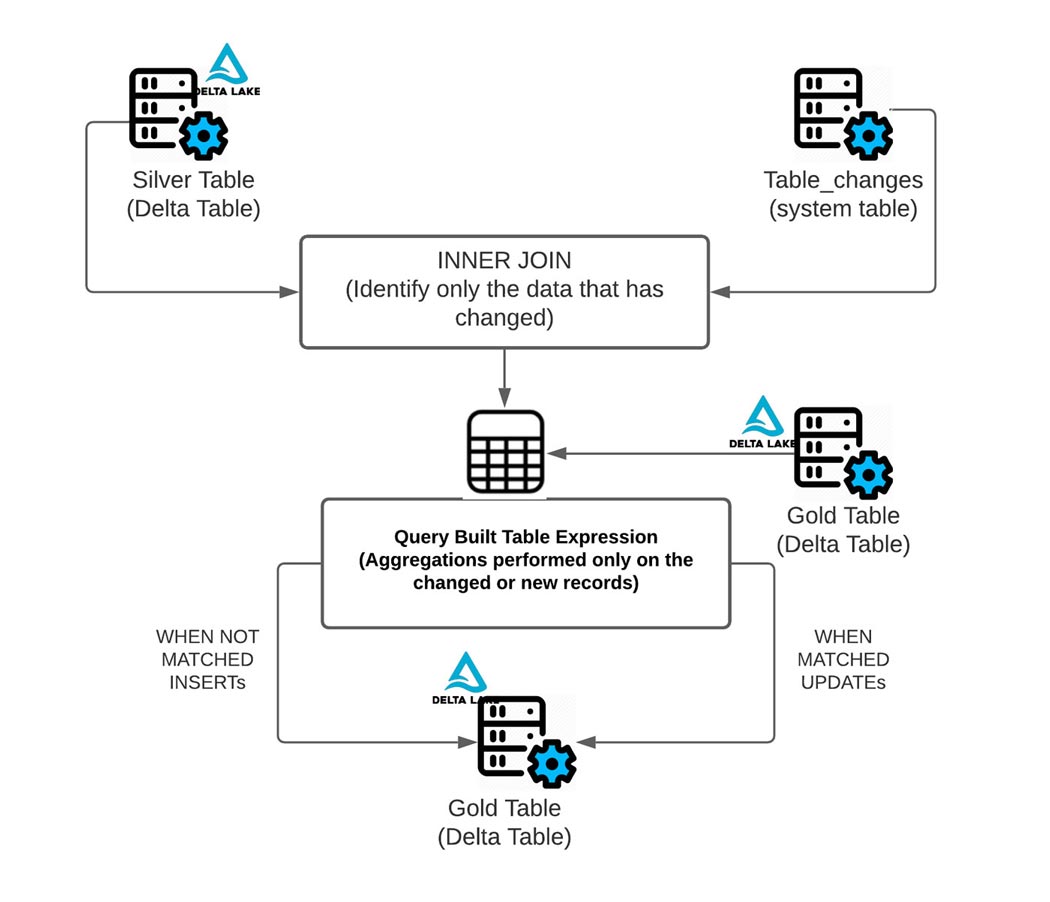
To see this pattern implemented with code, let's look at one final video example. It provides a very clear demonstration of using a MERGE statement to apply inserts, updates, and deletes from a CDF source to a target table.
130. Databricks | Pyspark| Delta Lake: Change Data Feed
This video from Raja's Data Engineering demonstrates a concise, end-to-end CDC pattern using CDF and a MERGE statement.
Watch the segment from 12:01 to 17:09. Focus on: How the table_changes function is used to create a temporary view of the changed data. The logic within the MERGE statement that handles different _change_type values (WHEN MATCHED AND ... 'delete', WHEN MATCHED AND ... 'update_postimage', WHEN NOT MATCHED).
Hands-On Practice
The best way to solidify your understanding is to run the code yourself. The following blog post contains a link to a Databricks notebook that you can import into your workspace to experiment with CDF directly.
How to Simplify CDC With Delta Lake's Change Data Feed
This Databricks blog post summarizes the benefits of CDF and provides a link to a hands-on notebook.
Access the article and find the link at the very top or bottom that says 'Try this notebook in Databricks'. I highly recommend importing this notebook and running through the examples. Try modifying the DML statements (e.g., add more updates, delete different rows) and re-running the table_changes queries to see the output.
Conclusion
You have now learned how to enable and query one of Delta Lake's most critical features for modern data engineering. Capturing row-level changes efficiently is key to maintaining data quality and consistency across your lakehouse.
Key Takeaways:
- Change Data Feed (CDF) tracks row-level
INSERT,UPDATE, andDELETEoperations on a Delta table after it has been enabled. - It is enabled via the table property
delta.enableChangeDataFeed = true. - You can query the changes using the
table_changes()function in SQL or thereadChangeDataoption in PySpark. - The output includes metadata columns (
_change_type,_commit_version,_commit_timestamp) that describe each change. - For
UPDATEoperations, CDF provides both aupdate_preimage(the 'before' state) andupdate_postimage(the 'after' state).
Preview of the Next Lesson:
In this lesson, we saw how to query the change feed in batch mode and use it in a MERGE statement. In our next lesson, we will take this a step further. We will implement a Change Data Capture (CDC) pattern using MERGE with streaming data, building an automated pipeline that propagates changes from a source to a target table in near real-time.