Welcome back! In our last lesson, we investigated a key constraint of LLMs—the context window—and saw how information can get "lost in the middle." Today, we shift from constraints to controls. You'll learn how to act like a producer in a studio, fine-tuning the model's output to get the exact style you need.
Today's goal is to experiment with generation parameters like temperature and top-p to see how they change an LLM's output style and randomness. For someone interested in DJing, this is very similar to adjusting the knobs on a mixer. You can take the same track (the prompt) and make it sound completely different by tweaking the EQs, filters, and effects. These parameters are your EQs for the AI's "voice."
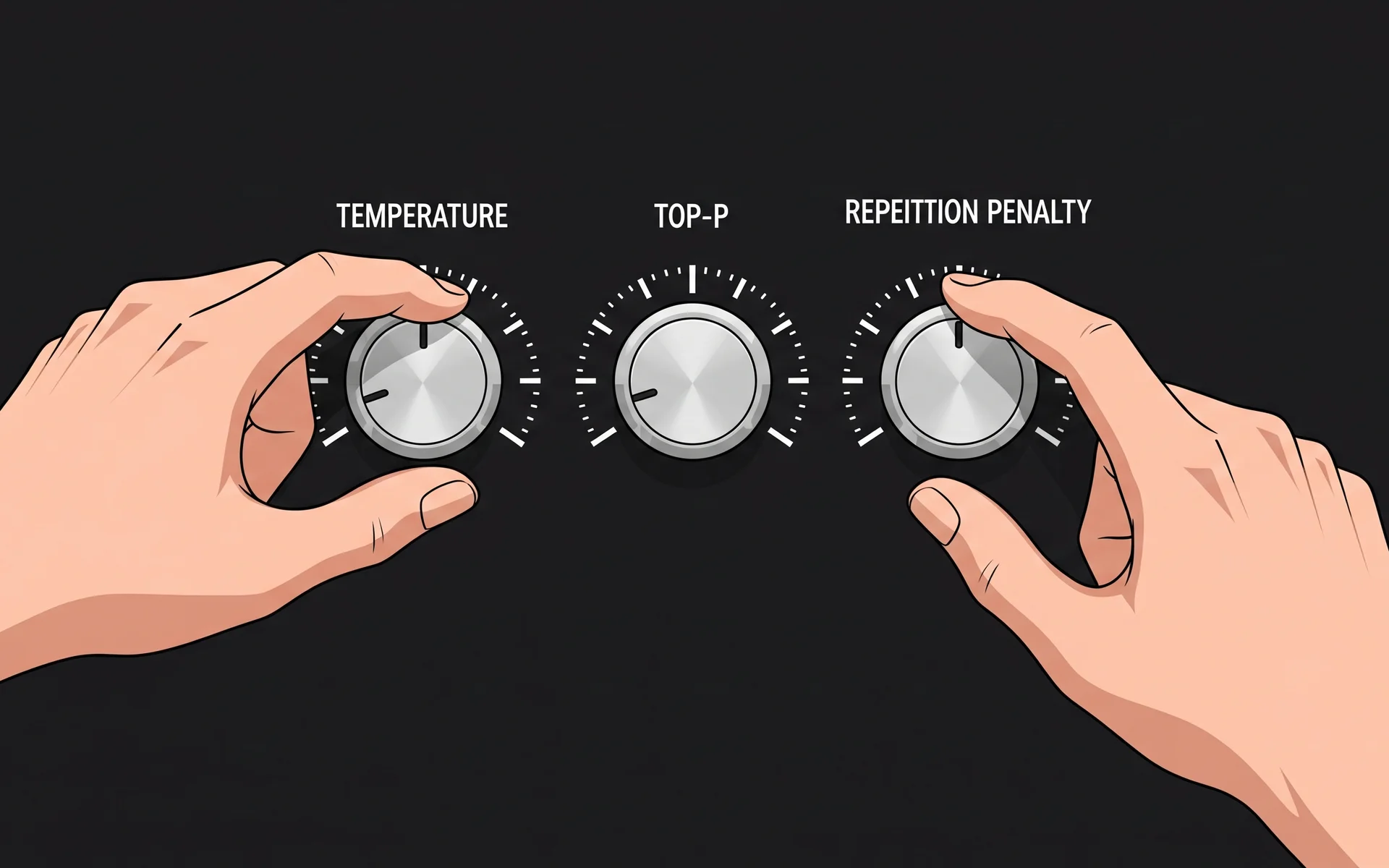
By the end of this 30-minute session, you'll have hands-on experience manipulating these controls to shape an AI's personality.
Temperature: The Creativity Dial
The most fundamental parameter is temperature. It directly controls the randomness of the model's output.
- Low Temperature (e.g., 0.1 - 0.3): The model becomes more deterministic and focused. It will almost always pick the most probable next word. This is like using a very tight filter, keeping the output clean and predictable. It's ideal for factual tasks like writing code, summarizing technical documents, or answering simple questions.
- High Temperature (e.g., 0.8 - 1.2): The model gets more adventurous and creative. It has a higher chance of picking less likely words, leading to more diverse and sometimes surprising results. This is like opening up the filter and letting more frequencies through, perfect for brainstorming, creative writing, or generating varied ideas.
To see this concept in action, here's a short video that explains it well.
What is the LLM’s Temperature ?
The video "What is the LLM’s Temperature ?" from New Machina provides a clear, quick definition of temperature and how it works.
Watch the first part of the video, from the beginning to the explanation. Focus on how temperature changes the probability of the model choosing less likely words.
For a more detailed breakdown and some great examples, have a quick read through the following article.
LLM Parameters Explained: Temperature, Top-P, Top-K, Max Tokens
This article from Amir Teymoori provides excellent, easy-to-understand explanations of the key LLM parameters.
Read the section titled "Temperature: The Creativity Dial". Pay close attention to the example about the robot and the table showing recommended temperature settings for different tasks (e.g., code generation vs. creative writing).
Top-P (Nucleus Sampling): The Smart Filter
While temperature adjusts the probabilities of all words, Top-P (also known as nucleus sampling) works differently. It creates a small pool of the most probable next words and then lets the model choose from only that pool.
Imagine the model has a list of possible next words sorted by probability. If you set top_p=0.9, the model considers words from the top of the list downwards, adding their probabilities together until the sum reaches 0.9 (or 90%). It then discards all other words and makes its choice from this filtered-down, high-probability group.
This makes Top-P a "smart" filter:
- When the model is very confident about the next word (e.g., "Paris" has a 95% probability), the pool will be very small.
- When the model is uncertain and many words have similar probabilities, the pool will be larger to allow for more diversity.
A key piece of advice from AI practitioners is to adjust either temperature or top-p, but not both. They both influence randomness, and changing both can lead to unpredictable results. Most interfaces set one to its default value (usually 1.0) while you adjust the other.
Your Turn: Experiment in the Playground
Now it's time for the hands-on part. We'll use an LLM playground like OpenRouter (which you used in the last lesson) to see the effects of these parameters firsthand.

The Prompt:
Let's use a prompt related to your interests.
Write a short, one-paragraph bio for a new DJ who plays deep, melodic, and progressive house music.
The Experiment:
Use a capable model like OpenAI: GPT-4o or Anthropic: Claude 3.5 Sonnet. Run each test in a fresh chat.
-
Test 1: The Factual, Corporate Bio
- Set Temperature to
0.2. - Make sure Top P is set to its default (
1.0). - Submit the prompt and observe the result. It should be clear, professional, but perhaps a bit generic.
- Set Temperature to
-
Test 2: The Creative, Artistic Bio
- Clear the chat.
- Set Temperature to
0.9. - Submit the same prompt.
- Compare this bio to the first one. Notice the difference in vocabulary, sentence structure, and overall "vibe." It will likely be more evocative and descriptive.
-
Test 3: The Highly Focused Bio
- Clear the chat.
- Set Temperature to its default (
1.0). - Now, set Top P to
0.3. - Submit the prompt again. The result should be coherent but might feel a bit constrained, as the model is only allowed to pick from a very small set of highly probable words at each step.
By running these tests, you've directly experienced how changing just one number can completely alter the AI's output from something straightforward to something much more artistic.
Other Important Knobs on the Mixer
Temperature and top-p are the main controls for creativity, but there are a few others that are very useful for developers.
LLM Settings That Every AI Developer Must Know
The video "LLM Settings That Every AI Developer Must Know" from KodeKloud provides quick, practical explanations of other key parameters.
Watch these two short clips to understand how to control repetition and stop the model from generating text you don't want: Stop Sequences: Learn how to define specific text patterns that force the model to stop generating. This is crucial for building conversational agents. Penalties: See how frequency penalty and presence penalty can be used to discourage the model from repeating itself, forcing it to use more varied language.
These parameters give you even more granular control, helping you build more robust and reliable AI applications.
Conclusion
Great job! You've now moved from being a simple user to a "producer," actively shaping the AI's output. You've learned how to dial in the exact performance you need, whether it's for a precise technical task or a creative brainstorming session.
Key Takeaways:
- Temperature is the primary "creativity dial." Low temperature means predictable and factual; high temperature means creative and random.
- Top-P is a "smart filter" that limits the model's choices to a pool of high-probability words.
- It's best practice to tune either temperature or top-p, not both at the same time.
- Parameters like stop sequences and penalties give you further control over the output's structure and repetition.
In our next lesson, we'll push the boundaries of creativity even further. You'll learn how to deliberately trigger hallucinations in an LLM and observe the patterns in these fabricated responses. This will give you a deeper understanding of when and why models make things up.